Announcement from ZSwitch LLC

A slow computer can be frustrating, especially when it affects your daily work, studies, or business tasks. Simple activities like opening files, browsing the internet, or starting your system can take longer than expected. The good news is that most performance issues have common causes and practical solutions. Understanding why your computer slows down is the first step toward fixing it and keeping it running smoothly.
Common Reasons Your Computer Slows Down
Here are some common reasons your computer is slowing down:
1. Too Many Programs Running at Once
When multiple applications run in the background, they consume memory and processing power. Over time, this overload makes your system respond slowly. Many programs also start automatically when you turn on your computer, even if you don’t need them right away.
How to fix it: Close programs you are not using and disable unnecessary startup applications through system settings or task manager.
2. Low Storage Space
Your computer needs free space to function properly. When the hard drive or SSD is almost full, the system struggles to manage files efficiently, which leads to slower performance.
How to fix it: Delete unused files, uninstall unnecessary software, and clear temporary files. Moving large files like videos or photos to external storage or cloud services can help as well.
3. Malware or Unwanted Programs
Viruses, spyware, and unwanted programs often run silently in the background, using system resources and causing delays. These programs may also display ads or redirect your browser.
How to fix it: Install reliable antivirus software and run regular scans. Remove suspicious or unused applications and avoid downloading files from untrusted sources.
4. Outdated Software or Operating System
Old operating systems, drivers, or applications may not work efficiently with newer updates or hardware. This mismatch can result in slow performance, errors, or system crashes.
How to fix it: Keep your operating system and software updated. Updates often include performance improvements, bug fixes, and security enhancements.
5. Too Many Browser Tabs and Extensions
Web browsers can consume a lot of memory, especially when multiple tabs and extensions are active. Heavy websites and add-ons slow down your system, particularly on older computers.
How to fix it: Close unused tabs, remove unnecessary extensions, and clear browser cache regularly. Consider using a lighter browser if performance issues persist.
6. Hardware Limitations
Older hardware may struggle to keep up with modern software requirements. Limited RAM, an aging hard drive, or outdated processors can significantly affect speed.
How to fix it: Upgrading hardware, such as RAM or switching from a hard drive to an SSD, provides a noticeable performance boost. If upgrades are not possible, adjusting usage habits helps.
7. Overheating Issues
When a computer overheats, it may slow down to protect internal components. Dust buildup, poor ventilation, or constant heavy usage can cause overheating.
How to fix it: Clean air vents and fans, ensure proper airflow, and avoid placing your computer on soft surfaces that block ventilation. For laptops, cooling pads can be helpful.
Simple Steps to Speed Up Your Computer
- Clean Up Your System: Remove temporary files, old downloads, and unused applications. Built-in cleanup tools can automate this process and free up valuable space.
- Manage Startup Programs: Reducing startup programs shortens boot time and improves system responsiveness. Only allow essential programs to start automatically.
- Restart Your Computer Regularly: Restarting clears temporary memory and stops unnecessary background processes.
- Check for Software Updates: Enable automatic updates for your computer and essential software to stay current.
- Upgrade When Needed: Upgrading RAM or storage can be a cost-effective solution if performance issues persist.
When to Seek Professional Help
If your computer remains slow after basic fixes, professional assistance can identify deeper issues such as hardware faults, system corruption, or advanced malware. Experts can optimize your system, recommend upgrades, and prevent future problems.
Preventing Slowdowns in the Future
- Install only trusted software
- Avoid unnecessary downloads
- Keep your system updated
- Run regular security scans
- Perform routine cleanups
Consistent maintenance keeps your computer running efficiently and extends its lifespan.
Final Thoughts
A slow computer doesn’t always mean it’s time for a replacement. In many cases, simple adjustments and regular care can restore performance and make daily tasks smoother. By understanding the causes and applying the right fixes, you can enjoy a faster, more reliable system without unnecessary stress.
Resolve Sound and Display Errors on Desktops and Laptops
Sound loss or screen issues can interrupt work and media use. A Z Switch technician checks audio devices, display settings, and drivers to restore normal sound and screen output on desktops and laptops.
£ 199.00
Desktop/ Laptop Complete Care
Desktop & Laptop Computer Assistance · 6 Services Included
Today You Pay
Regular £439.94
55% OFF Limited Offer
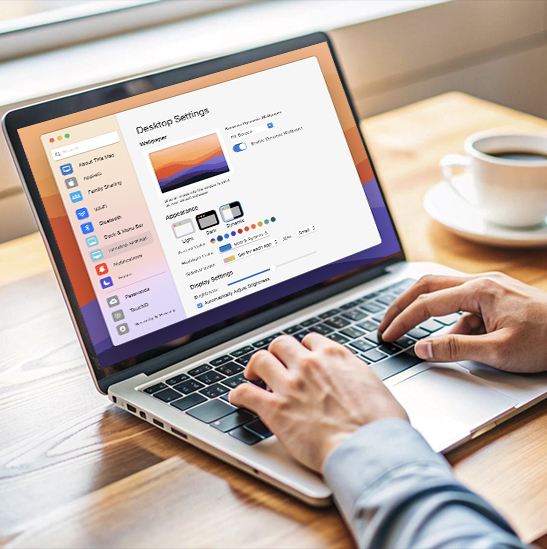
Devices and Components We Check
During the service, our technician reviews system settings and software links that control sound and screen output.

Audio Device Connections
We review speakers, headphones, and sound cards so the operating system can detect audio devices.
Display and Graphics Setup
Graphics drivers and monitor settings are checked so the screen can display images without distortion or blank output.
Some sound or display errors may relate to hardware condition, so device age and system version can affect repair results.
Why Choose Z Switch
Z Switch provides trusted virtual tech assistance across the UK to restore sound and screen output on desktops and laptops.
Note: Early fixing of sound or display problems helps prevent further system errors and keeps devices usable for daily work.
Technicians handle audio device errors and display driver problems
virtual service saves time without travel or home visits
Our team of professionals is available 24/7 to help customers
Careful system checks help prevent repeat sound or screen failures
Assistance is available for both device setup and system error correction
Restore Sound and Screen Output on Your Computer Today
Book a virtual service with Z Switch and bring back normal audio and display performance on your desktop or laptop.
Frequently Asked Questions
Sound loss may occur due to driver problems, muted system settings, or audio device errors. A Z Switch technician checks the system and restores the connection between the device and the operating system.
Yes, old or missing drivers can stop the system from communicating with audio or display devices. Updating or restoring the driver often resolves the issue.
Screen flicker or colour distortion may result from graphics driver faults or incorrect display settings. A system check identifies the cause and restores stable display output.
External monitor problems often occur due to display driver faults or incorrect display settings. The technician checks both the driver and system display options.
Desktop/ Laptop Complete Care
£199.00
Support
Hire a Technician
Need immediate technical help? Provide your details below and our team will connect you with an available technician.
Add More Assistance
4 AvailableSelect additional comprehensive care packages for your devices
Added to Cart!
Item added successfully