Announcement from ZSwitch LLC

A slow computer can be frustrating, especially when it affects your daily work, studies, or business tasks. Simple activities like opening files, browsing the internet, or starting your system can take longer than expected. The good news is that most performance issues have common causes and practical solutions. Understanding why your computer slows down is the first step toward fixing it and keeping it running smoothly.
Common Reasons Your Computer Slows Down
Here are some common reasons your computer is slowing down:
1. Too Many Programs Running at Once
When multiple applications run in the background, they consume memory and processing power. Over time, this overload makes your system respond slowly. Many programs also start automatically when you turn on your computer, even if you don’t need them right away.
How to fix it: Close programs you are not using and disable unnecessary startup applications through system settings or task manager.
2. Low Storage Space
Your computer needs free space to function properly. When the hard drive or SSD is almost full, the system struggles to manage files efficiently, which leads to slower performance.
How to fix it: Delete unused files, uninstall unnecessary software, and clear temporary files. Moving large files like videos or photos to external storage or cloud services can help as well.
3. Malware or Unwanted Programs
Viruses, spyware, and unwanted programs often run silently in the background, using system resources and causing delays. These programs may also display ads or redirect your browser.
How to fix it: Install reliable antivirus software and run regular scans. Remove suspicious or unused applications and avoid downloading files from untrusted sources.
4. Outdated Software or Operating System
Old operating systems, drivers, or applications may not work efficiently with newer updates or hardware. This mismatch can result in slow performance, errors, or system crashes.
How to fix it: Keep your operating system and software updated. Updates often include performance improvements, bug fixes, and security enhancements.
5. Too Many Browser Tabs and Extensions
Web browsers can consume a lot of memory, especially when multiple tabs and extensions are active. Heavy websites and add-ons slow down your system, particularly on older computers.
How to fix it: Close unused tabs, remove unnecessary extensions, and clear browser cache regularly. Consider using a lighter browser if performance issues persist.
6. Hardware Limitations
Older hardware may struggle to keep up with modern software requirements. Limited RAM, an aging hard drive, or outdated processors can significantly affect speed.
How to fix it: Upgrading hardware, such as RAM or switching from a hard drive to an SSD, provides a noticeable performance boost. If upgrades are not possible, adjusting usage habits helps.
7. Overheating Issues
When a computer overheats, it may slow down to protect internal components. Dust buildup, poor ventilation, or constant heavy usage can cause overheating.
How to fix it: Clean air vents and fans, ensure proper airflow, and avoid placing your computer on soft surfaces that block ventilation. For laptops, cooling pads can be helpful.
Simple Steps to Speed Up Your Computer
- Clean Up Your System: Remove temporary files, old downloads, and unused applications. Built-in cleanup tools can automate this process and free up valuable space.
- Manage Startup Programs: Reducing startup programs shortens boot time and improves system responsiveness. Only allow essential programs to start automatically.
- Restart Your Computer Regularly: Restarting clears temporary memory and stops unnecessary background processes.
- Check for Software Updates: Enable automatic updates for your computer and essential software to stay current.
- Upgrade When Needed: Upgrading RAM or storage can be a cost-effective solution if performance issues persist.
When to Seek Professional Help
If your computer remains slow after basic fixes, professional assistance can identify deeper issues such as hardware faults, system corruption, or advanced malware. Experts can optimize your system, recommend upgrades, and prevent future problems.
Preventing Slowdowns in the Future
- Install only trusted software
- Avoid unnecessary downloads
- Keep your system updated
- Run regular security scans
- Perform routine cleanups
Consistent maintenance keeps your computer running efficiently and extends its lifespan.
Final Thoughts
A slow computer doesn’t always mean it’s time for a replacement. In many cases, simple adjustments and regular care can restore performance and make daily tasks smoother. By understanding the causes and applying the right fixes, you can enjoy a faster, more reliable system without unnecessary stress.
Expert Assistance Setup, Support, Sorted Stay Connected..
Our team of experts is here to provide all sorts of assistance needed to tackle modern-day technology. Get hassle-free assistant services for all your devices.
15k+
Tasks Completed
4.8
Client Rating
24/7
Availability
Technology Assistance
Help with devices, internet, printers, and applications.
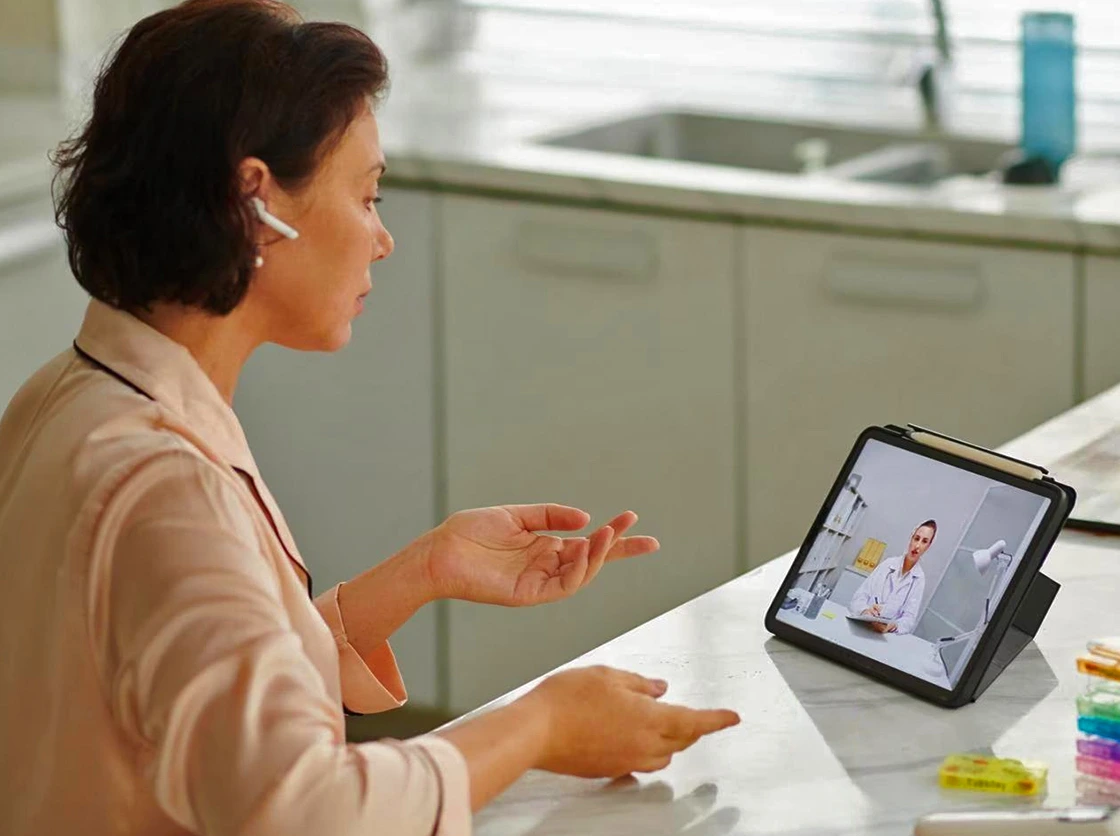
Health & Care Assistance
Book GP visits and manage NHS services online.
Daily Living Assistance
Organise shopping, schedules, reminders, and home services.
Bill & Document Organisation
Manage bills, payments, reminders, and provider switching.
Common Tasks We Help With
Choose a common task below to get quick virtual assistance with everyday technology and online services.

Setting up smart devices

Book a GP appointment

Calendar and e-meetings help

Email setup on smartphone or tablet

Public service & gov website help

Set up PC, smartphone, smart TV, etc.

Fix internet connection problems

Resolve printer or scanner issues

Help install or fix mobile apps

Order household items online

Bill payments and reminders

Help switch utility providers online

Help avoid online scams

What You Get With Complete
Virtual Assistance
Overview
Complete Virtual Assistance includes all sorts of assistance the customers can avail via Phone Assistance, Chat Assistance. It includes assistance with all smart devices owned by the customers.
Service Cost and Tenure
Total Price: 249.99 (Valid for 12 months) Unlimited assistance sessions No Auto-Renewal or Direct Debit
Device Coverage
All Smart Devices owned by the customer are covered under this service. Includes phone, tablet, laptop, smartwatch, smart TV, Google Home, etc.
Other Benefits
The service is not limited to Technical Assistance; it also includes Daily Life Assistance, such as using Public Service websites, NHS Apps, Ordering Repeat Prescriptions, Managing Emails, e-Meets, and e-Calendars, ensuring complete coverage for 12 months.
Still have questions?
Contact our Executives, and they will be able to answer all your questions about Virtual Assistance.
£ 249.99
Our Complete Virtual
Assistance Services

Technology Assistance
6,000+
Devices Assisted
98%
Issue Resolution
24/7
Availability

Health & Care Assistance
3,500+
Appointments Booked
1,600+
Prescription Orders
4.8
Client Rating
Daily Living Assistance
4,000+
Tasks Completed
97%
Client Satisfaction
24/7
Availability
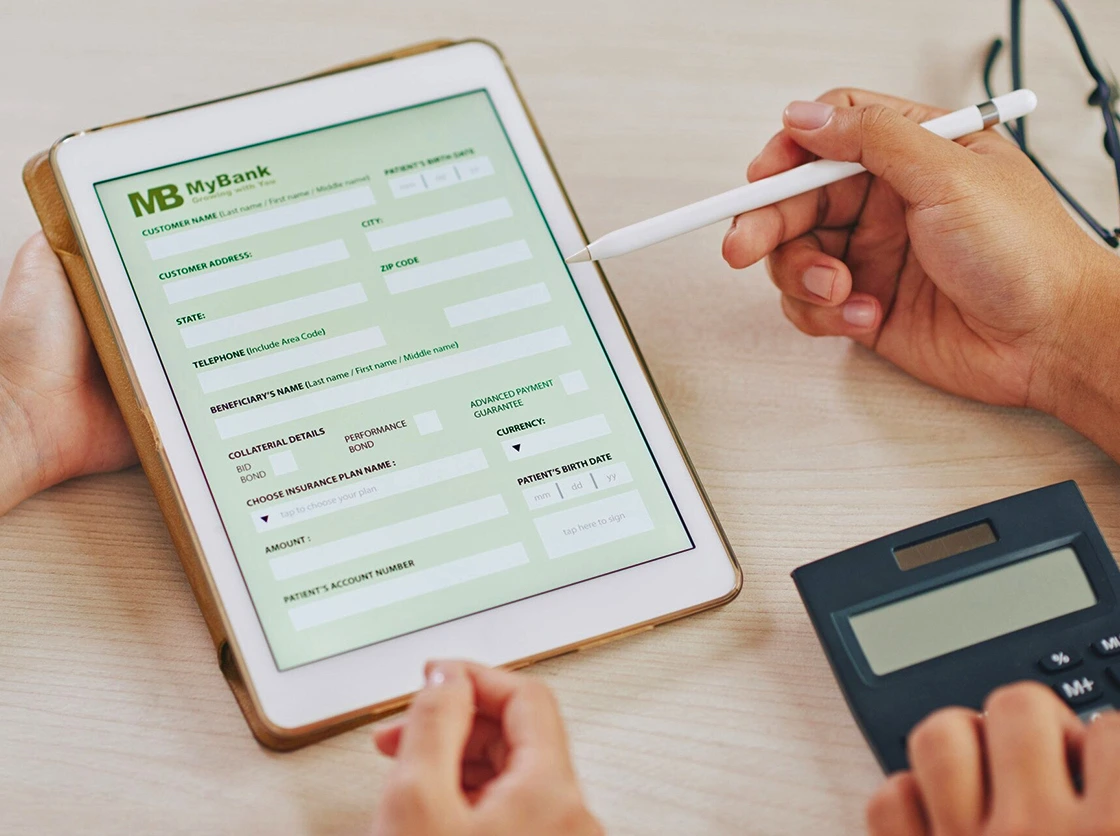
Bill & Document Organisation
5,500+
Bills Managed
3,200+
Provider Switches
4.8
Client Rating
Client Experiences With
Z Switch
"Z Switch helped me book NHS appointments and organise my bills online. The assistant stayed patient and solved everything quickly. I highly recommend this service."

Oliver Bennett
Retired Teacher, Manchester
"I struggled with printer setup and online grocery orders. The assistant guided me step by step and completed both tasks in one session. Excellent service."
Emily Clarke
Office Administrator, Birmingham

"They helped my father use the NHS app and order prescriptions online. The assistant explained every step clearly and made the process simple."

James Walker
Care Coordinator, Leeds
"I booked this service to organise bill reminders and switch energy providers. Everything was done quickly and saved me money each month."
Sophie Turner
Small Business Owner, London

4.8
Our Client
(5k + Reviews)
Customer experiences
that speak for themselves
Knowledge Base & Guides
Helpful Guides & Articles

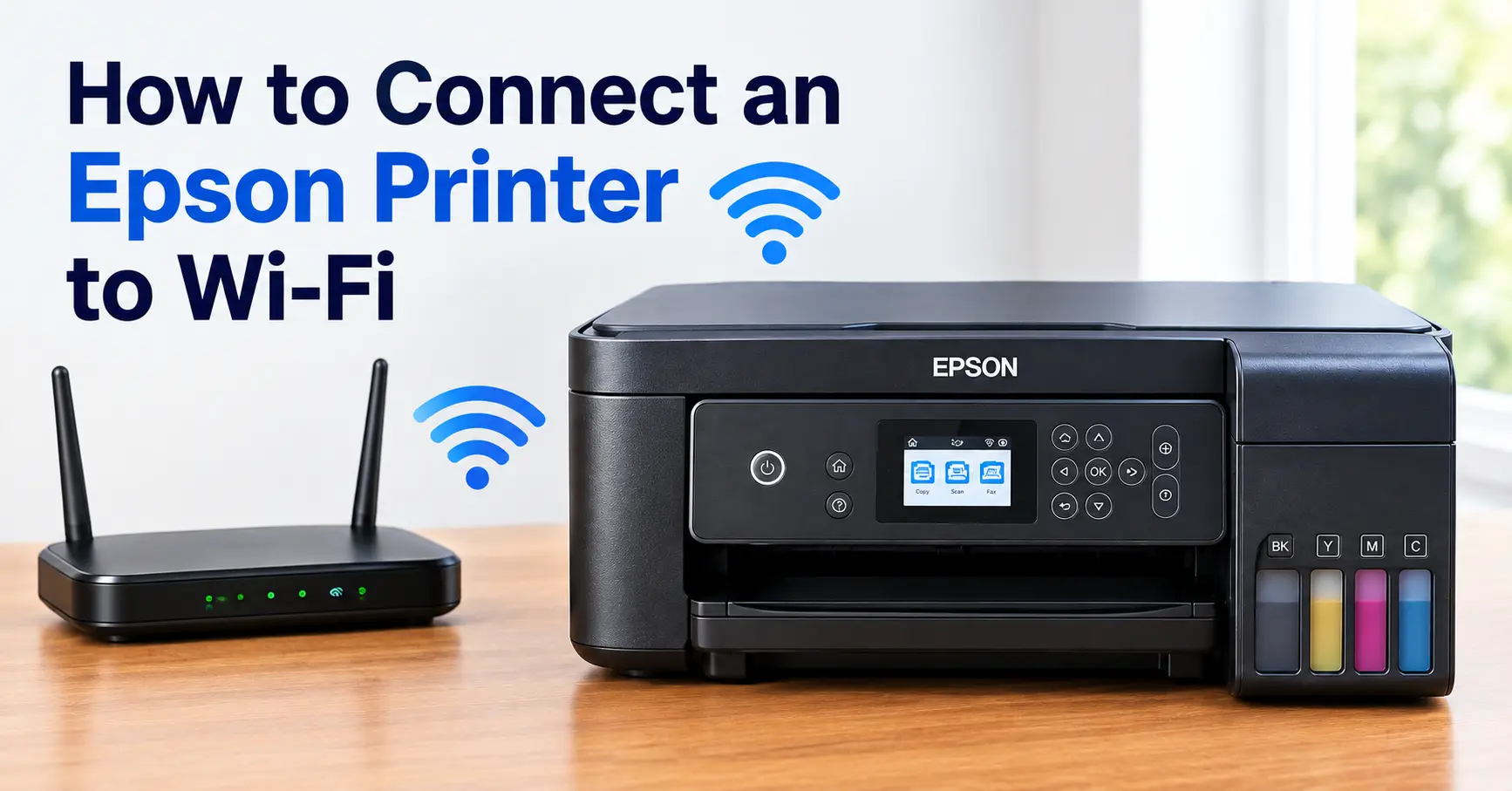
Sep 19, 2026
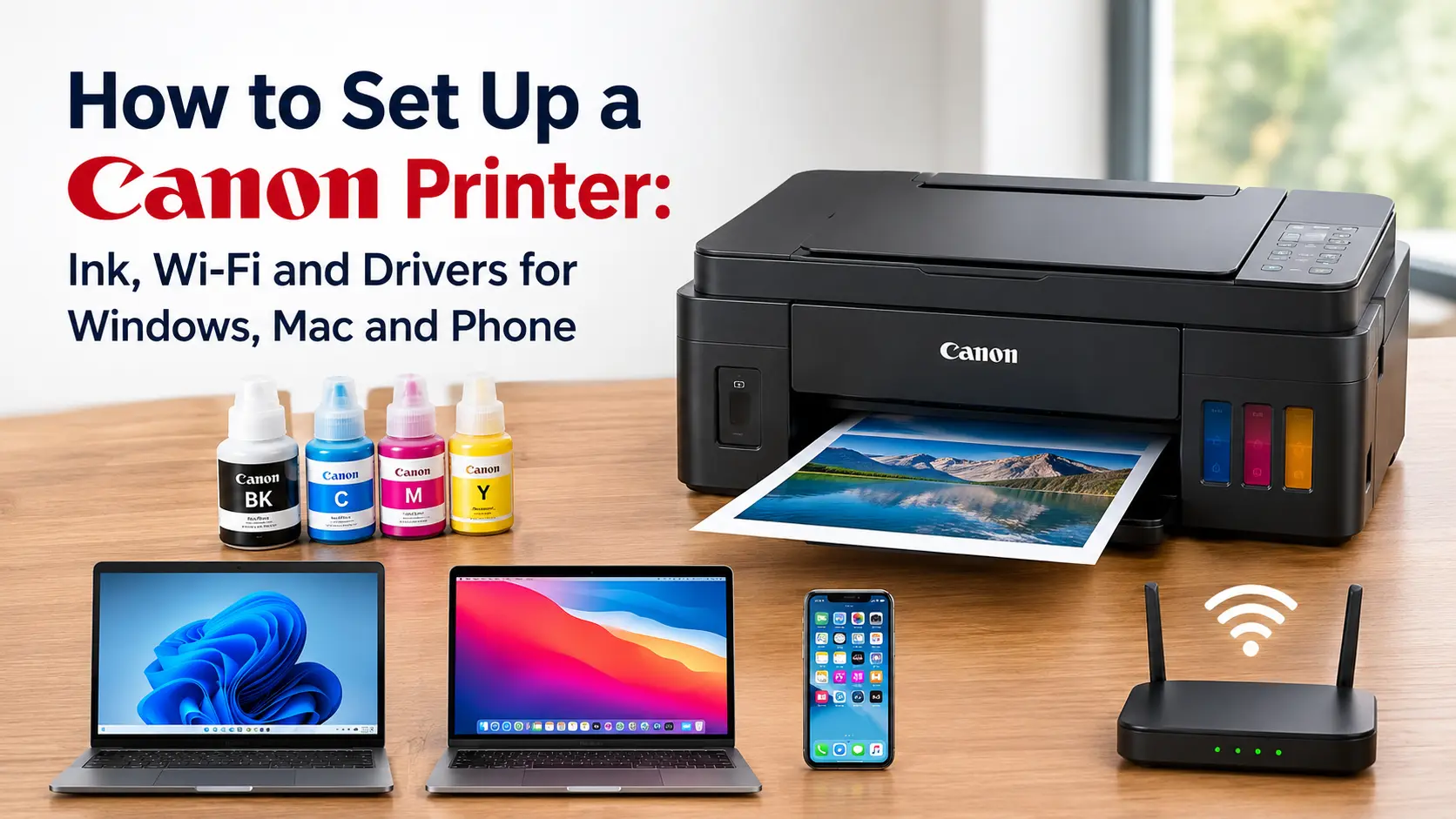
How to Connect an Epson Printer to WiFi?
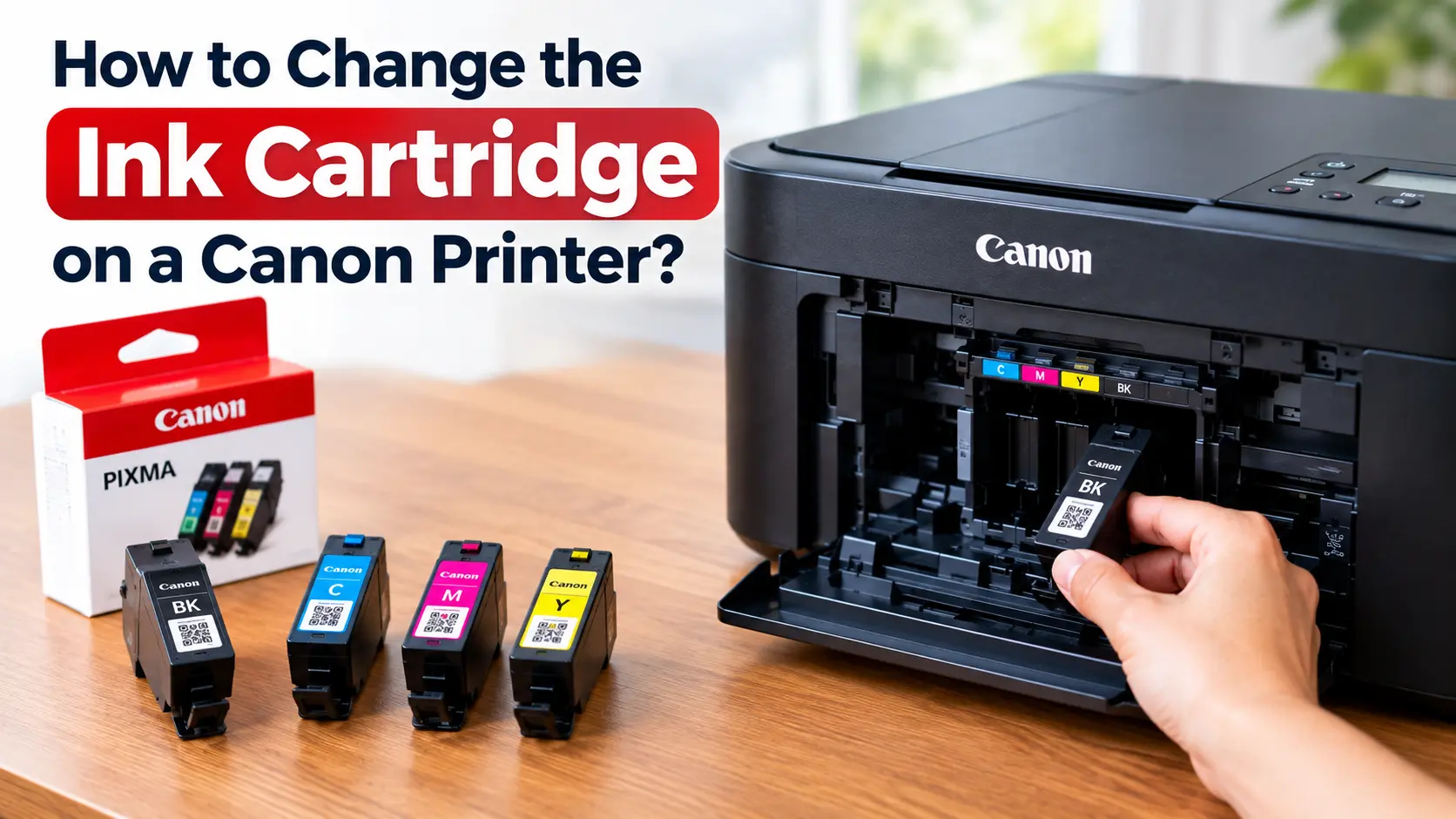

Sep 12, 2026
How to Replace Toner in a Brother Printer?
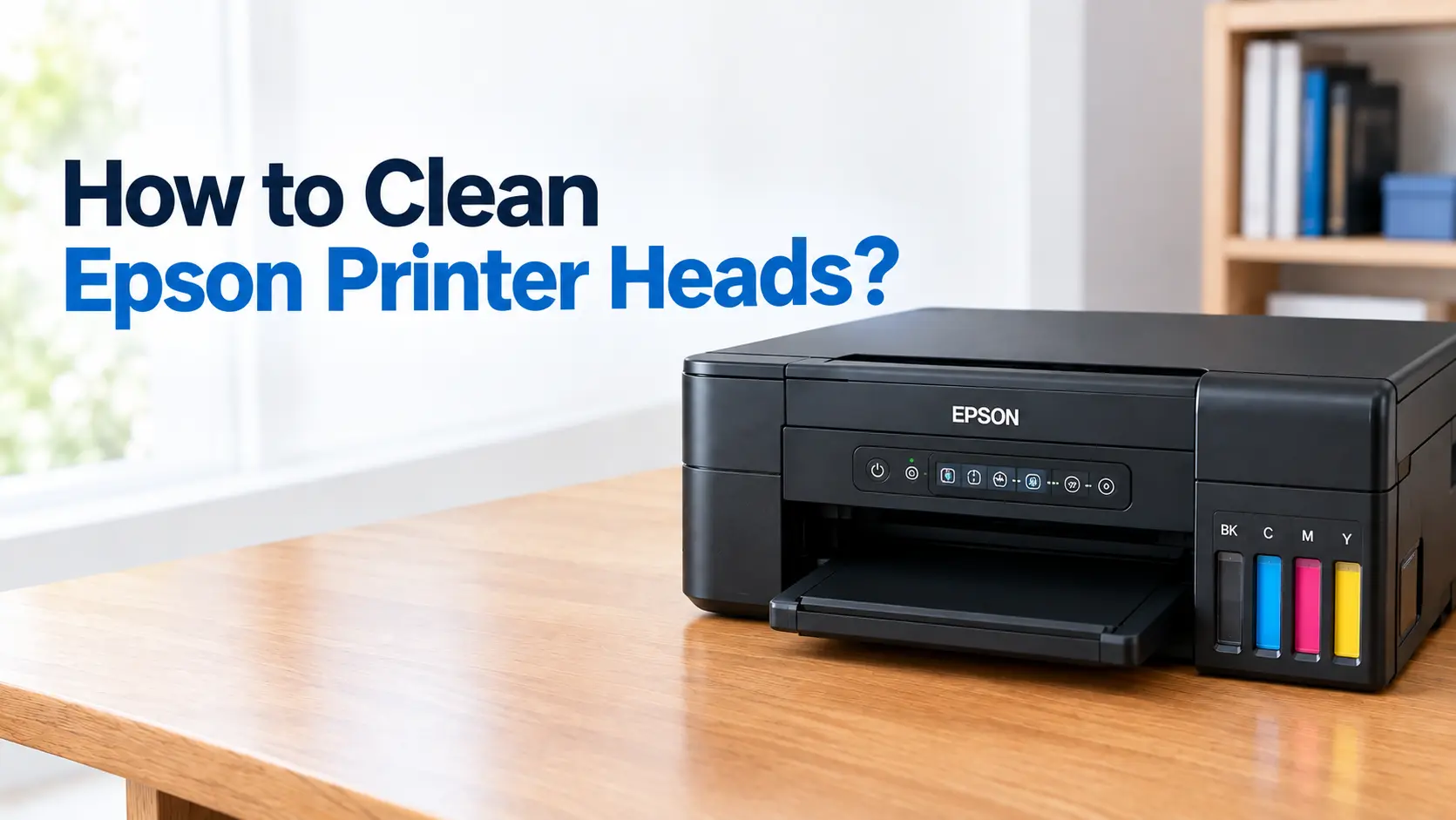
Sep 12, 2026
How to Clean Epson Printer Heads?
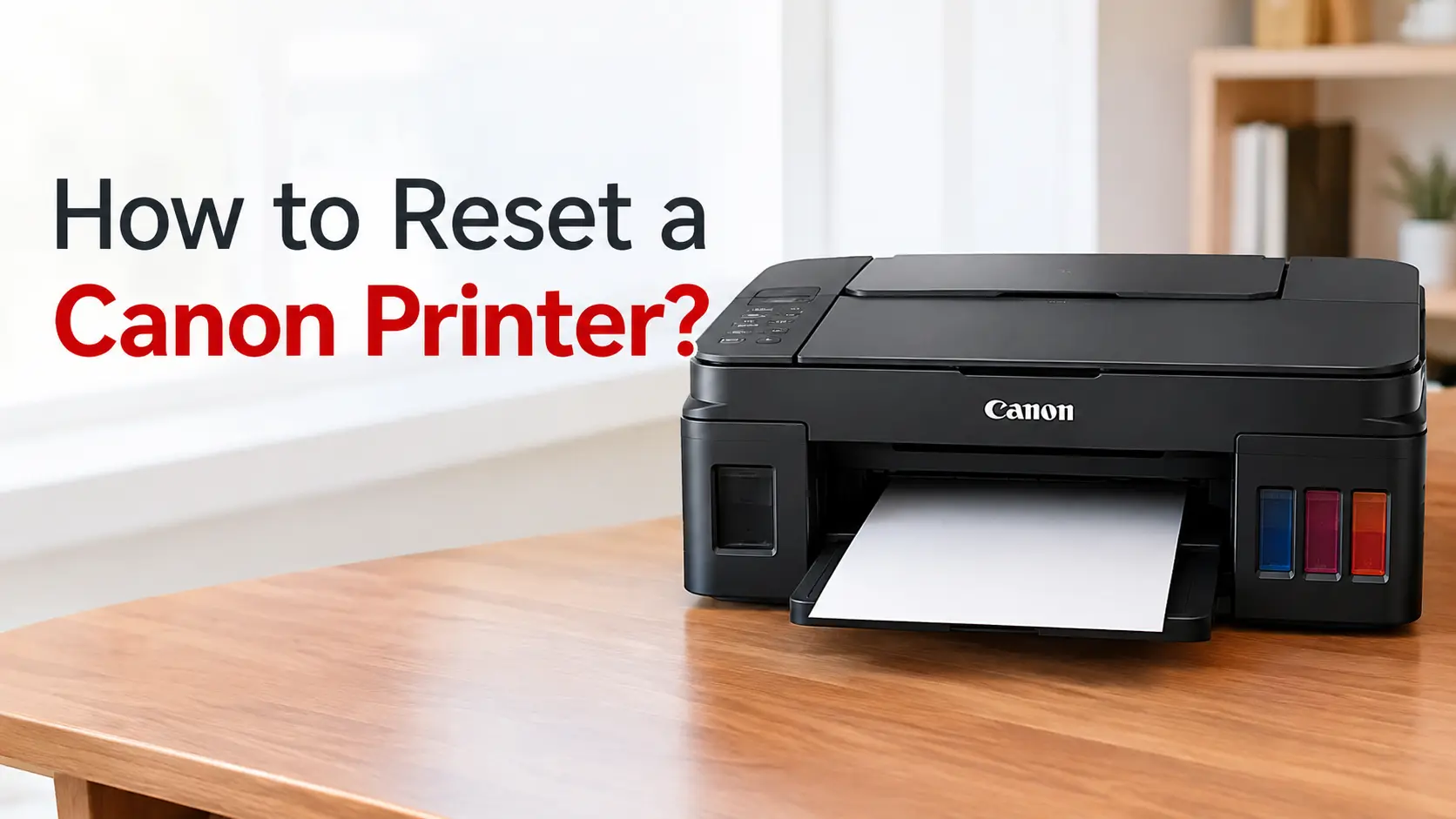
Sep 12, 2026
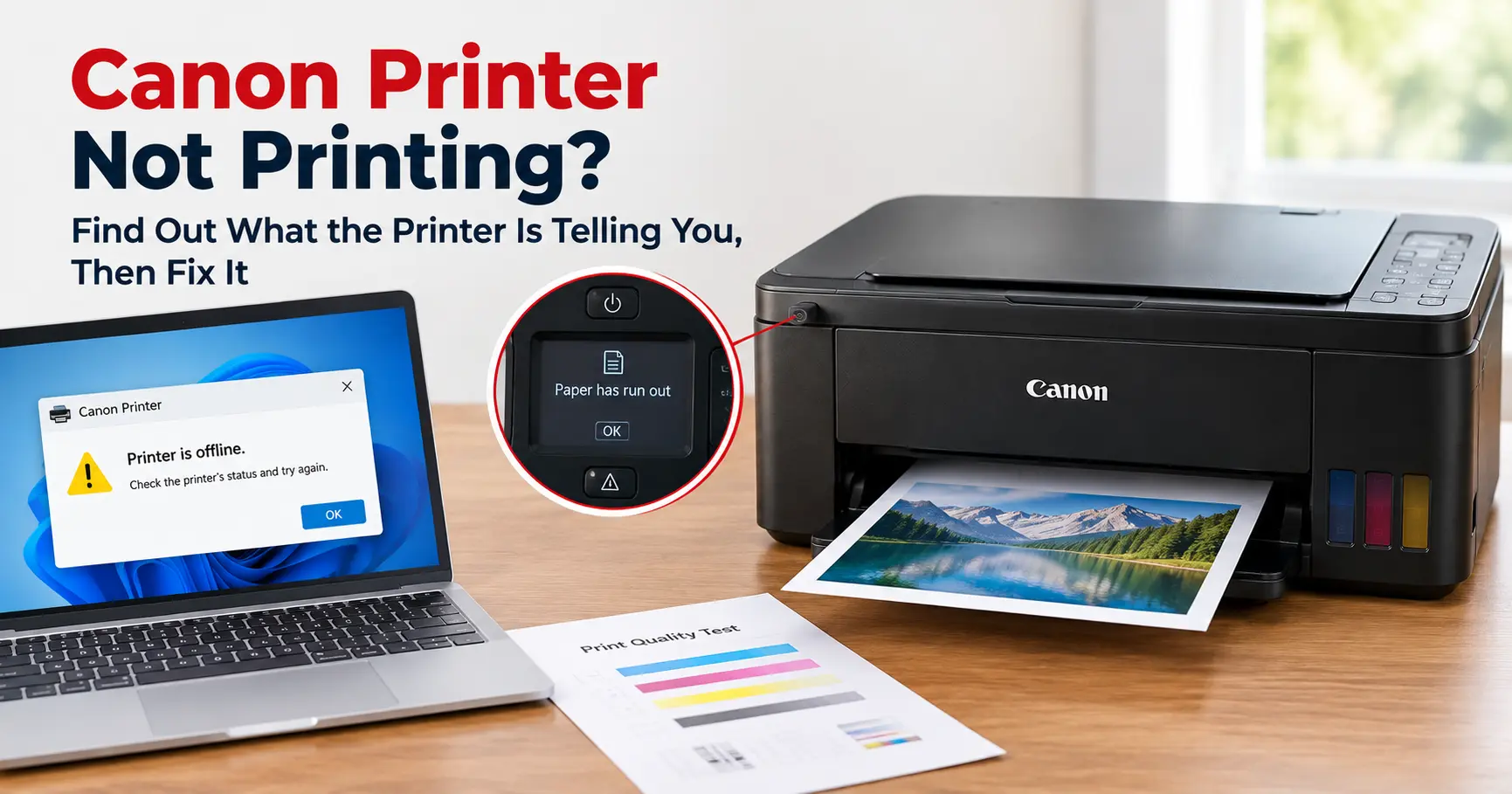
How to Reset a Canon Printer?
Support
Hire a Technician
Need immediate technical help? Provide your details below and our team will connect you with an available technician.
Add More Assistance
4 AvailableSelect additional comprehensive care packages for your devices
Added to Cart!
Item added successfully