
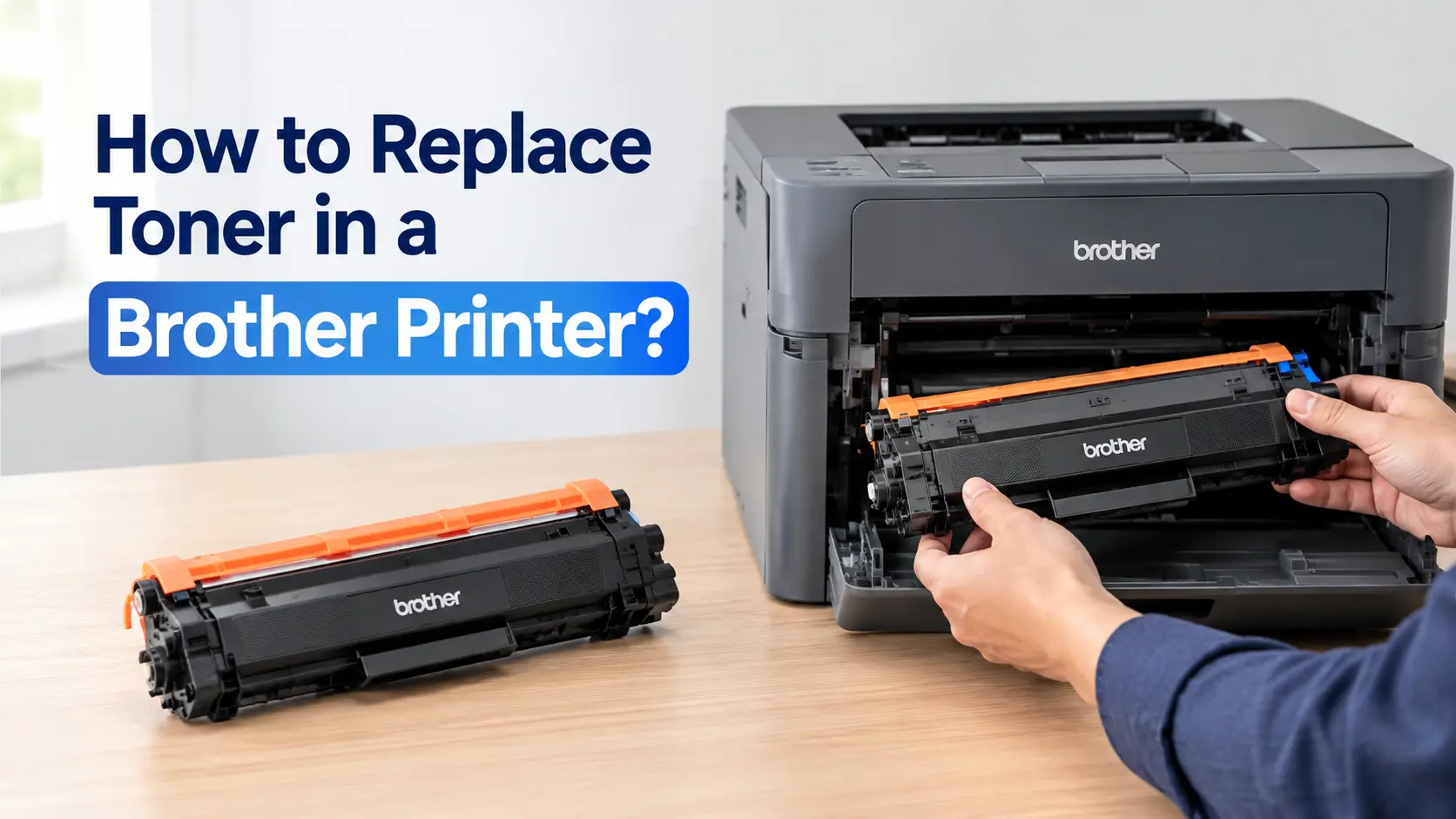
Replacing toner in a Brother printer means opening the front cover, sliding out the drum unit as one piece, unclipping the spent toner cartridge from it using the coloured locking lever, and clicking a fresh cartridge into that same drum unit before sliding the whole assembly back in. It takes about five minutes once you've done it once. The one step that catches almost everyone out the first time is the sealing tab on the new cartridge: pull it out at an angle instead of dead straight and it tears, leaving a strip of tape wedged inside that blocks toner from reaching the drum, so your first few pages print pale or patchy for no obvious reason.
Brother's design is worth understanding before you start, because it's genuinely different from Canon or HP's all-in-one cartridges. The toner cartridge (the part with the powder) and the drum unit (the part that actually transfers the image onto paper) are two separate components that happen to lock together and come out of the printer as one assembly. When the control panel says "Replace Toner", in the vast majority of cases you're replacing the toner cartridge only, not the drum. Confusing the two is the most common expensive mistake: buying a full drum-and-toner kit when a £40-50 toner cartridge would have done the job.
What you'll need
- The correct toner cartridge for your exact model (check the code printed inside the front cover or on the old cartridge, not just the printer model, since Brother sells both standard and high-yield versions of the same cartridge)
- A sheet of newspaper or scrap paper to work over, since a small amount of loose toner dust is normal
- About five minutes, and somewhere with reasonable light so you can see the release levers
You do not need gloves for most Brother cartridges, but toner powder is a genuine fine particulate (particle size typically in the 5-8 micron range), so if you do spill any, vacuum it with a vacuum cleaner rather than wiping it with a damp cloth, which tends to smear it into carpet or clothing rather than lifting it out.
Step-by-step: replacing the cartridge
- Open the front cover. Leave the printer switched on; Brother printers don't need to be powered off for this.
- Pull out the drum unit and toner cartridge together. They slide out as a single grey/black assembly using the built-in handle. Set it down on your scrap paper.
- Find the coloured locking lever on the left side of the assembly (green on most mono models, orange on some, silver-grey on colour models). Push it down; this unlocks the toner cartridge from the drum.
- Lift the old toner cartridge out. Don't touch the bright green or teal roller running along the underside of the drum unit itself, that's the photosensitive (PC) drum, and a single fingerprint on it can cause a faint vertical smear on every page you print until the drum wears back down or is replaced.
- Unbox the new cartridge and rock it gently side to side five or six times. Toner settles during shipping and transport, and a quick rock redistributes it evenly. Brother's own instructions specifically say to rock, not shake, since vigorous shaking can force powder past the seals.
- Remove the orange protective seal by pulling it straight out, level with the cartridge. This is the step that goes wrong most often. Pulling at an angle tears the tape rather than peeling it cleanly, and a torn strip left inside blocks the toner feed, producing patchy or one-sided pages that look like a fault with the new cartridge when the real problem is a few centimetres of stuck tape.
- Slot the new cartridge into the drum unit until the locking lever clicks back up. You'll feel and hear it seat.
- Slide the combined drum and toner assembly back into the printer and close the front cover. The printer will reset its page counter for that cartridge automatically; no button presses are needed on current models.
Why the toner-and-drum split matters for what you buy
This is where people overspend. A Brother "toner replacement kit" and a "drum unit" are priced very differently, and only one of them is usually needed at toner-low time.
| Part | What it actually replaces | Typical rated life* | When you actually need it |
|---|---|---|---|
| Toner cartridge (e.g. TN-2410, TN-2420) | The powder supply only | 1,200-3,000 pages (ISO/IEC 19752) | Every time the panel says "Toner Low" or "Replace Toner" |
| Drum unit (e.g. DR-2400) | The imaging drum that transfers toner to paper | Around 12,000 pages | Only when the panel specifically says "Replace Drum", or print quality shows repeating marks at a fixed interval down the page |
| Colour toner set (e.g. TN-243/TN-247, one per colour) | Powder for one colour laser printer | 1,000-3,000 pages per colour, varies by colour | When an individual colour runs low; you can usually replace just that one colour |
*Rated life figures are Brother's own ISO/IEC 19752 standard-page-coverage estimates (5% page coverage), the same industry test HP, Canon and others use, so real-world yield depends heavily on what you print. A page of dense graphics will empty a cartridge far faster than a page of sparse text.
TN-2410/TN-2420 and DR-2400 cover the common HL-L2350DW, HL-L2370DN, DCP-L2530DW and MFC-L2710/L2750DW range sold in the UK; older compact models like the HL-1110 or DCP-1610W use the smaller TN-1050 and DR-1050 pairing instead. Always check the code physically printed on your current cartridge rather than assuming from the printer model number, since Brother has changed cartridge families across several printer generations that otherwise look similar.
"Toner Low" versus "Replace Toner": how much runway you actually have
Brother printers give two separate warnings, and they mean different things in practice. "Toner Low" is an early warning, generated by the chip's internal page counter, and you typically still have several dozen to a couple of hundred pages left depending on the model and what you're printing. "Replace Toner" (sometimes shown as a solid warning rather than blinking) means the chip has decided the cartridge is genuinely spent, and on most current Brother models the printer will stop rather than let you push on regardless.
Some older and business-class Brother models have a hidden setting, usually under Menu > General Setup > Replace Toner, that lets you choose "Continue" instead of "Stop", which keeps printing past the warning until quality visibly degrades (streaking, fading down one side). It's a genuinely useful setting if you're caught out without a spare, but it isn't available on every model, and running a cartridge to complete exhaustion this way slightly increases the risk of toner dust reaching the drum unit's internal seals.
Genuine Brother toner versus compatible cartridges
Brother, like most laser printer makers, builds authentication into the toner chip. Fit a non-Brother cartridge and most models will still print, but the control panel and printer software will show a message noting it's a non-genuine supply and that print quality or cartridge life "cannot be guaranteed." This is a warning rather than a hard lockout on the vast majority of Brother home and small-office models, which sets Brother apart from some rival manufacturers whose firmware has, at various points, refused to print at all with third-party cartridges. Whether that stays true depends on the firmware version installed, since manufacturers do periodically push updates that tighten or loosen this behaviour.
| Option | Typical UK cost (single cartridge)** | Trade-off |
|---|---|---|
| Genuine Brother toner | £45-75 depending on standard vs high-yield | Consistent yield and colour accuracy; chip never flags a warning |
| Compatible (third-party, new-built) | £15-30 | Usually fine for text; some cheaper brands run out well before their claimed page count |
| Remanufactured/refilled | £10-25 | Most variable in quality; refilled seals occasionally leak toner inside the printer over time |
**Prices are general UK retail guidance at time of writing, not live figures, and swing with retailer and promotional pricing.
If you print mostly text and cost per page matters more than absolute print quality, a reputable compatible cartridge from an established brand is a reasonable trade. If you're printing anything client-facing or photo-adjacent on a colour model, genuine cartridges remain the safer bet, since Brother calibrates its own toner's colour density against its own drum and fuser assembly.
When a new cartridge doesn't fix the problem
If you've fitted a new cartridge and the printer still shows "Replace Toner" or "Unable to Print," check, in order: that the sealing tab was actually removed (reopen the cover and look for a dangling orange strip), that the locking lever fully clicked up rather than resting half-engaged, and that the drum-and-toner assembly is pushed all the way in until it seats against the internal stop, since the interlock switch that tells the printer "cover closed and cartridge present" won't register from a half-inserted unit. Faint vertical white lines running the full length of the page, rather than patchy fading, usually point to a scratch on the drum rather than a toner problem, in which case a new toner cartridge won't resolve it and the drum unit itself needs replacing.
Disposing of the old cartridge
Toner cartridges shouldn't go in general household waste in the UK; they fall under WEEE (Waste Electrical and Electronic Equipment) regulations because of the electronic chip and metal components inside. Brother runs its own UK take-back scheme, Brother GreenWorld, and most cartridges also qualify for drop-off recycling at large stationery retailers or local council recycling centres that accept small electricals. Keep the cartridge in the bag the new one shipped in until you can recycle it; a used cartridge still holds a small amount of loose toner that will happily find its way into a car boot or bag if left uncontained.
Related Guides
Is Your Printer Lying About Being Low on Ink? How to Fix It - the ink-cartridge equivalent of the "Toner Low" versus "Replace Toner" distinction covered above, useful if you also run an inkjet alongside your Brother laser.
Why Is My Printer Printing Blank Pages? - the wider troubleshooting guide for the patchy or blank output described in the seal-tab mistake above, for when a page comes out empty rather than just faded.
Brother Printer Offline: How to Get It Back Online - worth a look if your Brother machine drops offline after a cover open/close during cartridge replacement, which resets some models' connection state.