
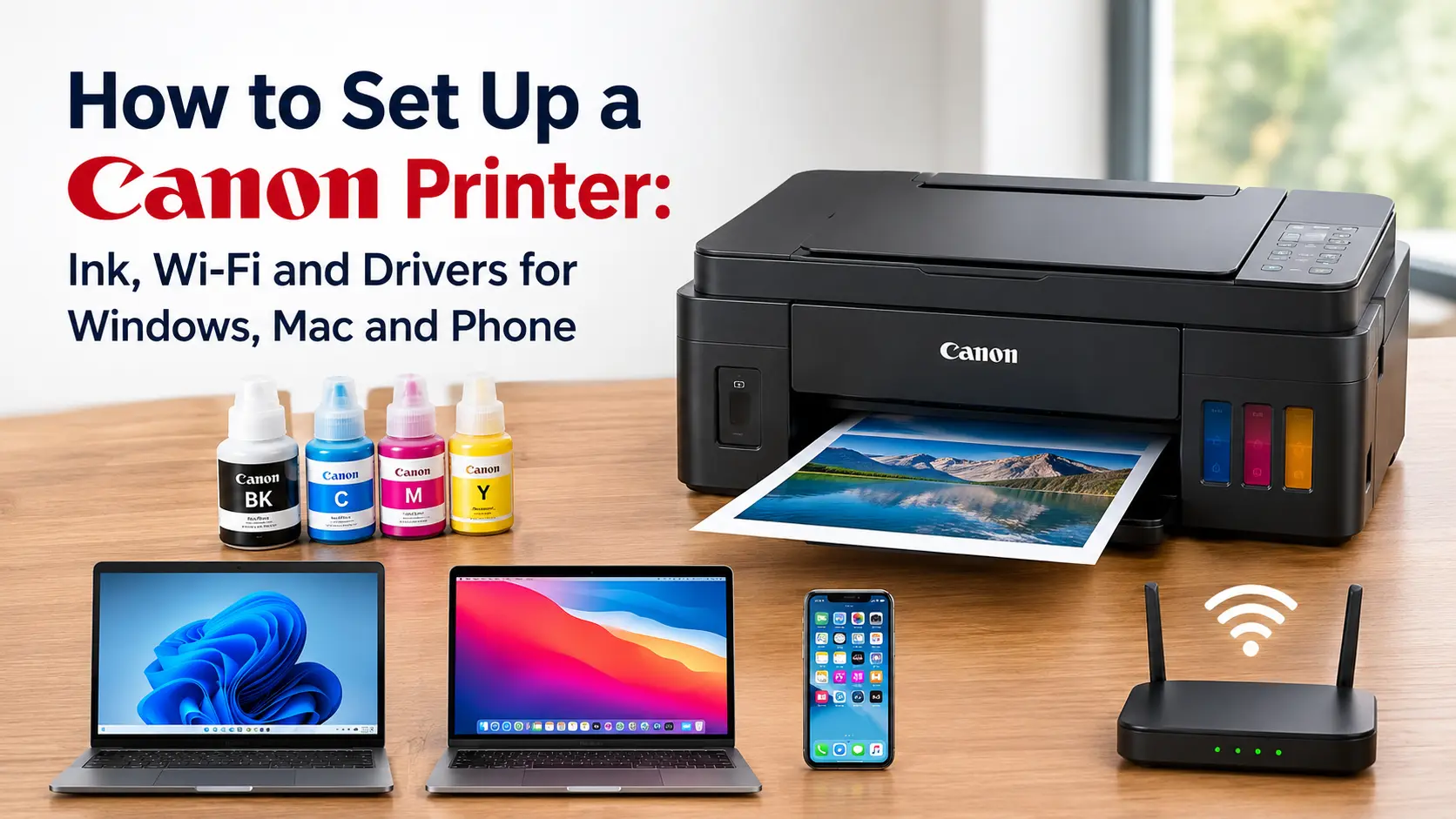
To set up a Canon printer, finish the printer's own setup before you touch a computer. Pull out every strip of orange tape, fit the ink (cartridges, or print heads and then bottled ink on a MegaTank), load A4 plain paper and let it print and scan its alignment sheet. Then type ij.start.canon into a browser, enter your model and run the setup file it gives you. On a phone, install the Canon PRINT app instead. That one download puts the printer on your Wi-Fi and installs the driver in the same pass.
Allow about half an hour. A fair chunk of that is waiting while the printer primes its ink, and it can't be rushed. When a Canon setup goes wrong, it nearly always comes down to tape left inside, a router steering the printer onto 5GHz, software from a lookalike website, or a computer that isn't on the same network as the printer. The sections below follow the order you'll run into each of those.
Two decisions to make before you cut the tape
Where the printer will live
Pick its permanent spot first, for two reasons.
Wi-Fi range on the right band. Many Canon home printers connect on 2.4GHz only. Canon UK's own spec sheet for the PIXMA TS5350i lists a single frequency band: 2.4GHz. A few models, such as the PIXMA TS8300 series and MAXIFY GX4000 series, can also use 5GHz, but if your spec sheet doesn't say so, assume 2.4GHz. The 2.4GHz band reaches further through walls than 5GHz, so a printer one floor away from a BT Smart Hub is usually fine. One at the far end of a long extension may not be.
MegaTank printers shouldn't move once they're full. A PIXMA G-series printer (Canon's MegaTank range, such as the G3570) holds bottled ink in open tanks, and Canon's manuals warn that ink can leak if the printer is tilted or turned on its side after filling. Carry it to the spare room before you pour, not after.
How it will connect
The installer asks this early, so decide now.
| Connection | Best for | The catch |
|---|---|---|
| Wi-Fi via your router | A household or office where several laptops and phones share one printer | Every device has to be on the same network as the printer, not a guest network or an extender with its own name |
| USB cable | One computer at one desk | Phones can't use it, and don't assume there's a cable in the box. Check before you plan around it |
| Ethernet (models with a LAN port) | A printer sitting near the router or a network switch | The steadiest option, with nothing to drop out. Most cheaper PIXMA models have no port |
| Wireless Direct | Printing from a phone where there's no router at all | While your phone is linked to the printer, it has no internet. A fallback, not a daily setup |
Can you change your mind later? On PIXMA and MAXIFY inkjets, yes: run the ij.start.canon setup again and pick the other connection. On i-SENSYS lasers it's more of a chore. Canon says switching between wired and wireless means uninstalling and reinstalling the drivers on each computer.
The printer's half: tape, ink, paper, alignment
Do this part with the printer plugged in and switched on. The screen (or the setup leaflet on screenless models) walks you through it, but these are the moments that trip people up.
- Remove all the packing material, including the bits you can't see. Take off the outer tape, then open the scanner unit and look around the print head holder. Canon tucks protective pieces in there. If one stays put, the holder can't move and setup stops dead with a support code.
- Fit the ink the way your model expects.
- Cartridge PIXMA models (TS and TR series): pull the protective tape off each cartridge, then press it in until it clicks.
- MegaTank models (G series): install the two print heads first, push the locking cover all the way down, then fill each tank with the matching colour bottle, checking the colour label on each tank as you go. Ink in the wrong tank isn't a quick fix.
- Leave it alone while it primes. The printer charges the ink lines and goes quiet when it's done. Canon gives about 4 to 5 minutes for one cartridge model, and TechRadar's review of the G3270 (the US twin of the G3570) puts the MegaTank wait at about 7. Don't switch it off or open a cover to hurry it along.
- Load A4 plain paper and run the alignment. Many models print a print head alignment sheet, then ask you to place it on the scanner glass, printed side down, with its corner mark lined up against the mark on the glass. Keep the lid shut until the scan finishes. On models with both a rear tray and a front cassette, check which one the screen asks for, because some only print the alignment sheet from the cassette.
The printer keeps asking what paper you've loaded. Why? Models with a cassette ask you to register the paper size and type each time you load paper. Canon calls this Register paper information. Set it to A4 and plain paper. It feeds a check called Detect paper setting mismatch, which stops a job when your computer asks for one paper and the printer holds another. That check saves wasted photo paper. If you only ever print on A4, you can switch it off in the printer's feed settings and lose nothing.
Support codes at this stage
If a code appears before setup has even reached the software, it's almost always physical:
| Code | What Canon says it means | What to do |
|---|---|---|
| 1890 | Tape or protective material is still on the print head holder | Open the cover, find it, remove it, close the cover |
| 5100 | Something is stopping the print head holder from moving | Switch off, clear any tape or paper in the holder's path without touching the clear film strip or white belt, check the ink is seated, switch back on |
| 1470 (MegaTank) | The print head isn't installed properly | Press the print head locking cover and joint buttons firmly down |
| 1472 (MegaTank) | The print head can't be recognised | Check the orange label and tape are off the head, then reinstall it |
| 2900 | The alignment sheet couldn't be scanned | Check the sheet's position and direction on the glass, wipe the glass, reload A4 and try again |
If 5100 comes back after you've cleared everything, Canon treats it as a service fault rather than a setup problem. Any other code or flashing pattern is covered in our guide to a Canon printer showing an error and not responding.
The software half: ij.start.canon, and what to click in the installer
Get the file from the right address
Type ij.start.canon straight into the address bar. It ends in ".canon": no "www", no ".com". Search for "ij start canon" instead and you'll find pages using Canon's logo and printer photos that aren't Canon at all. Some are tied to a well-documented scam: the "driver" fails, an alarming error appears, and a chat window offers to fix it for a fee, sometimes with remote access to your computer. Gizmodo reported on FTC complaints about exactly this in 2022, and Canon's community moderators still warn about it. Canon's setup software is free. Nobody legitimate needs your card details to install a printer driver.
On the real site, enter your model (it's printed on the front or top of the printer, something like TS5350i or G3570), choose your computer's operating system, download the setup file and run it. The leftover CD in the box is the same software, only older, and most laptops sold now have no drive to read it.
Using USB? Don't plug the cable in until the installer tells you to. Windows grabs a printer the moment it appears, and a cable connected too early can leave you with two half-configured copies of the same printer.
The prompts you'll meet, and what to choose
| Installer screen | What it's actually asking | Sensible choice |
|---|---|---|
| Connection method | Wi-Fi, USB or (on some models) wired LAN | Whatever you decided above |
| Extended Survey Program | Permission to send Canon your printer's usage data. Canon's manuals say it sends monthly, for roughly ten years if left installed | Do not agree unless you want to help. Canon states your choice makes no difference to how the printer works |
| Software installation list | Optional extras alongside the driver, such as photo layout and scanning tools | Keep the driver and the scan utility. Untick what you know you won't use. You can add them later |
| PIXMA Print Plan (models ending in "i") | Canon's ink subscription | Optional. See the costs further down before you sign up |
| Administrator password | Appears if the setup needs to change the printer's network settings | On most models it's the printer's serial number, from the sticker on the printer. More below |
It's asking for a printer password you never created. Canon sets one at the factory, and which one you have depends on the model. A handful of older models use canon with the user name ADMIN. Most use the printer's serial number. Some use a random string. Print the network settings page (below) and look for the Default Password line, or check System information on models with a screen. If a previous owner changed it, a LAN settings reset is the way back in.
Getting the printer onto your Wi-Fi
On most models, the installer handles this with a method Canon calls cableless setup (or Easy Wireless Connect). When prompted, you press and hold the printer's wireless button (about three seconds on the TS5350i's Wireless Connect button), and your computer or phone briefly connects straight to the printer to hand over your network name and password.
That brief handover is where cableless setup fails, so prepare for it:
- Pause any VPN. It can drag your computer off your home network mid-handover.
- On a phone, turn off mobile data so it doesn't wander off the moment it loses internet. Allow location access when Canon PRINT asks. Canon says the app needs it to search for printers and routers.
- A desktop PC with no Wi-Fi adapter of its own can't do the handover. Use the printer's screen, the router's WPS button, or the Canon PRINT app on your phone to get the printer online, then run the installer on the PC afterwards.
- If your router shows one network name for both bands, which most BT, Sky and Virgin Media hubs do by default, a 2.4GHz-only printer can struggle to join. Turning 5GHz off for ten minutes during setup usually fixes it, and the printer stays on 2.4GHz afterwards.
Printers with a screen can also join from their own menu: pick your network from the list, type the Wi-Fi password (case matters) and confirm. The WPS push-button route works too, though Canon's manuals warn WPS may not work when the router's security includes WPA3.
All of that, including WPS quirks, hidden networks and screenless button sequences, is covered step by step in how to connect a Canon printer to Wi-Fi.
How do you know it actually connected? A steady Wi-Fi lamp is a good sign, but print the network settings page to be sure. Canon calls it Print LAN details or Print details, under the LAN settings menu on screen models. You want Connection: Active, your own network name in the SSID line, and an IPv4 address like 192.168.1.x. An address starting 169.254 means the printer joined but never got an address from the router. Keep this printout: it also holds the IP address and default password you might need later.
Adding the printer to your other devices
Once the printer is on the network, each device needs telling it's there. How much software that takes depends on the device:
| Device | Do you need Canon's software? | How to add it |
|---|---|---|
| Windows 11 or 10 laptop | Optional for printing, recommended for scanning and full settings | Run the ij.start.canon setup on that laptop, or add it under Settings > Bluetooth & devices > Printers & scanners |
| Mac | Usually not | System Settings > Printers & Scanners > Add Printer, Scanner, or Fax, then choose AirPrint under Use |
| iPhone or iPad | No | Share > Print in any app (AirPrint). Canon PRINT adds scanning and ink levels |
| Android phone | No | Print from the share menu using Mopria or the Canon Print Service plugin, or use Canon PRINT |
| Chromebook | No, and there's nothing to download | Settings > Device > Printers and scanners. If it isn't listed, add it manually by IP address, using IPP and the queue ipp/print |
Windows: why it may already have added the printer
Since 1 July 2026, Windows 11 prefers Microsoft's own built-in printer driver, the Microsoft IPP Class Driver, over the manufacturer's whenever a printer supports it. In practice, that driver lets Windows print to most current Canon models without Canon's software ever being installed. So don't be surprised if your laptop finds the printer before you've run anything.
Basic printing through that driver is fine. What you may miss are Canon's own print settings and the IJ Scan Utility. To check which driver you've got, open Printers & scanners, select the printer, choose Printer properties and look on the Advanced tab. If it names the Microsoft IPP Class Driver and you want the full Canon set, run the ij.start.canon installer. Microsoft has confirmed that manufacturers' installers still work, and printers already set up keep working.
Mac: no driver to download is normal
Canon's macOS compatibility list (updated January 2026, covering Sonoma, Sequoia and Tahoe) shows most current PIXMA TS, TR and G models and MAXIFY GX models printing through AirPrint, and Canon USA says those models have no Mac driver to download. If Canon's site shows nothing for your Mac, nothing is broken: AirPrint is the driver. Some older PIXMA iP, MG and MX models and MAXIFY MB models still use Canon's CUPS driver, which you install before adding the printer. More detail in how to add a printer to a Mac.
Setting up an i-SENSYS laser instead
Canon's lasers (sold in the UK as i-SENSYS, imageCLASS in the US) don't use ij.start.canon. A few things work differently:
- Software comes from your model's page on Canon UK's support site. On multifunction models, the package is usually called MF Drivers.
- Choose wired or wireless on the printer first, under the network menu's Select Wired/Wireless LAN, for the reason given earlier: switching later means reinstalling drivers.
- For Wi-Fi, pick your router from the printer's Wireless LAN Settings, use WPS, or turn on Easy Connection via PC and let Canon's Laser NW Device Setup Utility configure it from your computer. On the i-SENSYS MF655Cdw, that option sits under Preferences > Network.
- Toner needs no priming, so the printer's half of setup takes minutes rather than the inkjet wait. Do still remove every bit of packing material from a new toner cartridge before fitting it, following the printer's setup guide.
The PIXMA Print Plan prompt: sign up or skip?
Models ending in "i" (TS5350i, TS7450i, TS3550i, TR4750i and newer ones such as the TS7650i and TS4150i) offer Canon's PIXMA Print Plan during setup. Rather than buying cartridges, you pay monthly for a page allowance and Canon posts ink when the printer reports it's running low. Canon UK's current prices:
| Plan | Pages per month | Monthly cost | Cost per year | Cost per page (if you use the allowance) |
|---|---|---|---|---|
| Light Home Printing | 30 | £2.49 | £29.88 | 8.3p |
| Moderate Home Printing | 60 | £3.99 | £47.88 | 6.7p |
| Frequent Home Printing | 100 | £4.49 | £53.88 | 4.5p |
| Home Office Printing | 200 | £8.99 | £107.88 | 4.5p |
Pages over your allowance cost 10p each, and unused pages roll over for one month only.
A few things on that table are worth reading twice:
- The 100-page plan is 50p a month more than the 60-page plan for two-thirds more pages. If you regularly print more than about 55 pages, go straight to 100.
- Every page counts as one page regardless of size or ink coverage. A borderless A4 photo costs the same as a one-line letter. If you print a lot of photos, that's where the plan genuinely pays. If you print mostly short black-text documents, standard cartridges stretch further than the allowance suggests.
- Double-sided printing counts as two pages. Duplex saves paper on this plan, not money.
- The printer has to stay online. Canon requires it to be connected to the internet with auto power-on enabled, so ink levels can be monitored.
- Print Plan cartridges only work while you're subscribed. You can cancel at any time, with no minimum term, but after the billing period ends you'll need to buy standard cartridges to keep printing.
Our take: it's good value for steady, colour-heavy home printing and poor value for the household that prints a boarding pass every couple of months. Skipping it during setup costs nothing, and you can enrol later through the Canon PRINT app.
Switch it off at the button, not the wall
UK sockets have their own switches, and plenty of people turn the printer off there. On an inkjet, don't. When you press the printer's power button, it parks and caps the print head before shutting down. Canon's manuals warn that cutting the power before the lamp goes out can leave the head to dry and clog, and that shows up later as streaks and missing colours.
Leaving it on standby costs very little. Canon UK rates the TS5350i at about 1.7W on standby with everything connected. That's roughly 15kWh a year, or under £4 at around 25p per kWh. The printer sleeps on its own, wakes when a job arrives, and stays reachable for every device in the house. If you've joined the Print Plan, it has to stay powered anyway.
If setup stalls
| What you're seeing | What's happening | Fix |
|---|---|---|
| A support code before the software starts | Packing material, or ink/print heads not seated | See the support code table above |
| "The printer could not be detected on the network" | The computer and printer can't see each other | In Canon's order: restart both printer and router, then click Redetect. Check the LAN details printout shows Active. Allow Setup.exe through your firewall. Turn off MAC filtering and the router's privacy separator (also called AP or client isolation) |
| Same message on a Windows laptop that's definitely on the right Wi-Fi | Windows has your home network marked as Public, which hides devices | Settings > Network & internet > Wi-Fi > your network's properties, set Network profile type to Private |
| The installer fails, freezes or keeps restarting | Leftovers from an earlier attempt | Unplug any USB cable, remove the printer under Printers & scanners, uninstall Canon's software, restart, then download a fresh setup file |
| Setup finished, but the printer drops off a few days later | Its IP address changed, or the signal is weak | See why your Canon printer keeps going offline |
| Secondhand printer still trying to join someone else's network | Old network settings stored on the printer | Reset the LAN settings and start the Wi-Fi step again. The steps are in how to reset a Canon printer |
If the installer still can't find a printer that's clearly on your network, Canon's free Wi-Fi Connection Assistant (the replacement for the old IJ Network Tool, from your model's support page) has a Diagnose and Repair option. It checks whether your computer can reach the router, whether the printer can be found, the signal strength, and whether the printer's port settings match the network.
Related guides
Connecting and staying connected:
- How to connect a Canon printer to Wi-Fi: every connection method in detail, including WPS, Wireless Direct and the band-steering fix.
- Why does my Canon printer keep going offline?: for a setup that worked on day one and not on day four.
- Why your printer won't connect to Wi-Fi (and the fix that actually works): the router-side causes on any brand.
- How to connect the Canon MG3600 to Wi-Fi: button sequences for a popular screenless PIXMA.
Adding it to your devices:
- How to connect a printer to a laptop or computer
- How to add a printer to a Mac (Wi-Fi, USB and IP)
- How to connect your phone to a printer: iPhone and Android
- How to change your default printer on Windows, Mac and Chromebook
When something's wrong after setup: