
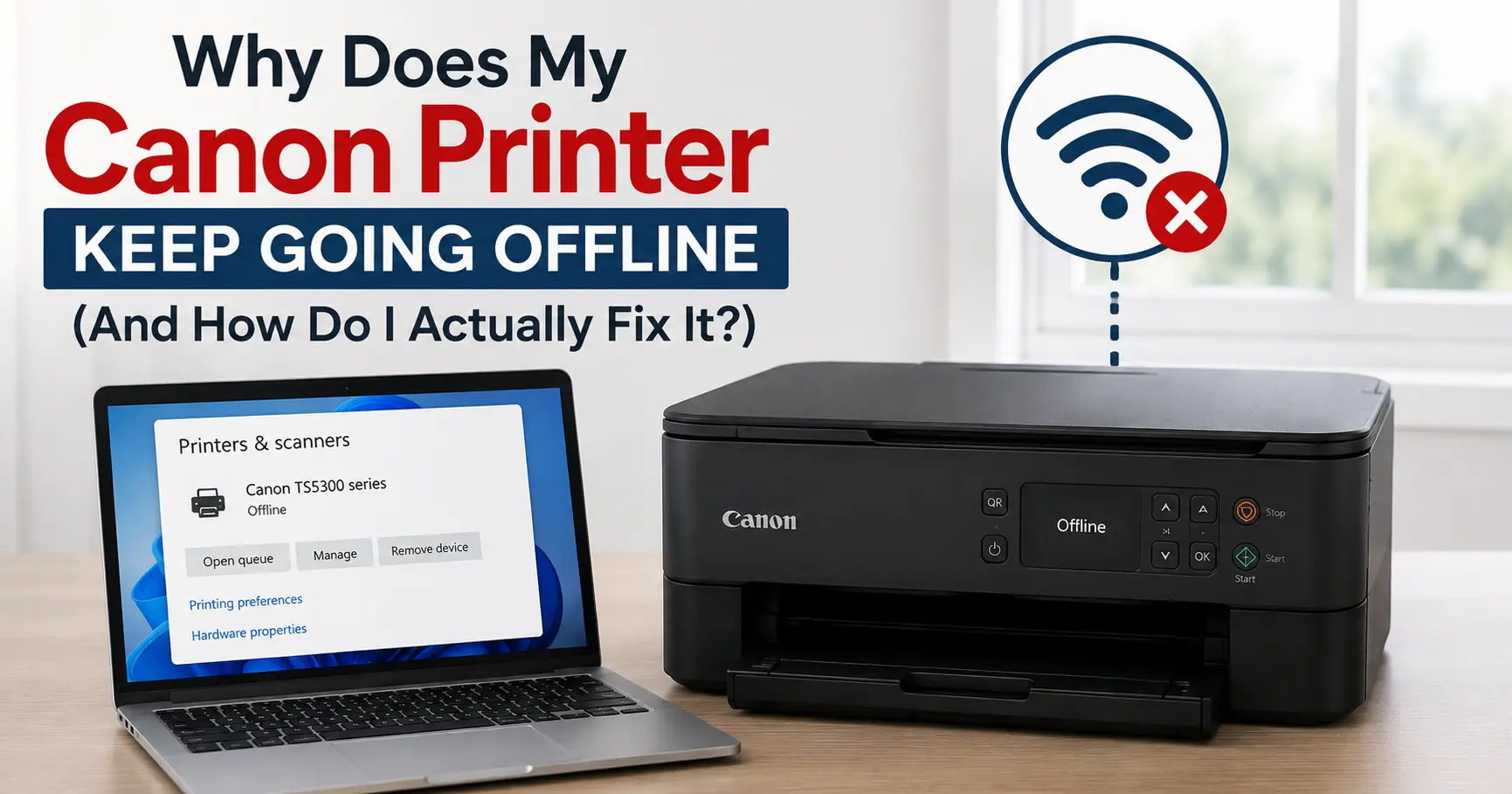
A Canon printer usually shows "offline" not because it has switched itself off, but because Windows or macOS has lost track of its IP address, or because the printer was set up using the wrong connection protocol in the first place. In most cases the fix takes five minutes once you know which of the handful of usual suspects is to blame, no reinstalling drivers from scratch required.
That said, "offline" is Windows' catch all message for several unrelated problems, and the fix that works for one cause does nothing for another. Below is the order I'd actually work through them, starting with the one that resolves the problem permanently for most people and ending with the ones that only apply to specific setups.
The most common cause: your printer's IP address changed
Home routers hand out IP addresses on a lease, typically 24 to 72 hours by default on most consumer routers. When that lease renews, your printer can be reassigned a different address on the network, say from 192.168.1.45 to 192.168.1.52. Windows, however, is still trying to send print jobs to the old address, and gets nothing back. It marks the printer offline, even though the printer itself is sitting there fully connected to Wi-Fi with no error lights.
This is the single most common cause of intermittent offline errors, and it's also the one most guides skip past in favour of "just restart everything." Restarting the router does temporarily fix it, because it often reassigns the printer the same address by coincidence, which is exactly why the problem feels random and keeps coming back a few days later.
The permanent fix is a DHCP reservation. Log into your router's admin page (usually 192.168.1.1 or 192.168.0.1), find the DHCP client list, locate your printer by its MAC address, and reserve its current IP so it never changes again. Every router brand labels this differently, TP-Link calls it "Address Reservation," Netgear calls it "Address Reservation" too, BT Smart Hub buries it under "Advanced Settings > IP Reservations." Once set, the offline errors caused by IP drift stop for good.
Check whether Windows has quietly set the printer to "offline" itself
Before touching the network at all, rule out the simplest explanation: Windows has a manual toggle called "Use Printer Offline" that sits in Devices and Printers, and it's easy to click by accident, particularly if a previous print job failed and Windows flipped it automatically to stop further jobs queuing up.
- Open Control Panel > Devices and Printers
- Right click your Canon printer and select See what's printing
- Click the Printer menu at the top
- If Use Printer Offline has a checkmark next to it, click it to clear the tick
This single checkbox accounts for a surprising share of "my printer just went offline for no reason" reports on Canon's own community forums, and it costs nothing to check first.
The fix most guides never mention: switch from WSD to a standard TCP/IP port
If the printer keeps reverting to offline every day or two even after a DHCP reservation, the underlying cause is often how the printer was added to Windows in the first place. When you plug in a Canon printer and Windows finds it automatically over the network, it frequently adds it using WSD (Web Services on Devices), a discovery protocol that's convenient for setup but notoriously flaky for maintaining a stable connection over time. WSD re-negotiates the connection constantly, and any hiccup in that renegotiation is what throws the printer offline.
The fix is to remove the WSD version of the printer and re-add it using a standard TCP/IP port instead, which talks to the printer's fixed IP directly rather than relying on network discovery:
- Go to Settings > Bluetooth & devices > Printers & scanners
- Remove the existing Canon printer entry
- Click Add device, then choose The printer that I want isn't listed
- Select Add a printer using a TCP/IP address or hostname
- Enter the printer's IP address (the one you just reserved in your router)
- Let Windows detect the printer type and install the driver
This one change resolves recurring offline errors for a large share of Canon PIXMA and MAXIFY users where router restarts and driver reinstalls hadn't helped, because it removes the unreliable discovery layer entirely rather than patching around it.
Your printer might only support 2.4GHz Wi-Fi, and your router might be steering it to 5GHz
Many home routers now use band steering, quietly moving devices between the 2.4GHz and 5GHz bands under one shared network name to balance load. That's invisible and harmless for a laptop or phone, but a lot of Canon's consumer inkjet range only has a 2.4GHz radio, so if band steering nudges the printer toward 5GHz, or a firmware update on the router changes how it's steered, the printer simply can't maintain the connection and drops offline.
| Canon printer line | Wi-Fi bands supported | Notes |
|---|---|---|
| PIXMA TS/TR series (e.g. TS3520, TR4720) | 2.4GHz only | Most common home range; will not connect to 5GHz-only SSIDs |
| PIXMA G series (e.g. G3260, G7020) | 2.4GHz only | Refillable ink tank models, same wireless limitation |
| MAXIFY series (e.g. MB2720, GX7020) | Dual band, 2.4GHz and 5GHz | Small office range, more tolerant of band steering |
| imageCLASS laser range (e.g. MF264dw) | Dual band on newer models, 2.4GHz only on older ones | Check the specific model's spec sheet, this varies within the range |
If you're not sure which band your printer is actually on, check your router's connected devices list rather than guessing from the model name. The practical fix, if your router supports it, is to create a separate 2.4GHz-only guest network name just for older smart home and printer devices, so band steering has nothing to steer between.
Power saving settings can drop the wireless connection while the printer sleeps
Canon's energy saving features, usually labelled Auto Power Off or Energy Saving Settings in the printer's on-device menu or in the Canon IJ Network Tool, put the wireless radio into a low power state after a period of inactivity. On some firmware versions, particularly older ones, the printer doesn't reliably wake the radio back up when a print job arrives, so it stays showing as offline until someone walks over and taps a button on the printer itself.
Reducing how aggressively the printer powers down, or disabling Auto Power Off entirely for a printer that's shared over a network rather than used at a single desk, generally clears this up. It costs a small amount of standby power in exchange for not having to physically wake the printer every time someone in another room wants to print.
When it's a Windows problem, not a printer problem: the Print Spooler service
If every printer on your PC goes offline at once, including ones on a completely different network connection, the fault sits with Windows itself, specifically the Print Spooler service, which manages the print queue for every printer connected to that machine. It can hang or crash, particularly after a corrupted or oversized job gets stuck in the queue.
- Press Win + R, type
services.msc, press Enter - Find Print Spooler in the list
- Right click it and select Restart
If it won't restart cleanly, the queue itself is usually the blocker: open File Explorer, navigate to C:\Windows\System32\spool\PRINTERS, and delete any files sitting in that folder before restarting the service again.
Firmware and driver updates matter more than they get credit for
Canon regularly ships firmware updates that specifically patch wireless stability bugs, not just add features. If you've worked through everything above and the printer still drops offline intermittently, it's worth checking whether the firmware is current via the printer's own menu or the Canon IJ Network Tool, and whether the driver installed on your PC matches the current version on Canon's support site for your exact model number, rather than a generic driver Windows pulled in automatically.
A quick way to narrow down the cause
| Symptom | Most likely cause |
|---|---|
| Offline appears every few days, otherwise fine | DHCP lease changing the printer's IP address |
| Offline appears daily or after every sleep cycle | Printer added via WSD instead of a standard TCP/IP port |
| Offline right after a router firmware update or new router | Band steering pushing a 2.4GHz-only printer to 5GHz |
| Offline only after the printer has sat idle for a while | Auto Power Off putting the wireless radio to sleep |
| Every printer on the PC goes offline simultaneously | Print Spooler service hung or crashed |
| Offline immediately after setup, never worked reliably | Outdated driver or firmware |
Work down that list in order, since the fixes range from a two-minute service restart to a router setting change, and there's no point reinstalling a driver when the actual problem is a lease renewal on your router. Most Canon printers that seem to have a persistent fault are actually fine hardware sitting behind a network configuration that was never quite stable to begin with.