
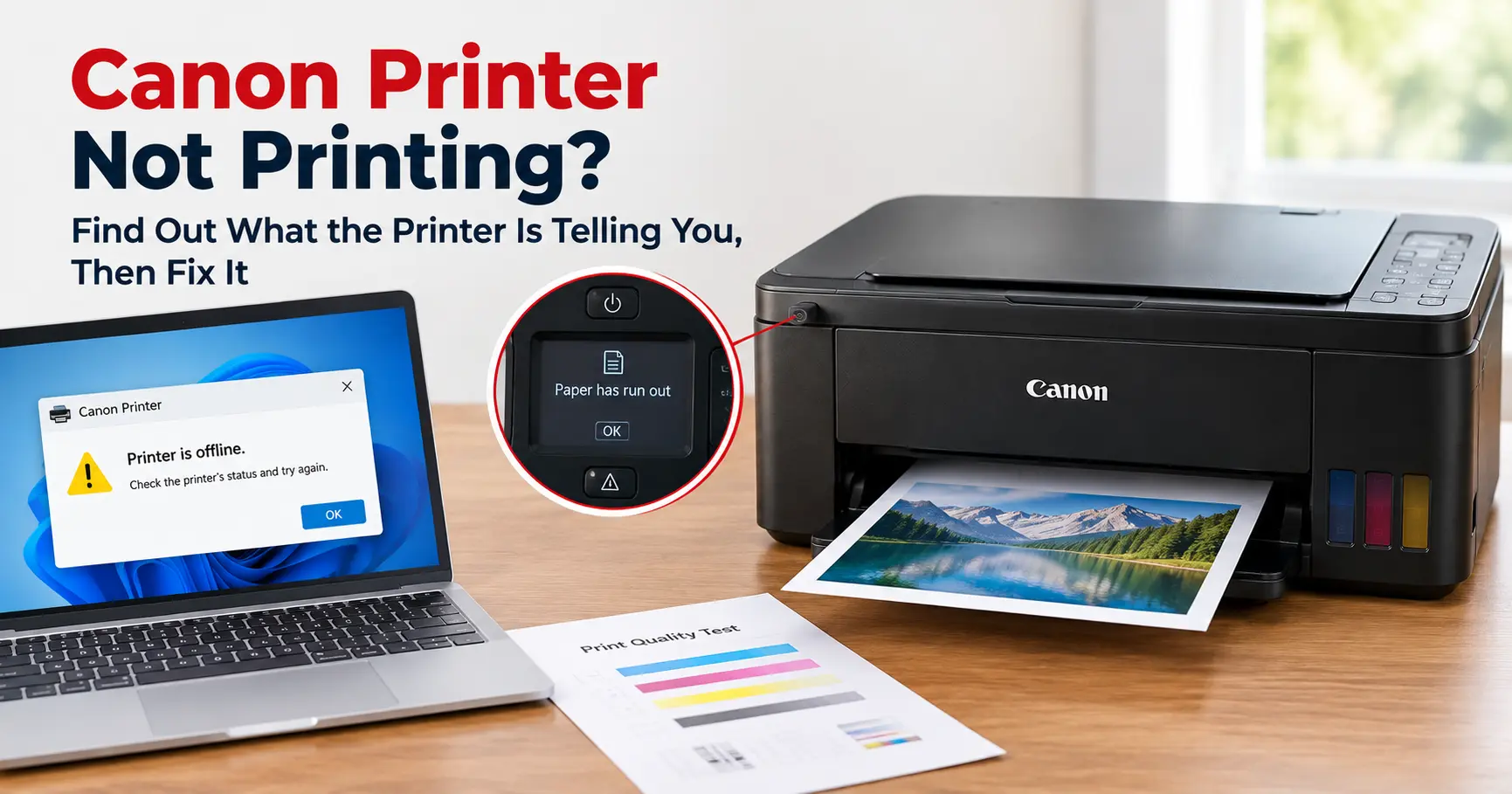
When a Canon printer won't print, it usually tells you why, just not on your computer. Look at the printer first. A four-digit support code on its screen, an "E" code on a small display, or an orange Alarm lamp flashing a set number of times each points to one specific cause. On Canon inkjets, the most common cause by a distance is ink: one empty, unrecognised or missing cartridge blocks all printing, black included, and scanning too.
If the printer shows no error at all, the job never reached it. Clear the print queue, check you're sending to the right Canon entry, and make sure Windows hasn't paused it. If paper does come out but it's blank or missing a colour, the job arrived fine and the problem is ink not reaching the page. A nozzle check will confirm that in about a minute.
First, which kind of "not printing" have you got?
Press Print once, then watch the printer rather than the screen.
| What happens | What it means | Where to go |
|---|---|---|
| Nothing. No noise, no lamp changes | The job hasn't reached the printer | The job never arrives |
| Orange Alarm lamp flashes, or a code appears on the printer | The printer received the job and is refusing it | Read the code first |
| Paper feeds through but comes out blank, faint or missing a colour | Ink isn't reaching the paper | Blank pages |
| It starts, then stops partway down the page | Still processing, or the print head is cooling | See below |
It stops halfway and then nothing happens. Canon's manuals give two harmless reasons. Large photos take a while to process, and the printer pauses until the data catches up. On long runs, the print head can overheat, so the printer pauses at line breaks and then carries on. If it doesn't resume, Canon says to cancel the job and switch the printer off for at least 15 minutes. Don't touch the print head while you wait. Canon warns it gets extremely hot.
The printer is refusing the job: read the code first
Canon shows errors in three different ways depending on the model. Every one of them leads back to a four-digit support code, which is how Canon's manuals and support pages are organised. Find your code and you've found your fix.
Models with a screen
On printers with a proper display (the PIXMA TS5350i and TS7450i, MegaTank G3570, MAXIFY GX range and most i-SENSYS models), the screen shows a message and a support code. Write the code down before you press anything. Searching your model name plus the code on Canon UK's support site takes you to the exact page.
Small-display models: E codes
Cheaper PIXMA models such as the TS3350 and TS3450 have a tiny segment display that shows a letter and a number. The code cycles across the display one character at a time, so wait for the full sequence. These are the ones that stop printing:
| Display shows | Support code | What Canon says it means | What to do |
|---|---|---|---|
| E02 | 1000 | Out of paper | Load paper in the rear tray |
| E03 | 1203 / 1300 | Cover opened during printing, or a paper jam | Close the cover, or clear the jam |
| E04 | 168A | FINE cartridge not installed | Fit both cartridges |
| E05 | 1401, 1403, 1430, 1485 | Cartridge can't be recognised | Colour cartridge on the left, black on the right, correct model numbers |
| E08 | 1700 and similar | Ink absorber almost full | Press OK to continue for now (see the end of this guide) |
| E09 | 1890 | Tape or packing still on the cartridge holder | Remove it |
| E11 | 4102, 4103 or 4104 | Can't print with current print settings | Press Stop, fix the paper settings, print again |
| E13 | 1686 | Ink may have run out | See the ink section below |
| E14 | 1684 | Ink cartridge can't be recognised | Reseat it, or check it's the right cartridge |
| E15 | 1682 | FINE cartridge can't be recognised | Replace the cartridge |
| E16 | 1688 | Ink has run out | Replace it, or override (below) |
| E59 | 2114 | Driver paper size doesn't match the size registered on the printer | See paper mismatches below |
| P02 | 5100 | Printer error (print head holder can't move) | Switch off, clear the holder's path |
| P07 | 5B00 and similar | Printer error (ink absorber full) | A service job |
The list above comes from the TS3300 series manual, and the TS3400 series list is the same apart from the exact E11 code numbers. Other small-display models use similar codes, but check your own model's list before acting on an unfamiliar one.
Lamp-only models: count the flashes
Screenless printers such as the PIXMA MG3650S can only flash a light at you. The Alarm lamp flashes a set number of times, goes off, then repeats. Count from one pause to the next.
| Alarm lamp flashes | Support code | Cause |
|---|---|---|
| 2 | 1003 / 2100, 2101 | Out of paper or not feeding / paper size doesn't match print settings |
| 3 | 1250 / 1300, 1303, 1304 | Paper output tray closed / paper jam |
| 4 | 1687 | FINE cartridge not installed properly |
| 5 | 1401, 1403, 1485 | Cartridge missing, unrecognised or the wrong type |
| 6 | 1202 / 1486, 1487 | Paper output cover open / cartridge in the wrong slot |
| 8 | 1702 to 1705, 1712 to 1715 | Ink absorber almost full |
| 9 | 1890 | Tape or packing left on the cartridge holder |
| 11 | 4103 | Can't print with current settings |
| 13 to 16 | 1686, 1684, 1682, 1688 | An ink or cartridge problem |
Counting to 16 on a blinking light is harder than it sounds. In practice, if you lose count somewhere past a dozen, it's an ink or cartridge problem either way, and the next section covers all four of those codes.
If the green ON lamp and the orange Alarm lamp flash alternately rather than the Alarm lamp alone, that's a different table. Two alternating flashes is support code 5100 (the print head holder can't move). Seven means the ink absorber is full, and ten is a fault Canon says needs repair. None of those is a settings problem. Our guide to a Canon printer showing an error and not responding covers 5100 and the print head errors in detail.
Is there an easier way to see the code? If your computer has Canon's own driver installed, a message with the support code usually pops up on screen as soon as the error happens, so you don't have to count anything.
One empty cartridge stops everything
This catches out more Canon owners than anything else. You'd expect to print a black-and-white letter with an empty colour cartridge. By default, a Canon PIXMA won't. Canon's manuals put it plainly: when there's a warning or error caused by remaining ink levels, the printer can't print or scan.
You have three ways out.
1. Replace the cartridge the printer names. It's the clean fix, and the only one that doesn't leave the printer guessing.
2. Override the warning. For support codes 1686 (the ink may have run out) and 1688 (the ink has run out), Canon's own instruction is to press and hold the printer's Stop button for at least five seconds, then let go. That switches off ink level detection for that cartridge. If there's still some ink inside, you can print or copy until it runs dry, though Canon warns quality may drop as it gets low.
The override matters most for refilled and compatible cartridges. The printer can't read their ink level, so it throws 1686 even when they're full. Holding Stop is the expected way through, not a hack.
Our take on overriding: on a two-cartridge PIXMA (TS3350, TS3450, TS5350i, TS7450i, MG3650S), it's low risk, because the print head is built into the FINE cartridge you're about to replace anyway. On printers where the print head is a permanent part of the machine, which means five-ink PIXMA models and MegaTank, don't run a colour dry for long. Canon's MegaTank manual warns that printing below the lower limit line costs extra ink to get the printer working again.
3. Tell the driver to print in black only. In Canon's Windows driver, open the printer's Printing preferences, go to the Page Setup tab, click Print Options and set Print With to Black Only. There are two catches, both from Canon's manual:
- It only works on plain paper or envelopes, and not with borderless printing. Choose photo paper and the printer goes back to using colour.
- Both cartridges still have to be in the printer. Take the empty colour one out and nothing prints at all.
Five-ink models have two blacks, and they don't stand in for each other
The PIXMA TS6350a and similar five-ink models use a pigment black (PGBK, the larger PGI-580 cartridge) for text on plain paper, and a dye black (BK, the CLI-581) mainly for photos. Canon's manual says that if one runs out, the other won't be used instead. That explains a strange symptom: documents come out with the text missing while photos print perfectly. The PGBK cartridge is the one to look at.
Compatible cartridge not recognised?
Support codes 1684 (E14) and 1682 (E15) mean the printer can't identify the cartridge. Canon's wording for 1684 is that it may not be installed properly or may not be compatible. Take it out and push it back until it clicks, then check the cartridge number against the one your printer's manual or Canon UK's store lists for your model. Canon's cartridge numbers are easy to mix up on a shop shelf, and one meant for a different PIXMA won't be recognised. If a compatible cartridge still isn't recognised, fitting a genuine one is the only test that tells you whether the problem is the cartridge or the printer.
What if the cartridges are full and genuine, and it still won't print? If your model name ends in "i", read the next section before anything else.
Print Plan printers: cartridges that stop by design
Canon's "i" models (TS5350i, TS7450i, TS3550i and newer ones) can run on the PIXMA Print Plan, Canon's ink subscription. Print Plan cartridges carry rules that ordinary cartridges don't, and every one of them can stop the printer while the ink level looks fine. All of these come from Canon UK's Print Plan terms and conditions:
| Situation | What Canon's terms say | What to do |
|---|---|---|
| Printer loses its internet connection | With a Print Plan cartridge installed, it stops printing "once you print a limited number of pages" after disconnecting | Get it back online. Print the LAN details page and check for Connection: Active |
| Subscription cancelled | The printer is remotely returned to non-subscription status, and Print Plan cartridges stop working | Re-enrol, or fit standard cartridges |
| Payment fails (an expired card, say) | Canon may suspend the service, and the Print Plan cartridges "will stop functioning" until it's paid | Update the card in your Canon account under Subscriptions |
| You fit shop-bought cartridges alongside a Print Plan one | Standard cartridges only work while no Print Plan cartridge is installed | Swap out every Print Plan cartridge |
Canon doesn't publish how many pages "a limited number" is. The practical upshot is that a Print Plan printer can keep printing for a while after your router changes or it's moved to another room, then stop days later with full cartridges. It's easy to blame the wrong thing when that happens.
Pulling the cartridges out doesn't cancel the plan either. Canon's terms say billing carries on until you cancel through your account.
Paper and settings mismatches: Canon stops rather than waste a sheet
Support codes 4102, 4103 and 4104 (E11, or 11 flashes), 2114 (E59) and 2100/2101 (two flashes) all mean the same broad thing: what your computer asked for doesn't match what the printer thinks is loaded. Canon's fix is the same each time. Press Stop to cancel, correct the setting, print again.
In the UK there's one cause behind a lot of these: US Letter. Letter is 216 × 279mm, and A4 is 210 × 297mm. Documents built from American templates, some downloaded PDFs, and software on a computer set to a US region often default to Letter. The printer compares the requested size with the A4 it has been told is in the tray, and refuses.
Fix it at whichever level suits you:
- In the document. In Word, go to Layout > Size > A4. On a Mac, set Default paper size to A4 in System Settings > Printers & Scanners so new documents start right.
- In Canon's driver. Set Page Size to A4 and Media Type to Plain Paper.
- On a PIXMA with a front cassette. When it asks what you've loaded (Canon calls this Register paper information), answer A4 and plain paper. If you only ever print plain A4, you can switch off Detect paper setting mismatch in the printer's feed settings, and the printer will print on whatever's loaded.
- For 2114 specifically. If the paper loaded is larger than the size you asked for, Canon says you can press OK and print anyway.
Is it safe to switch the mismatch check off? For plain A4 only, yes. If you print photos, leave it on. It exists to stop a job meant for plain paper going onto a sheet of glossy photo paper that costs far more.
i-SENSYS lasers show this as Paper Settings and Loaded Size Mismatch. Set the drawer's size and type under Paper Settings on the Home screen. For the Letter problem, the MF650 series has a setting called Paper Size Override, under Menu > Function Settings > Printer > Printer Settings. When it's on, the printer swaps between A4 and Letter if only one of the two is loaded, so a Letter document prints on your A4 instead of stopping. Canon notes it can only be set on the machine itself, not from the driver.
No error at all: the job never arrives
No lamp change and no code means the printer doesn't know a job exists. Work down this list in order. Each step takes under a minute.
- Is the printer actually ready? The ON lamp flashes while the printer starts up or receives data. Wait for it to stay lit. If the screen says Power was not turned off correctly the last time, press OK. That message appears when it's been switched off at the wall, which is also bad for the print head. Use the power button on the printer instead.
- Are you printing to the right printer? Canon's driver names it "Canon [model] series", for example Canon TS5300 series. You may find several entries for one printer: an older copy with "(Copy 1)" on the end, or one using Microsoft's own driver. Since 1 July 2026, Windows 11 prefers its built-in Microsoft IPP Class Driver for printers that support it, so a second entry is now common. Send the job to whichever entry shows Ready and remove the stale ones.
- Is the queue stuck? In Windows 11, go to Settings > Bluetooth & devices > Printers & scanners, select the printer and choose Open print queue. Cancel everything listed. A single stuck job blocks everything behind it. In the classic queue window, open the Printer menu and make sure neither Pause Printing nor Use Printer Offline is ticked.
- Won't the stuck job cancel? Restart the print spooler. Open Services, stop Print Spooler, delete the files in
C:\Windows\System32\spool\PRINTERS, then start the service again. The full walkthrough is in printer not printing: what's actually wrong. - On a Mac, open System Settings > Printers & Scanners, select the printer and click Printer Queue. If it says the printer is paused, click Resume. A Mac pauses the queue after a failed job and leaves it paused.
- Is it a huge file? For very large jobs on Windows, Canon suggests turning on Prevention of Print Data Loss (in the driver, Page Setup > Print Options). Canon notes it may lower print quality.
- On USB, plug the cable straight into the computer rather than through a hub or dock, and try another cable. Canon lists both as known causes.
- On Wi-Fi, print the printer's network settings page (Print LAN details on most screen models) and check it says Connection: Active, with an address that doesn't start with 169.254. If it's dropping off the network, see why your Canon printer keeps going offline and printer connected to Wi-Fi but not printing.
Should you reinstall the driver? Only once you've tried the steps above. If you do, download it via ij.start.canon for PIXMA and MAXIFY, or your model's Canon UK support page for i-SENSYS. Microsoft stopped publishing new third-party printer drivers through Windows Update in January 2026, so don't expect Windows to fetch a fresh Canon driver for you. Basic printing works fine through Microsoft's driver. What you lose without Canon's is the extras this guide relies on: the support-code pop-ups, Print With: Black Only and Canon's maintenance tools.
Paper comes out blank, or a colour is missing
The job reached the printer and the printer thinks it printed. Ink just didn't reach the paper.
Just fitted a new cartridge? Check the protective tape is fully off, then take the cartridge out and push it back in until it clicks. Canon's manual puts reseating before any cleaning, because a cartridge that isn't seated properly won't fire ink at all.
Otherwise, follow Canon's own sequence. Every step can be run from the printer's Maintenance menu, or on Windows from Canon's IJ Printer Assistant Tool:
- Print a nozzle check pattern. Gaps or missing blocks show which colour is failing.
- Run a print head cleaning, then print the pattern again.
- Still gaps? Clean once more and check again.
- Run a deep cleaning. It uses noticeably more ink.
- If deep cleaning doesn't fix it, switch the printer off with its power button, leave it plugged in, and wait 24 hours. Canon is specific about the wait: it gives ink time to soak back into dried nozzles.
- Run one more deep cleaning.
If that sequence fails, what happens next depends on where your print head lives:
| Printer type | UK examples | Where the print head is | If cleaning doesn't fix it |
|---|---|---|---|
| Two FINE cartridges | TS3350, TS3450, TS5350i, TS7450i, MG3650S | Built into each cartridge | Replace the cartridge. Canon's own next step is "ink may have run out" |
| Individual ink tanks | TS6350a and other five-ink PIXMA models | Fixed inside the printer | A repair job. Weigh the quote against a new printer |
| MegaTank | G3570, G3571 | Two replaceable print heads | Replace Ink in Print Head first (check ink levels, as it uses a lot), then a new print head |
That table is also the honest answer to "why did a new cartridge fix my friend's Canon but not mine?". On a FINE model, a new cartridge is a new print head. On the others, it's just more ink.
Why does it happen in the first place? Ink dries in nozzles that aren't used. Canon's MegaTank manual recommends printing once a week to keep image problems to a minimum. That's sound advice for any Canon inkjet that sits unused between school terms. Turning the printer off at the wall makes it worse, because the printer never gets to park and cap the head.
MegaTank says it's out of ink, but the tanks look full
The G3570 doesn't measure the ink in its tanks. It counts how much it has used since the tanks were last filled to the top line. If you top up before a tank reaches the lower line, or fill one only partway, the count drifts. Canon says that after refilling to the upper limit line, you reset the count under Settings > Device settings > Ink level monitor > Reset ink lev. count (or through the IJ Printer Assistant Tool on Windows). You can switch the notification off entirely, but then it's down to you to check the tanks by eye and refill before any colour drops below the lower line.
Support code 1700 or 5B00: the ink absorber
Every cleaning cycle flushes ink into absorber pads inside the printer. 1700 (E08, eight flashes) means they're almost full. Canon lets you press OK and keep printing, but treat it as notice. 5B00 (P07, or seven alternating flashes) means they're full, and the printer stops for good until it's serviced. You'll find "service tool" downloads online claiming to reset the counter. Skip them. They reset a number, but the pads are still physically soaked, and the next stop is ink leaking out of the bottom of the printer onto your desk.
i-SENSYS lasers: three causes you won't find on an inkjet
The job is waiting for a PIN. If someone ticked Secured Print under Output Method in the Canon driver, the job sits in the printer's memory until you tap Secure Print on the Home screen and enter the PIN. If nobody does, it's deleted after a set time (30 minutes by default, adjustable from 10 to 240 minutes in the MF650 series). Canon also warns that unprinted secure jobs take up memory and can stop ordinary jobs from printing. If an office printer has gone quiet, check the Secure Print list first.
A paper size mismatch. See the Paper Size Override setting in the paper mismatch section above.
Blank pages after a cold night. When a laser moves from a cold room to a warm one, condensation can form inside it. Canon's troubleshooting for blank output starts with "is condensation being removed?" If the display says so, wait. If it doesn't, check the toner message on the display, then lift each toner cartridge out and seat it again firmly.
When to stop troubleshooting
Some codes don't have a fix you can do at home. Stop, and contact Canon UK or a repairer, if you see:
- 5100 that comes back after you've cleared the print head holder's path
- 5B00 (or P07, or seven alternating flashes): ink absorber full
- B200 to B205 (ten alternating flashes on lamp models): a fault Canon says needs repair
- Blank pages on a fixed-head model after the full cleaning sequence, the 24-hour rest and a second deep clean
If the printer is under warranty, call Canon before you open anything beyond the normal covers. If it isn't, ask for a quote and compare it with the price of a new printer before you agree to anything.
Related guides
When the printer shows an error or won't connect:
- Canon printer showing an error and not responding: 5100, B200 and the hardware-side codes in detail.
- Why does my Canon printer keep going offline?
- Printer connected to Wi-Fi but not printing?
- Printer offline in Windows 11? How to fix it
- Why your computer suddenly can't find the printer
Ink, paper and print quality:
- How to change the ink cartridge on a Canon printer
- Is your printer lying about being low on ink?
- Why is my printer printing blank pages?
- How to clear a paper jam in a Canon printer
Starting over:
- How to reset a Canon printer
- How to set up a Canon printer
- Printer not printing? Here's what's actually wrong: the brand-neutral version, including the full print spooler reset.