
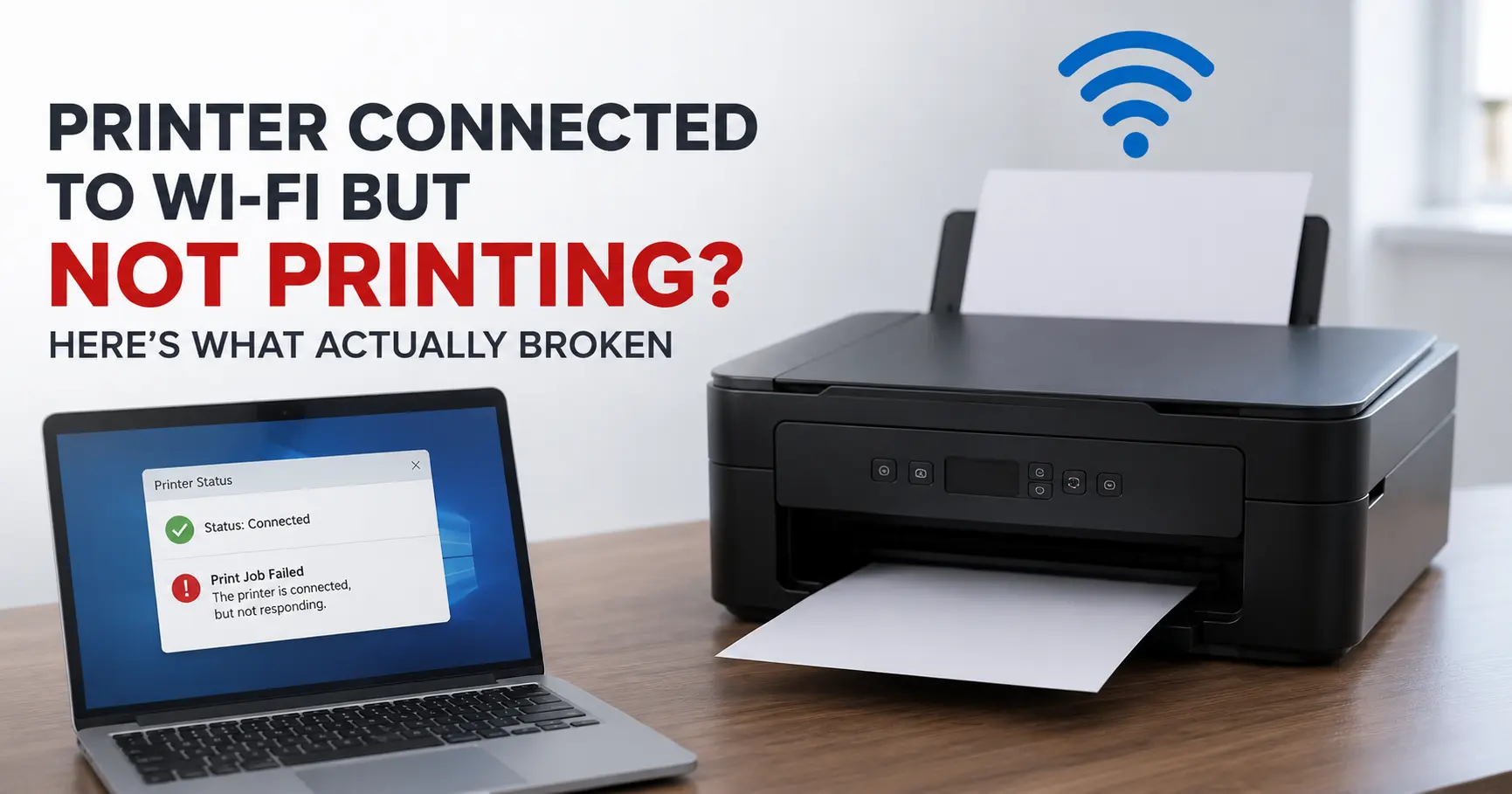
If your printer's display shows a Wi-Fi icon, a green light, or the word "Connected," but nothing comes out when you hit print, the Wi-Fi connection itself is almost never the problem at that point. What's actually broken is one of five things: the printer's IP address has drifted out of sync with what your computer's driver has on file, the print spooler has a jammed job blocking everything behind it, a router or firewall setting is quietly stopping your device from reaching the printer even though both are technically online, the printer's sleep mode has taken it off the network without updating its own display, or a generic driver is sending jobs without ever getting acknowledgment back. Work through those in order and you'll almost always land on the actual cause within ten minutes.
Why "Connected to Wi-Fi" Doesn't Mean "Reachable by Your Computer"
A printer's own screen only confirms one thing: it authenticated to your router and received an IP address, a gateway, and a DNS setting. That's the first hop. Whether your laptop or phone can actually find that printer and hand it a job is a second, completely separate hop, and it depends on your computer or phone having the printer's current, correct network address on file, plus nothing in between (router settings, firewall rules, sleep states) interrupting that path. A printer can pass its own connectivity check and still be functionally invisible to every device trying to print to it. That distinction is the reason "just reconnect it to Wi-Fi" so rarely fixes this, because the printer usually never disconnected in the first place.
Start Here: Clear the Print Queue and Restart the Spooler
On Windows, printing runs through a background service called the Print Spooler (spoolsv.exe), which queues and processes jobs one at a time per printer. If one job gets corrupted, most commonly from a job sent right as the printer dropped into sleep mode or lost its Wi-Fi handshake mid-transfer, that job can sit stuck at the front of the queue and silently block every job sent after it. Windows won't tell you this. It'll just show "Printing" forever with no error.
To clear it:
- Open Services (search "services.msc" in the Start menu).
- Find Print Spooler, right-click, and select Stop.
- Open File Explorer and navigate to
C:\Windows\System32\spool\PRINTERS, then delete everything inside that folder. - Go back to Services and Start the Print Spooler again.
- Try printing a single test page.
On a Mac, the equivalent is opening System Settings > Printers & Scanners, right-clicking the printer in the queue, and choosing Reset printing system if jobs are stuck, though that's a more aggressive step that also removes the printer entirely, so try just clearing the individual stuck job from the queue window first.
This single step resolves a surprising share of "connected but not printing" cases, because most people never think to check whether an old job is quietly blocking the new one.
Check Whether the Printer's IP Address Actually Changed
If clearing the queue doesn't help, the next most common cause is a mismatch between the IP address your printer driver is configured to send jobs to and the IP address the printer currently holds. Most home routers hand out addresses via DHCP with a lease that expires and renews periodically. When a printer's lease renews, it can come back with a different address than before, especially after a router reboot, a power outage, or a firmware update that resets the DHCP lease table.
Your printer's own settings menu or self-printed network status page will show its current IP address. Compare that to what's on file:
- Windows: Settings > Bluetooth & devices > Printers & scanners > select the printer > Printer properties > Ports tab, and check which IP the configured port points to.
- Mac: System Settings > Printers & Scanners > select the printer > if it shows as unreachable, remove it and re-add it so macOS rediscovers the current address via Bonjour.
If the addresses don't match, that's your answer. The quick fix is removing and re-adding the printer so your OS picks up the current address. The durable fix, the one that stops this from recurring every few weeks, is logging into your router's admin page and setting a DHCP reservation (sometimes called a static lease) for the printer's MAC address. That locks the printer to the same IP permanently without you having to manually assign a static IP on the printer itself, which can cause its own conflicts if you get the subnet or gateway wrong.
Why did the address change if nothing else did? Usually a router reboot (including one triggered by your ISP pushing a firmware update overnight) clears the DHCP lease table and reassigns addresses in whatever order devices reconnect, which is rarely the same order as before.
| Protocol/Port | Used for | What breaks if it's blocked |
|---|---|---|
| Port 9100 (raw/JetDirect) | Direct print data transfer, the most common method for network printers | Jobs disappear from the queue with no error; nothing prints |
| Port 631 (IPP) | Internet Printing Protocol, used by AirPrint and many modern drivers | Printer shows as "offline" or unreachable even when powered on |
| UDP port 5353 (mDNS/Bonjour) | Network discovery, how your device finds the printer by name instead of IP | Printer disappears from the list of available printers entirely |
Rule Out Sleep Mode Silently Dropping the Printer
Most consumer inkjets, and plenty of home-line laser printers, ship with an energy-saving sleep timer set fairly aggressively out of the box, sometimes as short as 15 to 20 minutes of idle time. Coming out of a deep sleep state to rejoin the Wi-Fi network and respond to a discovery request takes several seconds longer than the timeout window some print clients allow, which produces a very specific and confusing symptom: the first print attempt fails or hangs, and the second attempt, sent 30 seconds later, works fine.
If that pattern sounds familiar, open the printer's own web-based configuration page (type its IP address directly into a browser) or its physical menu, and look for power or sleep settings. Extending the sleep timer, or disabling "quick sleep" style modes entirely if you print daily, removes the delay instead of making you send every job twice.
Router-Side Settings That Silently Block Printers
Two router settings cause this constantly and rarely get suspected because the printer still shows as connected on its own screen:
Client isolation (AP isolation) on guest networks. If your phone is on the guest Wi-Fi network and the printer is on the main network, most routers deliberately block guest devices from seeing or reaching anything else on the network, printers included, as a security measure. Confirm your phone or laptop is on the same network the printer is actually connected to, not a guest SSID.
Merged 2.4GHz and 5GHz bands under one SSID. Many budget and older printers only support the 2.4GHz band. If your router uses band steering and merges both bands under a single network name, a phone or laptop connected on 5GHz can sometimes fail to discover a 2.4GHz-only printer via mDNS, depending on the router's implementation. Splitting the bands into separate SSIDs temporarily, or manually connecting your device to the 2.4GHz network, is a fast way to confirm this is the cause before deciding whether to leave the bands split permanently.
Windows Defender Firewall or third-party antivirus software can also block the discovery and printing ports listed above, particularly if your network connection is set to the "Public" profile instead of "Private," since Windows applies stricter rules to public networks by default.
What to Check If Only One App or Device Can't Print
If your laptop prints fine but your phone can't, or one app fails while others work, the cause usually isn't the network, it's how that specific device is connecting. Some printers offer both a regular Wi-Fi network connection and a separate Wi-Fi Direct mode, and it's easy for a phone to end up connected to the printer's Wi-Fi Direct signal (which only talks to that one printer) instead of your home network, especially right after initial setup. Check your phone's Wi-Fi settings to confirm it's on your actual home network name, not something like "DIRECT-HP-OfficeJet." On iPhones and iPads, AirPrint relies entirely on mDNS/Bonjour discovery, so anything blocking that (isolation, band mismatch, firewall) will affect Apple devices first and most visibly.
When the Real Fix Is a Full Driver Reinstall
Windows will often auto-install a generic "IPP Class Driver" or similar universal driver when it detects a network printer, and that driver can successfully send a job (so it looks like printing worked) without ever properly receiving the printer's acknowledgment or status back. The job leaves your queue and simply never arrives. Installing the manufacturer's full driver package, not just the "basic" or "print only" option, restores proper two-way status communication and tends to fix cases where nothing above explains the failure. It's worth doing this before assuming there's a deeper network problem, since a generic driver is often the actual culprit in printers that are only a year or two old.
A Fast Diagnostic Order to Work Through
| Symptom | Likely cause | Fix |
|---|---|---|
| Job sits in queue as "Printing" and never finishes | Stuck job blocking the spooler | Clear the spool folder and restart the Print Spooler service |
| Printer shows "Offline" in Windows despite being powered on | Driver has a stale IP address on file | Remove and re-add the printer, then set a DHCP reservation |
| First job fails, second job (moments later) succeeds | Printer sleep mode delay | Extend or disable the sleep timer in the printer's settings |
| Phone can't find printer but laptop can | Guest network isolation or band mismatch | Confirm both devices are on the same network and band |
| Job disappears with no error at all | Firewall blocking ports 9100/631/5353 | Check firewall rules, especially on a "Public" network profile |
| Nothing above applies | Generic driver lacking two-way status | Reinstall using the manufacturer's full driver package |
If Nothing Above Works: Reset the Network Settings, Not the Whole Printer
Every major printer manufacturer's menu includes a network-only reset option, separate from a full factory reset, that clears the Wi-Fi configuration without wiping stored settings like default tray paper size or ink calibration. Run that, then go through the printer's Wi-Fi setup again from scratch, on the same network your computer or phone actually uses day to day. If you've already tried a driver reinstall twice and it's still coming back offline, skip straight to setting a DHCP reservation on the router. That's the fix that actually holds long-term for most home networks, rather than one you'll be repeating again in three weeks when the lease renews.
Related Guides
If your printer is showing as fully offline rather than just failing to print, or you're setting one up from scratch after a network reset, these cover those specific situations:
Brother Printer Offline: How to Get It Back Online - for when Windows or the Brother utility shows "offline" outright, not just a silently failing print job.
How to Connect an Epson Printer to Wi-Fi - full setup steps if a network reset (the last resort above) means starting the Wi-Fi connection over.