
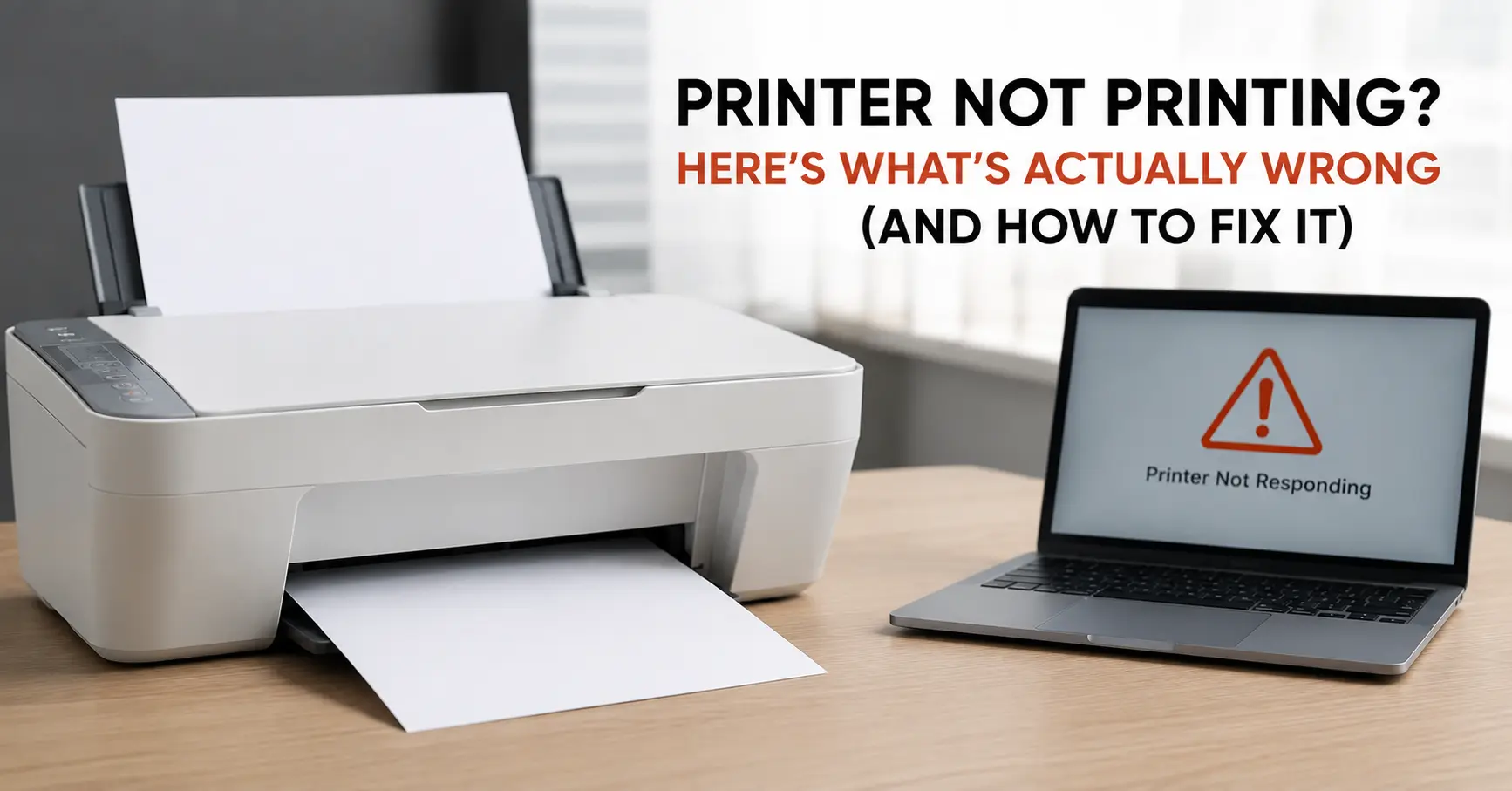
If your printer isn't printing, the fault almost always sits in one of five places: the connection between computer and printer, the print spooler queue, the paper sensor, the ink or toner itself, or a driver that's quietly gone corrupt after an update. Before you touch the ink cartridges, check these in order:
- Is the printer actually selected as the default device? Windows and macOS both love to silently switch this after adding a new printer, a VPN, or a virtual PDF printer.
- Is there a stuck job clogging the print queue? One failed print job can block every job behind it, including the one you're trying to send now.
- Does the paper tray sensor think it's empty, even though it isn't? Dust on the sensor causes this constantly.
- Is the printer genuinely online, or has it dropped off Wi-Fi without telling you (the icon can still show "ready")?
- Has ink dried in the nozzles, or has toner clumped near the drum after long periods of sitting idle?
If you fix nothing else today, clear the print queue and restart the print spooler service this single step resolves more "my printer won't print" calls than every other fix combined, in my experience supporting home offices and small businesses over the years. Here's the fuller picture of why printers stop working, and what actually gets them going again.
Why Printers Stop Printing: The Real Mechanics Behind It
Printer manufacturers rarely explain why a fix works, they just tell you to try it. Understanding the mechanism means you can diagnose a new fault yourself next time instead of googling the exact same question again in six months.
The Print Spooler Gets Stuck
On Windows, every print job passes through a background service called the Print Spooler before it reaches the printer. If one document jams in that queue often because it was sent while the printer was offline, mid-firmware-update, or out of paper, every job you send afterwards queues up behind it and never leaves your computer. The printer itself is completely healthy; your PC just never finished handing the file over. This is true whether you're printing to an HP OfficeJet, a Canon PIXMA, a Brother laser printer, or an Epson EcoTank — the spooler mechanism sits at the Windows level, not the printer level, so the fix is identical regardless of brand.
How to reset the Windows Print Spooler:
- Press
Win + R, typeservices.msc, and hit Enter. - Find Print Spooler in the list, right-click it, and select Stop.
- Open File Explorer and navigate to
C:\Windows\System32\spool\PRINTERS, then delete everything inside that folder. - Go back to the Services window, right-click Print Spooler again, and select Start.
- Try printing again - the stuck job should be gone and new jobs should print normally.
On a Mac: open System Settings > Printers & Scanners, right-click the printer in the queue list, and choose Reset printing system if a simple queue-clear doesn't work.
What happens next: If the queue clears but the job jams again within a minute, the problem isn't the spooler - it's the connection or the printer's own memory buffer, which brings you to the next section.
The Printer Is "Offline" Even Though It's Switched On
This one confuses people because the printer's screen says "Ready." What's actually happened is that your operating system has lost its handshake with the device, usually because the printer's IP address changed. Most home routers assign IP addresses dynamically via DHCP, and every time the printer reconnects to Wi-Fi (after a power cycle, a router reboot, or just sitting idle long enough to fall asleep), it can be handed a new address. Your computer is still trying to reach the old one. Search "HP printer offline" or "Canon printer not connecting" and you'll find thousands of people hitting this exact issue — it isn't a brand-specific bug, it's just how DHCP works on any device, from an HP LaserJet to a Brother MFC to an Epson WorkForce.
Fix: Give the printer a static IP by reserving its address in your router's DHCP settings (look for "DHCP reservation" or "address reservation," and use the printer's MAC address, found on a label on the unit). This is the permanent fix, not "restart the router," which only buys you time until the address changes again.
Paper-Feed Sensors Think the Tray Is Empty
Every printer has an optical or mechanical sensor that checks for paper before it commits to a print job. These sensors are small, exposed, and sit exactly where paper dust and toner particles accumulate. Over months of use, a thin film builds up on the sensor and it starts reporting "no paper" or "paper jam" even with a full tray.
Fix: Remove the tray fully, and with the printer powered off, wipe the sensor area (usually a small black or clear plastic tab near the back of the tray cavity) with a dry microfibre cloth. Avoid compressed air near inkjet printheads - it can force dust further into the carriage rather than out.
Inkjet Nozzles Dry Out and Why Some Handle It Better Than Others
This is where the printhead technology genuinely matters, not just as a spec-sheet number. In most consumer inkjets, ink is pushed out of the nozzle by a tiny piezoelectric crystal that physically flexes when you apply voltage to it no heat involved. Epson calls its version of this PrecisionCore: a printhead built from silicon chips manufactured almost like a computer processor, capable of firing droplets as small as 1.5 picolitres up to 50,000 times a second from a single nozzle. That precision is exactly why it's so vulnerable to clogging - a droplet that small dries and hardens if it sits still for even a few days, and a blockage a few microns wide is enough to stop that nozzle firing entirely.
This is also why an inkjet printer that's used daily rarely clogs, while the one in a spare bedroom that gets used twice a year almost always does. It's not a design flaw; it's physics. Water-based ink left exposed to air in a nozzle that small behaves the same way a wet paintbrush does if you leave it on the side for a week.
Fix: Run the built-in nozzle check and head-cleaning cycle from the printer's utility software (not just the on-screen button, which sometimes only does a light pass). If three cleaning cycles in a row don't restore a nozzle, the ink has likely hardened into a solid rather than merely dried at that point, a cleaning cycle won't shift it, and you may need a manual soak of the printhead in warm (not hot) water for 15–20 minutes, removed according to your specific model's manual. Running the printer at least once a week, even just a single test page, keeps ink moving through every nozzle before it has the chance to set.
Toner Isn't Fusing Properly - the Laser Side of the Equation
Laser and LED printers don't clog the way inkjets do, but they have their own failure mode: toner that doesn't bond to the page. Toner is a fine powder, not a liquid, and it's fused to paper using heat and pressure at the very last stage of printing. Ricoh's PxP-EQ toner (Polyester-by-Polymerisation, tuned for Energy-saving and Quality) was engineered specifically to fuse at a noticeably lower temperature than older toner formulas, which is why newer machines recover from sleep mode in seconds rather than the 20–30 second warm-up older laser printers needed. The trade-off: a toner designed to melt at a lower temperature is also more sensitive to heat and humidity during storage. Toner cartridges left in a hot garage or a humid store cupboard can partially clump before they're even installed, which shows up as patchy, uneven print rather than a clean fuse to the page.
Before the toner even reaches the page, the image itself is written onto the drum by a beam of light. Older laser printers use a single laser diode bounced off a spinning mirror; higher-end machines use VCSEL arrays instead of a grid of dozens of tiny lasers that fire simultaneously rather than one beam scanning back and forth. The practical benefit for a user isn't the science, it's the outcome: fewer moving parts to wear out over the printer's life, and print speed that doesn't sacrifice resolution to get there.
Fix: If print looks blotchy or grey rather than solid black, remove the toner cartridge and gently rock it side to side to redistribute clumped powder before reinserting. If that only buys a few dozen pages, the toner has genuinely degraded and needs replacing rather than topping up.
A Driver Went Bad After a Windows or macOS Update
This is the one that catches people off guard because nothing about their printer changed - their operating system did. A routine Windows Update or macOS update can silently replace a working printer driver with a generic one, or reset print preferences to defaults that don't match your model. The printer will often still show as "ready," accept the job, and then simply do nothing, because the driver is sending the wrong command language for that specific hardware — a "Brother printer print spooler error" and an "HP printer not responding" message often trace back to this exact same root cause, just with different branding on the pop-up.
How to reinstall a printer driver properly:
- Open Settings > Bluetooth & devices > Printers & scanners (Windows) or System Settings > Printers & Scanners (Mac).
- Select the printer, click Remove device, and restart your computer.
- Go to the manufacturer's support site - HP's, Canon's, Epson's, or Brother's and search for your exact model number, not just the brand.
- Download the full driver/software package for your operating system, not just the "basic driver," which often omits duplex and scanning features.
- Install it, then send a test print before reopening the document you originally needed.
The generic "plug and play" driver Windows installs automatically gets you basic printing but frequently drops features like duplex printing or correct paper-size handling, which is often mistaken for a hardware fault.
Quick Diagnostic: Match Your Symptom to the Fix
| What you're seeing | Most likely cause | Where to start |
|---|---|---|
| Printer shows "ready" but nothing prints | Stuck print queue | Clear spooler, restart service |
| "Printer offline" despite being powered on | Changed IP address | Set a static IP / DHCP reservation |
| "No paper" with a full tray | Dirty paper sensor | Clean sensor with dry cloth |
| Faded or streaky inkjet output | Dried ink in nozzles | Run nozzle check + cleaning cycle |
| Grey, patchy laser output | Clumped or degraded toner | Redistribute toner, replace if unresolved |
| Print works from phone but not laptop (or vice versa) | Driver mismatch, not hardware | Reinstall manufacturer driver |
| Nothing happens at all, no error | USB/Wi-Fi connection dropped | Reconnect cable or re-pair Wi-Fi |
Inkjet vs Laser: Why They Fail Differently
It's worth understanding this distinction because it changes what "normal maintenance" looks like for your specific printer:
- Inkjets fail from disuse. The printhead sits full of liquid ink at all times, so the enemy is time and dry air. A cheap inkjet that's printed on weekly will usually outlast an expensive one left dormant in a cupboard.
- Laser printers fail from heavy use and environment. Toner itself barely degrades sitting still, but the drum, fuser rollers, and transfer belt wear down with page volume, and high humidity affects how evenly toner distributes on the page. A laser printer used constantly in a hot, humid stockroom will show print-quality issues sooner than the same model in a climate-controlled office, even at identical page counts.
If you're deciding between the two for a household that prints in bursts birthday cards one month, nothing for the next three a laser printer will give you far less grief long-term, because toner doesn't dry out sitting in the cartridge the way ink does in a nozzle.
When It's Not Worth Fixing Yourself
Most of what's listed above is a five-to-fifteen-minute fix. A few faults are worth recognising early so you don't waste an afternoon on something the printer's own economics have already decided against:
- A cracked or worn drum unit on a laser printer visible as a repeating mark at a fixed interval down every page usually costs close to a third of the price of a new budget laser printer to replace.
- A main logic board failure, shown by the printer failing to complete its power-on self-test or refusing to hold any settings after a reset, isn't something home troubleshooting resolves.
- A printhead that won't clear after a full manual soak on an inkjet, particularly on models where the printhead is a sealed, non-replaceable part of the printer body rather than the cartridge, generally means the unit is done.
If a repair quote comes back above roughly 50% of a new equivalent printer's price, replacing it is almost always the better call, both financially and for your future reliability.
Keeping It From Happening Again
- Print something, anything, at least once a week if you own an inkjet. A single test page keeps ink moving through nozzles that would otherwise sit and dry.
- Reserve a static IP for the printer in your router settings the day you set it up, not after the third time it drops offline.
- Store spare toner and ink at room temperature, away from direct sun or a hot garage shelf, and use stock in the order you bought it.
- Wipe down paper trays and sensors every couple of months, especially in dusty environments or homes with pets.
- Update the printer's own firmware, not just your computer's driver. Check the manufacturer's site every few months, since firmware updates often quietly fix the exact wireless-dropout bugs users spend hours troubleshooting.