
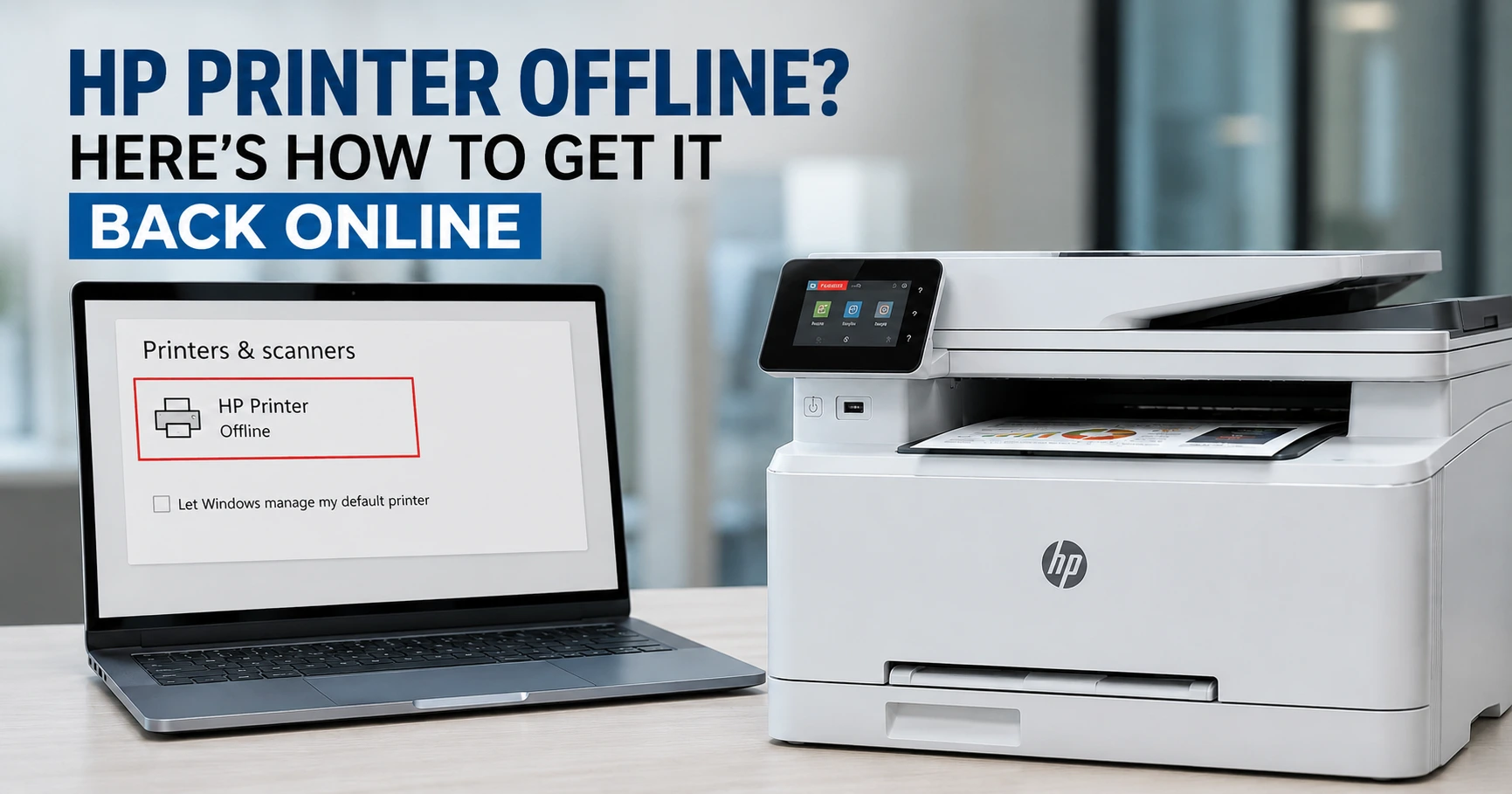
If your HP printer says "offline" but it's plugged in, powered up, and connected to Wi-Fi, here's the short version: it almost certainly isn't broken. "Offline" is a status Windows or macOS assigns when it can't confirm a live handshake with the printer, usually because the printer's IP address changed, a stuck print job is jamming the queue, or a Windows setting is quietly forcing it into offline mode.
Start with this sequence, in this exact order, before anything else: turn the printer off, unplug the router for 30 seconds, plug the router back in and let it fully reboot, then power the printer back on, and only then wake your PC. The order matters more than most guides admit - if the printer restarts before the router has finished handing out addresses, it can grab a stale IP again and you'll be right back where you started.
That fixes it maybe half the time. If your printer is still stuck offline, the cause is usually one of six things, and which one it is determines which fix actually sticks rather than working for a day and then reappearing.
Why does my HP printer keep showing "offline" when it's clearly connected?
| Symptom | Likely cause | Fastest fix |
|---|---|---|
| Was fine yesterday, offline today, nothing changed | Router assigned the printer a new IP (DHCP lease renewal) | Assign a static IP or DHCP reservation |
| Goes offline overnight or after the PC sleeps | Printer dropped its Wi-Fi connection or IP during sleep | Disable USB selective suspend / printer sleep mode |
| Prints fine from every app except the HP Smart app | HP Smart app lost sync with the printer, Windows spooler is fine | Restart HP Smart, or ignore it and print from the app you were using |
| Offline right after a Windows update | Windows 11 24H2's driver cleanup removed or replaced your driver | See the Windows 11 24H2 section below |
| Won't clear no matter what you try, print queue frozen | A corrupted job is stuck in the spooler | Restart the Print Spooler service |
| Suddenly can't print at all, "cartridge" error appears alongside offline | HP's Dynamic Security blocked a non-HP or refilled cartridge after a firmware push | See the Dynamic Security section below |
Underneath all of these, the mechanism is the same: Windows periodically polls the printer over the network using a protocol called SNMP (Simple Network Management Protocol) to check it's alive. If that poll times out because the IP changed, the network is congested, or the printer is asleep, Windows marks it offline even when a print job would actually go through fine. That's why "just restart everything" works so often: it forces a fresh poll.
Fix it on Windows: the reliable order of operations
Work through these in order and test a print after each one. Most people are printing again within the first three steps.
1. Turn off "Use Printer Offline"
Windows has a manual offline toggle that occasionally gets flipped by a failed print job or a driver hiccup.
- Open Settings > Bluetooth & devices > Printers & scanners, click your HP printer, and open the print queue.
- In the queue window, check the Printer menu (or the three-dot menu) for Use Printer Offline. If it's ticked, click it to untick it.
2. Clear the stuck print queue
A single frozen job can hold the entire queue and the printer's reported status hostage.
- In that same print queue window, select every pending job and click Cancel.
- If a job refuses to delete (this happens more than HP's own documentation lets on), move to step 3 first, then come back and clear it.
3. Restart the Print Spooler service
The spooler is the Windows background service that actually manages print jobs. When it hangs, the printer looks offline no matter what you do at the printer end.
- Press Win + R, type
services.msc, hit Enter. - Find Print Spooler, right-click it, choose Restart.
- Send a test print immediately after.
4. Disable SNMP status polling on the printer's port
This one rarely appears in official HP guidance, but it's one of the highest-success fixes for printers that are genuinely online yet permanently flagged offline, especially on busy home networks with several other Wi-Fi devices competing for airtime.
- Open Control Panel > Devices and Printers.
- Right-click your printer, choose Printer properties > Ports tab.
- Select the printer's port, click Configure Port, and untick SNMP Status Enabled.
- Print a test page.
If your printer has been intermittently flashing between online and offline for weeks rather than being consistently stuck, this is very likely your fix - dropped SNMP packets are far more common on 2.4GHz networks with multiple smart-home devices than most troubleshooting guides acknowledge.
5. Remove the printer and re-add it, but choose the right driver
- Go to Settings > Bluetooth & devices > Printers & scanners, remove the HP printer entirely.
- Run the installer from HP's support site for your exact model rather than letting Windows auto-detect it.
Here's the part worth knowing: when Windows auto-detects a printer, it often installs a generic driver rather than HP's own. Generic drivers print basic text fine but are also the single most common cause of a printer that reconnects, prints one page, then silently drops back to offline. Getting the model-specific driver directly from HP's site avoids this loop entirely.
If you've tried all five steps and you're done fighting it: a physical cable sidesteps nearly every fix above in one move. DHCP changes, SNMP polling drops, and Wi-Fi band mismatches are all wireless-networking problems by nature plug the printer into your PC directly with USB, or into your router with an Ethernet cable, and most of this guide simply stops applying to you.
The Windows 11 24H2 issue almost nobody's HP guide mentions
If your printer went offline right after a Windows update rather than gradually or randomly, this is very likely why, and it's a genuinely new cause that didn't exist before 2026.
To be precise about what's actually changing: your existing driver doesn't stop working overnight. What changed with a January 2026 cumulative update is that Windows Update stopped distributing new versions of older-style "V3 and V4" printer drivers, the type most manufacturers, including HP, had relied on for years. Microsoft flagged this change back in 2023, but the practical effect only started showing up in early 2026, when Windows' driver-ranking logic began favouring the modern, built-in Microsoft IPP class driver over vendor-specific ones. If your driver was already installed and working, it can carry on working; the disruption shows up when a driver needs to be reinstalled, repaired, or freshly added that's when Windows increasingly reaches for the generic IPP driver instead of HP's own, and HP-specific features quietly disappear or the printer briefly shows as unavailable while the swap happens. This is also why complaints about HP, Canon, and Brother printers acting up spiked sharply around that time on Microsoft's own support forums.
Alongside that, Windows 11 24H2 introduced a feature called Windows Protected Print Mode, which is the actual direction Microsoft is steering printing toward: it locks the system to the modern IPP/Mopria standard instead of vendor-specific drivers, which is more secure and, in theory, more consistent long-term. It's off by default, but if it gets switched on sometimes by IT policy, sometimes by a Windows update it automatically removes any non-Microsoft printer driver already on the machine, including HP's, and replaces it with the built-in Microsoft IPP class driver. Your printer isn't faulty in this scenario; Windows has simply swapped out the driver that was giving you HP's extra features for a leaner, standards-based one.
To check whether this is your situation:
- Go to Settings > Bluetooth & devices > Printers & scanners and look for Windows protected print mode. If it's switched on and you don't remember enabling it, turn it off, then reinstall HP's driver from its support page.
- If your printer still shows "driver unavailable" rather than a clean offline status, download HP's current driver package for your exact model. HP has been actively updating drivers through 2026 specifically to stay compatible with this change.
- As a stopgap, most affected HP printers will still print through the Microsoft IPP class driver, just without HP-specific extras like ink-level reporting or borderless printing options.
This is worth checking first if your printer is relatively new and only started acting up after a Windows update - it's easy to waste an hour on router and cable troubleshooting for a problem that's actually sitting entirely on the Windows side.
Stop it recurring: assign a static IP or DHCP reservation
Restarting everything fixes the symptom. A static IP fixes the cause, because it stops your router from ever handing the printer a different address in the first place.
- Print the printer's network configuration page (on most HP models, hold the Wireless or Information button for a few seconds, or check Settings > Network on the printer's screen).
- Note the printer's current IP and its MAC address from that page.
- Log into your router's admin panel (commonly
192.168.1.1or192.168.0.1). - Look for DHCP Reservation or Address Reservation, and bind that MAC address to that IP permanently.
- On your computer, remove the existing printer and re-add it. This refreshes Windows' cached record so it stops looking for whatever address the printer had before.
This single step is the difference between fixing the problem once and fixing it every few weeks. If you've restarted your printer more than three times this year for the same offline error, this is the one worth actually doing.
Fix it on Mac
macOS handles this slightly differently, but the underlying causes are identical.
- Open System Settings > Printers & Scanners.
- Select the HP printer, click the minus (–) button to remove it.
- Click the plus (+) button, wait for the printer to reappear, and re-add it. macOS will pull a fresh driver via AirPrint or Bonjour rather than relying on cached settings.
- If it still won't reconnect, right-click (or Control-click) anywhere in the printer list and choose Reset printing system. This clears every saved printer and queue on the Mac, so only use it if the steps above haven't worked.
Fix it on iPhone, iPad, or Android
If your laptop prints fine but your phone says offline, the printer isn't the problem - mobile discovery is.
- iPhone/iPad: AirPrint requires the phone and printer on the exact same Wi-Fi network and, critically, the same frequency band. If your router broadcasts one combined network name for both 2.4GHz and 5GHz, your phone may be sitting on 5GHz while the printer only supports 2.4GHz and never actually joins the same network your phone sees. Toggle Wi-Fi off and on, then try printing again.
- Android: Install or update the Mopria Print Service from the Play Store alongside the HP Smart app. Android's native print dialog relies on Mopria for discovery, and an outdated version is a common, easily missed cause of phantom offline errors.
When it's not actually offline: HP's Dynamic Security and cartridge blocking
This is the one HP won't put front and centre in its own troubleshooting steps, but it's worth knowing if you use refilled, remanufactured, or third-party cartridges. Many HP printers ship with a feature called Dynamic Security, which checks that an installed cartridge has an HP-authorised chip. HP has pushed firmware updates, sometimes automatically, in the background that tighten this check, and printer owners on HP's own support community have reported cartridges that worked for months suddenly getting rejected the day after an update installs.
The reason this matters for an "offline" article: the symptoms overlap. A blocked cartridge can produce a "cannot communicate with printer" or stuck-queue message that looks identical to a genuine network offline error, sending people down a router-troubleshooting rabbit hole for a problem that's actually about the cartridge, not the connection.
How to tell the difference in under two minutes:
- Temporarily install a genuine HP cartridge, even a mostly-empty one, and try printing. If it goes through immediately, the "offline" status was cartridge authentication, not connectivity.
- Check the printer's own display or the HP Smart app for cartridge-specific wording like "non-HP chip detected" or "cartridge problem" alongside the offline message - that's your confirmation.
If this is the cause and you want to keep using third-party ink, HP's support pages list which printer models allow Dynamic Security to be disabled via a firmware option and which don't; models manufactured after December 2016 generally can't have it disabled at all. There's no way around this if your specific model falls into that group - it's a firmware-level lock, not a settings toggle you can find some clever workaround for.
Preventing the next offline error
A few habits save far more time than repeatedly troubleshooting the same fault:
- Give the printer a static IP or DHCP reservation - this alone eliminates the most common recurring cause.
- Use Ethernet or USB if the printer sits within cable reach and you're tired of fighting Wi-Fi every few weeks; wired connections don't experience the SNMP polling drops that wireless ones do on busy networks.
- Install drivers directly from HP's site for your exact model, not whatever Windows auto-detects, especially now that Windows 11 24H2 is actively phasing out generic and legacy drivers.
- Decide deliberately whether to allow automatic firmware updates. If you rely on third-party cartridges, an unannounced firmware push is the most common way a working setup breaks overnight. You can turn off automatic updates from the printer's control panel under Setup > Preferences, or from the HP Smart app.
Related Guides
Why Is My Printer Offline When It's Connected? (And How to Fix It)