
Most Windows 11 audio failures are caused by one of three things: a corrupted or outdated audio driver (especially after a Windows Update), a misconfigured default playback device, or a stuck audio service. The fastest fix is to right-click the speaker icon → Troubleshoot sound problems, then manually reinstall your audio driver from Device Manager if that fails. Advanced cases like Intel Smart Sound Technology conflicts require downloading drivers directly from your laptop manufacturer's support page, not Windows Update.
Contents
- Why This Happens
- 30-Second Quick Checks
- Run the Audio Troubleshooter
- Set the Right Playback Device
- Fix or Reinstall the Audio Driver
- Restart Windows Audio Services
- Get Drivers from Your Manufacturer
- Advanced: Registry & BIOS Fixes
- Prevent It from Recurring
Key Stat: Most of Windows 11 audio failures reported on Microsoft's Community forums involve driver conflicts introduced by Windows Update, particularly the Intel Smart Sound Technology (SST) driver replacing Realtek or Conexant drivers silently.
Why Windows 11 Loses Audio: The Real Root Causes
Before throwing every fix at the wall, we help to understand what actually breaks. Windows 11 handles audio through a layered stack - hardware, driver, Windows Audio Service, and application and the failure can sit at any layer. Here are the most common culprits in order of frequency:
- Windows Update overwrote your driver: Windows Update sometimes installs a generic Intel SST driver that conflicts with OEM Realtek/Conexant drivers, silently breaking audio.
- Wrong default playback device: Audio routed to a disconnected HDMI monitor or Bluetooth device that's no longer paired. Very common and very easy to miss.
- Windows Audio service crashed: The
AudioSrvorAudioEndpointBuilderservice can stop running, leaving zero audio output with no error message. - Volume mixer app-level mute: An individual app (browser, media player) can be muted in the Volume Mixer while system volume appears normal.
- Corrupted driver files: After a hard shutdown or failed update, driver DLL files can become corrupted, causing the audio subsystem to fail at boot.
- Disabled device in Device Manager: An accidental right-click → Disable on your sound card produces complete silence with no obvious indicator.
30-Second Quick Checks Before Anything Else
These are the fixes that most guides bury on page two, and they solve around 25% of cases in under a minute.
Step 1: Check the Volume Mixer, not just the taskbar
30 seconds
Right-click the speaker icon in your taskbar and select Open Volume Mixer. You'll see a per-app volume bar. It's possible your browser or media player is at 0% while the system volume shows 100%. Drag every slider up and check that no app is individually muted.
Tip: On Windows 11, press Win + G (Xbox Game Bar) to check if audio is being captured by game audio instead of played through speakers; this trips up a lot of users.
Step 2: Verify audio communications aren't overriding playback
1 minute
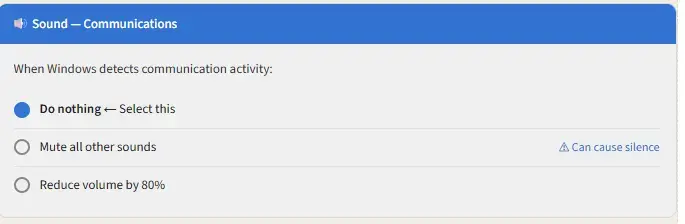
Windows 11 has a "Communication" setting that automatically reduces or mutes other sounds when it detects a call. It can permanently silence audio if it gets stuck.
Settings → System → Sound → More sound settings → Communications tab → Select "Do nothing"
Run the Built-In Audio Troubleshooter
The Windows 11 audio troubleshooter is more capable than most people give it credit for; it can automatically detect and fix misconfigured services and driver conflicts. It won't solve everything, but it costs 60 seconds and occasionally saves you 30 minutes.
Step 3: Launch the audio troubleshooter
1–2 minutes
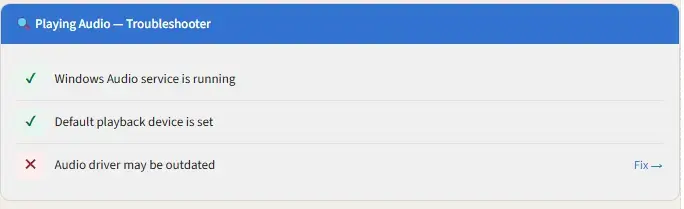
Right-click the speaker icon in the taskbar → Troubleshoot sound problems. Select your output device when prompted. Let it run through its checks.
If it says "Audio driver may be outdated," that's your most actionable lead. Continue to Step 5 (Driver Fix) below.
Set the Correct Default Playback Device
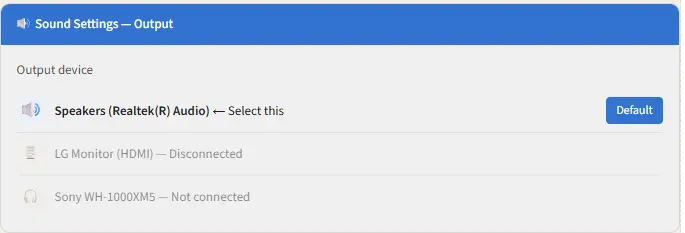
This is the single most commonly overlooked fix. When you plug in headphones, connect an HDMI monitor, or pair a Bluetooth speaker, Windows 11 often silently switches your default output device. When that device disconnects, audio goes nowhere instead of reverting to your laptop speakers.
Step 4: Change your default audio output device
1 minute
Right-click the speaker icon → Sound settings → Under "Output", use the dropdown to select your laptop's built-in speakers (usually labeled "Speakers" or "Realtek Audio").
Settings → System → Sound → Output → Choose your output device
Warning: If you see a device labeled "Speakers (Intel(R) Smart Sound Technology...)" as the only option, your OEM driver has been replaced. Skip to Step 7 (Manufacturer Drivers) - this is the Intel SST conflict.
If the above didn't work, your audio driver is almost certainly the problem. A driver reinstall resolves the majority of "no sound after Windows Update" cases. Here's how to do it properly - the order matters.
Step 5: Uninstall and reinstall via Device Manager
5–8 minutes
- Press
Win + X→ Device Manager - Expand Sound, video and game controllers
- Right-click your audio device → Uninstall device
- Check the box "Delete the driver software for this device" - this is critical
- Restart your laptop. Windows will reinstall a clean driver automatically on reboot
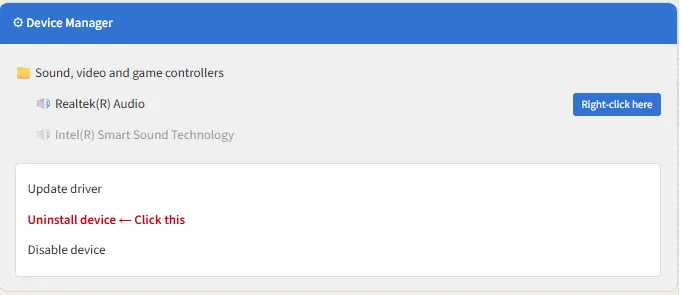
Tip: If you see two audio devices listed (e.g., both "Realtek Audio" and "Intel Smart Sound Technology"), uninstall the Intel SST one first, restart, and test. The Intel SST driver is often the ghost that's blocking your OEM driver from functioning.
Step 6a: Roll back the driver if you know when it broke
3 minutes
If audio stopped working right after a Windows Update, a rollback is faster than a reinstall. In Device Manager, double-click your audio device → Driver tab → Roll Back Driver. This reverts to the previously installed version.
Note: The "Roll Back Driver" button is grayed out if there's no previous driver stored. In that case, skip directly to Step 7 and download from your manufacturer's website.
Restart Windows Audio Services
The Windows Audio engine runs as a background service. After a crash, update, or sleep/wake cycle, these services can stop without restarting themselves. This produces total silence with no error - the driver is fine, but nothing is routing audio through it.
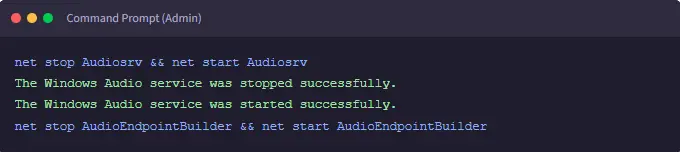
Step 6: Restart AudioSrv and AudioEndpointBuilder
2 minutes
Press Win + R, type services.msc, and hit Enter. Find Windows Audio, right-click → Restart. Then do the same for Windows Audio Endpoint Builder. Both must be running and set to "Automatic" startup.
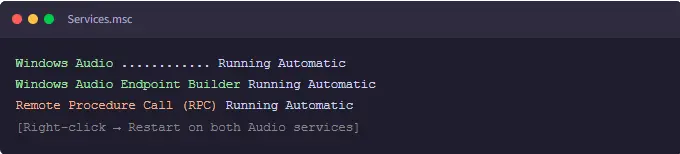
You can also do this from an elevated Command Prompt for speed:
Get the Right Driver Directly From Your Manufacturer
This is the step most guides skip, and it's often the only thing that works for OEM laptops like Dell, HP, Lenovo, and ASUS. Windows Update's generic drivers lack the fine-tuning that manufacturers apply for specific hardware configurations.
| Brand | Support Page | What to Search | Difficulty |
|---|---|---|---|
| Dell | dell.com/support | Your Service Tag → Audio / Sound drivers | Easy |
| HP | support.hp.com | Model number → Drivers → Audio | Easy |
| Lenovo | support.lenovo.com | Machine type (on sticker) → Drivers & Software | Easy |
| ASUS | asus.com/support | Model → Drivers & Tools → Audio | Medium |
| Acer | acer.com/support | Serial number → Drivers → Audio/Sound | Medium |
| MSI | msi.com/support | Exact model → Download → Audio | Medium |
Step 7: Download and install your OEM audio driver
10–15 minutes
After downloading the driver installer from your manufacturer, run it as Administrator. Most OEM audio packages (Realtek, Conexant, IDT) include an uninstall of the old driver before installing the new one. Restart when prompted - do not skip the restart.
Tip: To find your exact model number, press Win + R → type msinfo32 → look for "System Model" and "System Manufacturer" near the top.
Warning: Do not download audio drivers from third-party "driver download" websites. They frequently bundle adware, are often outdated, and in some cases are outright malware. Only use your laptop manufacturer's official domain.
Advanced Fixes: Registry, IDT Codec & BIOS
If none of the above has worked, you're dealing with one of a handful of deeper issues. These apply to a small percentage of cases but are surprisingly well-documented on Microsoft's own forums.
Fix the Intel Smart Sound Technology conflict
On Intel-based laptops (12th/13th gen particularly), Windows Update sometimes installs an Intel SST driver that takes over the audio pipeline from Realtek. The fix:
- Open Device Manager
- Right-click Intel Smart Sound Technology → Update driver
- Select Browse my computer → Let me pick from a list
- Select High Definition Audio Device (the generic Microsoft driver)
- Reinstall your Realtek driver from your manufacturer's site
Check for BIOS-level audio disable
On some business laptops (Lenovo ThinkPads, HP EliteBooks), audio can be disabled at the BIOS/UEFI level, usually by an IT policy or after a BIOS update.
- Restart and press
F2orDelto enter BIOS - Navigate to Configuration or Advanced
- Look for "Onboard Audio" or "HD Audio" and ensure it's enabled
Run SFC and DISM if driver files are corrupted
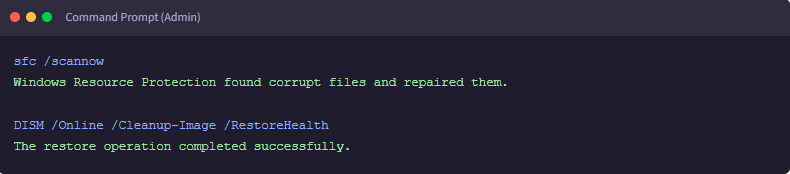
Run these commands in an elevated (Admin) Command Prompt. SFC repairs corrupted system files including audio DLLs; DISM fixes the underlying Windows image that SFC draws from. Run SFC first, then DISM if SFC reports issues it couldn't repair.
Preventing Audio Breakage After Future Windows Updates
Once you have audio working, take five minutes to reduce the chance of Windows Update silently replacing your drivers again.
Block Windows from auto-updating device drivers
Recommended for most laptop users
Win + R → sysdm.cpl → Hardware tab → Device Installation Settings → Select "No (your device might not work as expected)"
This stops Windows from overriding your manufacturer drivers with generic Microsoft ones during updates.
Note: This setting only prevents automatic driver updates; Windows security patches still install normally. You'll still need to manually check for driver updates via your manufacturer's site every 6–12 months.
Symptom → Fix Quick Reference
| What You're Seeing | Most Likely Cause | Go to Step |
|---|---|---|
| No sound from speakers but headphones work | Wrong default output device selected | Step 4 |
| Broke right after Windows Update | Driver overwritten by Windows Update | Steps 5 & 7 |
| Speaker icon has red X in taskbar | Audio service stopped or device disabled | Steps 4 & 6 |
| Sound works on some apps, not others | App muted in Volume Mixer | Step 1 |
| "No audio output device installed" | Driver missing or device disabled in Device Manager | Step 5 |
| Audio crackles, stutters, or cuts out | Driver conflict or outdated OEM driver | Step 7 |
| Intel SST listed as only audio device | Intel driver replaced OEM Realtek/Conexant | Advanced section |
| Nothing works, tried everything | Corrupted system files or BIOS issue | SFC/DISM, BIOS check |
What to Do If You Still Have No Audio
If you've worked through every step above without success, your next moves are:
- Reset audio settings via Settings → System → Sound → Scroll down → "Troubleshoot" link
- Create a new Windows user account and test audio there (isolates profile corruption)
- Run Windows Update to get the very latest patches - sometimes Microsoft patches its own SST conflicts
- Use Windows System Restore to roll back to a restore point before the audio broke
- Boot a live Linux USB and test audio, confirms if it's hardware vs software
- Contact your laptop manufacturer's support may be a known hardware defect
- Check if your warranty covers a hardware audio fault
- Consider a USB audio adapter (£8–£15) as an immediate workaround
About This Guide
This article is published as part of the Z Switch Knowledge Base - a free resource covering common device, website, and software problems for home users and small businesses across the UK. It is based on real-world troubleshooting across Dell, HP, Lenovo, ASUS, and Acer laptops running Windows 11 (versions 22H2 and 23H2). The Intel Smart Sound Technology conflict described here is documented on Microsoft's Community forums and affects a significant number of 11th–13th gen Intel-based laptops.
Published by Z Switch · Virtual Assistance UK · zoneswitch.co.uk