
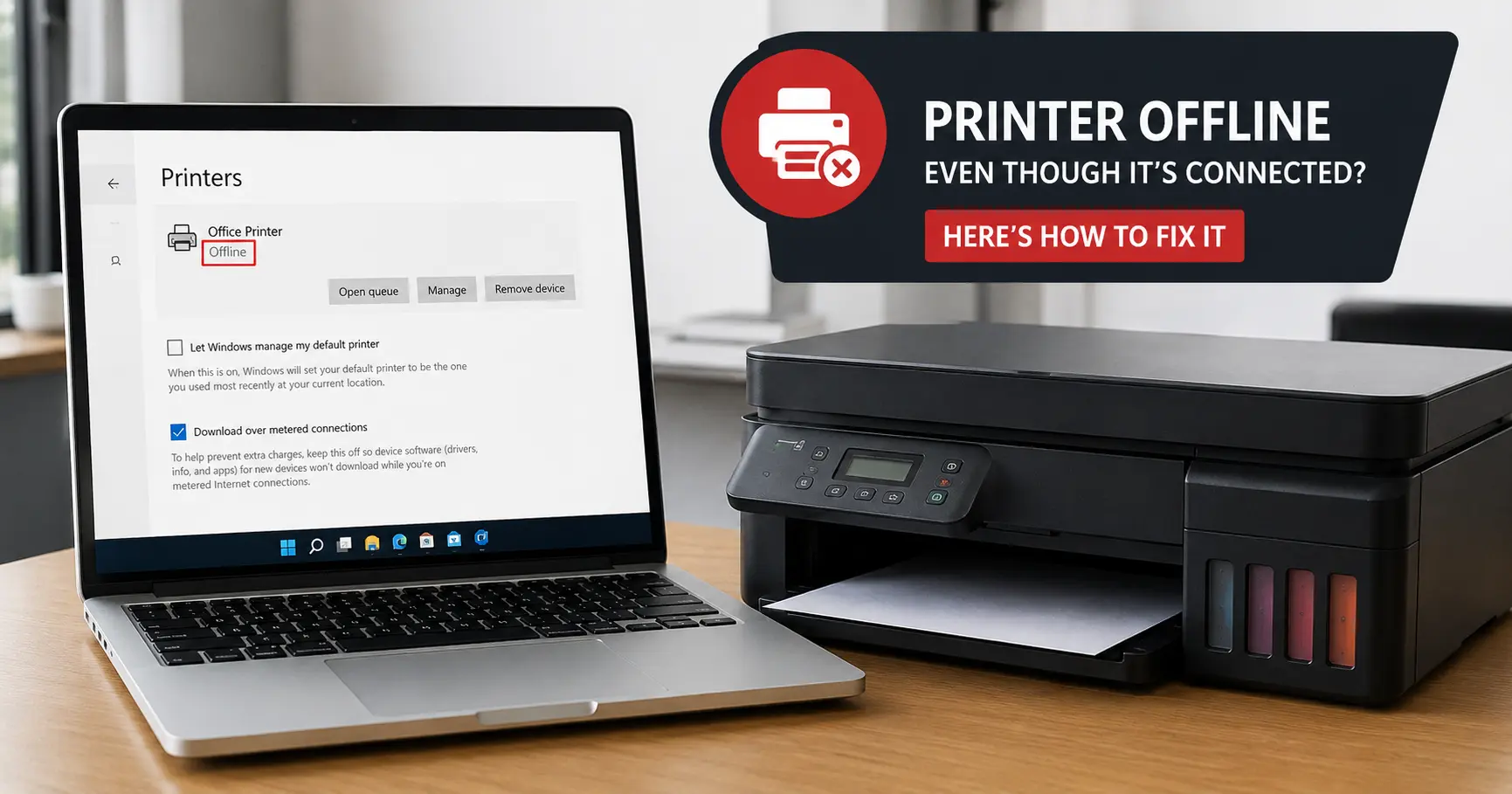
Your printer is switched on. The Wi-Fi light is solid. It printed fine yesterday. And yet your computer insists it's "offline." Nine times out of ten, this has nothing to do with your printer actually losing power or its wireless signal it's a status flag stuck on your computer's end, and it usually traces back to one of three things: your router quietly gave the printer a new IP address, a stuck print job is jamming the queue, or a setting called "Use Printer Offline" got switched on without you touching it.
The fastest fix, before anything else: turn the printer off, unplug your router for 30 seconds, plug it back in, then turn the printer back on once the router has fully rebooted - restart your computer last. This clears the single most common cause (a mismatched IP address) in one go. If that doesn't do it, the rest of this guide walks through every other cause, in the order I'd actually check them if you handed me the printer.
One thing worth knowing upfront: an "offline" printer is almost never a broken printer. In years of sorting these out, I can count on one hand the times the printer itself was actually faulty. It's nearly always a communication breakdown between the computer and the device, which is good news, because that's fixable in minutes, not a trip to the repair shop.
What "Offline" Actually Means (And Why It's Misleading)
"Offline" sounds like it's describing the printer. It isn't — it's describing what your computer's print driver believes about the printer, based on the last time the two of them successfully "shook hands." Your printer doesn't broadcast "I'm offline." Your operating system decides that on its own, usually because it sent a status request (a ping to the printer's IP address, or a query over USB) and didn't get a reply within its expected window.
That distinction matters because it explains why restarting the printer alone often doesn't fix anything; the printer was never actually down. The disconnect lives in Windows, macOS, the print spooler, or the network path between the two devices. Fix that, and the "offline" label disappears even though nothing physically changed on the printer.
The Real Causes of a Printer Going Offline While Connected
1. Your Router Reassigned the Printer's IP Address
This is the one almost nobody suspects, and it's the most common cause of a printer that keeps going offline after a router reboot, a power cut, or even just being left overnight. Most home and small-office printers connect using DHCP, which means your router hands out IP addresses on a lease. When the lease expires or the router restarts, it can quietly assign your printer a different IP address than the one your computer has saved for it. Your computer keeps trying to reach the old address nobody's home, and reports the printer as offline, even though the printer itself is sitting there online, just at a new address.
How to tell this is your problem: print a network configuration page from the printer's own menu (or check its screen) and compare the IP address shown there to the one listed in your computer's printer settings. If they don't match, that's your answer.
The lasting fix is to stop the address from changing at all - reserve a static IP for the printer using its MAC address, either directly on the printer's network settings or through your router's DHCP reservation list. Do this once, and you'll likely never see this particular flavour of "offline" again.
2. Windows Has "Use Printer Offline" Switched On
Windows has a genuine manual "work offline" toggle for printers, originally meant for shared network printers so other people can't queue jobs on your machine while you're using it locally. The frustrating part is that it can get flipped on by itself after a failed print job, a Windows update, or a sleep/wake cycle — and there's no obvious warning banner telling you it happened. You just get "offline" with no explanation.
This setting only shows up for printers connected by USB; if your printer is Wi-Fi only, you can skip straight to the network causes below, since this toggle won't be the culprit.
3. A Stuck Print Job Is Blocking the Queue
Print jobs are processed one at a time through a queue. If one job fails a driver hiccup partway, a paper size mismatch, or the printer running out of ink mid-job it can sit in the queue in a broken state and refuse to clear, blocking every job behind it. Your computer sometimes reports this as the printer being offline, because from its perspective, nothing is getting through.
4. The Print Spooler Service Has Crashed (Windows)
This is the deeper, more technical cousin of the stuck-job problem, and it's worth understanding because it explains a genuinely confusing symptom: every printer on your PC shows as offline at once, even ones on completely different networks. The print spooler is a background Windows service (spoolsv.exe) that manages every print job on the system. When it crashes often due to a corrupted spool file or a buggy third-party driver, it can take every printer queue down with it, and Windows reports them all as offline simultaneously, regardless of what's actually happening on the network.
You'll find the smoking gun for this in Windows Event Viewer, under Windows Logs > System, filtered for "spooler." A repeating crash tied to a specific driver file is a strong sign that removing that driver, not endlessly restarting the printer, is the actual fix.
5. The Printer's Wi-Fi Signal Dropped
Printers, especially older or cheaper models, tend to have weaker Wi-Fi antennas than laptops or phones, so they're often the first device in the house to lose a marginal signal. Distance from the router, thick walls, and interference from other 2.4GHz devices (microwaves, baby monitors, older cordless phones) can all cause a printer to silently drop off the network while your other devices stay connected without issue. If your printer only goes offline when you're printing something large, or only at certain times of day, signal strength is worth investigating before anything else on this list.
6. Sleep Mode Killed the Wireless Connection
Many wireless printers, particularly inkjets, drop their Wi-Fi radio entirely when they go into deep sleep to save power — rather than staying connected in a low-power state. When you send a print job, the printer has to wake up and rejoin the network before it can accept anything, and that handshake can take longer than your computer's patience allows, so it reports "offline" in the interim. If your printer reliably comes back online a few seconds after the first failed attempt, this is almost certainly what's happening. Most manufacturers let you shorten or disable the aggressive sleep timer in the printer's own settings menu.
7. Outdated or Mismatched Drivers
Operating system updates move faster than printer manufacturers do. When Windows or macOS pushes an update, it can change how it talks to devices at a level your existing driver wasn't built to handle, and the printer starts reporting as offline or unavailable even though the connection itself is fine. This is especially common right after a major OS version upgrade.
8. A Firewall or Antivirus Is Blocking the Printer's Ports
Network printing typically uses port 9100 (raw/JetDirect printing) or port 631 (IPP, the protocol behind AirPrint and most modern "driverless" printing). Aggressive firewall or antivirus software, particularly after a fresh install or a security software switch can start blocking these ports without any obvious notification, which looks identical to a network problem from the printer's side.
9. You've Got a Duplicate or Wrong Default Printer
If you've connected the same printer both by USB and by Wi-Fi at different points, Windows may have created two separate entries for what is physically one device, one for each connection type. It's easy to send a job to the USB entry while the cable is unplugged, and see "offline," while the Wi-Fi version of the same printer would have worked fine. Check your printer list for duplicates before assuming anything's actually wrong.
How to Fix It: Step-by-Step
Work through these roughly in order - they're arranged from fastest/most-likely to more involved, not randomly.
Step 1: The 90-Second Reset
Turn off the printer and unplug it from power. Restart your router and your computer. Once the router has fully come back online, plug the printer back in and power it on, then try printing again. This alone clears a stale IP address and a hung spooler in one move, and it's the step HP's own support team leads with for exactly this reason.
Step 2: Turn Off "Use Printer Offline" (Windows)
Open Settings > Bluetooth & devices > Printers & scanners, select your printer, and open the print queue. In the queue window, click "Printer" in the menu bar and make sure "Use Printer Offline" is unchecked, along with "Pause Printing." While you're there, right-click the printer in the main list and select "Set as default printer" to rule out cause #9 above.
Step 3: Clear the Queue and Restart the Print Spooler (Windows)
From the same print queue window, cancel any stuck jobs. If that alone doesn't clear things, restart the spooler service directly: press Windows+R, type services.msc, find "Print Spooler" in the list, right-click it, and choose Restart. If jobs are still stuck afterwards, stop the service, delete everything inside C:\Windows\System32\spool\PRINTERS, then start the service again — this forces a completely clean queue.
Step 4: Reset the Printing System (Mac)
Go to System Settings > Printers & Scanners, right-click (or Control-click) anywhere in the printer list, and choose "Reset Printing System." This removes every printer and queue from your Mac and clears any corrupted configuration behind the scenes. You'll need to re-add your printer afterwards using the "+" button, but it resolves the great majority of stubborn Mac offline errors that survive a simple restart.
Step 5: Give the Printer a Static IP (the Fix That Actually Lasts)
Log into your router's admin page, find the DHCP reservation or "address reservation" section, and assign your printer's MAC address (printed on a network config page from the printer itself) a fixed IP address outside your router's normal DHCP range. This is the single change that stops cause #1 — by far the most common recurring offline issue from ever coming back.
Step 6: Update or Reinstall the Driver
Download the current driver directly from the manufacturer's site rather than relying on Windows Update, which sometimes lags behind, especially after a major OS release. On Windows, uninstall the old driver through Device Manager first, restart, then install the fresh one. On Mac, check the driver version under Printers & Scanners and compare it against what the manufacturer currently lists as latest.
Step 7: Check Your Firewall
Temporarily disable third-party antivirus or firewall software and try printing again. If it works, the fix isn't to leave security software off - it's to add a specific exception for ports 9100 and 631, or for the printer's IP address, inside that software's settings.
Does Fancy Hardware Prevent Offline Errors? (No - Here's Why)
I get asked this a lot, usually by someone who's just spent good money on a higher-end printer and can't understand why it's doing the exact same thing their old one did: does better internal hardware mean fewer offline errors? The honest answer is no, and understanding why is actually useful.
Take Epson's PrecisionCore printheads - the tech behind a lot of their better inkjets. It's genuinely impressive engineering: the printhead fires up to 50,000 ink droplets per second from each individually controlled nozzle, with each droplet weighing only around seven nanograms an almost absurdly small and precise amount of ink to be placing thousands of times a second. Or look at Ricoh's commercial laser machines, which use VCSEL vertical-cavity surface-emitting laser - arrays instead of the older single spinning-mirror laser design, firing dozens of laser beams at once to correct for sheet expansion and colour shift as the page moves through the engine. Pair that with their PxP-EQ toner formulation, engineered to spread evenly and hold colour accuracy at a lower fusing temperature, and you get sharper text and more consistent photo reproduction.
None of that touches the "offline" problem, because none of it lives anywhere near the network layer. PrecisionCore and VCSEL are about how the printer puts ink or toner on the page once it's already received the job - they have nothing to do with whether your computer and printer can find each other on the network in the first place. A £600 machine with a cutting-edge printhead uses the exact same DHCP, spooler, and driver plumbing as a £60 one to actually receive that print job, and it's just as vulnerable to a stale IP address or a crashed spooler service. If anything, more advanced printers sometimes have more firmware and more background services that can go wrong - sophistication doesn't buy you immunity here.
Stopping It From Happening Again
A handful of habits prevent most repeat offline problems:
- Reserve a static IP for the printer on your router (Step 5 above) - this single change eliminates the most common recurring cause outright.
- Use Ethernet over Wi-Fi for any printer that gets heavy daily use, particularly in an office. A wired connection simply can't suffer the signal drops or DHCP churn that wireless does.
- Shorten the printer's sleep timer, or disable deep sleep entirely, if it's a low-traffic printer that goes offline mainly after periods of idle time.
- Keep drivers and firmware current - check the manufacturer's site every couple of months rather than waiting for something to break first.
- Standardise printer brands and models if you're managing more than one device across a household or small office. Supporting five different driver ecosystems multiplies the number of ways things can quietly go wrong.