
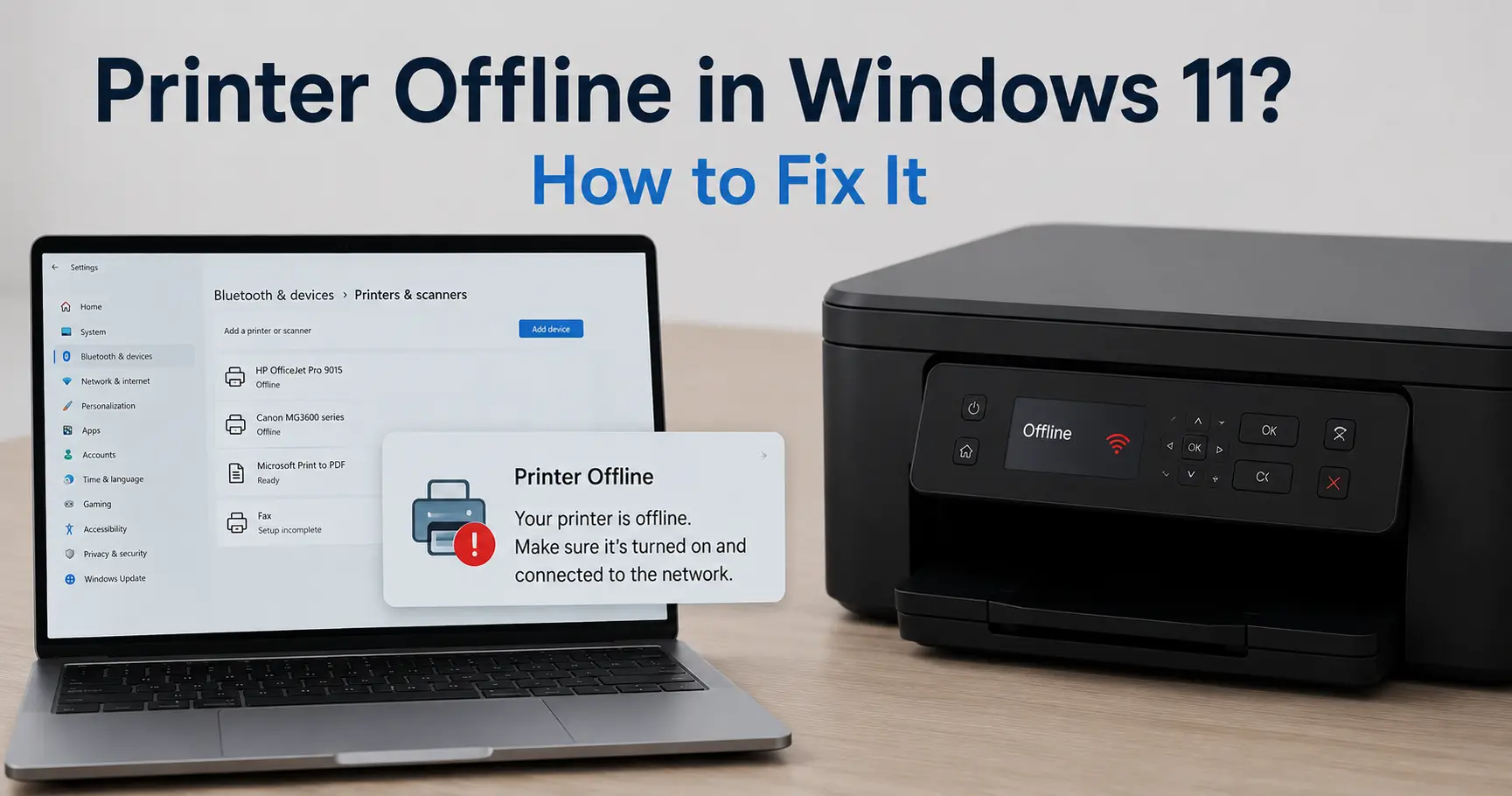
Your printer is switched on, connected to the same Wi-Fi as your PC, and has paper loaded, yet Windows 11 insists it's "Offline." Nine times out of ten, this isn't a hardware fault at all. It's Windows itself losing track of the printer's status, usually because of one of four things: the "Use Printer Offline" flag got flipped on, the Print Spooler service has jammed, a stale IP address is pointing at a printer that's moved networks, or a Windows update changed how the printer's driver talks to the operating system.
The fastest fix takes under two minutes: right-click the printer in Settings > Bluetooth & devices > Printers & scanners, open the print queue, and check whether "Use Printer Offline" is ticked. If it is, untick it. If that alone doesn't bring the printer back, restart the Print Spooler service (details below) - this resolves the majority of offline errors reported in Windows 11 support threads without touching a single cable.
If neither works immediately, keep reading. The rest of this guide covers every layer of the problem, from the quick checklist through to the specific Windows 11 24H2 driver policy that's currently causing confusion, and the network-level causes that only show up on shared or business printers.
The 2-Minute Checklist Before You Do Anything Else
Run through these in order. Each one takes seconds and clears a large share of offline errors on its own:
- Power-cycle the printer: off, wait 30 seconds, back on. This clears a hung print engine state, which is common enough that most manufacturer support tools try it first.
- Confirm the printer is on the same network as your PC. A printer that's hopped onto a guest Wi-Fi network, or a phone's hotspot by accident, will look "offline" to a PC on the main network even though the printer's display shows it's connected to something.
- Untick "Use Printer Offline" in the print queue (Start menu > search "Printers" > double-click your printer to open the queue > Printer menu).
- Check it's actually the default printer. If Windows is routing jobs to Microsoft Print to PDF, OneNote, or a printer you removed months ago, the printer you actually want to use can sit there showing offline while nothing is technically wrong with it.
- Look at the printer's own display or lights for paper jams, low ink/toner locks, or a physical error code. Some printers will report "offline" to the PC's driver stack the moment they hit a hardware fault, even a minor one like an open cover.
If none of that shifts it, the fault lives deeper in Windows' printing stack, and that's where most guides and most people's patience run out.
Why Windows 11 Says "Offline" Even When the Printer Is Clearly Fine
Here's the part that trips people up: Windows doesn't actually know your printer's real-time status. It infers it. For network printers, Windows periodically polls the device using SNMP (Simple Network Management Protocol) to check it's still reachable. If that poll fails because of a firewall rule, a router that blocks SNMP broadcasts, a VPN tunnel, or simple network congestion, Windows marks the printer offline even though you could walk over and print a test page from the device's own panel.
This is the single most common reason a printer works perfectly from a phone or another computer but shows offline on one specific Windows 11 machine. The printer isn't confused. Windows is.
The SNMP Setting Nobody Mentions
You can stop Windows from making this mistake by turning off SNMP status monitoring for that printer:
- Open Devices and Printers (search for it in the Start menu - the classic control panel still exists in Windows 11).
- Right-click your printer > Printer properties > Ports tab.
- Select the port in use > Configure Port.
- Untick SNMP Status Enabled > OK.
With SNMP polling disabled, Windows stops asking the printer "are you there?" every few seconds and simply sends the job. If the printer's physically reachable, it prints. This single setting fixes a surprising number of "offline" reports on office network printers, HP multifunction devices in particular, because their SNMP implementation is notoriously inconsistent across firmware versions.
Fixing It Step by Step
If the quick checklist didn't work, work through these in order - each targets a different layer of the Windows print stack, starting with the cheapest fix.
1. Restart the Print Spooler Service
The Print Spooler is the background service that manages every print job on the system. When it hangs, usually because a corrupted job got stuck in the queue, printers connected to it can report offline regardless of their actual connection state.
- Press Win + R, type
services.msc, hit Enter. - Find Print Spooler, right-click, choose Restart.
- Reopen the print queue and try again.
If jobs are stuck and won't clear even after restarting the service, wipe the spooler folder directly:
net stop spooler
del /Q /F "%systemroot%\System32\spool\PRINTERS\*.*"
net start spooler
Run these three lines in an elevated Command Prompt. This removes orphaned job files that a simple restart sometimes leaves behind.
2. Run the Built-In Printer Troubleshooter
Go to Settings > System > Troubleshoot > Other troubleshooters > Printer > Run. It's easy to dismiss this as a token gesture, but it actually checks several things by hand: spooler health, port configuration, driver installation state, and default printer conflicts. It's worth the 30 seconds even if you expect it to find nothing.
3. Remove and Re-Add the Printer
This resets the port bindings and driver associations that build up over time, particularly after moving a printer between networks or reinstalling Windows features:
- Settings > Bluetooth & devices > Printers & scanners
- Select the printer > Remove device
- Add device and let Windows rediscover it
For network and Wi-Fi printers, this is often more reliable than any registry tweak because it forces Windows to re-negotiate the IPP or WSD connection from scratch rather than patching a broken one.
4. Update or Reinstall the Driver - From the Manufacturer, Not Just Windows Update
Windows will often auto-install a generic driver that technically works but doesn't expose the printer's full feature set, and can misreport status. Download the current full driver package directly from HP, Epson, Canon, or Brother's support site for your exact model rather than relying solely on Windows Update. Manufacturer tools like HP Smart or Epson's Software Updater also carry a "Diagnose & Fix" function that resolves offline states more reliably than the generic Windows troubleshooter, because it talks to the printer using the manufacturer's own protocol rather than the generic IPP class driver.
5. Set a Static IP or DHCP Reservation for Network Printers
If your printer's IP address changes every time your router reassigns leases, Windows keeps trying to reach the old address and reports offline until you remove and re-add the printer - a cycle that repeats every few days for some users. Fix it permanently with a DHCP reservation (sometimes labelled "Address Reservation" or "Static Lease" in your router's admin panel), which ties that printer's MAC address to a fixed IP indefinitely.
The Windows 11 24H2 Driver Policy - What's Actually True
If you've searched this topic recently, you've probably seen claims that Windows 11 is "killing off" older printer drivers entirely. This needs a correction, because the story genuinely changed mid-way through, and a lot of still-circulating advice is out of date.
Here's what actually happened. In February 2026, Microsoft published a roadmap update implying that legacy V3 and V4 printer drivers the older, kernel-mode driver model used by most printers made before roughly 2018 were being removed from Windows entirely. That triggered a wave of alarmed coverage. Microsoft then walked the statement back, confirming to the press that Windows had not ended support for legacy drivers, and that printers working today will keep working with no action required.
What did actually change, and remains true, is narrower: from mid-January 2026, new V3/V4 driver submissions to Windows Update require manual approval rather than being accepted automatically, existing drivers already distributed continue to work, and manufacturers can still ship drivers directly through their own installers. Two further changes are scheduled but hadn't taken effect at the time of writing: Windows giving priority to its own built-in IPP driver over third-party alternatives when both are available, and a later restriction limiting third-party driver updates via Windows Update to security patches only.
Separately from all that, and this is the part that actually causes offline errors - Windows 11 24H2 introduced an optional feature called Windows Protected Print Mode (WPP). It's disabled by default. If it does get switched on (sometimes by a group policy pushed in a managed office environment, occasionally by a well-meaning IT script), it deletes every third-party printer driver on the machine and restricts printing to Mopria-certified, IPP-based devices only. Any printer that depends on its manufacturer's own driver will vanish from the printer list, not just show offline. If your printer disappeared entirely rather than merely going offline, check Printer properties > Advanced tab for a Windows Protected Print Mode entry before assuming a driver corruption issue - this is a config toggle, not a fault, and it's fully reversible by disabling WPP and reinstalling the driver.
What's Actually Inside Your Printer (and Why It Rarely Causes "Offline")
It's worth clearing up a genuine point of confusion for anyone using a higher-end business printer: the fancy print-engine technology inside your device is almost never the reason it shows offline in Windows.
Take Epson's PrecisionCore printheads, for example, the piezo-based print chips used in Epson's EcoTank and business inkjet ranges. They fire ink droplets mechanically using an electrical charge rather than heat, which is why they're prized for longevity and why Epson can run self-diagnostic checks on individual nozzles in real time. Or Ricoh and Lanier's VCSEL arrays vertical-cavity surface-emitting lasers used in the imaging units of higher-end colour laser MFPs, which fire dozens of laser beams simultaneously to hit very high resolutions at speed, paired with PxP-EQ chemical toner, a low-melting-point toner formulation designed to fuse to paper at a lower temperature and cut energy use.
All genuinely clever engineering. None of it has anything to do with your Windows 11 taskbar telling you the printer is offline. That status lives entirely in a separate layer: the network connection, the print spooler, the port configuration, and the driver's communication with Windows. A printer with a faulty print engine will usually throw an actual error code on its own display: a paper jam sensor, a toner-not-recognised warning, a fuser unit fault rather than silently reporting "offline" to Windows. If your printer looks completely normal on its own screen and simply isn't talking to your PC, you're dealing with a connectivity or software problem, not a print-engine problem, and no amount of replacing ink, toner, or printheads will fix it.
"It Goes Offline After Every Single Print Job" (USB Printers)
This specific pattern print once, printer drops offline, unplug and replug the USB cable to bring it back, repeat shows up constantly in Windows 11 support forums, and it's rarely the cable or the printer. It's almost always USB selective suspend, a Windows power-saving feature that puts idle USB devices to sleep and occasionally fails to wake them properly.
To disable it:
- Settings > System > Power & battery > Screen and sleep, or open Control Panel > Power Options > Change plan settings > Change advanced power settings
- Expand USB settings > USB selective suspend setting
- Set both On battery and Plugged in to Disabled
This one change eliminates the "works once, then dies" cycle for the majority of USB-connected printers, because Windows stops putting the USB port to sleep between jobs.
When It's Time to Stop Troubleshooting Yourself
Print-related issues account for a genuinely large share of IT support workload - figures from managed print providers consistently put print tickets at somewhere between one-fifth and one-quarter of all help desk requests in organisations that haven't centralised print management. If you're fixing the same offline error weekly on a shared office printer, that's usually a sign the root cause is a network configuration issue (unassigned static IP, an overloaded print server, inconsistent firmware across a mixed printer fleet) rather than anything an individual PC's settings can permanently solve. At that point, the fix is a DHCP reservation and a proper print server setup, not another round of driver reinstalls.
Quick Reference
| Symptom | Most likely cause | Fix |
|---|---|---|
| Offline on one PC, fine on others | SNMP polling failure | Disable SNMP Status Enabled on the port |
| Offline immediately after a Windows update | Driver reset by update, or WPP toggled on | Reinstall manufacturer driver; check Advanced tab for WPP |
| Goes offline after every job (USB) | USB selective suspend | Disable USB selective suspend in power settings |
| Offline every few days, network printer | DHCP lease changing the printer's IP | Set a DHCP reservation for the printer's MAC address |
| Print jobs stuck, spooler unresponsive | Corrupted spooler queue | Restart Print Spooler service; clear the PRINTERS folder |
| Printer vanished, not just offline | Windows Protected Print Mode enabled | Disable WPP, reinstall the driver |
Related Guides
Why Is My Printer Offline When It's Connected? (And How to Fix It)
HP Printer Offline? Here's How to Get It Back Online
Printer Not Printing? Here's What's Actually Wrong (and How to Fix It)