
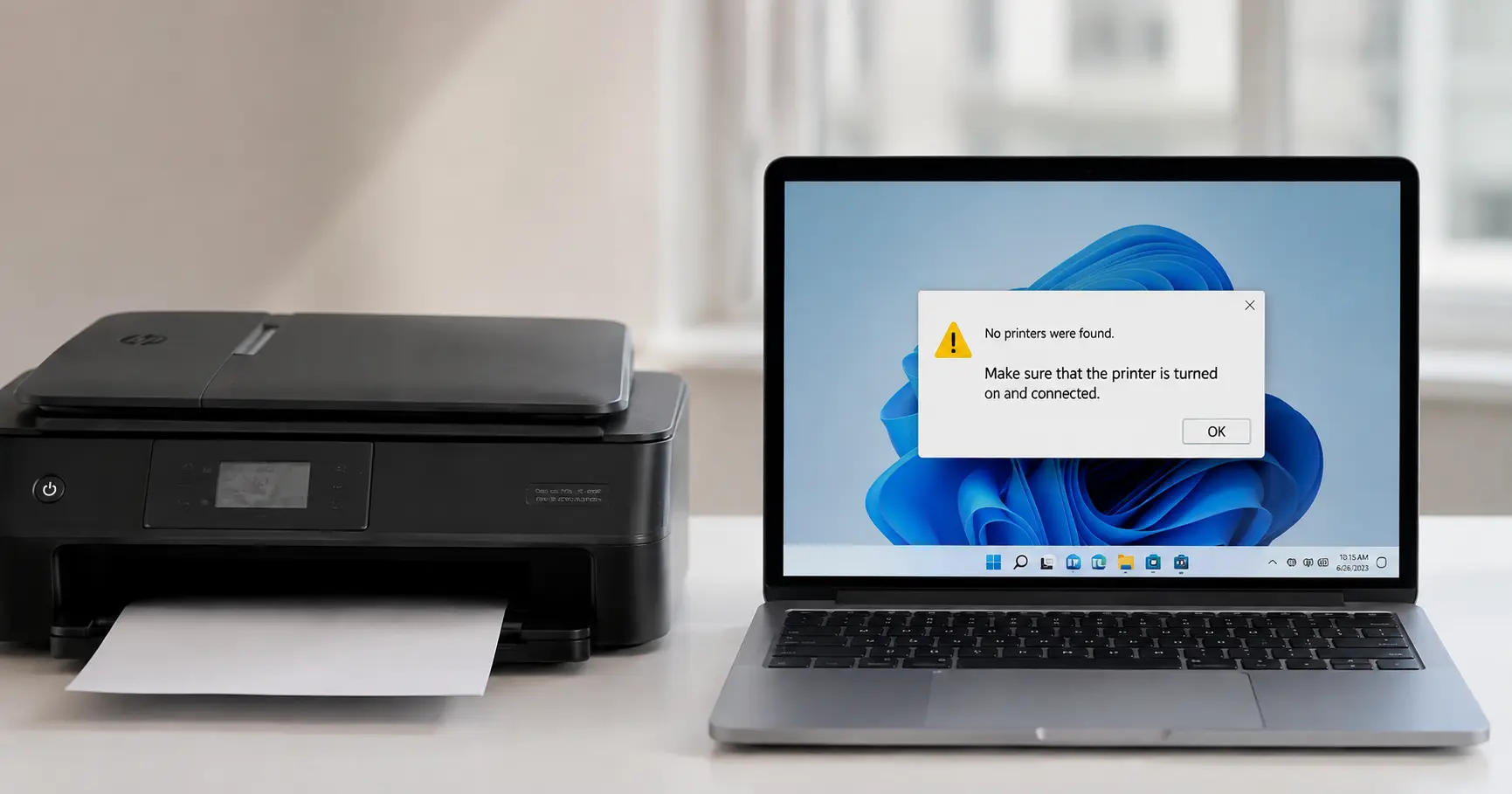
Nine times out of ten, "printer not found" means the computer and the printer are no longer speaking over the same connection path, not that the printer itself has failed. On Windows, that's usually the Print Spooler service hanging or a corrupted job stuck in the queue. Over Wi-Fi, it's almost always the printer picking up a new IP address after a router reboot while Windows keeps trying to reach the old one. Over USB, it's a cable, a port, or Windows' USB selective suspend setting quietly cutting power to the connection.
Start in this order, because it matches how often each cause actually shows up in practice:
- Restart the printer itself (power off 30 seconds, not sleep/wake) and check it shows a network or ready light before doing anything on the computer.
- Restart the Print Spooler service on Windows or run "Reset the printing system" on a Mac.
- Reseat the USB cable in a different port, or forget and re-add the Wi-Fi printer in Settings.
- Reinstall the driver from the manufacturer's site, not the generic one Windows pulled automatically.
If step 1 and 2 don't fix it within five minutes, the cause is almost always a driver mismatch or a network address conflict, not a dying printer. Very few printers actually die in a way that produces "not found" rather than an error light or a paper jam message.
What "Not Found" Actually Means on Each Connection Type
The fix depends heavily on how the printer is connected, and treating a Wi-Fi problem like a USB problem (or vice versa) wastes the most time. Here's how the three most common setups differ:
| Connection | Most common cause | First thing to check | When to stop troubleshooting and reinstall |
|---|---|---|---|
| USB | Cable fault, port power management, driver corruption | Swap the cable, try a rear motherboard port instead of a front hub | If Device Manager shows a yellow warning triangle after a cable swap |
| Wi-Fi | Printer got a new DHCP-assigned IP address | Print a network config page from the printer's own menu to see its current IP | If the IP is right but the printer still doesn't appear after a spooler restart |
| Bluetooth | Pairing dropped after a driver or OS update | Remove and re-pair the device rather than just reconnecting | If re-pairing fails twice in a row |
A detail that doesn't show up on any spec sheet: a printer sitting on Wi-Fi behind a router with a short DHCP lease time (many home routers default to 24 hours) will silently change its IP address overnight. Windows and macOS both cache the old address, so the printer looks "offline" even though it's sitting right there, powered on, ready to print. Setting a DHCP reservation for the printer's MAC address in the router admin page solves this permanently, and it's the single most effective fix I've seen for printers that go missing every few days for no apparent reason.
Fixing It on Windows: The Print Spooler First
Windows manages every print job through a background process called the Print Spooler (spoolsv.exe), and it's fragile. A single corrupted job left in the queue after a paper jam or a canceled print can hang the entire spooler, which then makes every printer, not just the problem one, disappear from the "Add a printer" list.
To clear it:
- Open the Services app (
services.msc), find Print Spooler, and stop it. - Navigate to
C:\Windows\System32\spool\PRINTERSand delete everything inside that folder. These are stuck job files, not system files, so this is safe. - Start the Print Spooler service again.
- Reopen Settings > Bluetooth & devices > Printers & scanners and check if the printer reappears.
If the printer still doesn't show up, check Device Manager for a yellow warning triangle under "Print queues" or "Universal Serial Bus controllers." A code 10 or code 28 error there means Windows has a driver record but can't actually load it, which almost always means the driver Windows auto-installed through Windows Update is a generic class driver rather than the manufacturer's full driver package. This matters more than people expect: Microsoft's own generic print driver supports basic printing but frequently fails to detect newer USB-C or dual-band Wi-Fi printers correctly, because it wasn't written against that specific chipset.
The fix is to uninstall the device entirely from Device Manager (right-click, Uninstall device, check "delete the driver software"), then install the full driver package from the manufacturer's support page rather than letting Windows redetect it automatically.
Fixing It on a Mac
macOS handles printing through CUPS (Common Unix Printing System), and the equivalent of a spooler reset is right-clicking the printer list in System Settings > Printers & Scanners and choosing "Reset printing system." This wipes every configured printer, so only use it after confirming a simple removal and re-add hasn't worked. Apple's own support documentation recommends this as a last resort specifically because of that, not as a first step.
Before resetting, try the lighter fix: remove the printer (minus button), then click the plus button and wait for it to reappear under "Nearby Printers" rather than typing the address manually. If it never reappears in that list even after a restart, the printer usually isn't advertising itself over Bonjour, which is the same root cause as a DHCP lease change on Windows: the printer's network identity shifted and the Mac is still holding the stale one.
When the Printer Shows Up But Says "Offline"
This is a different problem from "not found," and it's worth separating because the fix is different. "Offline" means the computer can see the printer exists but believes it isn't currently reachable, usually because Windows or macOS cached a stale status the last time the printer was asleep or disconnected.
Right-click the printer in Windows' printer list and check "See what's printing." If the top option reads "Use Printer Offline" with a checkmark next to it, that checkbox is the entire problem, not a symptom of one. Unchecking it forces Windows to re-query the printer's actual status rather than trusting the cached one. This single setting is responsible for a disproportionate number of "my printer won't print" complaints on forums like Microsoft's own support community, precisely because it's a manual toggle that's easy to trip accidentally when a print job times out.
Preventing It From Happening Again
A few changes cut down on how often this recurs, based on what actually causes repeat failures rather than one-off ones:
- Set a DHCP reservation for the printer in your router settings so its IP address never changes. This alone eliminates the most common recurring Wi-Fi "not found" cause.
- Turn off USB selective suspend for printers specifically in Windows' Power Options (Advanced settings > USB settings), since Windows will otherwise cut power to an idle USB printer to save energy and then fail to wake it cleanly.
- Install the manufacturer's full driver package once, right after setup, instead of letting Windows auto-detect a generic one. HP, Canon, and Epson all publish free diagnostic utilities (HP Smart, Canon IJ Network Tool, Epson Connect) that catch connection drops before they turn into a full "not found" state.
None of this requires replacing the printer. In the overwhelming majority of cases the hardware is fine, and the failure is Windows or macOS losing track of an address or a driver record it once had correct.
Related Guides
Printer Offline - if your printer shows up in the list but won't accept jobs, this covers the "Use Printer Offline" toggle in more depth than the section above.
Connect Printer to Wi-Fi - walks through pairing a printer to your network from scratch, useful if a re-add doesn't bring it back.
Troubleshooting Printer - a broader diagnostic guide for print quality and connectivity issues beyond "not found."
Setting up New Printer - for anyone whose fix ends up being a clean reinstall rather than a repair.
Canon Printer Showing an Error and Not Responding - if you're on Canon hardware specifically and seeing an error code rather than a silent "not found."