
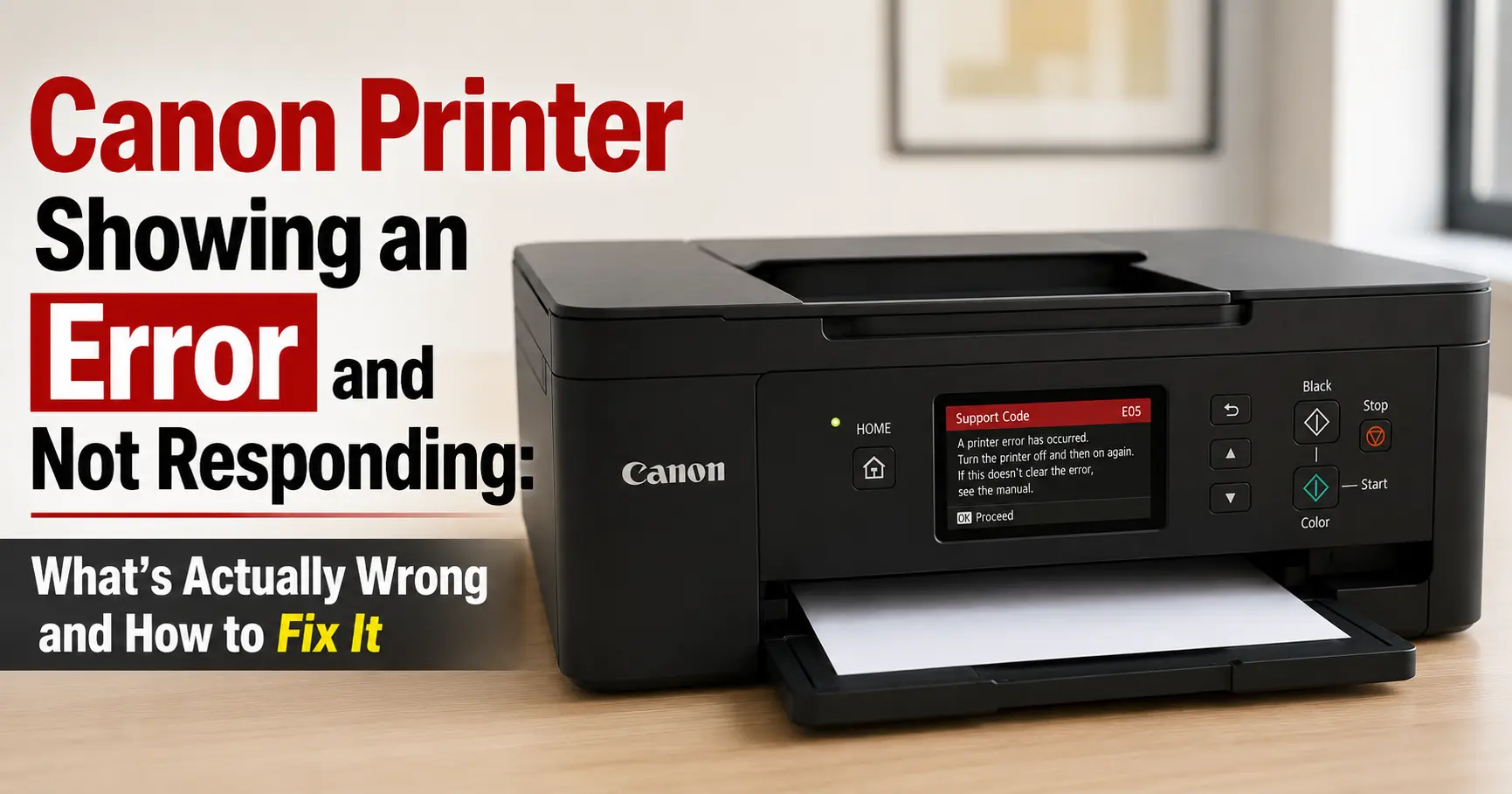
A Canon printer that flashes an error and then ignores every print job is almost always one of two unrelated problems wearing the same disguise. Either the printer itself has hit a genuine fault, which it announces with a support code on its screen or a pattern of flashes on the Alarm lamp, or your computer has simply lost contact with a perfectly healthy printer, which Windows or macOS reports as "offline" or "not responding." The fix lives on completely different sides of the USB cable depending on which one you've got, so the first job is working out which.
If the printer's own display or light is showing something, trust the printer: that's a hardware or firmware complaint, and no amount of restarting your laptop will touch it. If the printer looks normal, the paper tray is full, and the panel is quiet, but your PC still refuses to send it a job, that's a connection problem living entirely in Windows, macOS, or your network, and the printer itself doesn't need fixing at all.
The 90-second triage before you do anything else
Before diagnosing further, rule out the boring causes, because they account for a genuinely large share of Canon support calls:
- Power cycle properly. Turn the printer off with its own power button, unplug it from the wall for a full two minutes (not just off at the switch), then plug it back in. Canon's own guidance for alarm-light faults is to disconnect the USB cable, power off, unplug from the mains, then reconnect, precisely because a soft reset doesn't always clear the fault that a full power drain does.
- Open every cover. Check the paper output tray, the scanner lid, and the cartridge access door are fully closed. An unclosed cover is one of the most common triggers for a flashing alarm light and reads to the printer as a fault even though nothing is broken.
- Look for paper you can't see. A torn corner left behind after a jam will stop the carriage moving and throw an error on the next print, even though the tray looks empty from the front.
If none of that clears it, move on to reading the actual message.
What the error code is telling you
Canon inkjets communicate faults two ways: a numeric or alphanumeric support code on models with a screen, or a count of Alarm lamp flashes on simpler models without one. On lamp-only printers, the number of orange flashes maps to a specific fault; Canon documents two flashes as no paper or a feed failure, three as a closed front tray or a jam, and four as a missing or empty ink tank. On screen-equipped models, the code itself tells you far more precisely what's wrong:
| Support code | What's actually wrong | What usually fixes it |
|---|---|---|
| 5100 | The print head carriage is physically stuck, most often on a paper scrap, tape residue from a new cartridge, or a dirty encoder strip | Power off, clear any debris from the carriage rail, reseat both cartridges until they click, gently wipe the clear encoder strip with a lint-free cloth and distilled water |
| B200 / B201 | Print head has overheated or short-circuited, a critical electrical fault rather than a jam | Unplug for 10-15 minutes, remove and reinstall the cartridges, clean the gold contacts inside the carriage with a dry or lightly dampened cloth; if it recurs immediately, the head itself has likely failed |
| 5B00 / 1700-series | The internal waste ink absorber pads, which soak up ink from routine head cleaning cycles, have reached their counted limit | A service-mode counter reset can clear the message, but if the pads are physically saturated the fault returns quickly and the printer needs the pads replaced |
| P07 | Same underlying cause as 5B00 on older PIXMA models: the ink absorber is reporting full | As above |
| 1682 and similar cartridge codes | The printer can't read a specific cartridge's chip, usually a seating or contact issue rather than an empty cartridge | Remove, wipe the copper contacts on both the cartridge and the carriage, and reinsert firmly |
The 5100 and B200 pairing is worth knowing apart because they look similar (printer stops, error appears, nothing prints) but point at completely different parts: 5100 is almost always mechanical and clears with a clean-out, while B200 is electrical and clears about three times in four with a full power drain, according to repair-focused write-ups tracking home-fix success rates, but is genuinely terminal for the print head the rest of the time.
When the printer looks fine but says "not responding"
This is the connectivity version of the fault, and it's a Windows or Mac problem, not a printer problem, in the overwhelming majority of cases. It happens because your computer's printing subsystem has lost track of the device, usually thanks to a stalled print job, a stuck Print Spooler service, a driver that's fallen out of sync after an update, or the printer being flagged as "offline" from a previous disconnection that never cleared.
On Windows
Work through this in order rather than jumping straight to reinstalling:
- Restart the Print Spooler. Open Services (search "services" in the Start menu), find Print Spooler, right-click and Restart. This clears whatever job or process was holding the queue hostage, and it's the single most effective fix for a printer that was working an hour ago and suddenly isn't.
- Untick "Use Printer Offline." Right-click the Canon printer in Settings, choose "See what's printing," open the Printer menu, and make sure Use Printer Offline has no tick against it. Windows sets this itself after enough failed connection attempts, and it won't clear on its own even once the printer is reachable again.
- Clear the stuck queue. Cancel all documents in that same print queue window. A single corrupted job can block everything behind it indefinitely.
- Check for an overzealous firewall or antivirus. Third-party security software has a track record of quietly blocking the spooler subsystem's network traffic, which produces exactly this symptom with no error message to explain why.
- Reinstall the driver if the above hasn't worked. An outdated or partially corrupted driver, particularly after a Windows feature update, is a recurring cause of Canon printers going offline that nothing on the printer itself will explain.
If it's connected over Wi-Fi
Most Canon PIXMA printers only support the 2.4GHz band, not 5GHz, so if your router has merged both bands under a single network name, the printer can drop off without warning whenever it associates with the wrong one. Two other router-side issues show up repeatedly in Canon's own community forum: routers broadcasting WPA3-only security, which older PIXMA models simply can't authenticate against, and 5GHz-only guest networks that the printer was never able to see in the first place (Canon Community). If you've recently changed routers or ISPs, that's the first thing to check, well before assuming the printer itself has failed.
What to do when a restart doesn't fix it
A code that returns immediately after a full power cycle usually means the fault is physical rather than a glitch. The distinction that matters here: a jam or dirty contact is a five-minute fix; a genuinely failed print head or saturated ink absorber pad is a parts-and-labour job.
That's worth weighing against the printer's value before you spend an evening on it. Entry-level Canon inkjets are sold close to cost on the assumption that ink cartridges cover the margin, which means a replacement print head or an out-of-warranty repair callout can end up costing close to, or more than, buying a new low-end printer outright. A mid-range MAXIFY or MegaTank model, by contrast, represents enough of an investment that a head clean or a professional pad replacement is usually the sensible route rather than replacing the whole unit. If your model is still within Canon's warranty period, that decision is made for you: contact Canon support before opening the case yourself, since DIY repair can void cover that would otherwise have handled it for free.
Keeping it from happening again
Two habits catch most of the causes above before they become an error message. First, print something at least every couple of weeks, even a test page: inkjet heads that sit idle for long stretches are far more prone to clogging, which is what eventually pushes cleaning cycles hard enough to fill the waste ink absorber early. Second, keep the printer on a stable shelf position relative to your router if it's wireless, since Canon's 2.4GHz-only radio on most consumer models is noticeably more sensitive to distance and interference than the dual-band radios in most phones and laptops, which is why the printer can drop a connection that everything else in the house keeps happily.
Related Guides
Paper Stuck in a Canon Printer: How to Clear a Jam Without Damaging the Printer
Why Does My Canon Printer Keep Going Offline (And How Do I Actually Fix It)?