
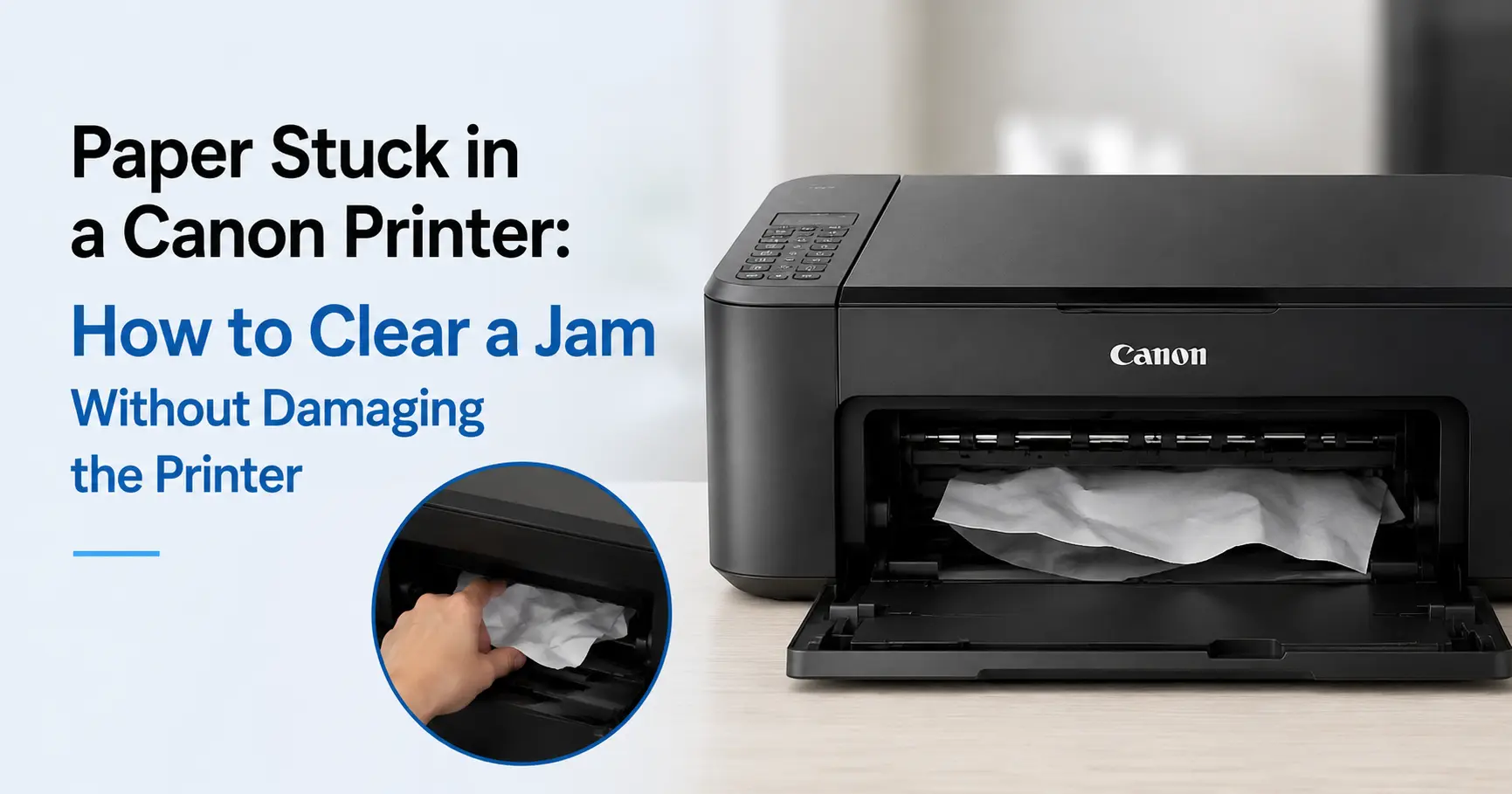
A paper jam in a Canon printer almost always comes down to one of three things: the paper is caught between the rollers and hasn't reached the tray, it's snagged in the duplexer (the unit that flips the sheet for double-sided printing), or a torn fragment is still sitting on a roller after a previous jam was only half cleared. Switch the printer off at the wall before you touch anything inside it, then work out which of those three you're dealing with, because the removal method is different for each.
Don't pull on visible paper while the printer is still powered on. The rollers can still be engaged, and yanking against them is the single most common way people tear the sheet and leave a strip behind, which usually turns one jam into two.
Turn It Off First, Then Open Every Cover You Can Reach
Switch off the printer using its own power button, not just the wall socket, and wait a few seconds. Canon printers park the print head and release roller tension as part of a normal shutdown, which makes the paper considerably easier to pull free. Yanking paper out of a printer that's still under power is also how people end up cracking the plastic feed guides, an easy repair to avoid entirely.
Once it's off, open the scanner lid or top cover on a PIXMA or MAXIFY, and check the rear tray, the cassette at the front, and the output tray at the same time. Canon's own support documentation for the PIXMA range consistently asks users to check all three access points before assuming the jam is cleared, because a torn corner left in the cassette will jam the next print job even if the visible sheet came out cleanly.
Removing the Sheet: Pull in the Direction of Travel
Grip the paper with both hands and pull it gently in the direction it was already travelling, not back the way it came. If you can see the leading edge in the output tray, pull it forward and out. If it's only visible at the rear tray, pull it backward. Pulling against the feed direction fights the rollers and is far more likely to tear the sheet.
Go slowly. If you feel real resistance, stop and open a different cover rather than forcing it. On imageCLASS laser models, there's usually a green release lever near the rear or duplex unit that lets you access the fuser area, which is where a jam typically snags on these machines rather than at the input tray. Never touch the fuser roller itself if the printer has been running recently. It runs hot enough to burn skin, and Canon's manuals for the imageCLASS MF series explicitly warn against handling that area within a few minutes of use.
Where Jams Happen, by Printer Type
The mechanism differs enough between inkjet and laser models that it's worth knowing where to look first before you start opening covers at random.
| Printer type | Typical jam location | What to check first |
|---|---|---|
| PIXMA / MAXIFY (inkjet) | Rear tray feed path or output slot | Rear tray for curled or damp paper; output tray for a torn corner |
| imageCLASS (laser, single-function) | Fuser area or main cassette | Rear cover release lever; cassette for a folded leading edge |
| imageCLASS (laser, with duplexer) | Duplex unit at the back | Duplex tray, which usually unclips separately from the main body |
If Nothing's Visible but the Printer Still Reports a Jam
This is the scenario that catches most people out. The printer insists there's a jam, but every tray looks empty. Nine times out of ten, there's a small torn fragment sitting on a roller or blocking a paper sensor, an internal switch about the size of a fingernail that the printer uses to confirm a sheet has passed through. A fragment resting on that sensor will make the printer report a permanent jam even with no paper anywhere obvious.
Open every cover again, this time running a finger lightly along the visible rollers rather than just looking. A torn edge often lies flat against the roller and is easy to miss by sight alone, especially on white paper under a printer's internal lighting. If you can't feel or see anything after checking all access points, power the printer off for a full minute, then back on. Canon's diagnostic routine typically re-checks every sensor on start-up, and this alone clears a surprising number of "phantom" jams where the paper was actually removed but the sensor state wasn't reset.
Why It Keeps Happening: The Causes Worth Fixing, Not Just Clearing
Clearing the jam solves today's print job. If it recurs every few days, the underlying cause is usually one of these:
Paper that's picked up moisture. Inkjet paper left in a tray in a humid room curls at the edges, and a curled sheet feeds unevenly into the rollers. This is especially common with paper stored near a window or in a kitchen, and it's the most frequent repeat cause on home PIXMA printers.
An overfilled tray. Most Canon trays are rated for a specific maximum, commonly around 100 to 150 sheets of standard 80gsm paper depending on the model, and pushing past that increases the odds of two sheets feeding together, which the rollers then can't separate cleanly.
Worn feed rollers. After extended use, the rubber on the pickup roller loses grip and starts to slip rather than pull the sheet through cleanly. If jams have become more frequent over months rather than being a one-off, worn rollers are the more likely explanation than anything you're doing wrong, and a roller clean with a lint-free cloth and a little water often restores enough grip to fix it without a service call.
The wrong paper weight for the tray in use. Feeding heavier card or photo paper through the standard tray instead of the rear specialty tray on a PIXMA is a common cause, since the standard tray's rollers aren't set up for the added stiffness.
Preventing It From Happening Again
Fan the paper stack before loading it, flicking through the edges to separate sheets that have stuck together from humidity or static, and square the stack against the tray guides so it feeds straight rather than at a slight angle. Store spare paper flat and sealed rather than in an open tray or a damp cupboard, and if a specific ream keeps causing jams, it's worth switching brands before assuming the printer itself is at fault. Not all 80gsm paper is manufactured to the same tolerance, and cheaper stock is disproportionately represented in recurring jam complaints on Canon's own community forums.
Related Guides
Printer Says Paper Jam But There's No Paper Stuck, What to Do? - for the "phantom jam" scenario covered above, where the sensor reports a jam but every tray looks empty.
Canon Printer Error & Not Responding: How to Fix It - if the printer is showing a support code or Alarm lamp pattern rather than a straightforward jam.
Why Does My Canon Printer Keep Going Offline (And How Do I Actually Fix It)? - for connection faults that get mistaken for a jam because the printer simply stops responding.
Why Your Epson Printer Keeps Jamming Paper (And How to Actually Fix It) - useful comparison if you're troubleshooting a household with more than one printer brand.