
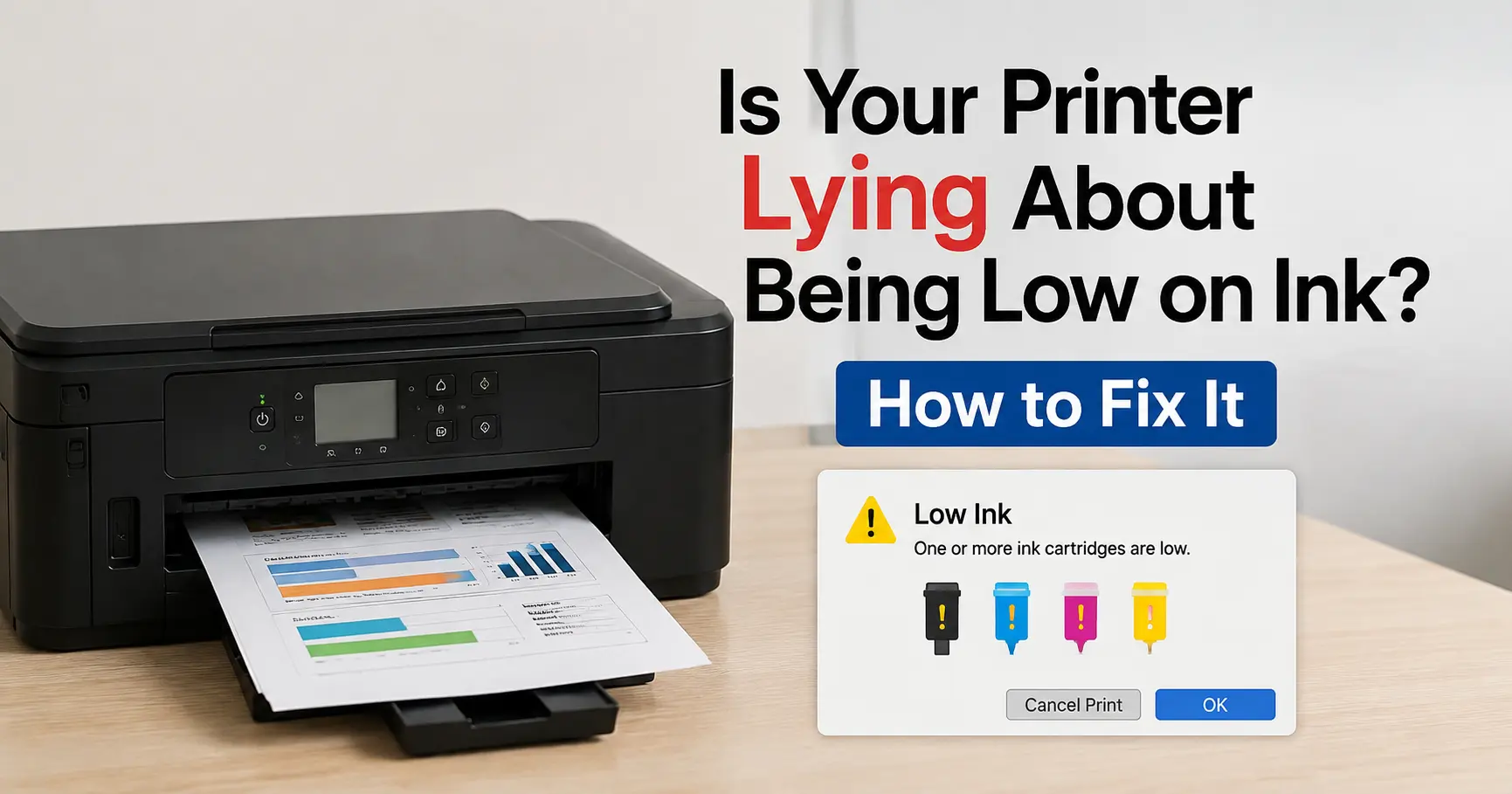
Yes, in most cases it genuinely is. The "low ink" light rarely means the cartridge is empty: it means a chip has counted enough ink droplets, or an optical sensor has caught enough light, to hit a threshold the manufacturer set well before the cartridge actually runs dry. That threshold exists to protect print quality and, not incidentally, to sell more ink. The fix is usually one of three things: reseat the cartridge, override the warning in software, or recalibrate the counter, and which one applies depends on whether your printer counts ink or senses it optically.
Here's the distinction that matters before you do anything else. A printer with a genuinely empty cartridge won't print at all, or it'll print streaky, faded pages with visible banding. A printer falsely flagging low ink prints perfectly clean pages right up until it refuses to continue. If your last print job looked fine and the warning appeared anyway, you're dealing with a sensor problem, not an ink problem.
Why printers cry wolf about ink levels
Droplet counting: the chip is guessing, not measuring
Most inkjet cartridges from HP, Canon and Epson carry a small chip that doesn't measure remaining liquid at all. It counts how many droplets the print head has fired since the cartridge was installed, then subtracts that from an estimated starting volume. The problem is that ink isn't only used for printing. A meaningful share goes to head-cleaning cycles, nozzle priming after the printer's been idle, and colour calibration passes, none of which show up as "pages printed" but all of which drain the counter. A printer that's been left switched on and cleaning itself overnight can report a steep drop in ink level without printing a single page.
Optical sensors: fooled by residue and stray splatter
Some models add a second check: a light beam shone through a prism in the cartridge wall. Ink refracts the light differently to air, so the printer can tell, roughly, whether the chamber near the sensor is wet or dry. It sounds more reliable than counting droplets, but the prism only reads the small patch of cartridge it sits against. Ink can pool unevenly, dry residue can cling to the sensor window, and stray splatter inside the cartridge can trick the sensor into reporting "empty" while ink sits untouched on the other side of the reservoir. When the optical reading and the chip's droplet count disagree, printers are generally built to trust whichever one says "low" first, not whichever one is actually correct.
EcoTank and refillable tanks play by different rules
Epson's EcoTank and similar bottle-fed systems don't use a chip or a prism at all. They run a software counter that estimates usage from pages printed, and it only stays accurate if you tell the printer you've topped up the tank after every refill. Skip that reset step, which lives in the printer's maintenance menu, and the counter keeps ticking down from before your refill, eventually reporting "empty" tanks that are visibly half full through the clear plastic window. On these printers, trust your eyes over the software: EcoTank ink chambers are transparent by design specifically so you can check the level yourself.
The most common cause: it's not the ink, it's the contact
Before you touch a setting, check the physical connection. A cartridge sitting 1 to 2mm out of its cradle breaks the electrical contact between the chip and the printer's reader pins, and a broken contact reads identically to "chip says empty." This is by far the most frequent cause of a false low-ink warning right after installing a new cartridge, because the plastic clips that hold cartridges in place wear slightly with each swap and stop clicking as firmly shut.
Remove the cartridge, wipe the copper contacts on both the cartridge and the carriage with a dry, lint-free cloth (a smear of dried ink here is enough to cause a misread), and reseat it until you feel or hear a definite click. Close the access door slowly, since some printers re-read the chip only once the door latch triggers a sensor.
Fixing a false "low ink" warning, step by step
Work through these in order. Each one takes under two minutes, and most false warnings clear on the first or second step.
| Step | What it does | Best for |
|---|---|---|
| Reseat the cartridge | Re-establishes the chip contact broken by a loose fit | Warning appears right after a cartridge swap |
| Power cycle (unplug 60 seconds, restart) | Forces the printer to discard its cached ink reading and re-poll the chip | Warning persists after reseating |
| Update the printer driver and firmware | Patches known ink-reporting bugs the manufacturer has since fixed | Warning appeared after a Windows or macOS update |
| Use the "print anyway" or "continue" prompt | Overrides the warning for that print job only, without resetting anything | You just need this one document out |
| Reset the ink level counter in maintenance mode | Tells the software you've refilled or reinstalled | Refillable tanks (EcoTank) or remanufactured cartridges |
The override option is worth knowing even if you never plan to argue with your printer again. On most HP and Canon consumer models, when the low-ink pop-up appears on the attached PC, there's a small "Print Anyway" or "Continue" button, easy to miss because manufacturers don't make it prominent. Clicking it lets that job print at full quality; it doesn't disable future warnings, so you'll see the same prompt next time.
Brand-specific quirks worth knowing
The four big manufacturers handle this differently enough that generic advice sometimes doesn't apply.
HP uses Dynamic Security firmware on many current OfficeJet and Envy models, which checks that an installed cartridge carries an HP-authenticated chip. This is separate from the ink-level warning, but it interacts with it: some HP all-in-ones refuse to scan or fax, not just print, once a cartridge reads as low, a design choice that's the subject of an active class-action lawsuit alleging HP doesn't disclose this limitation clearly enough in its marketing. HP has also previously paid out $1.5 million in a 2020 settlement over firmware that degraded functionality when non-HP cartridges were installed, according to ClassAction.org's coverage of the case. If your HP printer stops scanning entirely rather than just warning about ink, that's Dynamic Security behaviour, not a fault, and the workaround is to clear the low-ink cartridge rather than chase a settings fix.
Canon models often bury a genuinely useful toggle in Printer Preferences under the Maintenance or Custom Settings tab: an option to disable the ink-level warning message outright. It doesn't fix the underlying estimate, but it stops the printer nagging you before every job once you've verified the cartridge is fine.
Epson non-EcoTank cartridge printers (WorkForce, Expression) need the counter reset that's easy to forget after using remanufactured or refilled cartridges, since Epson's software has no way to detect a refill happened unless you tell it via the maintenance menu.
Brother laser and inkjet MFC models typically clear a stuck warning with Clear, then Stop/Exit on the control panel, a shortcut that isn't documented on the warning screen itself.
When the warning isn't lying
Two situations produce a low-ink warning that's actually correct, and no reseating or override will help either one.
The first is heavy photo or graphics printing. Photos use dramatically more ink per page than text, particularly on the colour cartridges, so a counter calibrated around typical document use will correctly flag "low" much sooner than the page count alone would suggest. If your recent print jobs were image-heavy, the warning is probably accurate.
The second is a full waste ink pad, mostly an Epson issue. Epson printers park excess ink from cleaning cycles in an internal absorbent pad rather than the cartridge, and once that pad nears capacity the printer will report ink-related errors that have nothing to do with the cartridges themselves. This isn't user-serviceable in the way a cartridge swap is; it requires a pad replacement or a service-mode counter reset, and running the printer past this point risks ink leaking into the internal mechanism.
Why manufacturers have little incentive to fix this
None of this is an accident of engineering. Which?, the UK consumer group, found in a 2019 study that branded printer ink costs around £1,890 per litre bought directly from manufacturers, roughly ten times the price of vintage Champagne by volume, and that switching to third-party cartridges could cut costs by up to 286%. Printers themselves are frequently sold near cost or at a loss; the ink is where the margin sits. A conservative low-ink threshold sells more cartridges, and a chip that refuses to recognise third-party ink protects that margin further. Understanding that doesn't fix your printer, but it does explain why "just replace the cartridge" is the manufacturer's default advice even when the cartridge has plenty of ink left.
How to tell if you actually need to buy ink
Run a nozzle check or nozzle test print from the printer's maintenance menu; every major brand has one, usually under Settings > Maintenance or via the physical control panel. Solid, unbroken lines across every colour block mean there's enough ink to print cleanly regardless of what the level gauge claims. Faded or gapped lines in one colour, even with "ink remaining" showing on screen, mean that cartridge needs replacing now rather than after the next false alarm. Trust the test page over the gauge every time: it's reading actual output, not an estimate of what should be left.