
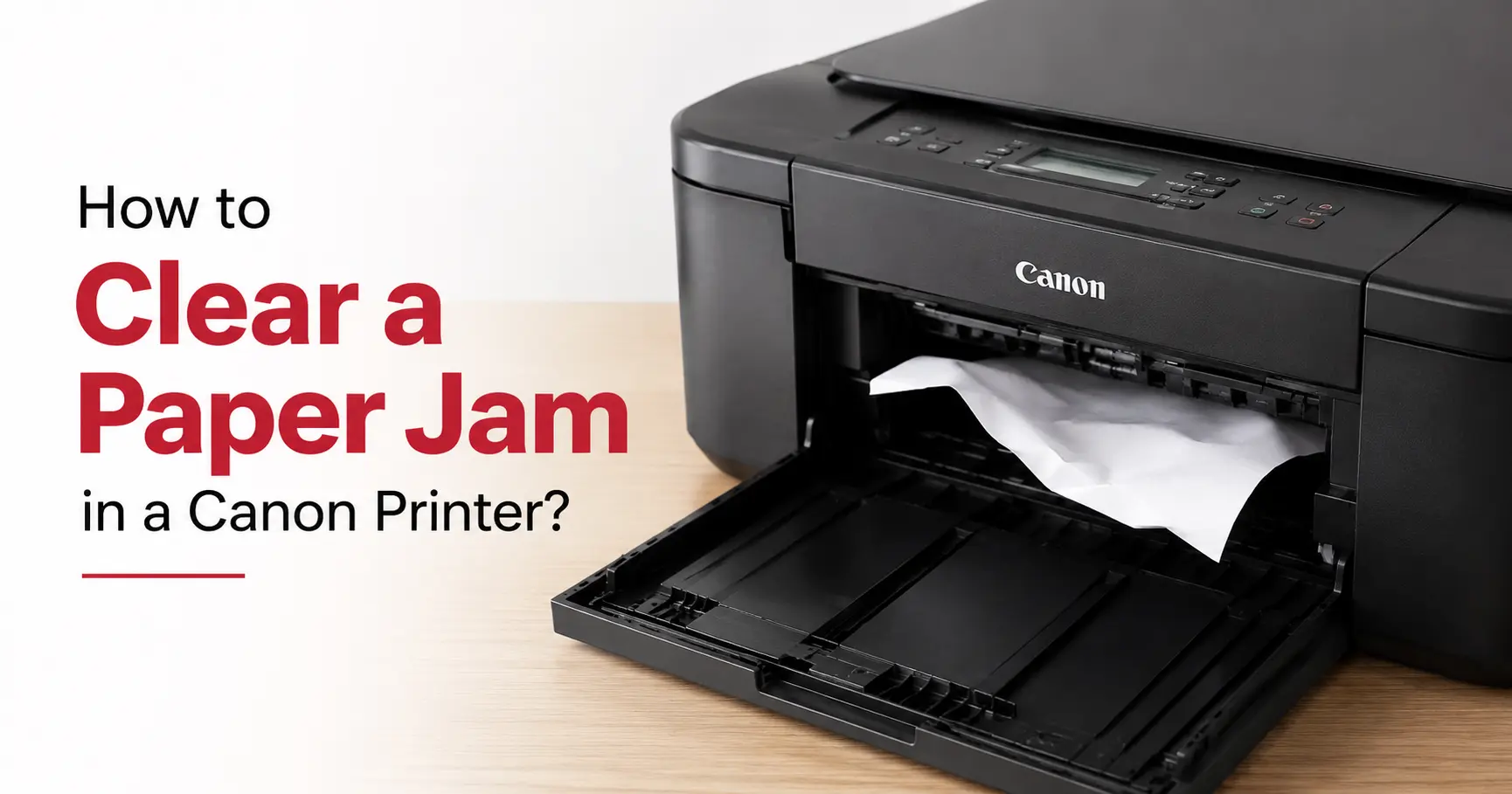
Switch the printer off at the wall, not just at the power button, then open whichever panel Canon's own display is pointing you towards, rear tray door, cassette, or the jam-location flap on laser models, and draw the sheet out slowly in the direction the paper was already travelling. Pulling it backwards, or wrenching it out sideways, is what turns a thirty-second fix into a torn scrap wedged against a roller you can't reach.
That single rule, work with the paper path rather than against it, solves the vast majority of jams. The rest of this comes down to knowing where Canon actually wants you to look, because inkjets and laser machines hide the jam in completely different places.
Where to look first, and why the screen matters
Canon's laser printers (the imageCLASS range in particular) are genuinely helpful here: the control panel doesn't just say "paper jam", it labels the jam location with a letter, A, B, C or D, sometimes with a small diagram showing which door to open. Follow that letter. Opening the wrong panel on a laser printer risks touching the fuser unit, which runs hot enough to burn skin during or shortly after a print job, so give it a minute to cool if you've been printing.
Inkjet models (PIXMA and MAXIFY) are less specific. You'll typically get an on-screen or app message reading "Paper is jammed" alongside a support code, Canon uses a 1300-series of codes for jam faults on most current PIXMA models, though the exact digits vary by model, so it's worth checking your printer's manual or Canon's support pages for the precise meaning rather than assuming. The paper itself will usually be sitting in one of three places: still in the rear tray or cassette feed, part-way through the print head assembly, or stuck in the output slot. Check the feed path first, since that's where the vast majority of inkjet jams actually occur.
The part the manual skips: check for torn fragments
Here's the detail that catches people out after they think they've cleared the jam: printers rarely jam on a whole, intact sheet. More often a corner has torn off and stayed behind, invisible unless you look closely with the tray fully open and a torch if the light's poor. If you close the printer back up without checking for that stray fragment, it re-jams on the very next print, and now you're troubleshooting a fault that looks identical to the first one but has a completely different cause. Run your fingers gently along the rollers, not just a visual check, before you close anything.
Duplex (double-sided) jams need a different door
If the printer was mid-way through a double-sided print, the paper may be caught inside the duplexing unit rather than the main feed path, which is a separate compartment on most models, usually a small removable unit at the back or a flap underneath. This is where people give up and call a repair line unnecessarily. On PIXMA and MAXIFY machines the duplex unit typically unclips and slides straight out; on imageCLASS models it's usually a lever-release cassette at the rear. Check your model's quick-start guide for the exact release mechanism, since Canon changes this between generations, but the fix itself is the same: slide the unit out, clear the sheet, and refit it firmly until it clicks.
Inkjet vs laser: what actually differs
| Printer type | Typical jam location | How Canon signals it | Risk if handled wrong |
|---|---|---|---|
| PIXMA / MAXIFY (inkjet) | Rear tray feed, print head area, output slot | On-screen "Paper is jammed" message with a support code (1300-series on most current models) | Torn paper fragments left on rollers, causing repeat jams |
| imageCLASS (laser) | Labelled jam area (A/B/C/D) shown on the control panel | Panel display names the exact door or area | Touching the fuser unit while still hot |
| Any model, duplex printing | Internal duplexing unit at the rear or underside | Same jam message, but clearing the main tray won't resolve it | Forcing the duplex unit back in misaligned, which jams the next print |
What actually causes it, so it stops happening
Two things account for most Canon paper jams in ordinary use: paper that hasn't been fanned before loading (sheets stick together at the corners from static or humidity, and the feed roller grabs two at once), and a paper-weight setting in the printer driver that doesn't match what's actually loaded. If you've swapped from standard 80gsm to a heavier photo or card stock and left the driver on "plain paper", the feed mechanism applies the wrong amount of tension and the sheet buckles rather than feeding cleanly. Check the paper settings in the driver or on the printer's own menu match what's physically in the tray, not just what you last used weeks ago.
Overfilling the tray causes a slower, more frustrating version of the same problem: it doesn't jam on the first print, but the stack settles unevenly over a few pages and multi-feeds later. Canon's own manuals specify a maximum stack height marked on the tray's paper guide, not a page count, because it varies by paper weight, worth checking that marker rather than eyeballing it.
If the jam message won't clear after you've removed the paper
This is the point where it stops being a paper-handling problem and starts being worth a service call. If the printer still reports a jam with the tray empty and no visible paper anywhere in the path, the likely cause is a paper sensor that's either dirty (a light coating of dust or toner can be enough to give a false reading) or has failed outright. A soft, dry cloth wiped gently across the sensor window, usually a small clear strip near the feed rollers, resolves this more often than people expect before you assume it's a hardware fault worth a technician visit.
Related Guides
Canon Printer Showing an Error and Not Responding: What's Actually Wrong and How to Fix It - for when the display shows a fault code that isn't a straightforward jam.
Printer Says Paper Jam But There's No Paper Stuck, What to Do? - covers the dirty or faulty sensor scenario in more depth if wiping it doesn't clear the message.
Why Does My Canon Printer Keep Going Offline (And How Do I Actually Fix It)? - useful if the printer starts dropping off the network after you've cleared the jam.
Is Your Printer Lying About Being Low on Ink? How to Fix It - another common false-alarm warning on Canon inkjets, same troubleshooting mindset.