
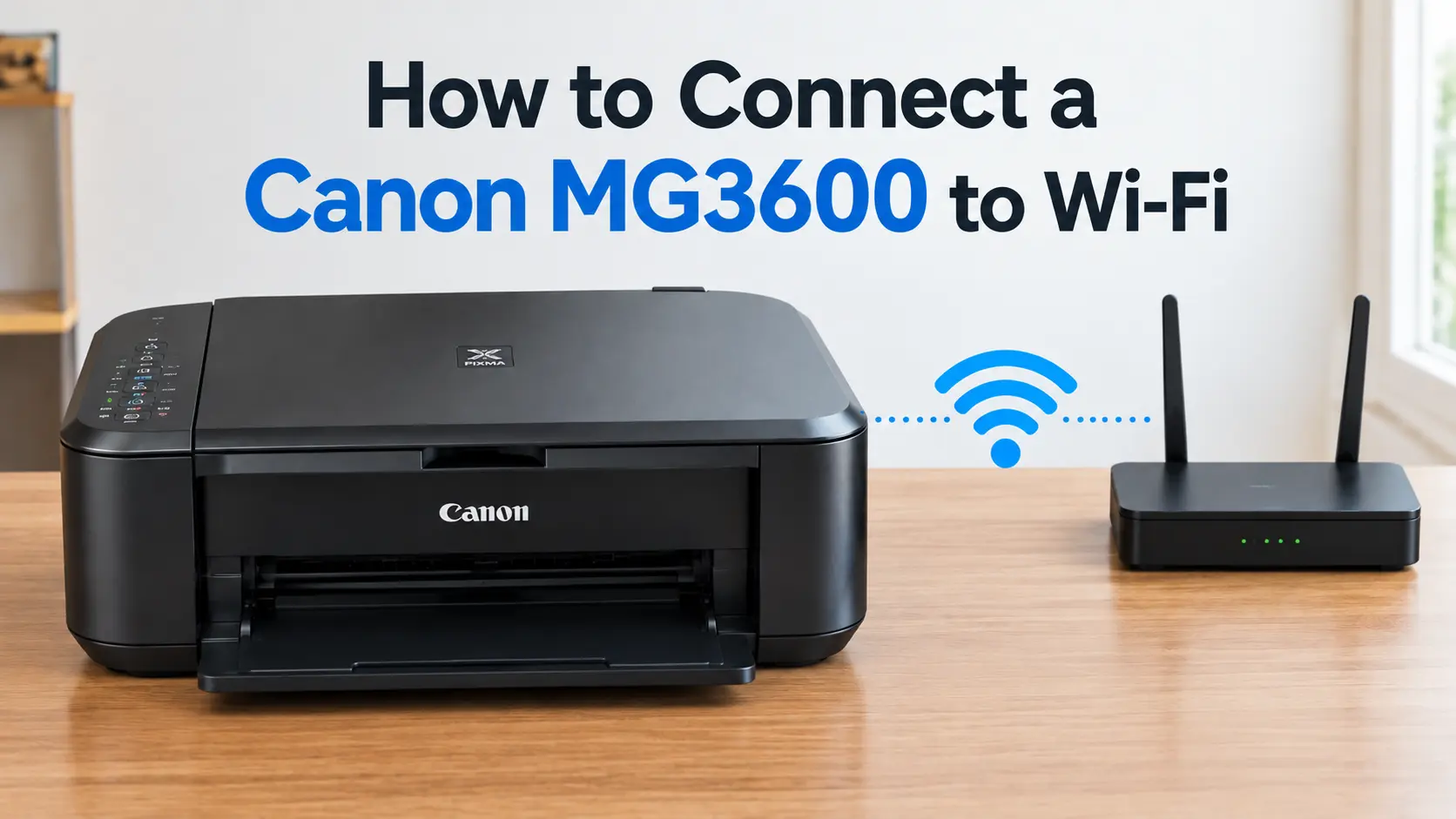
The fastest route is the WPS button: hold the printer's Wi-Fi button until the ON lamp flashes, press Black then Wi-Fi, then press the WPS button on your router within two minutes. If your router doesn't have a WPS button, or WPS keeps failing, you'll need to run the connection through Canon's setup software or the Canon PRINT app instead, because the MG3600 series has no screen to type a network name and password into directly.
That last point catches more people out than anything else about this printer. Open the box and you'll find a handful of buttons and three small indicator lights (ON, Alarm, Wi-Fi), and nothing else. Pricier Canon all-in-ones let you tap out your Wi-Fi password on a touchscreen; this one can't, because it was built down to a sub-£70 price point and the screen was the first thing cut. Every method below exists to work around that missing display.
What you need before you start
- A 2.4GHz network. The MG3600 series only has a 2.4GHz radio (IEEE802.11n/g/b, the standards that define speed and range on that band), so it can't see a 5GHz-only network at all. If you've recently upgraded to a mesh router or an ISP box that defaults to a combined "smart" SSID, check its app for a separate 2.4GHz band name, or split the bands temporarily, before you assume the printer's faulty.
- WPA or WPA2 security on the router. WPS won't run over an open network or the older WEP standard.
- The printer within reach of the router for the first setup, ideally the same room. Canon's own documentation puts the reliable indoor range at up to 50 metres, but that's a best-case figure through open air; a couple of stud walls will eat into it fast.
- Ink installed and the printer already turned on, with no error lights showing, before you touch the Wi-Fi button.
Method 1: WPS, the two-minute route
This is worth trying first if your router has a physical WPS button (look for two curved arrows, or the letters WPS, usually on the back near the antennas).
- Press and hold the Wi-Fi button on the printer until the ON lamp starts flashing. This switches the wireless radio on.
- Press the Black button, then press the Wi-Fi button. The Wi-Fi lamp will flash quickly while the ON lamp stays lit, this is the printer telling you it's listening for a router.
- Within two minutes, press and hold the WPS button on your router.
- Wait for both lamps to settle into a steady, solid light with no flashing. That's a successful connection.
If the amber Alarm lamp lights up instead, the handshake didn't complete, usually because the two-minute window closed before the router responded, or because another device grabbed the WPS session first. Turn the radio off and start again from step 1.
Method 2: Full setup with Canon's software (no WPS button)
Most households without a WPS button are on a router supplied by their ISP with WPS disabled by default for security reasons, which is increasingly common. In that case, download the driver package for your exact model from Canon's own support pages, MG3650 owners in the UK should go to the PIXMA MG3650 support page rather than a generic driver site. The download bundles the print driver with the IJ Network Device Setup Utility.
Run the installer and choose the wireless connection option when prompted. The utility puts the printer into a short discovery window (triggered the same way as step 1 above, by holding the Wi-Fi button until the ON lamp flashes) and then does the SSID and password entry for you, from your computer's keyboard, not the printer's buttons. This is the only method that lets you type an unusual password, one with awkward symbols or mixed case, without risking a typo you can't see.
Method 3: Setting up from a phone, with the Canon PRINT app
If there's no computer in the house at all, the Canon PRINT Inkjet/SELPHY app (free on iOS and Android) can do the whole job from a phone.
- Put the printer into wireless setup mode: hold the Wi-Fi button until the ON lamp flashes, exactly as in Method 1.
- Open Canon PRINT and choose to add a new printer. The app switches your phone onto the printer's own temporary signal for a moment (Canon calls this cableless or "Easy Wireless Connect"), pulls your home network's name and password from your phone's existing Wi-Fi settings, and hands them to the printer automatically.
- Your phone reconnects to your normal Wi-Fi, and the printer should now be on it too.
It's the least fiddly option for anyone who isn't comfortable with driver installers, though it's worth knowing the printer also has a built-in Access Point mode for printing directly from a phone with no router involved at all, useful if you're printing somewhere without a home network, a caravan or a rented desk, rather than day-to-day use.
| Method | Best for | What you need | Roughly how long |
|---|---|---|---|
| WPS button | Routers with a physical WPS button | Router within reach, 2 minutes free | 2 to 3 minutes |
| Canon software (IJ Network Device Setup Utility) | Routers with WPS disabled, or an awkward password | A Windows or Mac computer | 5 to 10 minutes |
| Canon PRINT app | No computer available, or setting up from a phone anyway | A smartphone or tablet | 3 to 5 minutes |
Reconnecting after a new router or a house move
The printer doesn't forget its Wi-Fi settings when you switch it off, which is exactly the problem after you replace a router or move house: it keeps trying to find a network that no longer exists, and the Wi-Fi lamp sits there flashing with nothing to show for it. Rather than fighting the old settings, wipe them and start clean.
Canon's own manual gives one specific procedure for this: press and hold the Stop button and release it exactly when the Alarm lamp has flashed 19 times. That clears the printer's stored network settings without touching anything else, ink levels, print head alignment, or paper settings stay as they were. Once it's reset, run through Method 1, 2 or 3 above as if setting up for the first time.
Why "printer not found" is usually the router's band, not the printer
If you've followed every step and the printer still won't show up during setup, check your router's band split before you assume the printer has failed. This is the single most common cause of MG3600 setup trouble reported in Canon's own user community: someone upgrades to a newer mesh system or a router that broadcasts one combined SSID across both 2.4GHz and 5GHz, the printer's search sees the combined network, tries to join it, and silently can't, because there's no way for a 2.4GHz-only radio to negotiate onto a 5GHz channel. The fix isn't on the printer at all, it's in the router's admin app: split the bands, or at minimum note down the separate 2.4GHz network name, and point the printer at that specifically.
If it still won't connect
Work through these roughly in order, since each one rules out a different cause:
- Restart the router, not just the printer. A router that's been up for months can drop new-device handshakes even when everything else looks fine.
- Move the printer closer for setup, even temporarily. You can relocate it afterwards; the connection, once established, tolerates more distance than the initial handshake does.
- Check your computer's firewall isn't blocking the IJ Network Tool during the Method 2 setup, this is a known snag on machines with third-party security software rather than just Windows Defender.
- Confirm the printer and your computer are on the same network, not a guest network or a separate band. If your router serves a guest Wi-Fi, don't set the printer up on that one by mistake.
- Redo the network reset (19 Alarm flashes on Stop) and start over. A half-completed WPS handshake can leave the printer in a confused state that a fresh setup clears more reliably than repeated retries.
Is it worth the hassle in 2026?
Worth saying plainly: the MG3650 launched in July 2015 at £69.99 and Canon lists it as discontinued on its own archive page now. If you already own one and the print heads aren't clogged, it's absolutely worth the ten minutes above to get it back on Wi-Fi, ink cartridges are still widely stocked and the machine itself is reliable enough to outlast several routers. But if you're setting one up because it turned up secondhand or was handed down, don't spend money troubleshooting a hardware fault on it; a replacement entry-level Canon or Epson all-in-one with a proper screen and 5GHz support costs little more than a set of MG3600 ink cartridges, and saves you this exact conversation next time your router changes.
Related Guides
Why your printer won't connect to Wi-Fi (and the fix that actually works), for band-mismatch and router-side causes that apply beyond just the MG3600 series.
Printer connected to Wi-Fi but not printing? Here's what's actually broken, the natural next problem once the MG3600 shows a steady Wi-Fi lamp but jobs still won't go through.
Canon printer showing an error and not responding: what's actually wrong and how to fix it, for when the Alarm lamp stays lit for reasons beyond a failed WPS handshake.
How to connect your phone to a printer: iPhone & Android, a fuller walkthrough of the Canon PRINT app route covered in Method 3 above.
How to connect a Canon printer to Wi-Fi?, for owners of a different Canon model where the exact button layout or lamp sequence differs from the MG3600's.
Paper stuck in a Canon printer: how to clear a jam without damaging the printer, a common follow-on issue once this budget tray sees regular use again.