
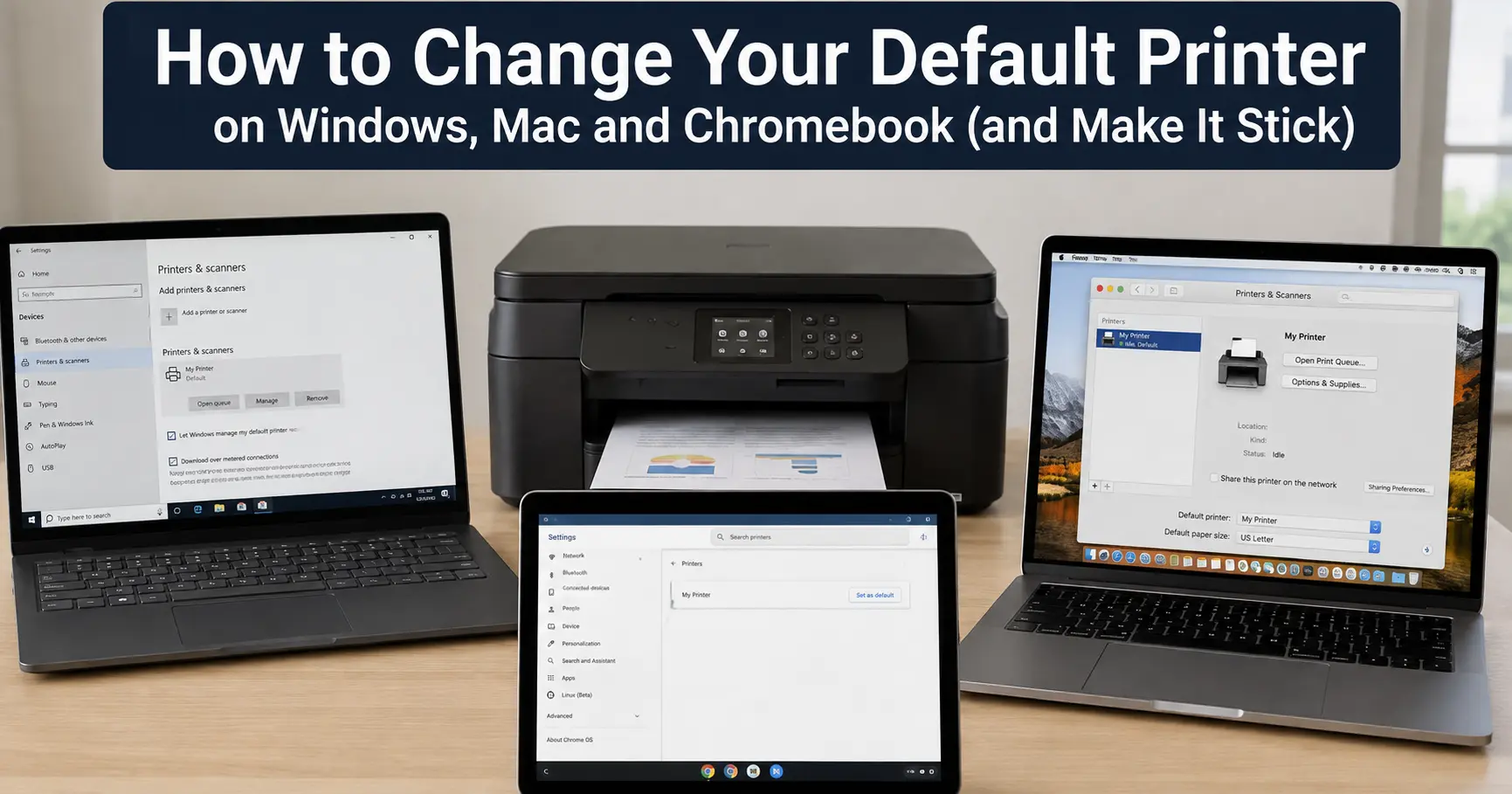
Audience note: written for everyday Windows, Mac and Chromebook users setting up their own device, not IT teams pushing a fixed default across a fleet, though there's a short section for that case too.
On Windows 11, open Settings, go to Bluetooth & devices, then Printers & scanners, click the printer you want, and choose Set as default. On a Mac, open System Settings, click Printers & Scanners, and pick your printer from the Default printer menu. On a Chromebook, there's no dedicated button at all: whichever printer you save most recently under Settings, Device, Printers and scanners becomes the default, whether you meant it to or not.
That's the whole job, except for the part that sends most people looking for a page like this one. If those exact steps have been followed before and the printer switched back on its own a day or two later, repeating them won't help. A separate setting, sitting a scroll below the button just clicked, is quietly overriding that choice every time printing happens somewhere new.
Changing the default printer on Windows 11
Press Windows key + I, or search "Printers" from the Start menu, then go to Bluetooth & devices and click Printers & scanners. Every printer Windows currently knows about shows up here, including a few almost certainly not installed on purpose.
Before touching the actual printer, scroll to Printer preferences and find the toggle labelled Let Windows manage my default printer. Leave it switched on and Windows reassigns the default automatically to whichever printer was used most recently. That sounds sensible until a second printer enters the picture, say invoices on the office laser most days and an occasional A3 poster on a wide-format machine down the hall. Windows will then send Monday's invoice run to whichever machine was touched last, not the one actually meant. Switch the toggle off, and Set as default becomes available under whichever printer gets clicked. Choose it, click Set as default, and the word Default appears directly beneath the name to confirm it's stuck.
For a quick visual check later without hunting back through Settings, Windows key + R, then shell:PrintersFolder opens the older Devices and Printers view, where the current default carries a small green tick on its icon.
Changing the default printer on Windows 10
The path is one menu shorter: Settings, Devices, Printers & scanners. The same Let Windows manage my default printer toggle sits under Printer preferences and behaves exactly as it does on Windows 11, so everything above about switching it off applies here too.
One thing to know if this is being read on a Windows 10 machine in 2026: mainstream support ended on 14 October 2025, and the free bridge Microsoft offered afterwards, Extended Security Updates for consumers, runs out on 13 October 2026. Setting a default printer works exactly the same either way, but if a move to Windows 11 or a new device isn't already planned, the runway left is short.
Choosing a default printer on a Mac
Apple tucks this into a spot that makes sense once it's been found and nowhere before that. Open System Settings, scroll to Printers & Scanners in the sidebar, and look for the Default printer pop-up menu. Click it and every printer added so far appears, plus one option worth understanding properly: Last Printer Used.
Pick a named printer and macOS sticks with it, regardless of what gets printed to next. Pick Last Printer Used, and, according to Apple's own support documentation, the Mac remembers whichever device last received a print job at the current network location, so the printer selected at home can differ from the one at work without a single setting being touched either time.
That's the same idea as the Windows toggle above, just reached through a menu choice instead of a switch. If the Windows section made the auto-switching sound sensible, Last Printer Used is the Mac version of exactly that. To stop the printer moving around instead, pick a specific one from the list rather than Last Printer Used. There's also a shortcut for anyone who already knows which printer they want: Control-click it in the Printers list and choose Set Default Printer from the shortcut menu.
Setting a default printer on a Chromebook
ChromeOS handles this differently enough to genuinely catch people out. There's no Set as default button anywhere, and no dedicated setting to flip either. Per Google's Chromebook help documentation, whichever printer gets saved most recently to a Chromebook profile becomes the default, full stop.
In practice, that turns the fix into an action rather than a setting: print to the preferred printer once (Ctrl + P, then Destination, then See more), then go to Settings, Device, Printers and scanners, Print, and select Save next to that same printer under Other available printers. It should then sit at the top of Your saved printers, which is Chromebook's version of a checkmark.
It's an awkward system for anyone keeping more than one printer permanently saved. There's no page with a box to tick that says "this one, always," short of re-triggering the save. The one saving grace on a shared family Chromebook is that saved printers live under each Google account separately, so one person's default and another's can end up on two different machines without either profile touching the other's setup.
Why does my default printer keep changing back?
This is the question that brings most people to a page like this one, because the first fix rarely holds for long. Three separate things cause it, and they're easy to mix up.
The first is the location-aware default covered above. Windows's Let Windows manage my default printer and macOS's Last Printer Used are the same idea under different names, both switched on from the moment the device was first set up. Own one printer and neither setting is ever noticed. Own two, and one of them starts making decisions on its own.
Before switching it off out of irritation, it's worth asking whether it's actually earning its keep. A laptop that splits its time between a home office and somewhere else is arguably being served correctly by the auto-switching, and the real complaint is that it guessed differently once. For a lot of people the more honest fix isn't disabling the feature at all, it's a two-second glance at the destination box before pressing print. Switching it off completely only makes sense when the same physical printer is wanted every time, regardless of where the device happens to be.
The second cause is virtual printers. Microsoft Print to PDF, Microsoft XPS Document Writer, Fax, and whatever scan-to-PDF tool a printer manufacturer bundled with its own drivers all sit in the same list as real hardware. Reinstall a driver, run a large Windows update, or add a new device, and one of these can end up as the default ahead of the printer actually intended. A document opening a Save As dialogue instead of printing straight away is almost always this.
The third is specific to Windows and catches people out even after they've switched the toggle off once already. A major feature update, the twice-yearly release labelled things like 24H2 or 25H2, has a track record of resetting settings a smaller patch wouldn't touch, in much the same way big updates have long had a habit of resetting default browsers without asking first. If a fixed default starts drifting again right after the PC updates itself, check the toggle again before assuming something's broken. It probably just switched itself back on.
If you manage more than one PC (or someone else manages yours)
Domain-joined work laptops often aren't under the user's control here at all. IT teams commonly push a default printer, sometimes per floor or per office, through a Group Policy Preferences item under User Configuration, Preferences, Control Panel Settings, Printers, with a box ticked for "Set this printer as the default printer." In plain terms, that's a decision the organisation applies every time someone signs in, and it reapplies itself even after a manual change. If a default snaps back to the same printer every single morning on a work machine, the fix sits with the IT team, not with Settings.
For anyone comfortable with a command line and managing several machines directly, the classic one-liner was:
wmic printer where name="Your Printer Name" call setdefaultprinter
That command hasn't worked reliably for a while. WMIC, the Windows Management Instrumentation Command-line tool behind it, has been on Microsoft's own deprecation list since 2024, and Microsoft's current documentation confirms it has now been removed outright from Windows 11 24H2 and 25H2, not merely switched off. The replacement uses PowerShell instead:
$printer = Get-CimInstance -Class Win32_Printer -Filter "Name='Your Printer Name'"
Invoke-CimMethod -InputObject $printer -MethodName SetDefaultPrinter
Win32_Printer is simply the system's internal record of every printer it knows about, and the command above finds the matching entry and flips its default flag. Swap in the exact printer name (capitalisation and spacing matter), and the change takes effect immediately, which is useful for scripting the same change across several machines rather than clicking through Settings on each one individually.
Quick reference: settings path by platform
| Platform | Where to go | The one setting to check first |
|---|---|---|
| Windows 11 | Settings, Bluetooth & devices, Printers & scanners | Turn off "Let Windows manage my default printer" |
| Windows 10 | Settings, Devices, Printers & scanners | Same toggle, same fix |
| macOS (Tahoe and recent versions) | System Settings, Printers & Scanners, "Default printer" menu | Switch from "Last Printer Used" to a named printer |
| ChromeOS (Chromebook) | Settings, Device, Printers and scanners, Print | Save the printer wanted again; the most recently saved one becomes default |
When it still won't behave
A handful of problems get blamed on a broken default printer setting when something else entirely is going on.
| What's happening on screen | What's actually going on | What fixes it |
|---|---|---|
| Set as default is missing or greyed out | Automatic management is still switched on | Turn off the toggle (Windows), or choose a named printer instead of Last Printer Used (Mac) |
| Jobs land on a PDF or fax "printer" instead | A virtual printer took default status after an update or driver install | Reselect the real printer and set it as default again; remove unused virtual printers if preferred |
| The printer isn't in the list at all | It's offline, asleep, or, if shared, the host computer is switched off | Check power and network, and make sure any sharing computer is awake |
| Different apps use different printers | Some apps, including Word, Chrome and Adobe Acrobat, remember their own last used printer separately from the OS default | Check that app's own print destination rather than assuming system settings are wrong |
| Default reverts straight after a Windows update | A feature update reset the auto-management toggle | Recheck Printer preferences after any major Windows update |
None of this is complicated once the real setting is found. The part that sends people back to search for this a second time is almost never the button itself. It's the toggle sitting quietly one scroll above it.