
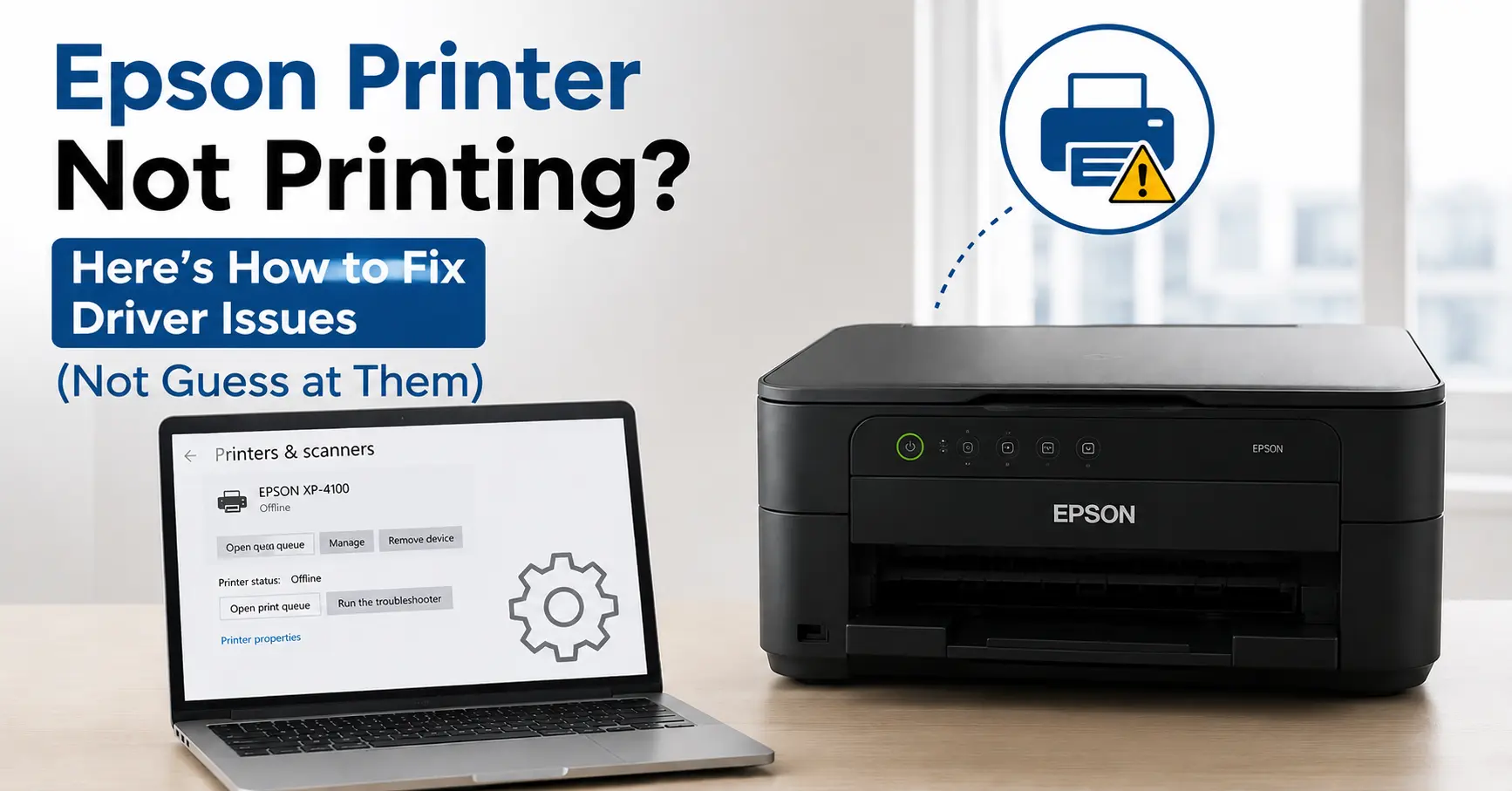
If your Epson printer has stopped printing and you suspect drivers, the fastest fix in most cases isn't reinstalling anything straight away, it's clearing the Windows print spooler queue first, because a single stuck job can make even a correctly installed driver behave as if it's broken. If that doesn't clear it, the next most common culprit is that Windows quietly swapped your proper Epson driver for a generic "WSD" (Web Services for Devices) driver during an update, which looks identical in Devices and Printers but drops half the functionality, including reliable print jobs.
Work through those two before anything else. They account for the bulk of "was working fine yesterday" driver complaints, and neither requires you to touch a USB cable or a router.
Is it actually a driver problem?
Worth thirty seconds before you start uninstalling anything. Driver issues have a specific signature: the printer shows as "Ready" in Windows or macOS, the queue accepts the job, but nothing happens no grinding, no paper feed, sometimes a job that sits at "Spooling" forever. Compare that with:
- Blinking or solid amber light on the printer itself that's a hardware or consumables fault (ink, paper jam, waste ink pad), not a driver. No amount of reinstalling fixes it.
- "Printer offline" in Windows but the printer's display shows it's connected and idle is usually a connection/port issue, though it can present alongside driver problems, so worth ruling out separately.
- Prints fine from one app (say, Notepad) but not from Word or a browser points to an app-level print setting or a corrupted document, not the driver.
If the printer is idle, connected, and jobs vanish or hang without any paper movement or light change, you're looking at a driver or spooler fault. That's what the rest of this covers.
Fix 1: Clear the print spooler queue
Windows manages every print job through a background service called the Print Spooler, and it writes each queued job to disk as a pair of files (.SHD and .SPL) in C:\Windows\System32\spool\PRINTERS. If one of those files gets corrupted, which happens more often than you'd expect after a failed print, a sleep/wake cycle, or a driver update mid-queue, the spooler can jam on it and refuse every job after, including ones sent to a perfectly healthy driver.
- Open Services (search for it in the Start menu), find Print Spooler, and stop it.
- Go to
C:\Windows\System32\spool\PRINTERSand delete everything inside the folder; it's safe, these are only pending jobs, not the driver itself. - Start the Print Spooler service again.
- Send a test print.
This alone resolves a large share of "nothing happens when I print" reports, and it's worth doing even if you're fairly sure the real problem is the driver, since a jammed spooler will make a fresh driver install look broken too.
Fix 2: Get the driver Epson actually wants you to use, not Windows Update's version
Here's the part that catches people out: after a Windows Update, particularly a feature update rather than a routine patch, Windows sometimes reinstalls printers using its own generic driver rather than the manufacturer one you originally set up. For Epson devices this usually shows up as either a WSD driver or a driver simply labelled with the model name but no Epson-specific options: no ink level monitor, no borderless printing settings, no Epson Scan integration. It'll still show as "Epson [model]" in your printers list, so it's easy to miss.
The generic driver isn't necessarily broken, but it's a stripped-down implementation that doesn't always talk to the printer's firmware correctly, and it's a frequent source of jobs that queue but never print. The fix is to remove it entirely and pull the correct one from Epson's own support pages rather than letting Windows Update supply it again.
- In Settings > Bluetooth & devices > Printers & scanners, select the Epson printer and remove it.
- Go to
epson.co.uk/support, search your exact model number (not the family name - an EcoTank ET-2810 and an ET-2811 use different packages), and download the full driver, not just the "basic" one if both are offered. - Install it, and during setup choose a USB or Wi-Fi Direct connection type explicitly rather than "auto-detect," which is what pulls in the WSD driver in the first place.
- Once installed, check Devices and Printers for duplicate entries: a second "Epson [model] (Copy 1)" or a "WSD" version sitting alongside the real one. Set the correct one as default and remove the duplicate, since Windows will happily route jobs to whichever one it decides is "default" regardless of which you meant.
Fix 3: On a Mac, it's usually a filter or AirPrint conflict, not a missing driver
Mac driver failures look different. The most common one is a job that sits in the queue and then fails with "Filter failed" in the print queue window, which almost always means the installed Epson driver and the version of macOS you're on have fallen out of sync, common after a macOS upgrade, since Epson doesn't always ship an updated driver on the same day Apple ships the OS.
- Open System Settings > Printers & Scanners, remove the printer, then reinstall it, choosing the Epson driver specifically in the "Use" dropdown when adding it back, not "AirPrint" or "Secure AirPrint," which macOS often selects by default and which supports a much narrower feature set than Epson's own driver.
- If Epson hasn't yet released a driver certified for your macOS version, AirPrint is the fallback that will actually print, just without extras like ink-level reporting.
What it looks like when the problem isn't the driver at all
Worth naming, honestly, because reinstalling drivers repeatedly when the fault lies elsewhere just wastes an evening. A driver reinstall won't fix:
|
Symptom |
Likely cause |
What actually fixes it |
|---|---|---|
|
Amber/red light flashing on printer |
Ink cartridge fault or empty cartridge |
Reseat or replace the cartridge |
|
"Waste ink pad at end of service life" message |
Waste ink pad counter maxed out (common on EcoTank models after heavy use) |
Reset via Epson's maintenance tool or a service visit - not driver-related |
|
Printer prints blank pages |
Clogged print head nozzles |
Run the built-in nozzle check and head cleaning cycle |
|
Job stuck at "Spooling," never printed, but reinstalling the driver made no difference |
Corrupted spool files persisting because the service was never fully restarted |
Fully reboot the PC, not just the spooler service |
|
Wireless printer keeps going offline within minutes of finishing a job |
Router power-saving or printer Wi-Fi sleep settings, not the driver |
Disable the printer's Wi-Fi sleep mode in its on-device settings menu |
If the printer's own display or status light is flagging something, trust that over the driver troubleshooting. Epson printers are generally accurate about surfacing hardware faults through their own panel, and no PC-side fix reaches into the print head or ink system.
If none of this works
At that point it's worth checking Epson's firmware version against the current release for your model (via the printer's own settings menu or the Epson Software Updater tool) an outdated firmware version can cause exactly the same symptoms as a driver mismatch, particularly on printers bought more than a couple of years ago that haven't been updated since. If firmware is current and a clean driver reinstall on a different USB port (or a different PC entirely, if you have one handy) still doesn't produce a test print, that's a reasonable point to raise a support case with Epson directly rather than keep troubleshooting software a printer that won't print even to a known-good, freshly installed driver on a second machine is very likely a hardware fault, not anything you can fix from Device Manager.
Related Guide
- How to Fix Common Printer Problems at Home or Office - for ink, paper feed, and connectivity faults that turn out not to be driver-related.
- Printer Assistance - remote, on-demand help if you'd rather have someone walk through the fix with you.