
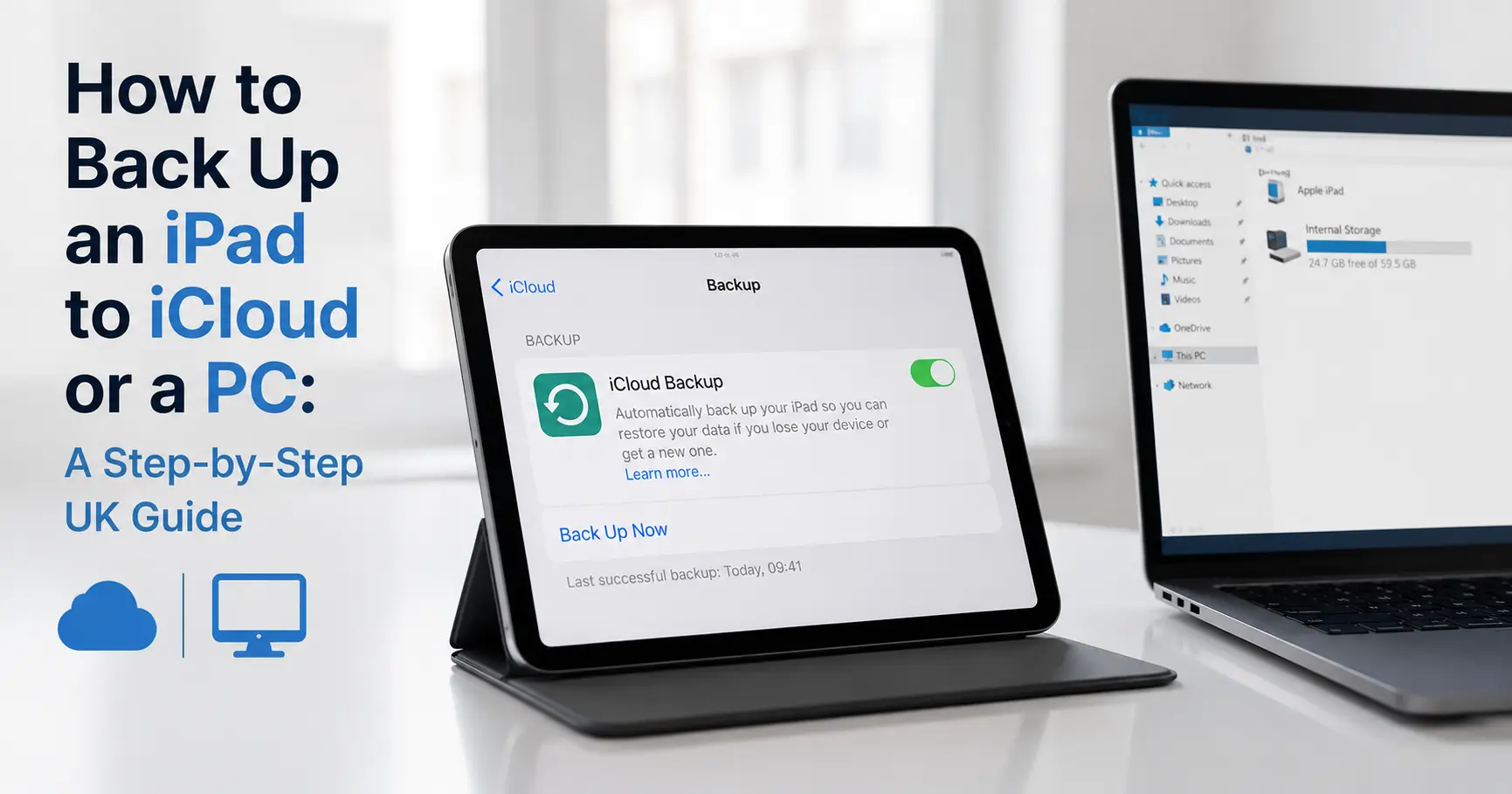
The quickest way to back up an iPad is Settings > [your name] > iCloud > iCloud Backup > Back Up Now. That's it, provided you've got enough free iCloud storage, which is the part that trips most people up, because a standard Apple ID only comes with 5GB free and a modern iPad can produce a backup several times that size.
If you'd rather not pay Apple's monthly storage fee, the alternative is backing up locally: plug the iPad into a Mac (via Finder) or a Windows PC (via the Apple Devices app), and it copies everything onto your hard drive instead no subscription, no size cap beyond your drive's capacity.
Both routes protect the same essential data, but they behave differently once you actually need to restore from them, and that's where most guides fall short. Below is how to do each one properly, plus the details that only become obvious the first time a restore doesn't go the way you expected: encrypted backup passwords you can't recover, backups that quietly skip your photos, and storage plans that are easy to overpay for.
iCloud or a Computer? The Quick Decision
| iCloud Backup | Mac/PC Backup | |
|---|---|---|
| Cost | Free up to 5GB, then £0.99–£54.99/month | Free (just needs a cable) |
| Speed | Depends on your broadband upload speed | Usually much faster over USB |
| Restore anywhere | Yes, no computer needed | No - needs the same Mac/PC |
| Encryption | Partial by default, full with Advanced Data Protection | Optional, but strong when enabled |
| Best for | Most people; those who travel or don't own a Mac/PC | Large media libraries; anyone avoiding subscriptions |
If you're not sure, do both. They're not mutually exclusive, and having a local backup as a fallback for a failed iCloud restore has saved me more than once.
Method 1: How to Back Up an iPad to iCloud
Before you start
Connect the iPad to Wi-Fi first - a cellular connection will work for automatic backups only if you've separately enabled "Back Up Over Cellular," and even then it'll chew through your data allowance fast. Plug into power if you can; it's not strictly required for a manual backup, but it stops the process stalling halfway through. Worth a quick check beforehand: go to Settings > [your name] > iCloud > Manage Account Storage to see how much room you've actually got left, since a backup that runs out of space partway through will simply fail.
Step-by-step
- Open Settings.
- Tap your name at the top of the screen.
- Tap iCloud.
- Tap iCloud Backup.
- Make sure Back Up This iPad is switched on.
- Tap Back Up Now.
- Stay connected to Wi-Fi until it finishes. Closing the Settings app is fine, but disconnecting from the network isn't.
Once it's turned on, iCloud backs the iPad up automatically once every 24 hours or so, as long as it's locked, charging, and on Wi-Fi. You don't need to repeat these steps daily.
Confirming it actually worked
Head back into Settings > [your name] > iCloud > iCloud Backup and look for the coloured dot next to the entry. Green means the last backup completed successfully, with a timestamp underneath it. A red or amber dot almost always means one thing: insufficient iCloud storage. It's the single most common reason backups silently fail, and it's easy to miss because there's no push notification nagging you about it - you have to go and check.
iCloud storage plans and UK pricing
Apple gives every Apple ID 5GB free, which is rarely enough once you're backing up an iPad alongside an iPhone. Beyond that, iCloud+ pricing in the UK currently runs:
| Storage | Monthly price (UK) |
|---|---|
| 5GB | Free |
| 50GB | £0.99 |
| 200GB | £2.99 |
| 2TB | £8.99 |
| 6TB | £26.99 |
| 12TB | £54.99 |
The 200GB tier is usually the sweet spot for a single iPad backup plus photo library. It also supports Family Sharing with up to five other people at no extra cost, which works out considerably cheaper per head than everyone paying separately for their own 50GB plan.
What's actually included in an iCloud backup (and what isn't)
This is where a lot of confusion happens after a restore. An iCloud backup covers device settings, Home Screen layout, app organisation, app data, and messages. Photos and videos are only included in the backup itself if you're not using iCloud Photos - if iCloud Photos is switched on, your library is already stored separately in iCloud and doesn't need duplicating inside the device backup.
What it doesn't cover: purchased music, films, and books aren't backed up because Apple can simply re-download them from your purchase history, and data already living natively in iCloud (Mail, if you use iCloud Mail; Contacts; Calendars) is synced continuously rather than bundled into the backup file. If you've ever restored an iPad and found your call history and settings back, but your music library gone, this is why nothing went wrong, that's simply how it's designed to work.
Method 2: Back Up an iPad to a Mac or Windows PC
On a Mac, using Finder
- Connect the iPad to the Mac with a cable.
- Unlock the iPad and tap Trust This Computer if prompted.
- Open Finder and select the iPad under Locations in the sidebar.
- Click the General tab.
- Select Back up all of the data on your iPad to this Mac.
- Tick Encrypt local backup if you want passwords and Health data included (more on why this matters below).
- Click Back Up Now.
On Windows, using the Apple Devices app
iTunes is no longer the tool for this job on Windows. Apple retired it for backup purposes in favour of the Apple Devices app, available free from the Microsoft Store. iTunes still works if you're on an older Windows setup where Apple Devices isn't supported, but there's no reason to use it otherwise.
- Install Apple Devices from the Microsoft Store if it isn't already on your PC.
- Connect the iPad with a USB cable.
- Unlock the iPad and tap Trust if prompted, then enter the passcode.
- Select the iPad in the app's sidebar, then click General.
- Tick Encrypt local backup if wanted.
- Click Back Up Now.
The encrypted backup password trap
Ticking "Encrypt local backup" isn't just an optional privacy extra it's the only way a local backup includes saved Wi-Fi passwords, Health and Activity data, Screen Time settings, and browsing history. Skip it, and those categories are silently left out, same as the iCloud photo situation above.
Here's the catch nobody mentions upfront: if you forget that password, there is no recovery option. Apple can't reset it, and there's no "forgot password" link. I've seen this play out with someone backing up an old iPad before trading it in, only to realise months later, when trying to restore a replacement, that the encryption password set back then was long forgotten. The backup file was completely intact and completely useless. Write the password down somewhere physical or store it in a password manager the moment you set it, not after.
iCloud vs Local Backup: The Trade-Offs That Actually Matter
Speed. A local backup over USB is generally faster than an iCloud backup, especially the first time, since it isn't limited by home broadband upload speed. If you've got tens of gigabytes of photos and documents, expect a noticeably shorter wait with a cable.
Where you can restore from. iCloud backups can be restored on any iPad, anywhere, as long as you're signed into the same Apple ID and have Wi-Fi useful if you're travelling or your only computer isn't with you. A local backup only exists on the specific Mac or PC it was made on.
Ongoing cost. iCloud storage above 5GB is a recurring monthly charge. A local backup costs nothing beyond the cable you already own, but it does need somewhere to physically sit: a laptop, an external drive, or both.
Advanced Data Protection: Should You Turn It On?
By default, most iCloud data categories are encrypted, but Apple retains the ability to access some of them (largely so they can help you recover your account if you're locked out). Advanced Data Protection extends end-to-end encryption to nearly everything in iCloud, including device backups, iCloud Drive, and Photos, meaning not even Apple can read the contents.
To turn it on: Settings > [your name] > iCloud > Advanced Data Protection > Turn on Advanced Data Protection, then follow the prompts to set up a recovery contact or a 28-character recovery key.
The trade-off is real, not theoretical: without a recovery contact or recovery key saved somewhere safe, losing access to your Apple ID means losing that data permanently, since Apple has no backdoor to hand you. It's a solid choice for anyone handling sensitive work documents or health data on their iPad. It's a riskier choice for anyone who's historically bad at holding onto passwords or recovery codes.
How Big Is an iPad Backup, Realistically?
There's no single number, but rough patterns hold up in practice. An iPad used mainly for browsing and a handful of apps, with iCloud Photos already syncing the photo library separately, typically produces a backup in the low single-digit gigabytes. An iPad with a large offline document library, dozens of apps with local data (note-taking apps, drawing apps with saved files, games with progress data), and messages going back years can easily land in the 15–40GB range. If you're regularly seeing "not enough storage" errors on a 50GB iCloud plan, that's usually the sign to step up to 200GB rather than constantly deleting things to make room.
Fixing the Most Common Backup Errors
"Not enough iCloud storage." Either buy more space or go into Settings > [your name] > iCloud > Manage Account Storage, select the iPad, and delete backups for devices you no longer own. Old iPhone and iPad backups sitting there unused is a surprisingly common cause of a "full" account.
Backup stuck or spinning indefinitely. Check the Wi-Fi connection is stable rather than dropping in and out, restart the iPad, and confirm it's running the latest iPadOS version, since backup bugs do occasionally get patched in point releases.
Local backup hangs on Windows. Third-party security or antivirus software is a known culprit for interfering with the Apple Devices app or iTunes mid-backup. Temporarily disabling it, running the backup, then re-enabling it usually resolves this.
Backup fails specifically over cellular. Double-check Back Up Over Cellular is actually switched on in iCloud Backup settings - it's off by default, and a lot of "why isn't this working" cases are simply that toggle being missed.
What Happens When You Restore
When setting up a new or reset iPad, you'll be given the choice between Restore from iCloud Backup and Restore from Mac or PC. Choose iCloud and you'll need Wi-Fi and to sign into the same Apple ID; choose the computer option and you'll need the same Mac or PC the backup was made on, connected by cable. Either way, it's worth keeping in mind that a restore brings back the state of the device at the time of that backup not live, right up to the second something went wrong, which is exactly why running a manual "Back Up Now" before major changes (a factory reset, selling the device, a big iPadOS update) is worth the two minutes it takes.
Related Guides
iPad Running Slow or Freezing? Here's How to Fix It - worth a read if your backup keeps stalling or timing out, since a sluggish iPad is often the underlying cause.
iPad/Tablet Data & Photo Backup and Transfer - for hands-on help if a backup or restore isn't going to plan and you'd rather have a technician handle it.
Tablet/iPad Slow or Freezes - virtual assistance for performance issues that go beyond a simple restart.