
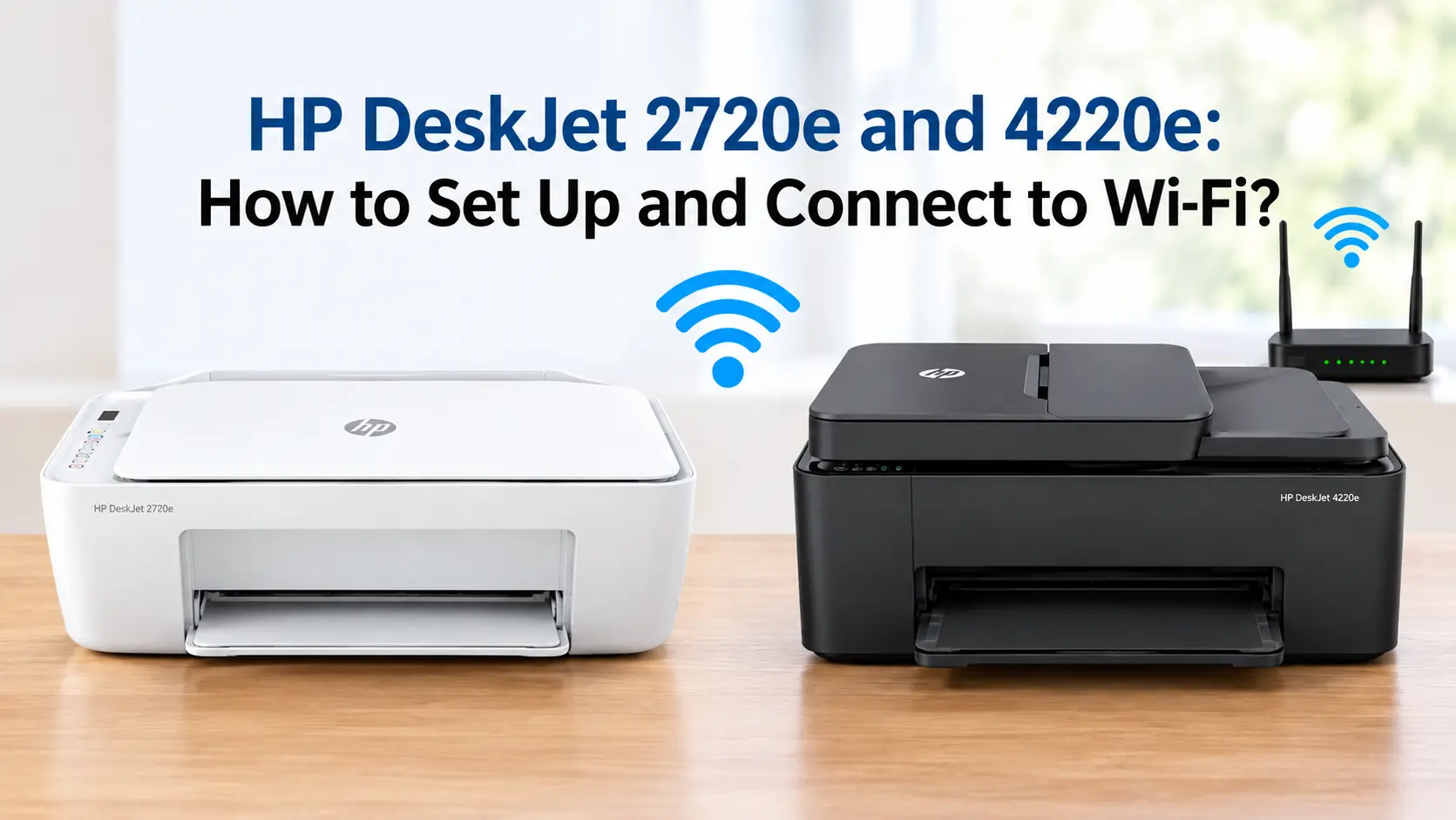
The short version
Install the HP Smart app (from 123.hp.com on a computer, or the App Store or Google Play on a phone), switch the printer on and leave it for two minutes until the Wi-Fi light pulses blue, put the phone you are using on the 2.4 GHz band of your home network with Bluetooth switched on, then open HP Smart, tap the plus sign and follow the prompts. The 2720e and the 4220e set up in exactly the same way, and it normally takes about five minutes.
The thing that decides whether it works on the first attempt is the 2.4 GHz band. Both printers join a 2.4 GHz network, not 5 GHz. If your router broadcasts one combined network name and shifts devices between bands on its own, the printer often cannot get a foothold, and the app reports "printer not found" without telling you why. That single issue is behind most failed setups, and it has its own section below.
Before any of that, a word on the letter "e". It means the printer is built around HP+, and choosing HP+ during setup ties you to keeping the printer online and buying Original HP ink for as long as you own it. You can turn it down. That decision is explained further down, ahead of the point where the app asks.
What you need before you start
- The HP Smart app. Not the old driver disc. Both models are designed around the app: Windows and Mac download it from 123.hp.com, phones and tablets get it from their app store.
- Your Wi-Fi name and password, somewhere you can read or copy them from. The printer has no keypad, so you type the password once, in the app.
- A phone or computer already on the 2.4 GHz network. If both bands share one name you may not know which you are on. Note it as something to check if setup stalls.
- Bluetooth switched on, if you are setting up from a phone. HP Smart uses a short Bluetooth handshake to pass the Wi-Fi details to the printer. Without it, iPhone and Android setups tend to freeze at "looking for your printer".
- An HP account, or the willingness to create one during setup.
- Both setup cartridges installed, with the protective tape pulled off each one. The printer will not join the network until it has finished its start-up cartridge routine.
The printer does not wait forever. It advertises itself for setup for about two hours after you power it on, then goes quiet. After that the app finds nothing even though the printer looks ready, and you have to wake it up again (covered under troubleshooting).
Setting it up with HP Smart
- Put the printer within a couple of metres of the router for now. The first Bluetooth handshake is short range; you can move the printer afterwards.
- Switch it on. Wait for the carriage to stop moving and the Wi-Fi light, next to the button marked with the wireless symbol, to blink blue with the signal-bars icon cycling on the small display. That is Auto Wireless Connect mode, and it means the printer is ready for the app.
- On your phone, confirm Bluetooth is on. On an iPhone, also open Settings, find HP Smart, and check it has permission for both Bluetooth and Local Network. A silent block here is the most common Apple-side snag.
- Open HP Smart and tap the plus sign, or "Add printer". The app picks the printer up over Bluetooth and lists it.
- Choose your 2.4 GHz network, type the password, and let the app pass it to the printer. Keep the app on screen and the phone awake while it works.
- Sign in to or create your HP account when asked. The HP+ choice appears around here.
- Wait for the Wi-Fi light to stop blinking and glow steady blue. That is the printer on your network. HP Smart usually then downloads a firmware update and prints an alignment sheet.
Reading the Wi-Fi light
| Wi-Fi light | Meaning |
|---|---|
| Steady blue, signal bars shown | Connected to your network |
| Blinking blue, bars cycling | Auto Wireless Connect mode, waiting for the app |
| Blinking blue in step with the bars | WPS pairing in progress |
| Blinking with the exclamation mark icon | Tried to join a network and failed. Print the test report. |
| Off | Wi-Fi radio is switched off. Press the Wireless button once to turn it back on. |
Source: HP DeskJet 2700e User Guide, control panel section.
No app, or the app will not cooperate: WPS
If your router has a WPS button, usually on the back, you can join the printer to Wi-Fi without HP Smart:
- On the printer, hold the Wireless button for at least three seconds. The Wi-Fi light and the signal bars blink together.
- Within two minutes, press WPS on the router.
- Wait up to two minutes. A steady blue Wi-Fi light means it worked.
WPS gets the printer onto the network, but it does not install printing on your laptop or phone, and it does not create the HP account. On an HP+ printer you still need to open HP Smart afterwards, sign in, and let the printer reach the internet, or it will print only a small number of pages and then stop. WPS also will not work with a 5 GHz-only or hidden network, and some broadband routers ship with WPS switched off.
No WPS button? Hold the Wireless button and the Information button (marked "i") together for five seconds to print a PIN, then enter that PIN on the router's admin page. Or go back to HP Smart and deal with whatever was blocking it.
The HP+ decision, before the app makes you choose
Partway through setup, HP Smart asks you to activate HP+. Here is what each path actually commits you to.
| Activate HP+ | Decline HP+ | |
|---|---|---|
| Free Instant Ink | 3 months (earlier 2720e promotions offered 6) | None |
| Warranty | 2 years (1 standard plus 1 through HP+) | 1 year |
| Cartridges | Original HP only, for the life of the printer, enforced by firmware | Original HP or third-party, subject to dynamic security |
| Internet | Must stay connected permanently, or the printer stops printing | Needed for setup and app features, not for everyday printing |
| Cloud features | Full set, including Print Anywhere | Reduced set |
Sources: HP DeskJet 2720e data sheet (gb-en, August 2024); HP DeskJet 4220e data sheet (gb-en, April 2025).
The honest read: take HP+ if you were always going to buy Original HP ink and the printer will live somewhere with steady Wi-Fi. Decline it if you already own third-party 305 cartridges, or the printer is going in a spare room where the signal drops. The decline option is a small link, often worded "Continue without HP+" or "Not now", and it is easy to walk straight past.
Either way, the cartridges in the box are HP 305 Setup cartridges, rated at roughly 120 pages black and 100 pages colour, so plan to buy a set of 305, or the higher-yield 305XL at about 240 and 200 pages, sooner than the box leads you to expect. And if you take the Instant Ink trial, you have to enrol within seven days of setup, and cancel before the trial ends, or it becomes a paid monthly plan.
Changing your mind later is hard. Declining at setup is permanent for that printer. Activating can sometimes be reversed by HP support, but not by you.
Why it will not join your network: the 2.4 GHz problem
Both printers connect on the 2.4 GHz band. The 4220e data sheet says so in plain terms: "802.11b/g/n, 2.4 GHz single-band only". HP's newer 2720e sheet lists an 802.11a/b/g/n radio and markets "dual-band Wi-Fi", but HP's own support forum is full of 2720e owners whose printer will not hold a 5 GHz connection, and HP's agents routinely tell them to switch to 2.4 GHz. Treat both as 2.4 GHz printers and you save yourself a wasted evening.
The complication is that most current broadband routers, including the BT Smart Hub, Sky Broadband Hub, EE Smart Hub and Virgin Media Hub, broadcast both bands under a single network name and decide for each device which band it lands on. The feature is usually called band steering or Smart Connect. The printer asks to join, the router puts it on 5 GHz, and the connection either fails outright or drops within a few minutes. From the app it just looks as though the printer cannot be found.
Ways around it, easiest first:
- Set up from a device that is on a 2.4 GHz-only network. A router's guest network is often 2.4 GHz, and that is usually enough to get through setup.
- In the router settings, turn off band steering or Smart Connect so the two bands have separate names, then connect the printer to the 2.4 GHz one. You can leave the bands split; it rarely causes any problem elsewhere in the house.
- On a router that will not let you split the bands, such as the BT Smart Hub, connect the printer while it is sitting right next to the router. With a weak 5 GHz signal it falls back to 2.4 GHz, and it holds that band once joined.
- Move the printer nearer the router for good. A marginal 2.4 GHz signal through two walls will connect and then drop, which looks exactly like an intermittent fault.
If you split the bands to get the printer connected, leave them split, or keep a separate 2.4 GHz name for it. Merge everything back into one name and the printer usually falls off, because the network it has memorised no longer exists.
It still will not connect: working through it
- Print the Wireless Network Test Report. Press the Wireless button and the Information button at the same time. The report lists which checks failed and, near the bottom, the network the printer last tried to join. If that is your 5 GHz network, you have your answer.
- Wake up setup mode. The printer only listens for the app for two hours after power-on. To restart it, hold the Wireless button and the Cancel button (marked with an X) together for about three seconds, until the Wi-Fi light blinks blue. This also clears any half-finished network settings, which is normally what you want.
- Switch off any VPN on the phone or computer. A VPN hides the printer from the app even when both are on the same network.
- Restart the router, then the printer, then the phone, giving the router a full two minutes to come back before you start.
- Re-check the Wi-Fi password for a stray space or a swapped letter. The printer never says "wrong password"; it just fails without comment.
- On Windows, run HP Print and Scan Doctor. On any system, remove the printer from HP Smart and add it again from scratch.
Button combinations worth knowing
| Action | Buttons | Hold |
|---|---|---|
| Enter setup mode / restore network defaults | Wireless + Cancel | 3 seconds |
| Start WPS push-button pairing | Wireless | 3 seconds |
| Print a WPS PIN | Wireless + Information | 5 seconds |
| Print the Wireless Test Report and network page | Wireless + Information | press together |
| Turn Wi-Fi Direct on or off | Wireless + Resume | 3 seconds |
| Print the printer information page (shows the IP address) | Information | press |
To confirm the printer really is on the network, press the Information button to print the information page. It shows the network name and the IP address. An address that starts 169.254, or reads 0.0.0.0, means it is not connected.
Reconnecting after a new router, password or house move
The printer stores one set of Wi-Fi details. Change the router, the network name or the password, and the printer drops offline with no warning. To move it to a new network:
- Hold the Wireless button and the Cancel button together for three seconds to return it to setup mode.
- Open HP Smart, go into the printer's settings, and choose the option to set up a new network connection. Depending on the app version it sits under Advanced settings, or appears on the home screen as a prompt to reconnect.
- Enter the new details.
The 4200e series, and current stock of the 2720e, have what HP calls self-healing or self-reset Wi-Fi: firmware that rebuilds the connection on its own after a short router outage. It copes well with a router that has simply rebooted. It does not cope with a changed password or a replacement router, and those still need the steps above.
Which model do you have, and does it matter for setup?
Setup is identical. The hardware is not.
| DeskJet 2720e | DeskJet 4220e | |
|---|---|---|
| Scanner | Flatbed only | Flatbed plus 35-sheet automatic document feeder |
| Print speed, black (ISO) | Up to 7.5 ppm | Up to 8.5 ppm |
| Input tray | 60 sheets | 60 sheets |
| Wi-Fi, per HP data sheet | 802.11a/b/g/n, marketed dual-band | 802.11b/g/n, 2.4 GHz only |
| Bluetooth for setup | 4.2 | 4.2 |
| Ink | HP 305 / 305XL | HP 305 / 305XL |
| Free Instant Ink with HP+ | 3 months | 3 months |
| Mobile fax, send only | Yes, through the app | Yes, through the app |
| Weight | 3.42 kg | 4.82 kg |
Sources: HP data sheets for the 2720e (August 2024) and 4220e (April 2025).
The 4220e's document feeder is the main reason to pick it: copying or scanning a five-page letter on the 2720e means lifting the lid and changing the sheet five times. Neither model has an Ethernet socket, so Wi-Fi, or a USB cable to one computer, is the only way to connect either of them.
Related guides
Connect a printer to Wi-Fi: the same job for other printer brands and models, including ones with a touchscreen that let you type the password on the printer itself.
Setting up a new printer: the full first-time process, from cartridges and paper to drivers and a test print, not just the network side.
Printer showing as offline: for a printer that was working and has dropped off, which is what usually happens after a router swap, a new password or a Windows update.
Printer error codes: what the blinking "E" and number on the DeskJet display mean, and how to clear each one.
General printer troubleshooting: slow printing, faded or streaky output, and jobs that sit in the queue and never come out.
Clearing a paper jam: removing stuck paper from the input tray, the cartridge area and the base of the printer without tearing the sheet.