
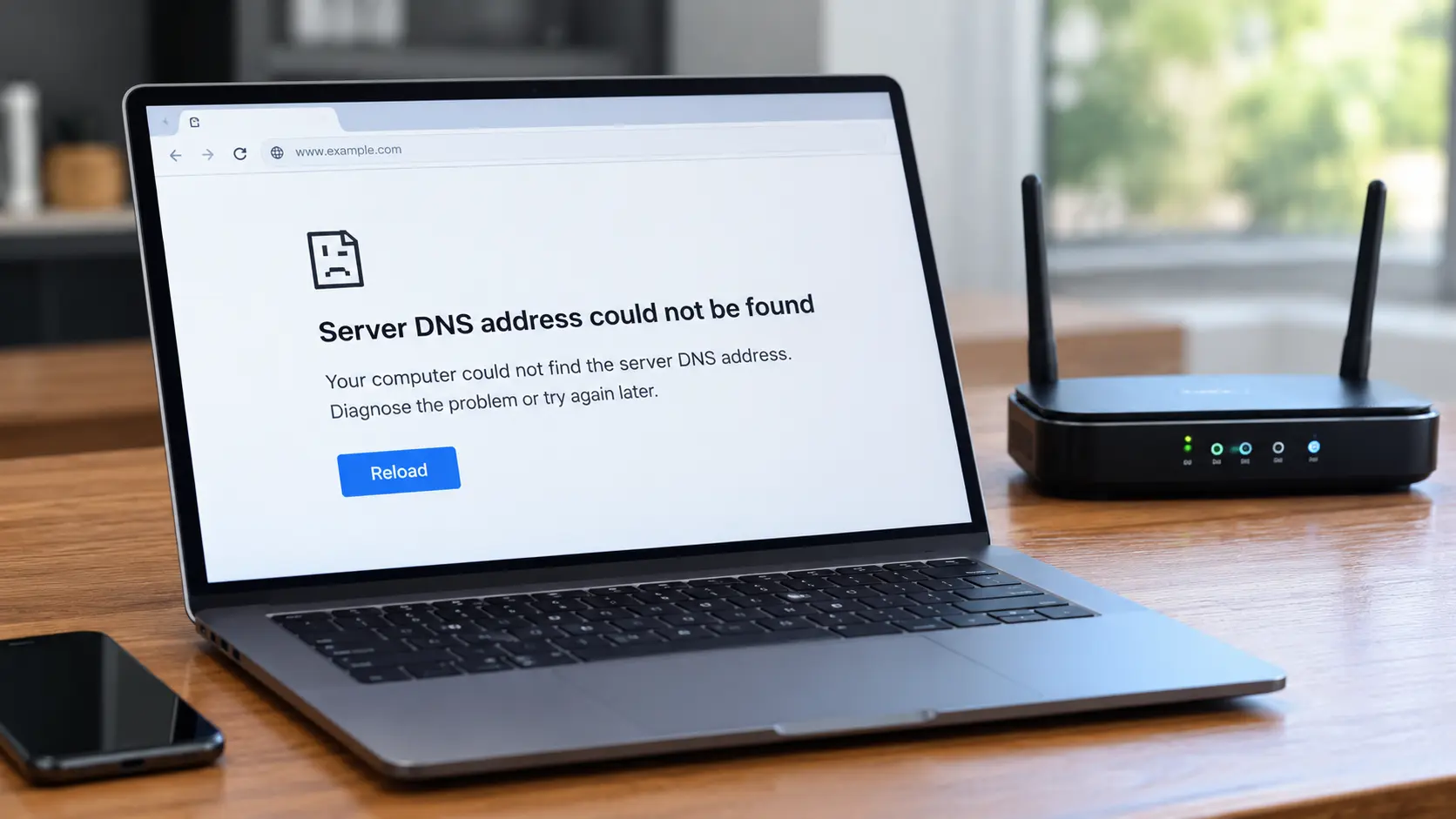
When Chrome or Edge shows "server DNS address could not be found", your device asked for the numeric IP address behind a web address and did not get a usable answer back. The page you wanted may be completely healthy. The break is almost always somewhere between your browser and whichever DNS resolver it is currently using. It usually appears under the heading "This site can't be reached", with a diagnostic code such as DNS_PROBE_FINISHED_NXDOMAIN printed underneath.
In practice the cause is one of four things: a cached failure that is still being served back to you, your router's built-in resolver has stalled, your internet provider's resolver is down or slow, or a DNS setting on your device or inside Chrome is pointing at something unreachable.
The single most useful first move is to change your DNS to a public resolver such as Cloudflare's 1.1.1.1 or Google's 8.8.8.8, then reload. If the page loads, your previous resolver was the problem and you have both diagnosed and fixed it in one step. If it still fails, the checks below narrow it down fast.
A 60-second check to find where it broke
Three quick tests tell you which layer to focus on.
Load the same page on mobile data. Turn Wi-Fi off on your phone and open the site over the mobile network. If it works there, the fault is your home network, your router, or a device setting. If it fails there too, suspect the website itself or a setting that follows you across networks, such as a VPN app or an installed configuration profile.
Try a different website. If only one site fails and everything else is fine, the problem is specific to that domain: either the site's own DNS, or an entry in your hosts file or an ad-blocker's blocklist. If every site fails, it is your resolver or your connection.
Try a different browser. If a site opens in Firefox but not Chrome, you have narrowed it to something inside Chrome, usually its private cache or its Secure DNS setting.
If it fails everywhere, on every device, and on mobile data too, skip to the section on the website's DNS. Otherwise, work through the layer the tests pointed at.
Fixes when the problem is on your device or in your browser
Clear Chrome's own DNS cache, not just Windows'
Chrome keeps its own list of recent name look-ups in memory, separate from the one your operating system holds. Flushing the Windows cache and finding the error still there is the classic sign that Chrome has cached the failure itself.
Open chrome://net-internals/#dns and click Clear host cache. The page is stripped back compared with older versions of Chrome, but that button still works. Then open chrome://net-internals/#sockets and click Flush socket pools. Reload the tab.
Check "Use secure DNS" in Chrome
Go to chrome://settings/security and look at the Use secure DNS option. This sends your look-ups over an encrypted channel (DNS over HTTPS). It is worth having on, with one catch: if you have picked a named provider rather than leaving it on the automatic setting, Chrome will not fall back to ordinary DNS when that provider cannot be reached. A captive portal, a workplace firewall, or a network that blocks the provider's address will then break every site in Chrome while other apps carry on working.
To test, switch it to With your current service provider or turn it off, then reload. Edge has the same setting at edge://settings/privacy; Firefox keeps it under Settings, Privacy and Security, DNS over HTTPS.
This one costs people an afternoon more often than any other item on the list, because the connection looks perfect and only the browser is affected.
Flush the operating system DNS cache
If look-ups are failing outside the browser as well, clear the system cache.
| Operating system | Command |
|---|---|
| Windows | ipconfig /flushdns (Command Prompt or Terminal) |
| macOS | sudo dscacheutil -flushcache; sudo killall -HUP mDNSResponder |
| Linux with systemd-resolved | resolvectl flush-caches |
On Windows, restart rather than shut down
Windows Fast Startup means that choosing Shut down and powering back on does not always fully reinitialise networking; it restores a partially saved system state, so a stuck DNS Client service or a stale adapter configuration can carry over. Choosing Restart forces a full boot. If a restart clears the error but a shutdown does not, disable Fast Startup under Power Options so a normal shutdown behaves as expected.
Check the hosts file
Your machine checks a local text file before it ever asks a DNS server. A stale or hostile entry there, pointing a domain at 127.0.0.1 or a dead address, produces this exact error for that one site.
- Windows:
C:\Windows\System32\drivers\etc\hosts - macOS and Linux:
/etc/hosts
Focus and productivity blockers, some security suites, and a fair amount of malware all write here. Remove any line for the domain that is failing, save, and flush the DNS cache.
Renew the connection and, if needed, reset the stack
On Windows, ipconfig /release followed by ipconfig /renew gets a fresh lease from the router, including fresh DNS server addresses. If names still will not resolve and you suspect a corrupted network stack, netsh winsock reset and netsh int ip reset followed by a reboot rebuild it.
If every site still fails after this, the problem is upstream of your device.
Fixes when the problem is your router or your provider
Power-cycle the router properly
Switch it off at the wall for a full 30 seconds before switching it back on. Most home routers run a small DNS forwarder (dnsmasq is common) that accepts look-ups from your devices and passes them to your provider. That forwarder can lock up while the broadband link itself stays connected, so the lights look fine but nothing resolves. A cold restart clears it.
Switch to a public DNS resolver
This is the change that fixes the largest share of cases, because it takes your provider's resolver out of the path entirely. Set it once on the router and every device inherits it; set it per device if you cannot reach the router settings.
| Resolver | Primary and secondary IPv4 | Who runs it | Filtering |
|---|---|---|---|
| Cloudflare | 1.1.1.1 and 1.0.0.1 | Cloudflare with APNIC, live since 1 April 2018 | None |
| Cloudflare for Families | 1.1.1.2 and 1.0.0.2 | Cloudflare | Blocks known malware domains (1.1.1.3 also blocks adult content) |
| Google Public DNS | 8.8.8.8 and 8.8.4.4 | None | |
| Quad9 | 9.9.9.9 and 149.112.112.112 | Quad9 Foundation, a Swiss not-for-profit | Blocks domains flagged by threat-intelligence feeds |
| OpenDNS | 208.67.222.222 and 208.67.220.220 | Cisco | Optional, account-based content filtering |
For IPv6, Cloudflare is 2606:4700:4700::1111 and ::1001, Google is 2001:4860:4860::8888 and ::8844, and Quad9 is 2620:fe::fe and 2620:fe::9.
On speed, independent monitoring by DNSPerf has consistently placed Cloudflare at or near the top for global query time, though Quad9 often matches or beats it for users inside Europe thanks to dense local peering. Any of them will be quicker to answer than a struggling provider resolver, which is the comparison that matters when you are troubleshooting.
A sensible setup pairs two operators rather than two addresses from one, for example 1.1.1.1 as primary and 9.9.9.9 as secondary, so a single operator's outage does not take you offline.
If a public resolver works and your provider's does not
Then your provider's resolver is the fault. Leave the public one in place and report the problem to them. DNS-only outages, where broadband stays up but name resolution fails for hours, have hit large UK providers before, and switching resolvers is the standard workaround until they recover.
Check anything sitting between you and DNS
- VPN: fully disconnect it, do not just pause it. A half-connected VPN can leave your DNS pointed at an internal resolver you can no longer reach.
- Third-party antivirus: suites such as Avast, AVG, ESET, Kaspersky and Bitdefender run a web-protection component that inspects traffic and can break resolution after an update. Disable that specific component to test, not just the whole product for 10 minutes.
- A Pi-hole, AdGuard Home or NextDNS on your network: these answer blocked domains with a non-existent-domain response, which is exactly this error. Check the query log; the domain may be on a blocklist, or the blocker itself may be down with no fallback configured.
- Public Wi-Fi: the network intercepts DNS until you have signed in on its portal page. Open any plain http page to trigger the portal first.
If the error is limited to one specific website, move on.
When it is actually the website's DNS
The signs that the fault is at the other end: the site fails from every device you own, from mobile data on another network, and an external checker cannot resolve it either. Run dig @8.8.8.8 example.com from another machine, or use a web tool such as dnschecker.org.
Likely causes on the site's side:
- The domain registration lapsed. A quick whois lookup shows the expiry date.
- The nameservers are misconfigured, or a DNS record was deleted. Nothing you do locally will fix this.
- The site recently changed hosting and DNS has not caught up. How long this takes is bounded by the time-to-live (TTL) value on the old record. That is why registrars tell you to allow up to 48 hours, even though it is usually a matter of minutes.
While you wait, it is worth trying the address with and without the www. prefix, since the two are separate records and one can be broken while the other works.
Telling propagation apart from a real outage comes down to consistency: propagation gives different answers from different locations for a while and then settles, whereas an expired domain or a deleted record fails the same way everywhere.
Android and iPhone
Android
The setting that catches people out is Private DNS (Settings, Network and internet, Private DNS). If it is set to a specific hostname and that host is unreachable, every look-up on every network fails. Set it to Automatic or Off to test. Then forget and rejoin the Wi-Fi network, and toggle Aeroplane mode on and off to drop the cache. Check for a VPN app while you are there.
iPhone and iPad
iOS has no manual DNS flush. Toggle Aeroplane mode or reboot to clear cached look-ups. Under Settings, Wi-Fi, tap the (i) next to your network, choose Configure DNS, and set it to Automatic, or enter a public resolver manually. Check Settings, General, VPN and Device Management for a configuration profile that may be setting a custom DNS, and Settings, General, VPN for a VPN client doing the same.
Reading the diagnosis yourself
Two commands separate a resolver problem from a genuinely missing domain.
Run nslookup example.com, then nslookup example.com 1.1.1.1 to ask Cloudflare directly.
- Second works, first fails: your configured resolver is the problem. Switch it.
- Both fail: the domain does not exist as far as public DNS is concerned, or something upstream is blocking the query.
- Both return an address but the browser still errors: this is not DNS. Look at Chrome's Secure DNS setting, a system proxy, or the hosts file.
If you can ping 1.1.1.1 and get replies but names will not resolve, that is a textbook DNS-only failure.
The smaller code beneath the friendly message tells you more:
| Code | Meaning |
|---|---|
DNS_PROBE_FINISHED_NXDOMAIN |
The name does not exist anywhere the resolver checked. NXDOMAIN is the DNS "Name Error" response defined in RFC 1035 |
DNS_PROBE_FINISHED_BAD_CONFIG |
Your resolver settings are broken, or the resolver is unreachable |
DNS_PROBE_FINISHED_NO_INTERNET |
No working connection at all |
DNS_PROBE_FINISHED_BAD_SECURE_CONFIG |
The Secure DNS (DNS over HTTPS) provider could not be reached |
Keeping it from coming back
Set a reliable public resolver on the router, with a second operator as the backup, so one provider wobble stops being something you notice. If you run a Pi-hole or similar, give your devices a fallback resolver and keep an eye on the blocker's uptime, because when it goes down it takes all name resolution with it. And if your provider's router needs a reboot every week or two to keep DNS working, that is the router telling you it is near the end of its life.
Related guides
Why You Still See the Old Site After Changing Nameservers: if this error started right after you moved a domain to a new host, this covers the propagation and caching side in more detail.
Domain Suspended, Pending ICANN Verification: How to Fix It: read this if a whois check shows the domain is suspended rather than simply expired.
Not Receiving Emails on Your Domain? An MX-Record Checklist That Finds the Cause: the same DNS-record thinking applied to mail, for when the website resolves but email does not.
Samsung Smart TV Wi-Fi Not Working? How to Reconnect Your TV to the Internet: a device-specific walk-through when the DNS failure is on a smart TV rather than a computer or phone.