
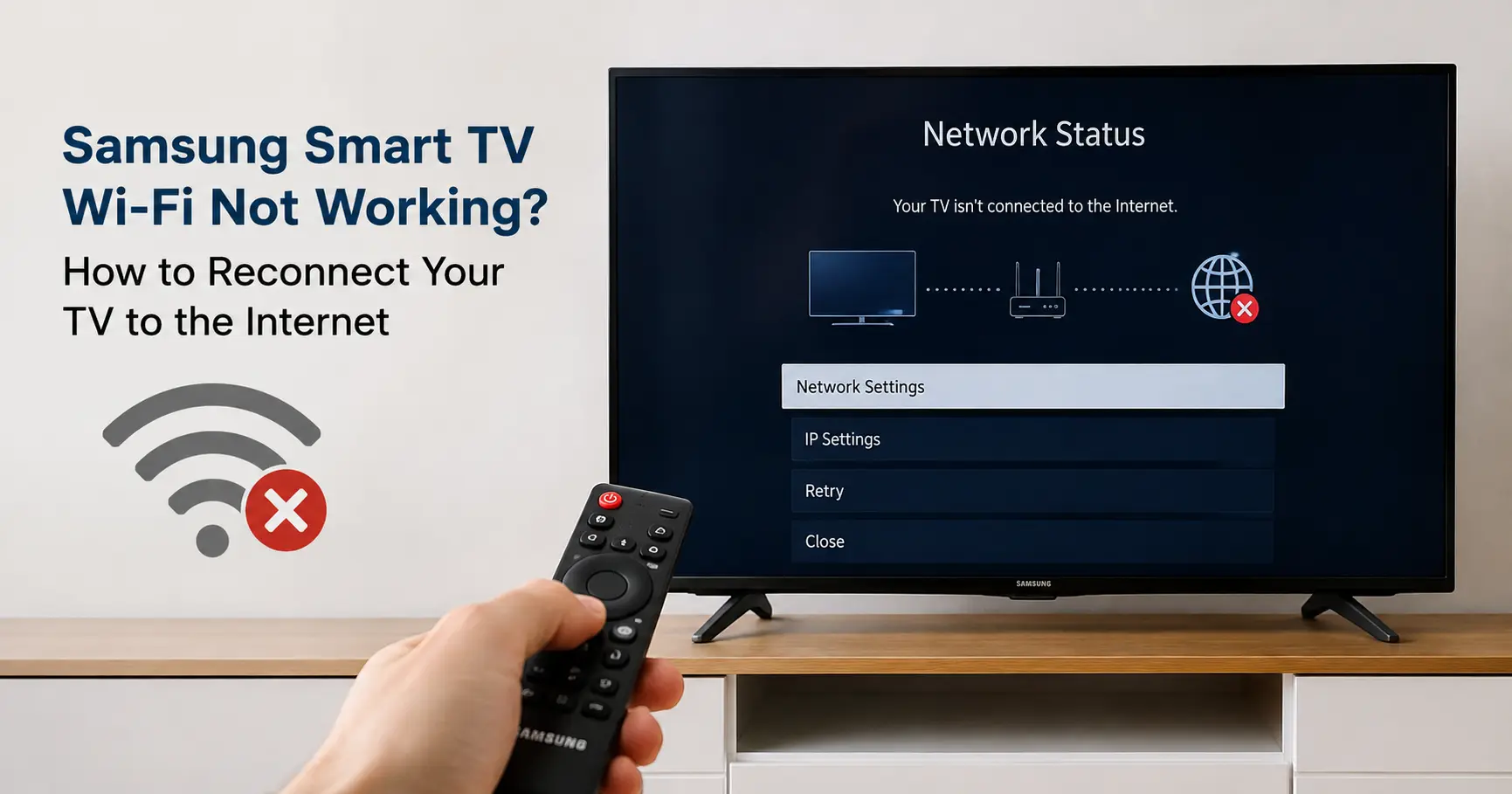
Assuming an audience of UK home users trying to get an already-owned Samsung Smart TV back online themselves, not people setting one up for the first time out of the box.
The quickest route back online is All Settings > Connection > Network > Open Network Settings > Wireless, which rescans for your router and lets you re-enter the password from scratch. If that menu doesn't even show your network, or shows it but won't accept the password you know is correct, the fix isn't in that menu at all, it's in how your router is broadcasting the signal or how the TV's on-screen keyboard is (mis)reading what you type. Which of those two problems you have determines everything else on this page.
Reconnecting with the remote: the standard route
Press Home, then go to Settings > All Settings > Connection > Network > Open Network Settings, and choose Wireless. The TV rescans and lists every network it can see. Select yours, and you'll get an on-screen keyboard for the password.
One detail that trips people up here: Samsung's remote keyboard hides some punctuation behind a symbol toggle rather than showing a full keyboard at once. If your Wi-Fi password has a dash, underscore, or an ampersand in it, look for a small "123" or "#+=" button on the on-screen keyboard, usually bottom-left, to switch character sets. People often assume the TV "doesn't support" a character that's simply one toggle-press away. If you're doing this repeatedly and it's painful, pair a Bluetooth keyboard to the TV first (Settings > General > External Device Manager, most Tizen sets from 2019 onwards support this) and type the password properly rather than fighting the remote.
If the network reconnects but immediately drops again a few minutes later, don't keep repeating this step. That pattern points to a router-side lease or band issue rather than anything wrong with how you typed the password, and re-entering it on a loop won't fix it.
Your network doesn't appear in the list at all
This is a different problem to a rejected password, and it's worth ruling out the specific causes rather than assuming the TV is broadly broken.
Hidden SSID. If you've turned off SSID broadcast on your router for privacy, Samsung TVs won't list it automatically. Scroll to the bottom of the Wireless network list for an Add Network option, select it, and type the network name and password manually.
5GHz not showing up. A handful of Samsung models are 2.4GHz-only and will never see a 5GHz network, no matter how close you sit them to the router. The NU7100, NU7200, and NU7300 series from 2018 are documented examples. If your router broadcasts a single combined SSID across both bands, this isn't usually an issue, but if you've split them into separate names ("Home" and "Home_5G", for instance), check the TV's list for the 2.4GHz one specifically.
5GHz visible sometimes, not others. If you've confirmed your TV does support 5GHz but it still won't reliably show the network, the cause is often the specific Wi-Fi channel your router has picked. Samsung TVs are inconsistent with DFS channels (the ones routers auto-select to avoid radar interference, generally in the 52 to 144 range). Going into your router's admin panel and manually fixing the 5GHz channel to 36, 40, 44, or 48 resolves this far more often than it should for something that sounds so minor, because those four sit outside the DFS range entirely.
The name itself. Very long SSIDs, or ones using emoji or unusual symbols, can fail to render correctly in the TV's scan list. If you've personalised your network name, this is worth testing by temporarily renaming it to something plain.
It sees the network but won't accept the password
If the TV finds your SSID, you type the password, and it bounces back to "Please try again" or a generic connection failure, check these in order before assuming you've mistyped it:
- Case and lookalike characters. The on-screen keyboard makes it easy to miss that Caps Lock is on, or to mix up a lowercase L with a capital I. Type the password into your phone's notes app first and copy the exact characters across mentally, or use the Bluetooth keyboard workaround above.
- A password with unsupported punctuation. Extremely rare on modern firmware, but older Tizen versions have had gaps in which symbols the keyboard can produce at all. Updating the TV's software (Settings > Support > Software Update > Update Now) before you try again is worth the two minutes, since Samsung has patched keyboard character support in past firmware releases.
- A router set to WPA3-only. This one doesn't look like a typing mistake but presents exactly like one: the TV accepts the password, appears to try, then fails silently with no specific error. TVs from 2018 to 2020 generally can't authenticate against WPA3-only networks at all. Check your router's wireless security setting and switch it to WPA2/WPA3 mixed mode if you've got a TV from that window and a fairly new router.
Reconnecting without touching the remote: pairing through the SmartThings app
If your remote is being unreliable for text entry, or you'd simply rather do this from a phone, Samsung's SmartThings app can pair with the TV and hand it Wi-Fi credentials without you touching the on-screen keyboard at all. Install SmartThings, make sure your phone is already on the Wi-Fi network you want the TV to join, and add the TV as a device (Devices tab > Add > Add device > TV > Samsung > TV > Start).
How you authorise the pairing depends on how old the TV is, and this is where most people get stuck because the app's instructions don't say which method applies to their set:
| TV model years | How you confirm the pairing |
|---|---|
| 2024 onwards | Scan the on-screen QR code with your phone's camera |
| 2020 to 2023 | Select OK on the TV screen using the physical remote |
| 2017 to 2019 | Type a PIN shown on the TV screen into the SmartThings app |
| 2016 and earlier | Confirm using the physical buttons on the TV or remote, no app-side code |
Once paired, the app pushes the Wi-Fi credentials from your phone straight to the TV, which sidesteps the on-screen keyboard entirely and is genuinely the easier route if your password is long or fiddly to type with a directional remote.
Reconnected to Wi-Fi, but it still says no internet
This is worth flagging separately because it isn't a reconnection problem at all, it's what happens after reconnection succeeds. If Network Status shows the TV joined but apps won't load, the router has likely handed the TV a DNS server it can't resolve addresses through. Go to Settings > General > Network > Network Status > IP Settings, set DNS Setting to Manual, and enter 8.8.8.8. This is a separate fault from anything covered above and re-doing the Wi-Fi pairing steps won't touch it, so don't loop back through the password screen if this is what you're actually seeing.
No working remote at all
If the remote itself is the obstacle, whether it's lost, dead, or the buttons aren't registering, you've got three routes back in:
- The TV's built-in control. Most Samsung sets have a small joystick or button on the underside or rear of the panel, usually near the Samsung logo. A single press brings up an on-screen menu you can navigate with short and long presses, enough to get into Network settings without a remote at all.
- The SmartThings app as a remote. Once your phone and TV are on the same network (even via the built-in control method above to get the first connection made), SmartThings can act as a full replacement remote, including text entry for anything that needs typing.
- Ethernet as a stopgap. If the TV has a LAN port and you can run a cable to it, plugging in gets you online immediately without any pairing or password entry, buying you time to sort out the remote separately.
If none of this gets you reconnected
Everything above assumes the TV's stored network settings are basically sound and just need refreshing. If you've worked through the relevant section here and it still won't hold a connection, the network profile itself may be corrupted rather than misconfigured. Settings > All Settings > Connection > Network > Reset Network clears every saved Wi-Fi entry and lets you start the pairing process completely fresh, without touching your installed apps or picture settings, and it's the sensible next step before anything more drastic.
Related Guides
- The same band, password, and DNS troubleshooting logic applied to a laptop instead of a TV, useful if the fault turns out to be your router rather than the Samsung set.
- Covers the same SSID visibility and pairing issues from the other side, getting a new device onto your network rather than reconnecting one that's dropped off.
- The device-shows-connected-but-doesn't-work pattern, which is the same fault family as the TV's "joined the network, still no internet" DNS issue.
- Another brand-specific example of a device silently dropping off Wi-Fi, if the reader's real problem turns out to be their printer rather than their TV.