
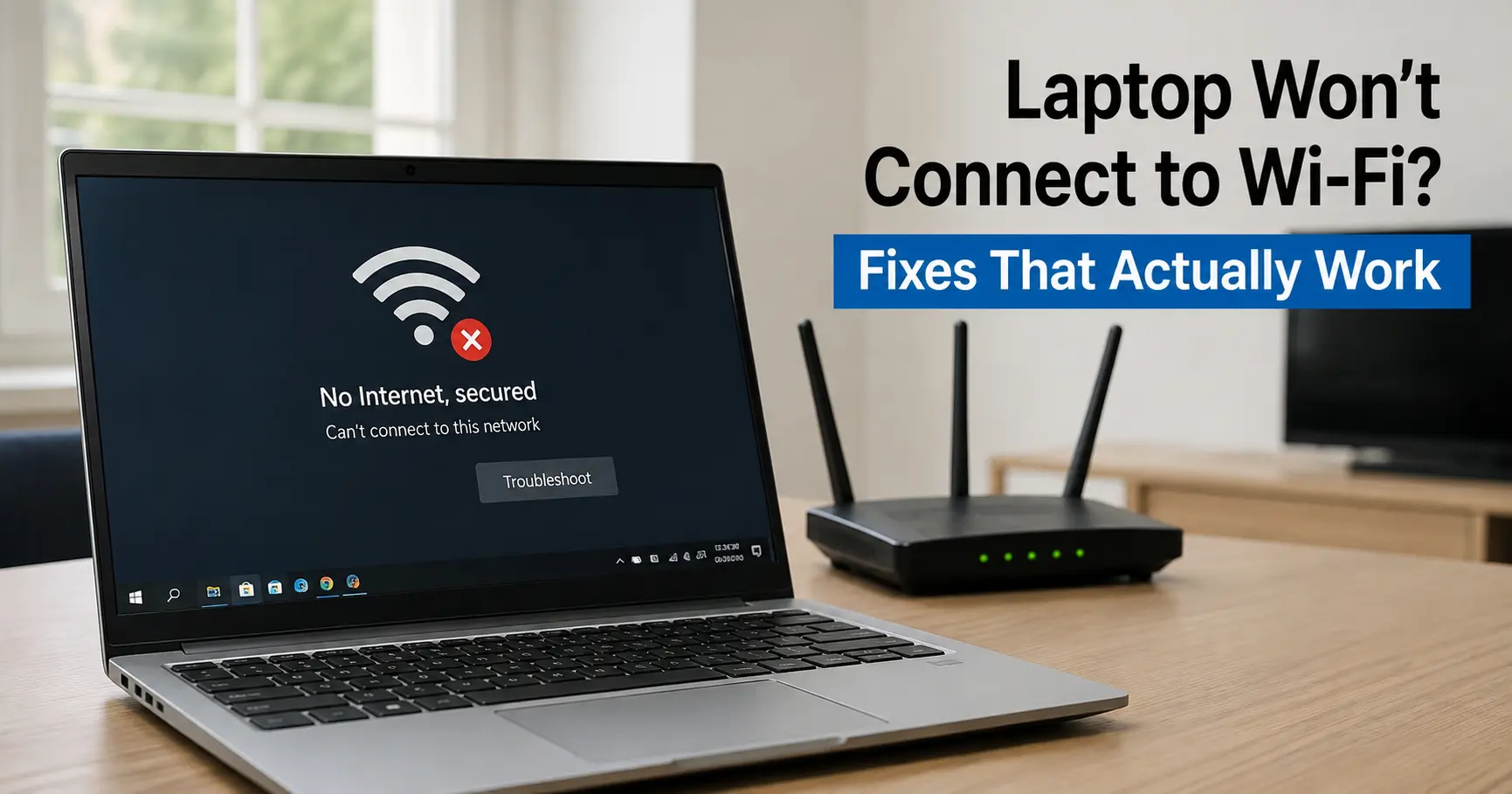
Nine times out of ten, a laptop that's suddenly refusing to join Wi-Fi is doing so for one of four reasons, and none of them require reinstalling Windows. Either the wireless adapter's been switched off - often by an accidental function-key press it's trying to reconnect using a saved network profile that's gone bad, a driver broke (usually right after an update), or the fault isn't the laptop at all. It's the router.
Work through the causes in that order and most people are back online inside five minutes without opening a single menu they don't recognise. The one question worth answering before anything else: is it just this laptop, or is every device in the house or office struggling? That single check decides whether you need any of the laptop-side fixes below at all, or whether you should skip straight to the router causes further down - there's no point rolling back a driver when the real problem is sitting in the hallway blinking amber.
The 60-Second Checks First
Before touching Device Manager or a command prompt, rule out the boring stuff. Each of these takes less time to try than to read about:
- Check the physical switch or key combination. Many laptops, Lenovo ThinkPads and older Dell Latitudes especially, have a hardware Wi-Fi kill switch or an Fn-key shortcut that's easy to knock by accident. If the Wi-Fi icon in the taskbar has a small aeroplane or an X next to it, that's your answer.
- Confirm you're joining the right network. Offices and blocks of flats often have three or four SSIDs broadcasting at once - a guest network, separate 2.4GHz and 5GHz versions of the same router, occasionally a neighbour's. Picking the wrong one produces exactly the same symptoms as a broken laptop.
- Try the password fresh, typed rather than pasted. Guest Wi-Fi passwords get rotated more often than people remember, and autofill happily keeps offering the old one.
- Restart both ends. Not just the laptop - unplug the router for 30 seconds too. This clears more genuine faults than any other single step, which is exactly why every ISP helpdesk script leads with it.
If none of that moves the needle, it's time to work out whether this is a laptop problem or a network problem.
Just This Laptop, or Every Device?
Pick up a phone and try to join the same network. If the phone connects fine, the fault is local to the laptop and the fixes below will sort it. If nothing in the building can get online phones, smart TV, the lot skip ahead to When the Problem Is the Router. No amount of driver reinstalling fixes a dead connection upstream of the router.
Assuming it's just the laptop, there are two genuinely different failure modes that get lumped together constantly, and they need different fixes: the laptop can't join the network at all, or it joins the network but has no internet access. Windows describes these differently, and it's worth knowing which one you're looking at before you start.
"Can't Connect to This Network" Fixing a Failed Join
This is the laptop failing to authenticate with the router entirely; the network appears in the list, a password gets entered, and Windows either times out or throws an error.
Forget the network and rejoin it. This fixes more of these cases than anything else on this list, and it's not obvious why: Windows stores a network profile the first time you connect, including the security type and any cached hardware-address setting. If that profile gets corrupted which happens more than it should, particularly after a router's firmware update changes its security handshake every future attempt reuses the broken profile instead of negotiating fresh. Go to Settings → Network & Internet → Wi-Fi → Manage known networks, select the network, choose Forget, then reconnect from scratch.
Check for a MAC address randomization conflict. This one's genuinely obscure but worth the thirty seconds. Windows 10 and 11 randomise your laptop's Wi-Fi hardware address by default for privacy, presenting what looks like a brand-new device to the router on each connection. On a home network, this is invisible. On a network using MAC filtering, a static DHCP reservation, or certain older routers, the router doesn't recognise the "new" device and quietly refuses it, with no error message explaining why - university and corporate IT departments commonly tell users to switch this off for exactly that reason. It's also turned up as an active driver bug on some Windows 11 24H2 systems paired with newer Intel Wi-Fi 7 chipsets, independent of any router setting at all. To rule it out: Settings → Network & Internet → Wi-Fi → [network name] → Random hardware addresses, and switch it off for that specific network.
Run the built-in troubleshooter. It's limited, but it catches the obvious stuff and it's free: Settings → System → Troubleshoot → Other troubleshooters → Network Adapter (or Internet Connections, whichever one's offered).
Restart the adapter itself. Open Device Manager, expand Network adapters, right-click the Wi-Fi adapter, choose Disable device, wait ten seconds, then Enable device. It's a smaller, faster version of a full network reset, and it clears plenty of cases where the adapter's simply got stuck.
None of that worked? The next most common cause is a driver that broke recently, which raises the obvious follow-up question.
Wi-Fi Broke Right After an Update? Roll the Driver Back
If the laptop was connecting fine until a Windows update installed itself and rebooted the machine, this is very likely a driver problem, not a settings problem. It's common enough that Microsoft's own community support forums carry recurring threads about it, and the pattern is consistent: an automatic update quietly swaps a manufacturer's tuned wireless driver for a generic one, and the adapter either disappears from the device list or connects unreliably afterwards.
The fix: open Device Manager → Network adapters, right-click the wireless adapter, select Properties → Driver tab, and click Roll Back Driver. If that button's greyed out, Windows didn't keep a copy of the old one - in that case, download the correct driver directly from the laptop manufacturer's support page (Dell, HP, and Lenovo all publish model-specific downloads that perform noticeably better than whatever generic driver Windows Update selected) rather than reaching for a generic driver utility. Skip the third-party "driver updater" tools that promise to fix everything in one click; several bundle adware, and none of them know your exact model the way the manufacturer's own support page does.
If the adapter's vanished from Device Manager entirely rather than just misbehaving, right-click Network adapters at the top of the list and choose Scan for hardware changes first - sometimes Windows just needs a nudge to notice it again before a driver reinstall will do any good.
Connected, But Nothing Loads
This is a different problem from everything above, and it deserves treating as one: the Wi-Fi icon shows connected, sometimes with full signal bars, but no website will open. Windows may label this "No internet, secured" rather than showing an outright error, which is part of why people assume it's the same fault as a failed connection. It isn't. The laptop has successfully joined the network; what's failing is getting an IP address or resolving DNS.
Open Command Prompt as administrator and run these in sequence:
ipconfig /release
ipconfig /renew
ipconfig /flushdns
This drops the current IP lease, requests a fresh one from the router, and clears any stale DNS entries the laptop's been holding onto. It resolves a surprising number of "connected but nothing loads" cases on its own, particularly on busy networks where IP addresses get recycled faster than they should.
If that doesn't shift it, check Control Panel → Network and Sharing Center → Change adapter settings, right-click the Wi-Fi adapter, Properties, and open Internet Protocol Version 4 (TCP/IPv4). Both "Obtain an IP address automatically" and "Obtain DNS server address automatically" should be selected. A manually entered address left over from an old troubleshooting session, or an old IT policy, is a common and easily missed culprit.
One detail worth knowing even though it rarely comes up: a newly joined network sometimes gets classified by Windows as "Public" instead of "Private," and Windows Firewall applies noticeably stricter rules to public networks by default. On its own this doesn't usually block basic browsing, but it can be the reason file sharing, a network printer, or a specific business app quietly stops working on a laptop that otherwise looks perfectly connected.
The Nuclear Option: Full Network Reset
If nothing above has worked, a full network reset rebuilds every network adapter and clears every saved configuration back to Windows defaults. It's blunt, but it resolves stubborn cases that survive individual fixes because it clears layers of configuration a targeted fix can't reach.
Go to Settings → Network & Internet → Advanced network settings → Network reset, click Reset now, and confirm. Know before you click: this deletes every saved Wi-Fi password on the machine, along with any VPN profiles, custom DNS entries, and manually configured static IPs. Write down anything you'll need to re-enter a static IP or VPN setup on a work laptop before you start, and expect a restart as part of the process.
For anyone more comfortable with a command line than a settings menu, the equivalent is running netsh winsock reset followed by netsh int ip reset from an elevated Command Prompt, then restarting. Same result, no menus required.
Quick Reference: Symptom to Fix
| What you're seeing | Most likely cause | Try this first |
|---|---|---|
| Wi-Fi icon shows a plane or an X | Airplane mode or hardware switch is on | Toggle airplane mode / check the Fn key combo |
| Network's in the list but says "Can't connect" | Corrupted saved network profile | Forget the network, rejoin from scratch |
| Fine on other Wi-Fi, fails on one specific network | MAC address randomization blocked by that router | Turn off random hardware address for that network |
| Adapter missing from Device Manager after a restart | An update replaced or removed the driver | Scan for hardware changes, then reinstall the driver |
| Connected, full signal, but nothing loads | IP/DNS handshake failure, not a join failure | ipconfig /release, /renew, /flushdns |
| Only this laptop struggles; phones and TV are fine | Laptop-side driver or adapter fault | Work through the sections above in order |
| Nothing in the building can get online | Router or ISP outage | Restart router/modem, check the provider's status page |
When the Problem Is the Router, Not the Laptop
If every device in the building is struggling, the laptop-side fixes above won't help. A few router-side causes are worth knowing about, especially in a small office, where more devices are competing for the same hardware than most routers were ever configured to handle.
Band steering can strand a laptop on the weaker signal. Many routers broadcast one SSID that quietly assigns devices to either the 2.4GHz or 5GHz band. 5GHz is faster at short range but loses signal through walls far more aggressively than 2.4GHz - a laptop that was fine on the desk can drop out a few metres further away because it's stuck trying to hold onto a 5GHz connection that's no longer strong enough, rather than falling back cleanly to 2.4GHz.
DHCP pool exhaustion is a genuine small-office problem, not just a home one. A router only has a finite range of local IP addresses to hand out, often around 253 by default on a standard setup, sometimes fewer. In an office where phones, laptops, printers, smart TVs, and guest devices all connect and rarely properly disconnect, that pool can quietly fill up. The symptom looks identical to a broken laptop: the device joins the network and authenticates, but never receives an IP address. Rebooting the router clears expired leases and is usually the fastest fix; for a growing office, the router's DHCP range may simply need widening.
Firmware matters more than most people assume. A router that hasn't been rebooted or updated in months accumulates the same kind of cruft a laptop does. If problems only started after months of uninterrupted uptime, that's the router asking for a restart, not the laptop misbehaving.
What About MacBooks and Chromebooks?
The diagnostic order is the same: check it's not every device, forget and rejoin the network, then look at drivers or updates - but the tools differ.
On a Mac, hold Option and click the Wi-Fi icon in the menu bar to open Wireless Diagnostics, which actively monitors the connection and flags the specific cause rather than making you guess. MAC address randomization exists here too, under System Settings → Wi-Fi → [network] → Details → Private Wi-Fi Address, worth switching off on the same networks where it causes trouble on Windows.
On a Chromebook, most connection failures clear up by forgetting the network (click the time in the bottom right → Wi-Fi settings → the network → Forget) and rejoining, or with Shift+Ctrl+Alt+R to reset the device's network settings to factory defaults as a last resort. There's no driver layer to manage in the way Windows has one.
When It's Time to Stop Troubleshooting and Call Someone
Most Wi-Fi problems are software, and everything above will fix the overwhelming majority of them. A genuine hardware fault is comparatively rare, but a few signs point to one rather than another driver reinstall: the adapter vanishes from Device Manager permanently and reinstalling drivers doesn't bring it back, the connection is fine sitting still but drops the moment the lid moves slightly (a sign of a loose internal antenna cable, common after a laptop's been dropped), or the laptop connects perfectly over Ethernet but never over Wi-Fi no matter what's tried. None of those are fixable from a settings menu, and pushing on with software fixes at that point just burns an afternoon.
If that's where you've landed, or the steps above got partway there and stalled, Z Switch's Virtual Assistance can take over the laptop directly and finish the diagnosis without you needing to read another troubleshooting guide.
Related Guides
Why Is My Laptop So Slow? A UK Guide to Fixing It Fast
Why Your Computer Is Running Slow (And the Fixes That Actually Work)
No Sound on Windows 11 Laptop? How to Fix Audio Driver Issues