
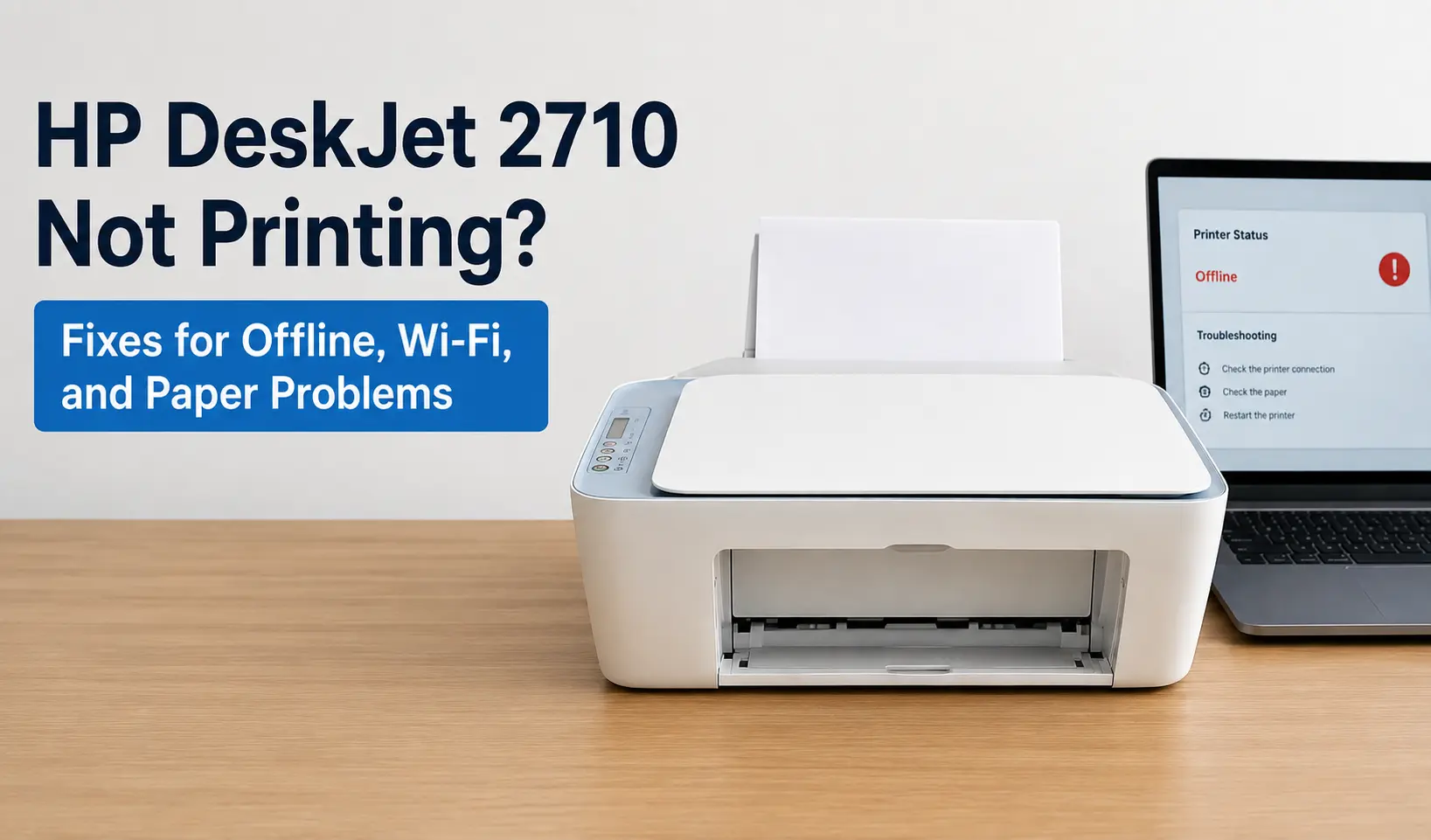
If your HP DeskJet 2710 has stopped printing, work through three things in this order: the printer's status inside Windows or macOS, the wireless light on the printer itself, and whatever's sitting in the paper tray. Most 2710s that show "offline" aren't broken at all. This printer runs on a 180MHz processor with 64MB of memory, according to HP's own data sheet, and it drops into sleep mode fast to conserve power. The operating system loses track of it the moment it naps, and that's the single most common reason people think the printer has died when it's just idle. Wi-Fi drops are the second most common cause, usually tied to how the printer's dual-band radio behaves on a mesh network. Paper feed errors come third, and they almost always trace back to the tray being loaded past its limit or with stock heavier than this particular model is built for.
Here's how to fix each one.
Why the DeskJet 2710 shows offline when it's sitting right there, powered on
The 2710 connects over Wi-Fi or USB only. There's no Ethernet port, which means there's no wired fallback when the wireless connection gets flaky, and no way to bypass the network stack entirely to force a print. When the printer sleeps (HP rates it at 1.1 watts in sleep mode versus 2.5 watts ready), its IP lease can lapse or get reassigned by your router's DHCP server. Windows and macOS both cache the address they last talked to, so when the printer wakes back up on a new IP, the OS keeps trying to reach the old one and reports the device as offline even though it's sitting three feet away, powered on, with a solid wireless light.
Work through this in order:
- Power cycle the printer, not just a quick off/on. Unplug it from the wall for about 30 seconds so the network stack fully resets rather than resuming from sleep.
- Check "Use Printer Offline" isn't toggled on in Windows (Settings > Bluetooth & devices > Printers & scanners > select the 2710 > see what's queued). It's a manual toggle, and it's shockingly easy to hit by accident if a job failed once and Windows flipped it for you.
- Restart the Print Spooler service. Open Services (services.msc), find Print Spooler, right-click and restart. This clears any stuck job that's holding the queue hostage, which is a different problem than the printer itself being unreachable, but produces the identical symptom of nothing printing.
- Reinstall through the HP Smart app rather than a generic driver. The 2710 has no traditional driver package worth downloading separately, the HP Smart app is how it re-discovers itself on the network and re-establishes a clean connection, and it catches the offline-after-sleep issue that a driver reinstall alone won't.
If the printer comes back online for a few minutes and then drops again, the issue isn't the OS cache, it's the wireless connection itself.
Reading the Wi-Fi light, and what to do when it won't stop blinking
The 2710 has no text display, just a small icon LCD alongside five LED indicators (Power, Ink, Resume, Wi-Fi, Info) and seven buttons. According to HP's support documentation, a blinking wireless light means the radio is on but can't find a signal, or it's still in the process of connecting. Solid blue means connected. Off means wireless is disabled entirely.
Here's the detail most troubleshooting guides skip: the 2710e (the HP+ variant) runs dual-band 802.11a/b/g/n, meaning it can connect on either 2.4GHz or 5GHz. HP's own spec sheet notes the 5GHz band tops out around 150 Mbps against roughly 72.2 Mbps on 2.4GHz, with far more non-overlapping channels available. That sounds like a straightforward upgrade, but 5GHz signals lose strength through walls and floors much faster than 2.4GHz does. If your router or mesh system is band-steering the printer onto 5GHz because it thinks proximity is good enough, and the printer actually sits in another room or behind a wall, you'll get exactly the symptom people report most: the wireless light blinks, the printer connects for a job or two, and then silently drops off again a few minutes later.
To fix a genuinely unstable connection:
- Move the printer closer to the router, or at minimum get it out of an enclosed cabinet. Inkjet all-in-ones like this one have small internal antennas, not the higher-gain radios you'd find in a laser printer.
- On a mesh network with a single shared SSID, try forcing the printer onto the 2.4GHz band during setup if your router lets you temporarily split the bands. Range matters more than speed for a print job.
- Reset the wireless radio directly on the printer: hold the Wireless button and the Resume button together for about three seconds. This clears the stored network profile and forces a fresh connection attempt, which is worth doing before you touch the router at all if the printer previously worked and just stopped.
- Re-run setup through the HP Smart app rather than reusing a saved network profile. A profile saved months ago won't reflect a router password change, a new mesh node, or an SSID rename.
If the wireless light is solid and the printer shows as connected but jobs still won't go through, the bottleneck has moved from the network to the print queue itself: open HP Smart app, use its Diagnose & Fix tool, and clear any duplicate or stuck jobs before sending a new one.
Paper jams and feed errors on the 2710's tray
The input tray holds up to 60 sheets of plain 75 g/m² paper, according to HP's spec sheet, or fewer if you're loading photo stock, cards, or envelopes. It's a single friction-fed tray with no second path for heavier media, which matters because the printer's rated weight range for standard paper tops out at 90 g/m². Push heavier cardstock or glossy photo paper through without switching the media-type setting, and the rollers will grab two sheets at once or skew the top sheet just enough to trigger a jam that looks like the printer refuses to print at all.
A few things specific to this model's design cause feed problems that don't show up on printers with a bigger chassis:
- The output tray only holds 25 sheets. On a longer job, or duplex prints where sheets get run through twice, an unemptied output tray can back up against the exit path and cause a misfeed on the next sheet. Empty it partway through big jobs.
- There's no automatic duplex. HP's data sheet lists duplex as "manual, driver support provided" only, which means the print driver stops after the odd pages and prompts you to flip the stack and reload it for the even pages. If you load the stack the wrong way at that prompt, you get blank sheets or repeated pages, which reads as "the printer isn't printing right" when the hardware is actually working exactly as designed.
- Borderless printing is not supported on this printer at all. It's not a setting you're missing or a driver bug, it's absent from the hardware spec. If a photo or flyer keeps coming out with unexpected white margins no matter what you change in the print dialog, that's the answer, not a fault to keep chasing.
- To clear a physical jam, open the ink cartridge access door rather than looking for a rear cleanout panel. The 2710 doesn't have one; the front cartridge door is the only mechanical access point to the paper path, unlike bulkier all-in-ones with a jam-access door on the back.
Ink and HP+ related stalls
If your unit is the 2710e rather than the plain 2710, it ships as an HP+ enabled printer. HP's own documentation is direct about the tradeoff: HP+ requires an HP account, an ongoing internet connection, and exclusive use of original HP ink cartridges for the life of the printer. The printer uses what HP calls dynamic security, firmware checks that block cartridges with modified or non-HP circuitry, and those checks get reinforced through periodic firmware updates. In practice, that means a refilled or third-party cartridge that worked fine last month can start throwing a cartridge error after the printer quietly updates its own firmware, since the update can retroactively flag chips it previously accepted. If you're on HP+ and printing suddenly stops with an ink-related light instead of a connectivity one, check whether a firmware update landed recently before assuming the cartridge itself failed.
It's also worth knowing that HP+ ties printing to your Instant Ink account status in some cases, not just cartridge authenticity, so a lapsed signup window or a billing hold on the account can block jobs even with ink physically present in the printer.
The 2710 and 2710e both use the HP 305 cartridge line:
| Cartridge | Type | Approx. page yield |
|---|---|---|
| HP 305 | Black, standard | ~120 pages |
| HP 305XL | Black, high-yield | ~240 pages |
| HP 305 | Tri-color, standard | ~100 pages |
| HP 305XL | Tri-color, high-yield | ~200 pages |
Yields are HP's published estimates based on ISO test pages; real-world results vary with what you're printing. Cartridge order codes carry a regional suffix (AE in the UK/EU, AN in the US), but the "305" designation is consistent everywhere.
One more thing worth naming plainly: HP rates this printer for a monthly duty cycle of up to 1,000 pages, with a recommended volume of just 50 to 100 pages a month. If you're consistently pushing more than that, especially in an office setting rather than a home one, no amount of Wi-Fi or spooler troubleshooting is going to fix the underlying mismatch. The 2710 is built for light, occasional home printing, not sustained volume, and treating it otherwise is what leads to premature print head wear and the kind of intermittent failures that look like a software problem but aren't.
When to stop troubleshooting and escalate
If you've power cycled everything, reset the wireless radio, cleared the queue, and reinstalled through HP Smart and the printer still won't hold a connection or take a job, run the Print and Scan Doctor tool from HP Smart app's Diagnose & Fix option before contacting support. It checks driver integrity, spooler health, and network reachability in one pass and will usually tell you which of the three categories above you're actually dealing with, rather than guessing.
Related Guides
Why Your Printer Won't Connect to Wi-Fi (and the Fix That Actually Works) - a broader look at the band-steering and router-side issues touched on above, useful if the wireless problem isn't unique to the 2710.
How to Clear a Paper Jam in a Canon Printer - worth a look if you're troubleshooting a second printer on the same network alongside the DeskJet.
Still stuck?