
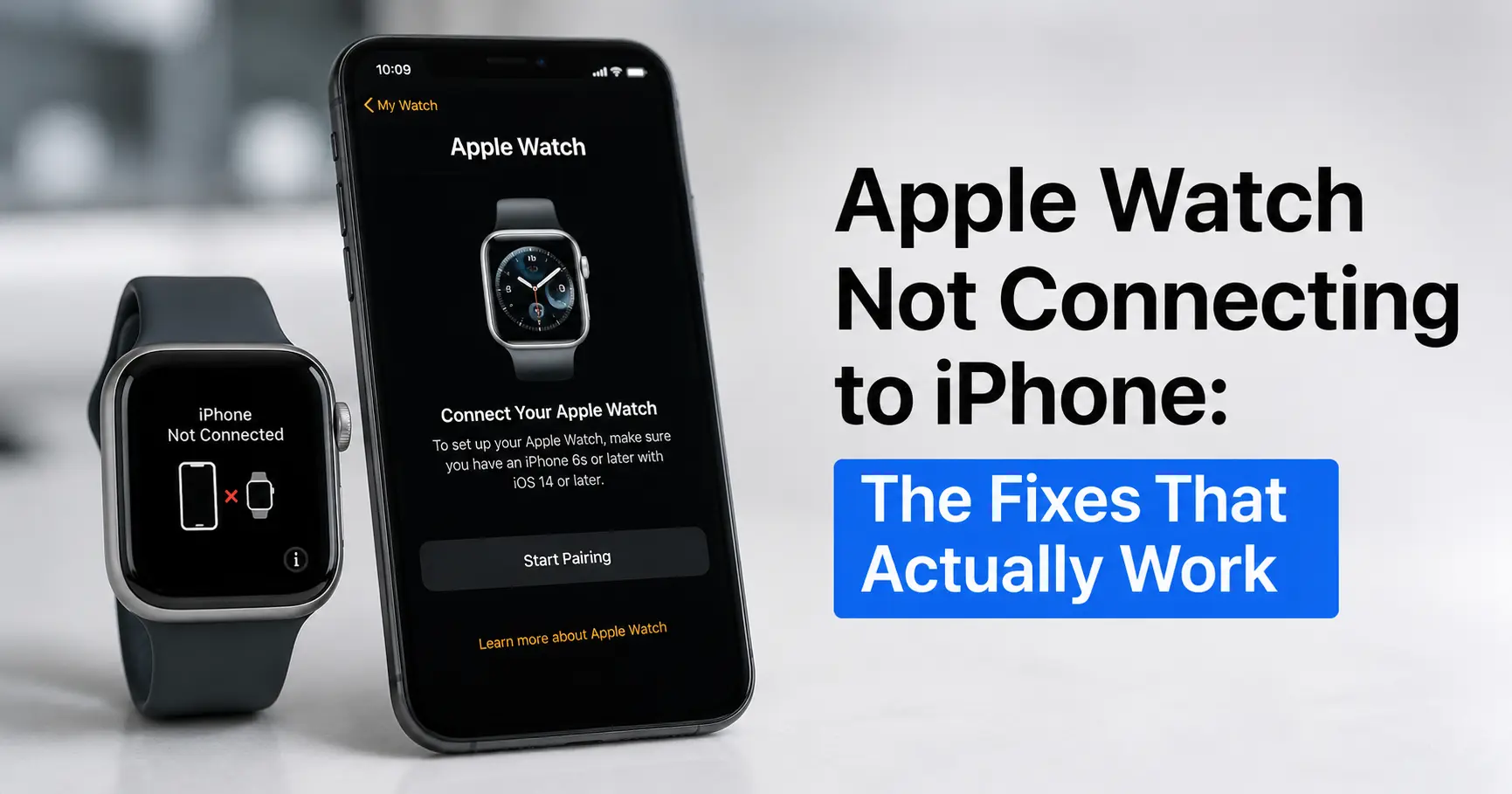
Nine times out of ten, an Apple Watch that won't connect is fixed by three things in order: confirming Bluetooth and Wi-Fi are both on, restarting both devices, and keeping them within about 10 metres of each other while they find one another again. If that doesn't clear it, the fault sits somewhere more specific, a stalled pairing handshake, a watchOS update stuck mid-download, or Activation Lock left over from a previous owner, and each of those needs a different fix, not a repeat of the same restart.
Before doing anything else, look at Control Center on the watch itself (press the side button). A red iPhone icon or a red X means the two devices can see they're supposed to be paired but can't currently talk to each other. A green iPhone icon means they're connected fine, so if notifications still aren't arriving, the problem isn't connectivity at all, it's more likely Do Not Disturb, Focus mode, or the Mirror My iPhone notification setting. Chasing a Bluetooth fix for a notification problem is the single most common wasted half hour with this device.
Why it disconnects in the first place
An Apple Watch and iPhone talk over Bluetooth for most day-to-day syncing, which Apple rates at roughly 10 metres (33 feet) under good conditions, less through a couple of internal walls or a bag full of metal keys and a laptop. When Bluetooth drops, the watch falls back to Wi-Fi if both devices are on the same network, and to cellular if you have a cellular model with an active plan. That handover is usually seamless, but it's also where things quietly break: if your home Wi-Fi password changed and only your iPhone got updated, the watch will happily sit on a Bluetooth connection until you walk into the next room, then drop off entirely because it can't fall back.
That's the first bit of first-hand texture worth knowing: a watch that connects fine at your desk but drops the moment you walk to the kitchen isn't faulty, it's telling you the Wi-Fi handover isn't working, and the fix is in the Watch app's Wi-Fi settings, not in unpairing anything.
Start here: the official first pass
This is Apple's own sequence for a watch that shows disconnected, and it's worth doing in this exact order because each step rules out a specific cause:
- Keep the watch and iPhone close together, within a room, not just the same building.
- On the iPhone, open Control Center and check Airplane Mode is off, then that Wi-Fi and Bluetooth are both on. Bluetooth being toggled off by a focus-mode automation or a shared setting is more common than people expect.
- On the watch, press the side button to open Control Center and confirm Airplane Mode is off there too. It's possible for the watch to end up in Airplane Mode on its own after a fall in the pool or an accidental screen press under a coat sleeve.
- Restart both devices. Not just the watch, both.
- If that fails, unpair and re-pair. Open the Watch app, tap All Watches, tap the "i" next to the watch, then Unpair Apple Watch.
That's Apple's current published sequence, and it holds up because most connection failures are a stuck Bluetooth radio state on one side or the other, which a restart clears outright.
When it's not connecting so much as refusing to pair
A watch that's mid-setup and stuck, rather than a previously working watch that's dropped, is a different fault with a different fix. If the pairing animation on the watch face just sits there for several minutes without your iPhone's camera picking it up, don't keep re-scanning: press and hold the Digital Crown while the watch is in pairing mode, then tap Reset when it appears. That force-resets the pairing session rather than leaving it hung.
If the iPhone reports it can't connect at all, check first that the watch genuinely isn't already paired to another Apple ID. This trips people up constantly with second-hand watches: if an Activation Lock screen appears, the watch is still tied to the previous owner's Apple Account, and no amount of restarting fixes that. You need their Apple ID email and password to release it, which is exactly why you should ask a seller to unpair the watch from their own iPhone before you hand over money, not after.
| Symptom | Likely cause | Fix |
|---|---|---|
| Red iPhone icon, previously worked fine | Bluetooth/Wi-Fi radio stuck, or out of range | Restart both devices, check Airplane Mode |
| Green icon but no notifications | Not a connection issue | Check Do Not Disturb, Focus, and Mirror iPhone settings |
| Pairing animation stuck on-screen | Pairing session hung | Hold Digital Crown, tap Reset |
| "Unable to connect" during setup | Watch already paired elsewhere or Activation Locked | Unpair from original iPhone, or get seller's Apple ID credentials |
| Works at desk, drops when you move | Wi-Fi handover failing | Re-enter Wi-Fi password in the Watch app |
The two fixes people reach for too early
Reset Network Settings (Settings > General > Transfer or Reset iPhone > Reset > Reset Network Settings) genuinely does clear a corrupted Bluetooth pairing table, but it also wipes every saved Wi-Fi password, VPN configuration, and cellular APN setting on the iPhone itself. It's a legitimate fix for a genuinely broken connection, not a first resort, because you'll spend the next ten minutes re-entering Wi-Fi passwords for every network you use. Try the restart-and-check-toggles pass first.
Unpairing the watch is the other one worth pausing on. It erases the watch completely and, unless you've backed up recently (the Watch app does this automatically before an unpair, so you rarely lose anything), you'll be setting it up as new. The part people don't expect: any Apple Pay cards loaded onto the watch itself need to be re-added afterwards, and if it's a cellular model, your carrier may need to re-provision the eSIM, which for some UK networks (EE and Vodafone both do this) takes a text message and a few minutes, not the near-instant swap you'd expect.
Software is a more common culprit than people assume
Apple explicitly requires the iPhone to be on its latest iOS version before pairing a current-generation watch, and pairing an Apple Watch Ultra 3, Series 11, or SE 3 needs an iPhone 11 or later running iOS 26. Older watch models are more forgiving, but a watch stuck trying to install a watchOS update it doesn't have space for will also read to your iPhone as "disconnected" rather than throwing a clear storage error, which is a confusing way to fail. Put the watch on its charger, connected to Wi-Fi, and leave it for longer than feels reasonable, a stalled watchOS update can sit for over an hour before either completing or timing out with a proper error.
It's also worth knowing that watchOS 26.5, released in 2026, specifically fixed a bug where Messages on the watch would silently fall back to SMS instead of iMessage on dual-SIM iPhones, and a separate issue where Workout audio alerts failed to play if the phone wasn't nearby. Neither looks like a "connection" problem on the surface, both were. If your specific symptom is narrower than a flat disconnect (one feature misbehaving rather than the whole watch going red), check you're on the current watchOS build before assuming it's a pairing fault at all.
When to stop troubleshooting and book a repair
If a watch fails to hold a Bluetooth connection even sitting directly next to an unlocked iPhone with both radios confirmed on, and a full unpair-and-repair doesn't fix it, that's a pattern worth taking to Apple rather than repeating. Water ingress is the usual physical cause on watches that have been swum in regularly; it doesn't always kill the screen, but it can quietly damage the antenna assembly, and no software reset touches that. If the watch is still under AppleCare or the standard one-year warranty, get it looked at rather than cycling through resets on a fault that software can't reach.
Related Guides
- the same Digital Crown-style forced reset logic, for Apple's other paired device.
- worth doing before any unpair-and-erase, on a watch or a tablet.
- the same radio-toggle and restart logic behind most "device won't connect" faults.
- another device that silently drops off Wi-Fi after a password or router change.