
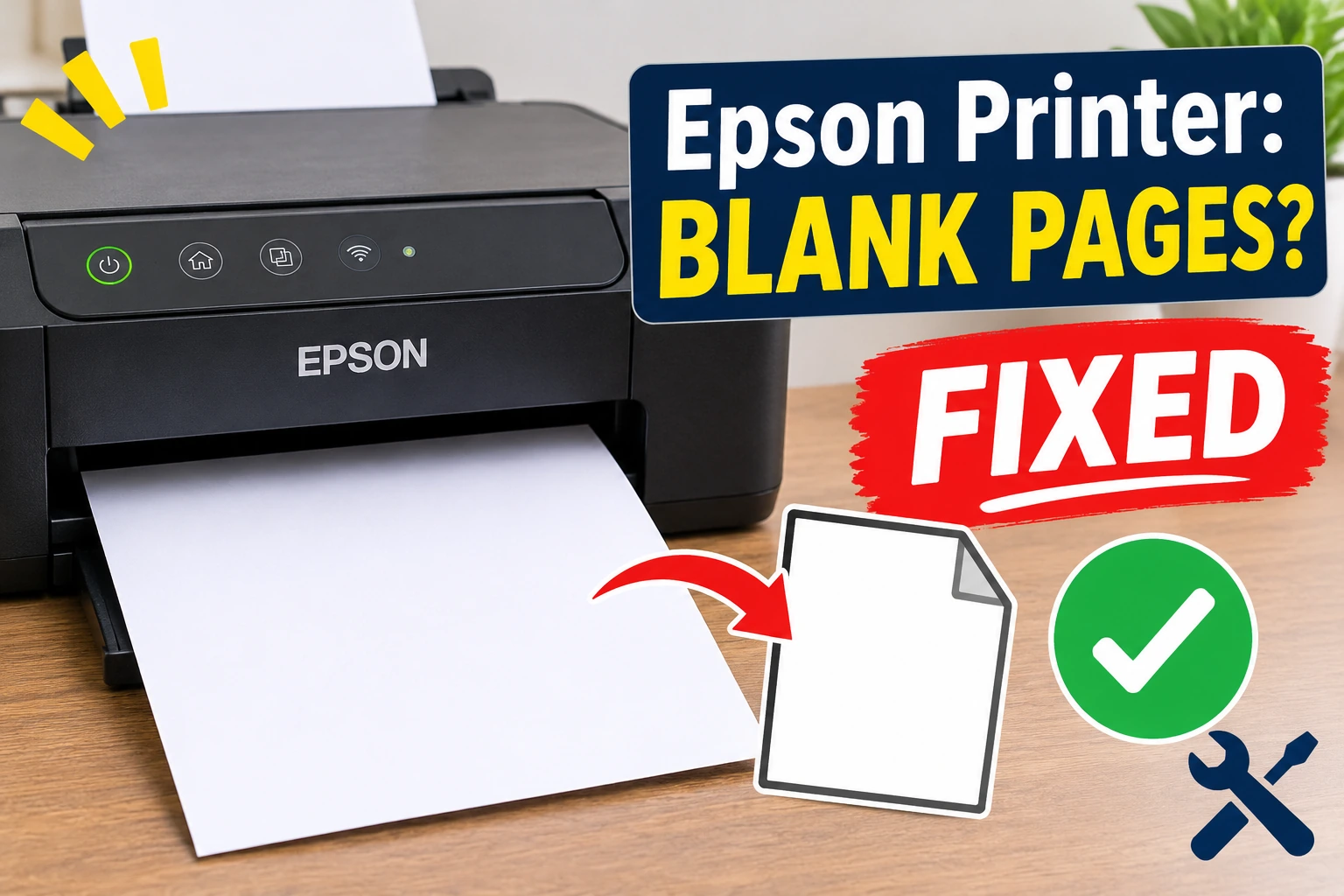
You print a letter and the Epson printer is not printing or printing blank pages feeds a sheet through, makes all the right noises, and hands you a perfectly blank page. Or worse, it does nothing at all.
These are two different problems that look alike. A blank page usually means the ink isn’t reaching the paper. Nothing at all usually means the job isn’t reaching the printer. The nozzle check tells you which one you’ve got in about a minute, so that’s where we start.
Which situation are you in?
|
What you see |
Most likely cause |
Go to |
|---|---|---|
|
Blank pages, nozzle check also blank |
Blocked nozzles or very low ink |
Fixes 2 and 3 |
|
Blank pages, nozzle check prints fine |
Settings or blank pages in the document |
Fix 4 |
|
An extra blank page at the end |
The document itself has an empty page |
Fix 4 |
|
Nothing prints at all |
Queue, connection or driver problem |
Fixes 5 and 6 |
|
Faint, streaky or missing colours |
Partly blocked nozzles |
Our Epson head cleaning guide |
Quick Answer
Print a nozzle check first. If the pattern is missing or faint, check the ink, then clean the print head. If the pattern prints perfectly, the printer is fine: check the paper settings and turn on Skip Blank Page in the Epson printer software. If nothing prints at all, clear the print queue and reinstall the Epson driver from Epson’s UK website.
Important Note: Never tilt or turn an EcoTank on its side to “get the ink flowing”. Epson says the printer won’t work properly unless it’s on a flat, stable surface, and tilting an ink-tank printer can cause leaks.
Fix 1: Print a Nozzle Check
This one test splits the problem in two.
-
On printers with a screen: Maintenance, then Nozzle Check.
-
On Windows: Printing Preferences, then the Maintenance tab, then Nozzle Check.
-
On a Mac: the Epson Printer Utility, then Nozzle Check.
Pattern blank or full of gaps? Go to Fixes 2 and 3. Pattern perfect? The printer can print. Go to Fix 4.
Note Worthy: I keep the last good nozzle check in the drawer under the printer. Real-life example: when the printer starts giving blank pages, comparing a new pattern with the old one shows straight away which colour has stopped.
Fix 2: Check the Ink
-
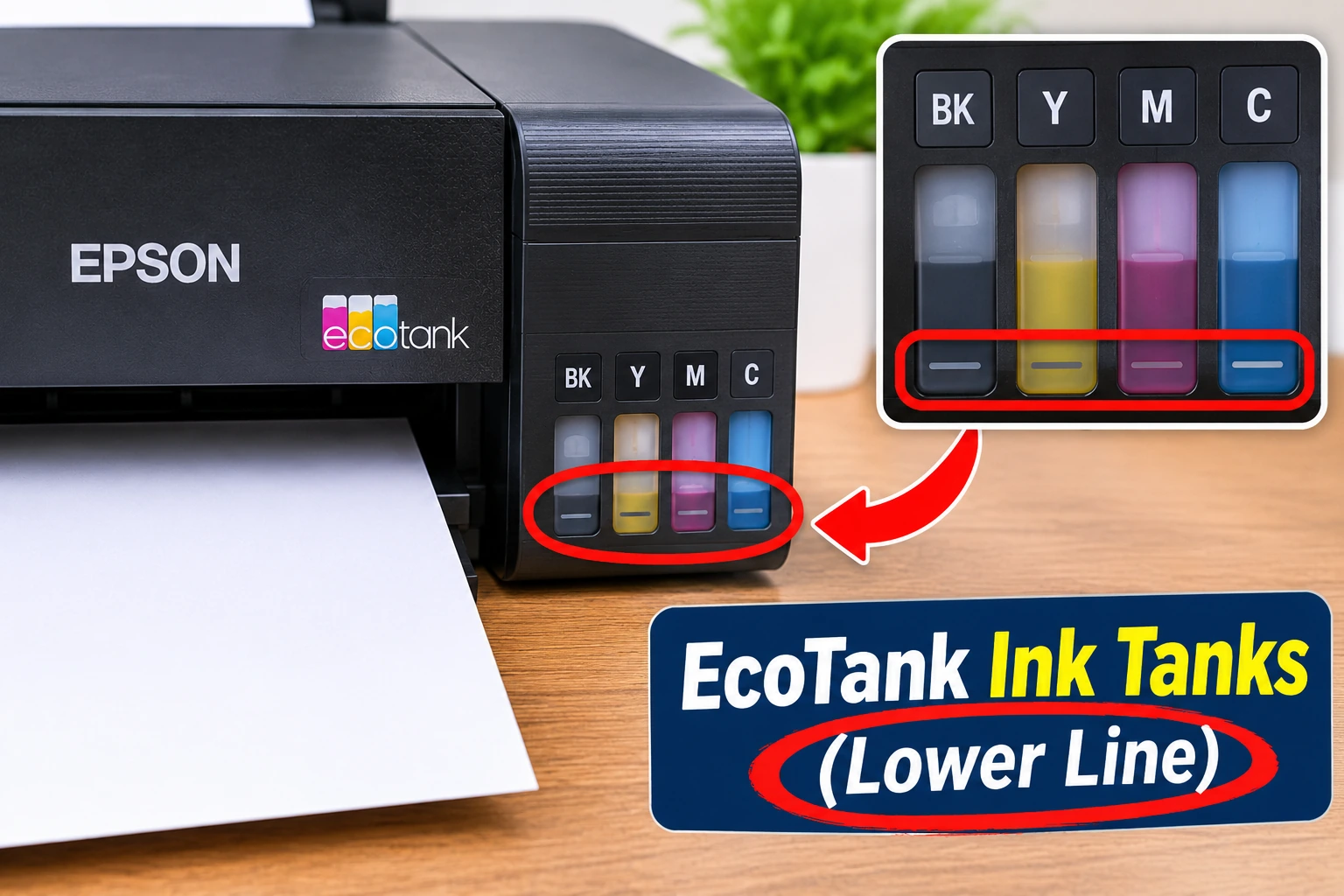
EcoTank: look at the front of each tank. Epson’s guidance is to keep every tank above the lower line. Top up any that are below it.
-
Cartridge models: check the ink levels on the printer screen or in the Epson software, and replace any empty cartridge.
-
Just installed new cartridges? Make sure all the protective tape has come off.
Fix 3: Clean the Print Head
If the ink is fine but the nozzle check is blank or patchy, the nozzles are blocked.
-
Run Print Head Cleaning from the same menu as the nozzle check.
-
Print another nozzle check.
-
Repeat up to three times.
-
Still gaps? Turn the printer off and leave it for at least 12 hours, as Epson UK recommends, then check again.
Our full guide on how to clean Epson printer heads covers Power Cleaning and when to stop.
Fix 4: The Printer Works, but Pages Come Out Blank
If the nozzle check is perfect, look at the job instead. Epson suggests:
-
Check the document for blank pages. An empty page at the end of a Word document, or a blank slide, prints as a blank sheet. Use Print Preview to spot them.
-
Check the paper size, orientation and layout in the print settings. An A4 document set to print on a different size can push the content off the page.
-
Use paper that suits the printer, loaded the right way up.
-
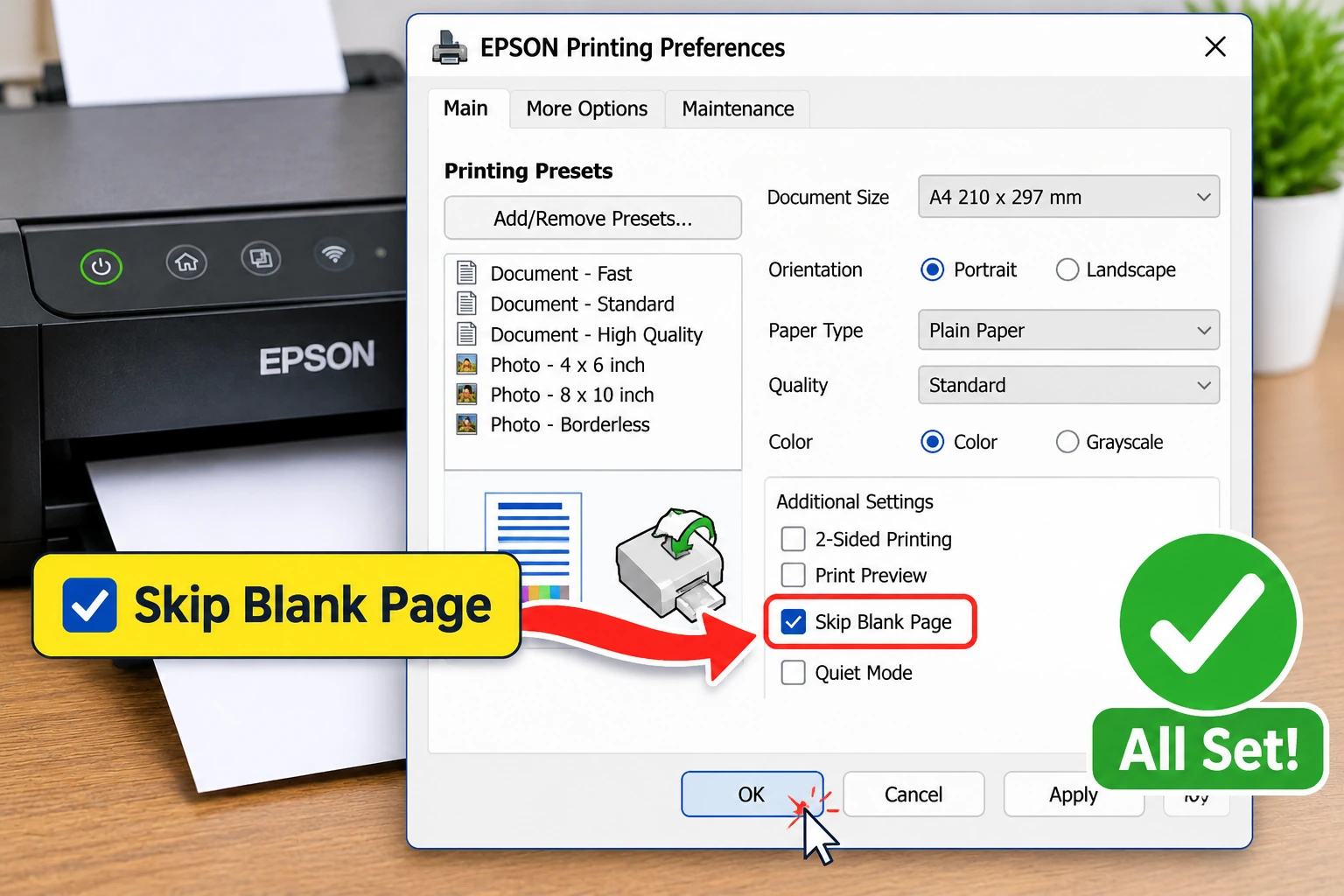
Turn on Skip Blank Page so the printer ignores empty pages:
-
Windows: open Settings, then Bluetooth & devices, then Printers & scanners, select your Epson, then Printing preferences. Tick Skip Blank Page and click OK.
-
Mac: open System Settings, then Printers & Scanners, select your Epson, then Options & Supplies, then Driver or Options. Set Skip Blank Page to On.
Tip: Epson notes that Skip Blank Page is in its standard printer software. If you can’t see it, you may be using a basic driver that Windows or macOS installed for you. Fix 6 sorts that out.
Note Worthy: I always check Print Preview on documents that came from someone else. Real-life example: a school newsletter emailed as a Word file often has an empty last page, and that’s the “mystery” blank sheet every time.
Fix 5: Nothing Prints at All
-
Turn the printer off and on, and check it’s on the same Wi-Fi as your computer.
-
Clear the queue. On Windows, open Printers & scanners, select the Epson, then Open print queue. Cancel all documents. If Use Printer Offline is ticked, untick it.
-
On a Mac, open Printers & Scanners, remove the Epson with the minus (–) button, and add it again.
-
Print a test page.
Still nothing? See printer connected to Wi-Fi but not printing.
Fix 6: Reinstall the Epson Driver
A damaged or generic driver can stop jobs reaching the printer, or remove options like Skip Blank Page.
-
On Windows, remove the Epson from Printers & scanners. On a Mac, remove it from Printers & Scanners.
-
Uninstall any Epson printer software for that model.
-
Restart the computer.
-
Download the latest driver for your exact model from epson.co.uk (Support, then your printer).
-
Install it, add the printer, and print a test page.
Note Worthy: I only download Epson drivers from Epson’s own UK website. Lookalike “driver download” sites often bundle extra software or try to sell you a support call.
Summary
If your Epson printer is not printing or printing blank pages then you should start with a nozzle check. A blank or patchy pattern means low ink or blocked nozzles: top up or replace the ink, then clean the head up to three times and rest it for 12 hours if needed. A perfect pattern means the printer is fine, so check the document, the paper settings and Skip Blank Page. If nothing prints at all, clear the queue and reinstall the Epson driver from Epson’s UK site.
Written by the Zoneswitch team. Steps checked against Epson’s support guidance. Last updated: November 2026.
Zoneswitch is independent and not affiliated with Epson or any printer manufacturer.
Sources
-
Epson: My product is printing blank pages. What should I do?
-
Epson UK: How to fix print quality issues on EcoTank and Expression printers
Related Articles
Frequently Asked Questions
Matt turns confusing printer and computer-peripheral problems into clear, step-by-step fixes that anyone can follow. He holds a master's degree in Applied Computer Science and is currently pursuing a PhD at the University of Manchester, and for the past seven years he has written practical solutions, drawn from his own hands-on experience, for readers who don't speak the jargon professionals use. Matt has worked with Zoneswitch for ten years, and he still measures every guide by one simple test: whether a reader can fix the problem on their own, first time.
Z Switch Editorial Team