
Millions of UK homes are using BT broadband, knowing how to connect a printer to a BT Smart Hub 2 is something you'll need sooner or later. Whether its a new printer, a new hub after a BT upgrade, or a printer that’s been offline since an engineer visit.
There are two ways in. The WPS button needs no password at all, so it’s the quickest when it works. The password route works with every printer that has a wireless setup option.
Both are below, with what the hub’s lights tell you along the way.
Which method?
|
Your situation |
Use |
Why |
|---|---|---|
|
Printer has WPS (most do) |
Method 1: WPS |
No password to type |
|
Printer has a screen and a wireless wizard |
Method 2: Password |
Works every time if the password is right |
|
WPS flashes red |
Method 2 |
WPS timed out or was refused |
|
Printer only joins sometimes |
Our 2.4 GHz fix |
The hub combines two bands |
Quick Answer
To connect a printer to a BT Smart Hub 2, start WPS on the printer (in its wireless menu, or by holding its Wi-Fi button as the manual says), then press the WPS button on the hub within two minutes. The button light flashes blue while it waits; red means it didn’t connect, so wait a couple of minutes and try again. Or open the printer’s wireless setup wizard, choose your BT- network, and type the password from the Wi-Fi settings card that pulls out of the hub.
Important Note: You don’t need to pay anyone to connect a printer to your BT hub, and BT won’t ask you to install remote-access software from a pop-up. Printer software comes free from the printer maker’s own site.
Need more help? Tell us your printer model and what the hub’s light did. Contact the Zoneswitch team: zoneswitch.co.uk/contact-us
Find your Wi-Fi details
-
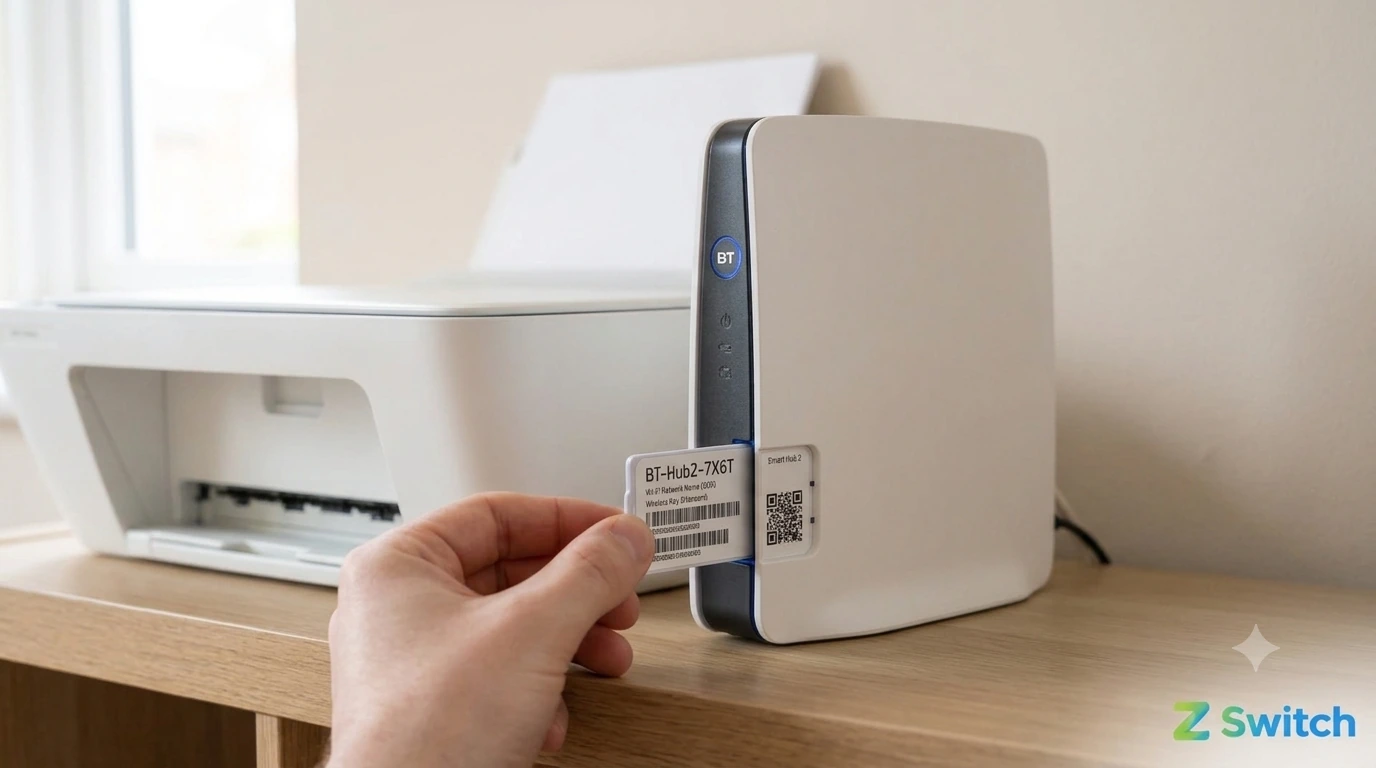
Pull out the Wi-Fi settings card from the hub. BT prints the Wi-Fi name and password on the outside.
-
The admin password is on the card too. You only need it for Hub Manager (192.168.1.254), not for connecting a printer.
-
If the card is hard to read, BT says you can scan its QR code with a QR scanner app to see the details.
Writer’s Tip: I check whether anyone has changed the Wi-Fi password since the hub arrived. If they have, the card is out of date, and every printer setup fails until someone remembers the new one.
Method 1: WPS
-
Start WPS on the printer first.
-
Printers with a screen: look in the wireless or network menu for WPS or Push Button.
-
Printers without a screen: most start WPS when you hold the Wi-Fi (wireless) button. Check your manual for how long to hold it.
-
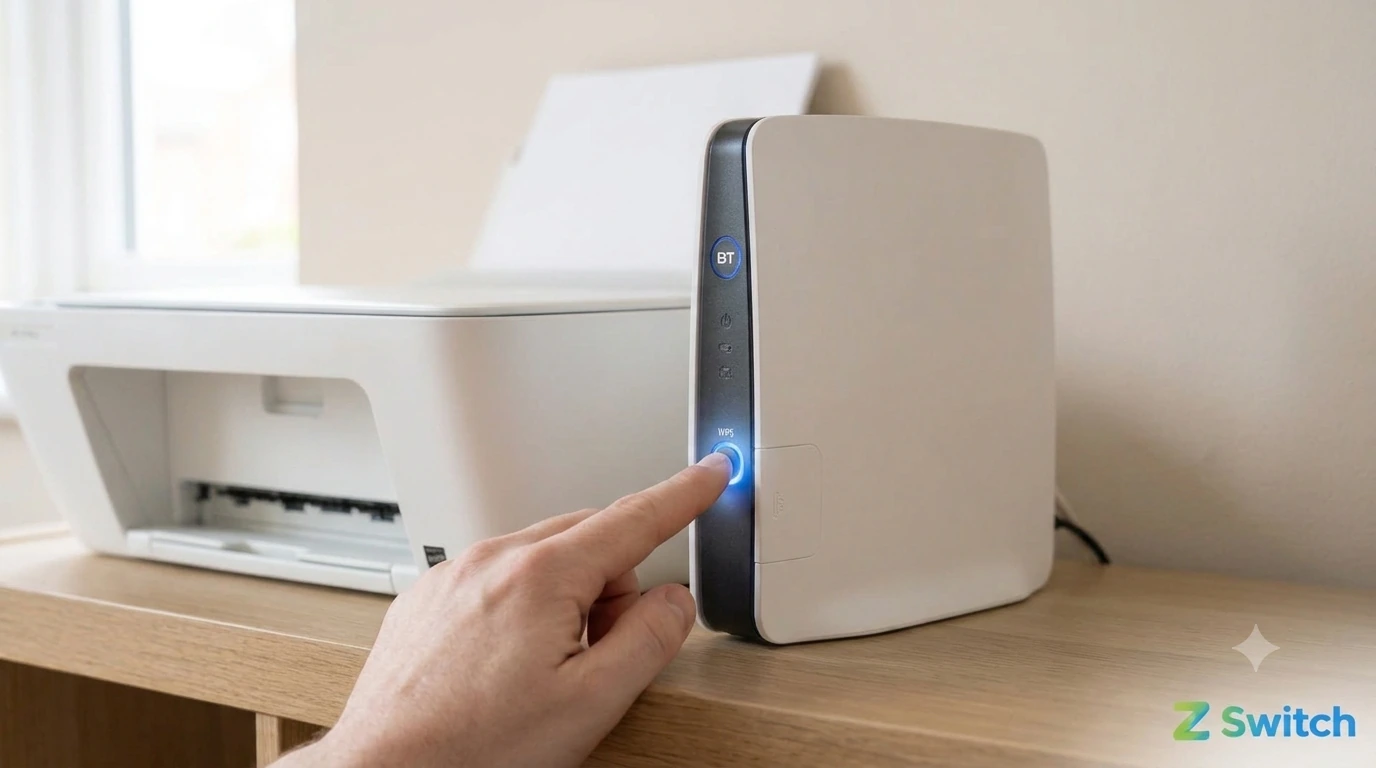
Within two minutes, press the WPS button on the hub. BT’s user guide says it’s on the side of the hub.
-
Watch the button light:
-
Flashing blue: waiting for your printer (you’ve got two minutes).
-
Flashing red: it didn’t connect. Wait a couple of minutes and try again.
-
The printer shows Connected, or its Wi-Fi light stops blinking and stays on.
Tip: Start WPS on the printer before pressing the hub button. If you press the hub first and take too long on the printer, the two minutes run out.
Method 2: Network name and password
-
On the printer, open the wireless setup wizard (often Settings, then Network or Wireless, then Wireless Setup Wizard).
-
Choose your network. BT network names usually start with BT-.
-
Type the password exactly as on the card. It’s case-sensitive.
-
Confirm, and wait for Connected.
For brand-specific menus, see our guides for HP, Canon, Epson and Brother.
Pro Tip: On printers with small screens, a capital O and a zero look almost the same. BT passwords mix letters and numbers, so I read the card out loud as I type.
Check the hub’s own light
BT’s guide explains the main hub light:
|
Hub light |
Meaning |
|---|---|
|
Blue |
Connected to broadband: fine for printer setup |
|
Green |
Starting up: wait at least three minutes |
|
Flashing orange |
Connecting to broadband |
|
Orange |
Working, but no internet |
|
Red |
A problem: restart the hub |
A printer can join the hub even without internet, but you’ll need internet to download printer software.
If it won’t connect
-
Move the printer nearer the hub for setup, then move it back once it’s connected.
-
Restart both: printer off, hub off at the wall for 30 seconds, hub on, wait for blue, printer on.
-
Printer only uses 2.4 GHz: the Smart Hub 2 shows 2.4 and 5 GHz under one name. See Printer won’t connect to BT Smart Hub 2? The 2.4 GHz fix.
-
BT Complete Wi-Fi discs: set the printer up in the same room as the main hub.
Security Best Practices
Keep your printer secure and your documents private with these steps:
Network Security:
-
Change the hub’s admin password from the one on the card, in Hub Manager.
-
Keep WPA2 security on your Wi-Fi.
Printer-Level Security:
-
Set an admin password on the printer’s web page where your model allows it.
-
Turn off Wi-Fi Direct if you don’t use it.
Maintenance:
-
Install printer firmware updates from the printer maker’s app or site.
Access Control:
-
Use BT’s guest Wi-Fi option for visitors where your hub offers it.
-
Remove old devices you no longer use from Hub Manager’s device list.
Conclusion
You’ve now found the Wi-Fi details on your BT card, connected the printer with WPS or the password, checked the hub’s lights, and know what to do if it won’t join. You’ve also changed the hub’s admin password and protected the printer’s settings. That covers any BT home or small-office setup.
What to read next: The 2.4 GHz fix for the BT Smart Hub 2, Printer connected to Wi-Fi but not printing. Need more help? Contact the Zoneswitch team: https://zoneswitch.co.uk/contact-us
Written and tested by the Zoneswitch team. Steps checked against BT’s Smart Hub 2 user guide. Last updated: November 2026.
Sources
Related Articles
Frequently Asked Questions
Matt turns confusing printer and computer-peripheral problems into clear, step-by-step fixes that anyone can follow. He holds a master's degree in Applied Computer Science and is currently pursuing a PhD at the University of Manchester, and for the past seven years he has written practical solutions, drawn from his own hands-on experience, for readers who don't speak the jargon professionals use. Matt has worked with Zoneswitch for ten years, and he still measures every guide by one simple test: whether a reader can fix the problem on their own, first time.
Z Switch Editorial Team