
The printer was fine last month. Then the broadband provider sent a new hub, or someone changed the Wi-Fi password, and now the little Wireless light on your HP printer just blinks and blinks.
Nothing’s broken. The printer is still looking for the network it remembers, and it won’t move to a new one on its own. You need to put it back into setup mode and introduce it to your Wi-Fi again. This guide does that step by step, then covers the hub settings that most often get in the way.
Which situation are you in?
|
What you see |
Most likely cause |
Go to |
|---|---|---|
|
New hub, new provider or new Wi-Fi password |
Printer still has the old network saved |
Steps 1 and 2 |
|
Brand-new printer, setup never finished |
Setup mode timed out |
Steps 1 and 2 |
|
HP app can’t find the printer |
Bluetooth off, VPN on, or a different network |
The HP app can’t find your printer |
|
Wireless light on, but the laptop says offline |
Computer-side problem |
Connected, but still offline? |
|
Connects, then drops off |
Weak signal or a busy network |
It keeps dropping off |
Quick Answer
Put the printer back into Wi-Fi setup mode, then add it with the HP app (the app that replaced HP Smart). On many HP inkjets, including the DeskJet 2700 series, you hold Wireless and Cancel together for 3 seconds. The Wireless light starts blinking, and you then have about two hours to finish setup in the app. A steady Wireless light means it’s connected.
Important Note: Download the HP app only from your phone’s app store, the Microsoft Store or HP’s own website. Lookalike “HP setup” sites copy HP’s logo and then ask you to call a number or pay for help. HP’s software is free.
Before You Start
Spend two minutes on these. They save a lot of failed attempts.
-
Know your Wi-Fi name and password. On BT, Virgin Media, Sky and most other hubs, they’re printed on a card or sticker on the back of the hub, unless someone has changed them since.
-
Put the printer near the hub for setup. Same room is ideal. You can move it once it’s connected.
-
Unplug any USB cable between the printer and a computer if you want it on Wi-Fi.
-
On your phone, turn on Bluetooth and location. HP’s guide says the app uses Bluetooth only to find the printer during setup.
-
Switch off any VPN on the phone or laptop you’re using.
Note Worthy: I always set a printer up in the same room as the hub, even if it’s going upstairs afterwards. Real-life example: a BT Smart Hub in the hallway and a printer in the back bedroom can work fine day to day, but first setup is where a weak signal causes most failures.
Step 1: Put the Printer in Wi-Fi Setup Mode
How you do this depends on your printer.
-
Printers with a touchscreen: tap the Wireless icon or Setup, then Network Setup (or Settings), then Restore Network Settings, and confirm.
-
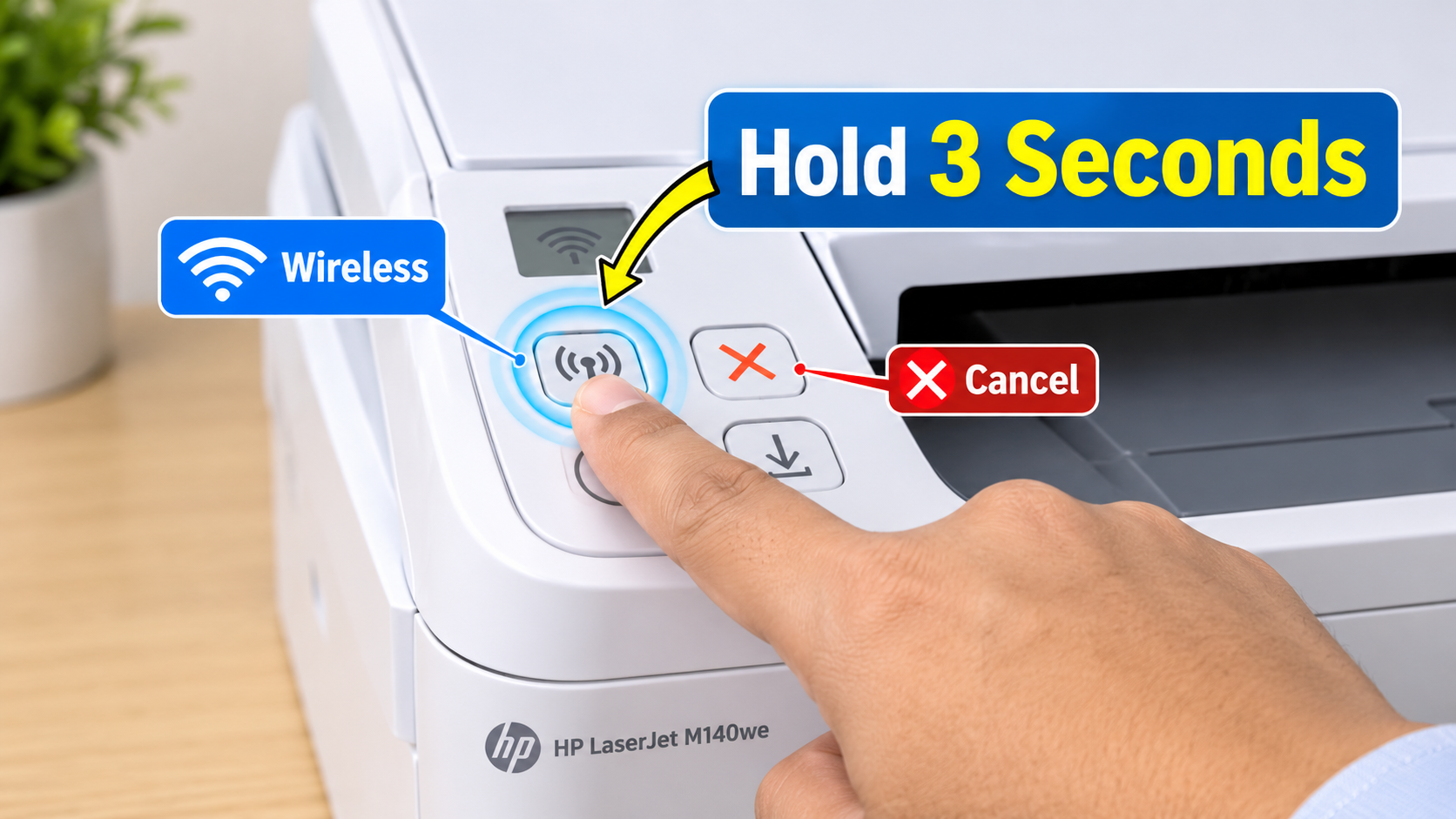
Button-only printers, such as the DeskJet 2700 series: press and hold Wireless and Cancel together for 3 seconds.
On the DeskJet 2700, the Wireless light blinks blue and the signal bars cycle when the printer is in setup mode. Other models show it slightly differently, so check the quick-start sheet for yours.
Tip: HP’s guide for the DeskJet 2700 says the printer keeps looking for the HP app for two hours, then stops. If you miss the window, just do Step 1 again.
Step 2: Connect It With the HP App
-
Connect your phone or laptop to your home Wi-Fi (not a guest network).
-
Open the HP app.
-
Tap the plus (+) icon, or Add Printer.
-
Pick your printer from the list.
-
Choose your Wi-Fi network and enter the password when asked.
-
Follow the prompts until the app says setup is complete.
When the Wireless light stops blinking and stays steady, you’re connected. Print a test page from the app before you move the printer anywhere.
Note Worthy: I type the Wi-Fi password into a notes app first and copy it in. Hub passwords are long and full of look-alike characters, and one wrong letter is the most common reason setup fails.
No App? Use the WPS Button
Most UK hubs have a WPS button, sometimes marked with two curved arrows. WPS connects the printer without typing a password.
-
On the printer, press and hold Wireless for at least 3 seconds (DeskJet 2700 series). Other models start WPS from the Wireless or Network Setup menu.
-
Within two minutes, press the WPS button on your hub.
-
Wait. The printer’s Wireless light goes steady when it’s connected.
Tip: if the hub’s WPS light doesn’t change, check in the hub’s settings page that WPS is switched on. Some providers turn it off by default.
Read the Wireless Test Report
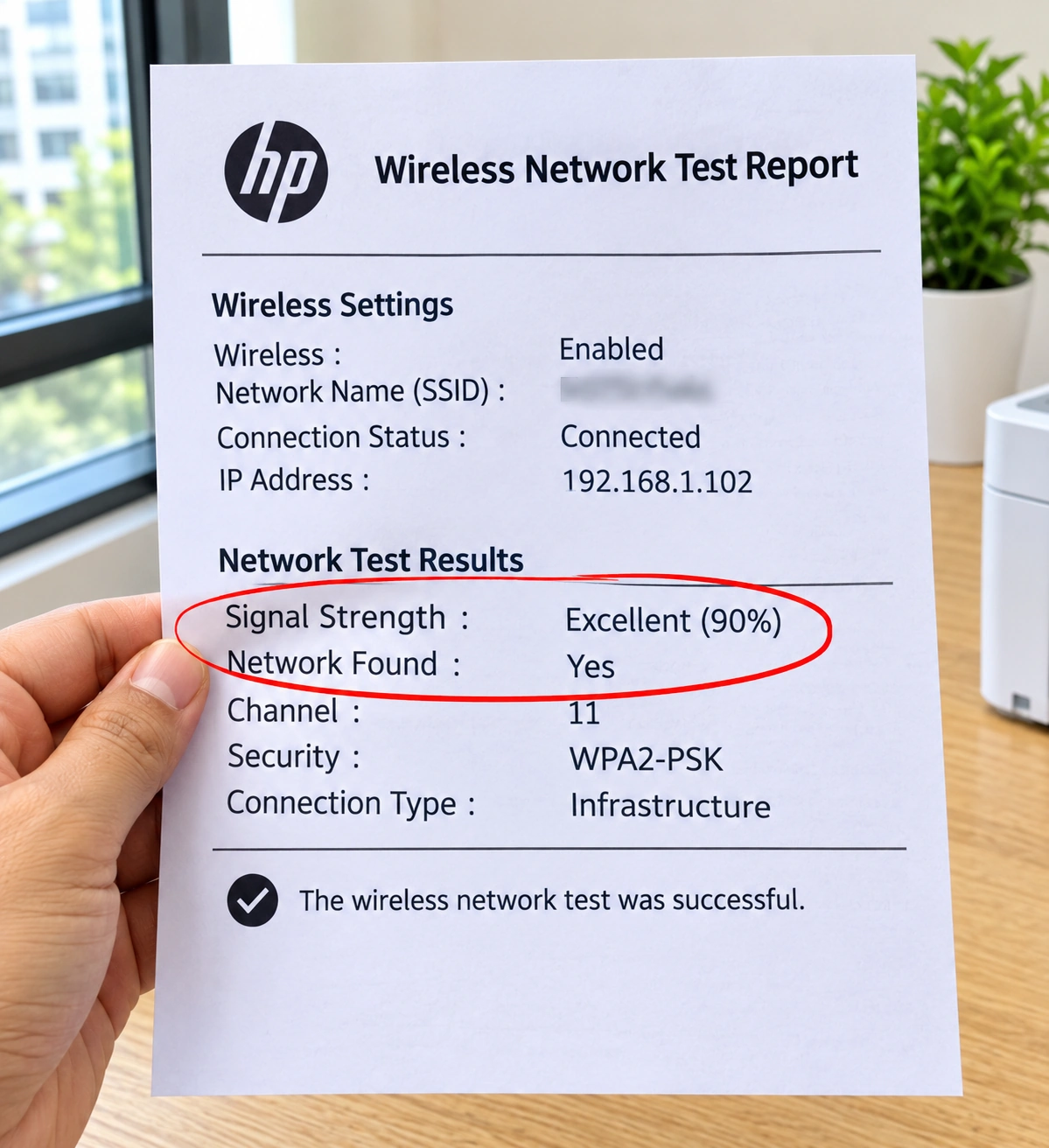
When it still won’t connect, let the printer tell you why. On the DeskJet 2700 series, press Wireless and Information together to print the Wireless Network Test Report. It shows:
-
whether the printer can see your network at all
-
the signal strength
-
the networks it can detect
If your network isn’t on the list, the printer is too far away or on a band it can’t use. If it’s there with a weak signal, move the printer and hub closer together.
Why HP Printers Won’t Join Some UK Hubs
Some HP printers work only on 2.4 GHz Wi-Fi. Many newer UK hubs (BT Smart Hub 2, Virgin Media Hub 4 and 5, Sky Max Hub) broadcast 2.4 GHz and 5 GHz under one name and pick the band for each device. That can confuse an older printer during setup.
-
Check your printer first. HP lists the DeskJet 2700 series as working on both 2.4 GHz and 5 GHz, so this isn’t always the problem.
-
If your printer is 2.4 GHz only, look in your hub’s settings (or the provider’s app) for an option to split the bands or give them separate names, then connect the printer to the 2.4 GHz one. Each hub names this differently, so follow your provider’s own help page.
-
Keep the printer off the guest network. Guest Wi-Fi usually stops devices seeing each other.
Note Worthy: Before I change anything on a hub, I take a photo of the settings page. If the printer still won’t connect, I can put everything back exactly as it was.
The HP App Can’t Find Your Printer
-
Setup mode timed out. More than two hours since Step 1? Do it again.
-
Bluetooth or location is off on your phone. Turn both on.
-
A VPN is running. HP’s guide says a VPN can block access to the printer.
-
Your phone is on the wrong network, such as a guest network or the printer’s own DIRECT network.
-
Still nothing? Delete the HP app, install it again from your app store, and restart setup.
Connected, but Still Offline?
If the Wireless light is steady but your laptop says the printer is offline, the problem is on the computer. Our guide to printers that say offline when connected walks through the Windows and Mac fixes, and HP printer offline: how to get it back online covers HP-specific steps.
It Keeps Dropping Off
-
Move it closer, or move the hub out of a cupboard. Hubs tucked behind the TV or inside a cabinet struggle to reach other rooms.
-
Give the printer a fixed address in the hub’s settings (often called DHCP reservation), so your computer doesn’t lose track of it.
-
Update the printer’s firmware through the HP app.
Summary
To connect an HP printer to Wi-Fi, put it in setup mode (on the DeskJet 2700, hold Wireless and Cancel for 3 seconds), then add it in the HP app within two hours. No app? Use the WPS button on your hub within two minutes. If it won’t connect, print the wireless test report to see whether the printer can find your network, and check whether your hub combines 2.4 GHz and 5 GHz under one name.
Written by the Zoneswitch team. Steps checked against HP’s DeskJet 2700 user guide. Last updated: [month year].
Zoneswitch is independent and not affiliated with HP or any printer manufacturer.