
To connect a Brother printer to Wi-Fi, you'll need to join your wireless network. Whether You’ve just unboxed your Brother printer, or you’ve switched broadband and the printer has lost its connection. Either way, it needs to join your Wi-Fi again, and the menus aren’t obvious.
The good news is that Brother uses the same wizard on almost every model. What changes is how you move through it: with a touchscreen, or with arrow buttons on a small two-line display.
This guide covers both, then the WPS button method, then how to check it worked. Stop as soon as yours is connected.
Which method suits your printer?
|
Your Brother printer has… |
Use |
Time |
|---|---|---|
|
A touchscreen |
Method 1: Setup Wizard on the touchscreen |
About 5 minutes |
|
A small display and arrow buttons |
Method 2: Setup Wizard with the buttons |
About 10 minutes |
|
A hub with a WPS button |
Method 3: WPS |
About 2 minutes |
Quick Answer
To connect a Brother printer to Wi-Fi, unplug any network cable, then run the Setup Wizard. On touchscreen models tap Settings, then All Settings, then Network, then WLAN, then Setup Wizard (some newer models say Find Wi-Fi Network). On button models press Menu, then choose Network, then WLAN, then Setup Wizard. Pick your network, type the password and wait for Connected. Or choose WPS on the printer and press your hub’s WPS button within two minutes.
Important Note: Brother’s drivers and the Brother Mobile Connect app are free. Download them only from support.brother.com or your phone’s app store. Websites that charge for “Brother setup” are not Brother.
Need more help? Tell us your Brother model and what the screen says. Contact the Zoneswitch team: zoneswitch.co.uk/contact-us
Before you start
-
Find your Wi-Fi name and password. On most UK hubs they’re printed on the back or on a pull-out card (BT Smart Hub 2 has a Wi-Fi card; Sky and Virgin Media print them on a label).
-
Unplug any network cable from the back of the printer. The wizard switches the printer to wireless.
-
Put the printer within a couple of rooms of the hub while you set it up.
Brother’s own guide points out that its support team can’t find your network name or password for you, so write them down before you start.
Writer’s Tip: I take a photo of the Wi-Fi card on my phone before I start. When the printer asks for the password, I can zoom in and read it letter by letter instead of walking back to the hub.
Method 1: Touchscreen models
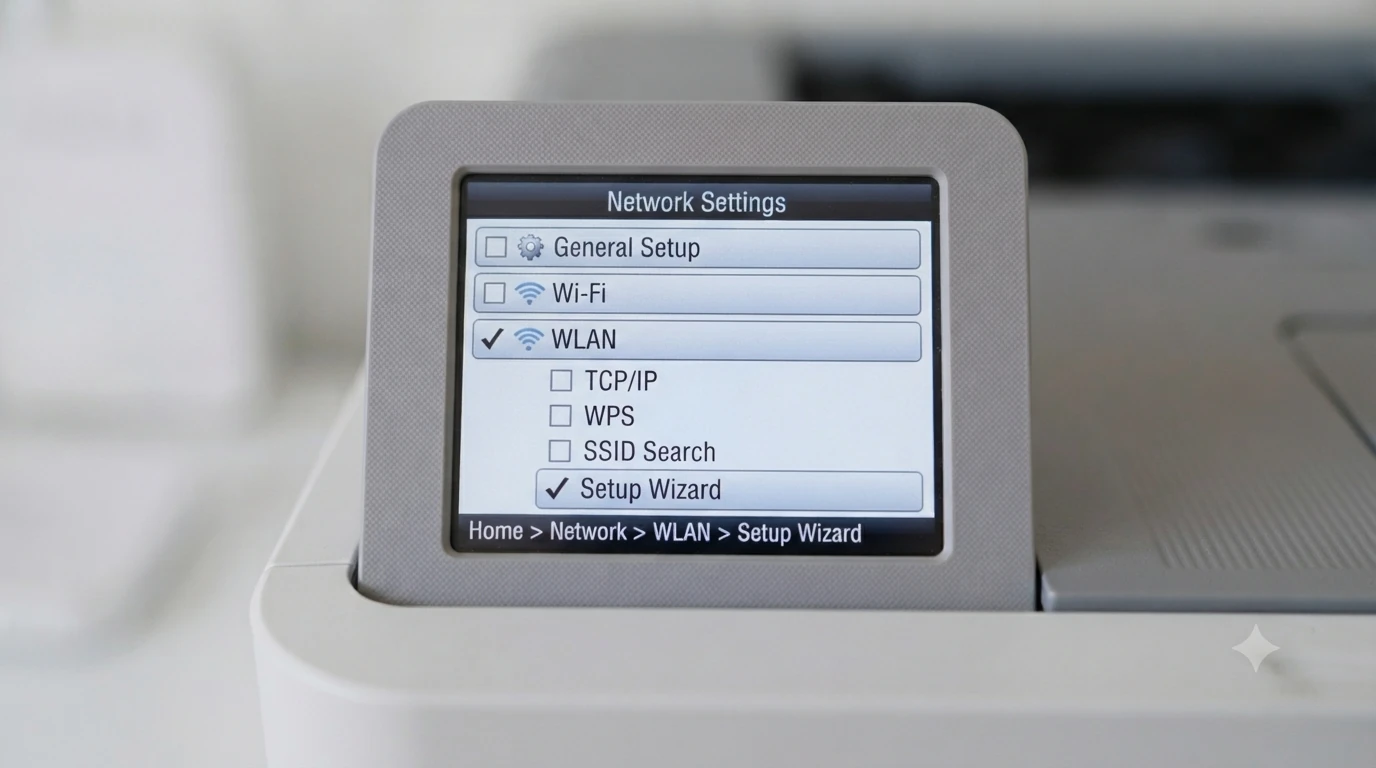
Touchscreen models include many MFC and DCP all-in-ones, such as the MFC-L2750DW and the DCP-L3560CDW.
-
Tap Settings, then All Settings, then Network, then WLAN (it may say WLAN (Wi-Fi)).
-
Tap Setup Wizard. On some newer models the option is Find Wi-Fi Network.
-
When it asks to switch the network interface to wireless, tap Yes.
-
Wait while the printer searches. Tap your network name in the list, then OK.
-
Type your password. Capitals count. Tap OK.
-
Wait for Connected on the screen.
If the printer offers WPS during the wizard and your hub has a WPS button, you can tap Yes and use the button instead of typing the password.
Method 2: Button models
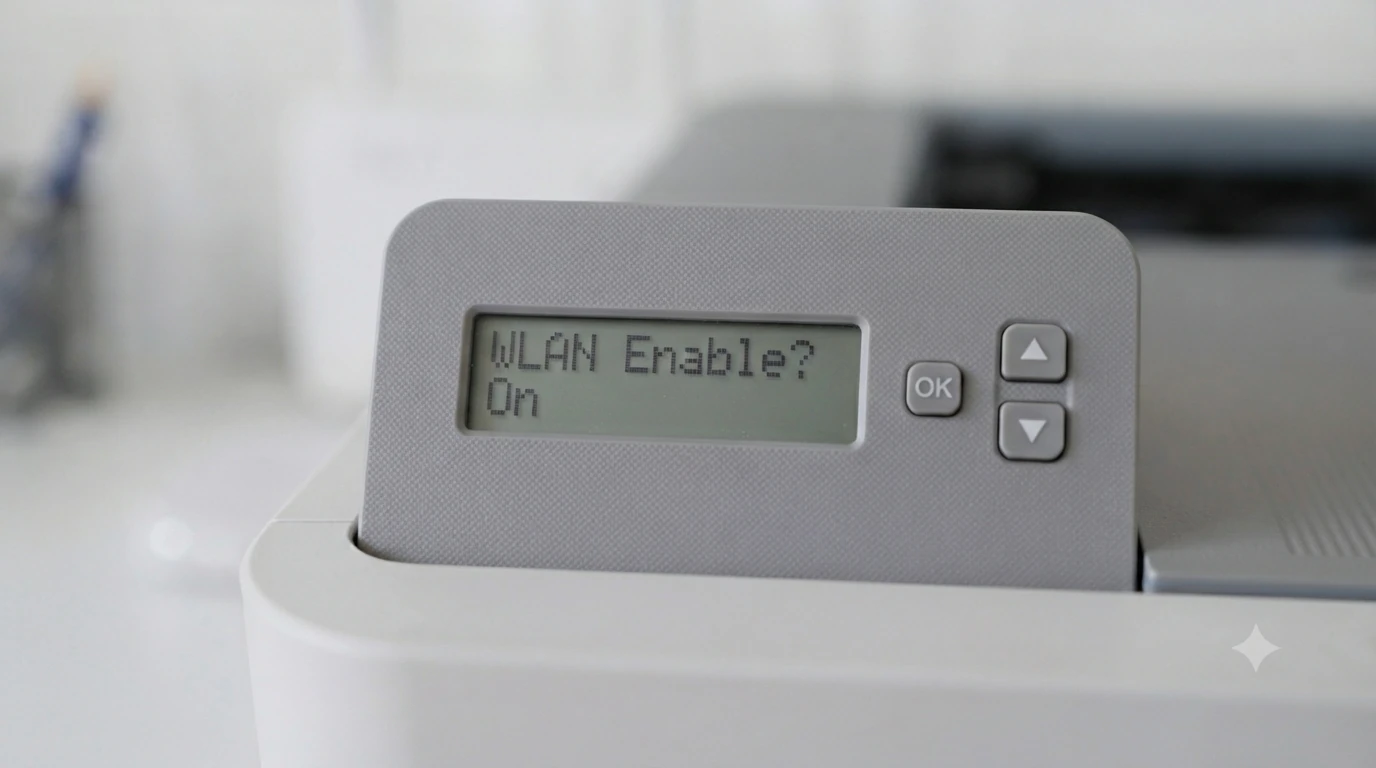
Button models have a small two-line display and arrow keys. Brother lists the HL-L2350DW, HL-L2357DW and HL-L2375DW among them; the newer HL-L2400DW uses the same menu idea.
-
Press Menu (on some models, the up or down arrow opens the menu).
-
Choose Network with the arrows and press OK.
-
Choose WLAN (or WLAN(Wi-Fi)) and press OK.
-
Choose Setup Wizard and press OK.
-
At WLAN Enable?, choose On. The printer searches for networks.
-
Use the arrows to find your network name and press OK.
-
Enter the password one character at a time. Press the arrows to reach each letter, then OK to move on. When the password is complete, apply it.
-
Wait for Connected on the display.
Tip: Watch for a capital O and a zero, and a lower-case l and the number 1. On a two-line display they look almost the same.
Experience Tip: On button models I count the characters in the password before I start. If the printer shows a different number of characters at the end, I know I’ve slipped before I press OK.
Method 3: The WPS button
WPS lets the printer join without typing the password.
-
On the printer, go to Network, then WLAN, then WPS (some models say WPS/Push Button).
-
When the display says Press Key on rtr, press the WPS button on your hub within two minutes.
-
Wait for Connected.
Where the WPS button is on UK hubs:
|
Hub |
WPS button |
|---|---|
|
BT Smart Hub 2 |
On the hub (BT’s guide says the side); flashing blue means it’s waiting |
|
Sky Broadband Hub and Sky Max Hub |
On the side edge; press briefly, as a long hold can reset the hub |
|
Virgin Media Hub |
Check the hub’s label or Virgin Media’s help pages for your model |
See our guides to connecting a printer to a BT Smart Hub 2 and a Sky hub.
Check it worked
-
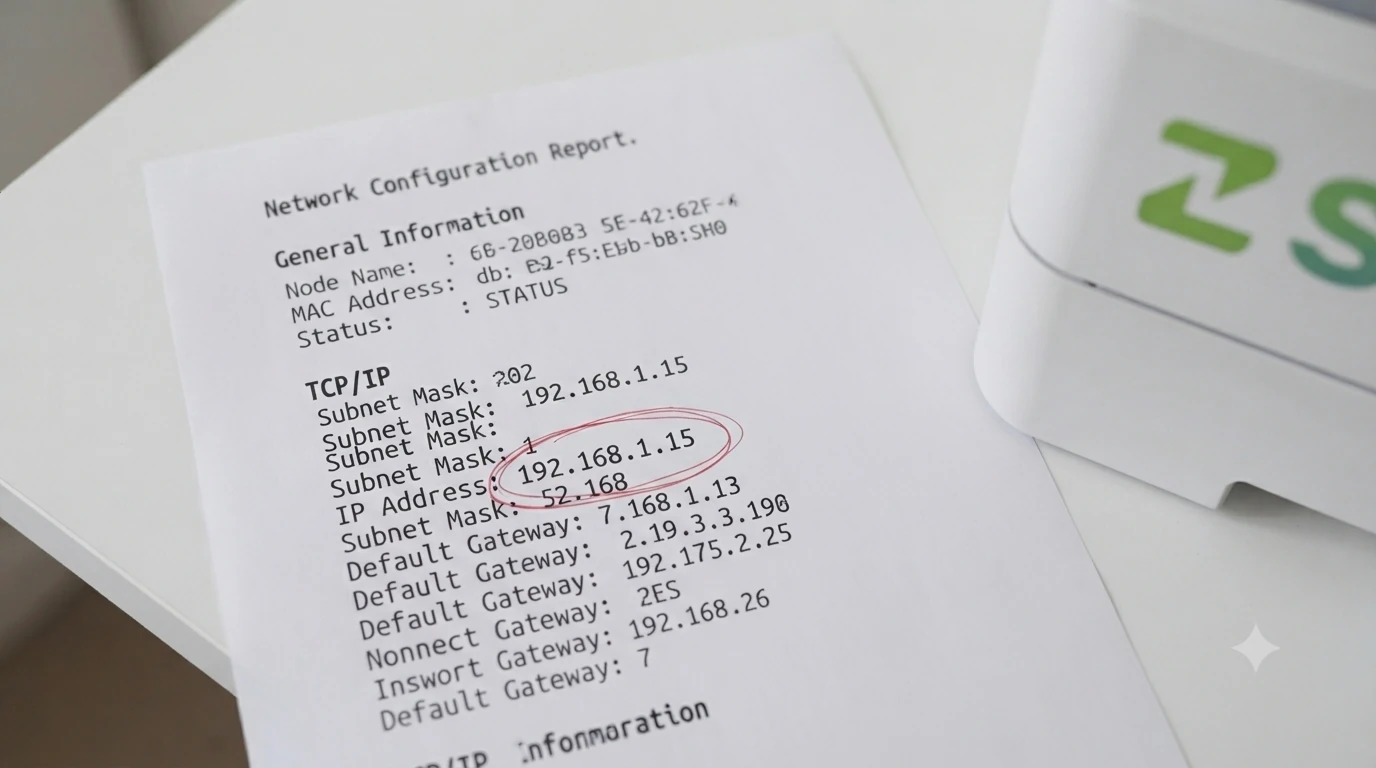
Print the Network Configuration report. It’s in Print Reports or Machine Info., depending on the model.
-
Check it shows your network name and an IP address. If it shows 0.0.0.0, wait a minute and print it again.
-
On your computer, install Brother’s Full Driver & Software Package from support.brother.com. On a phone, add the printer in Brother Mobile Connect.
-
Print a test page.
Pro Tip: Keep the Network Configuration report somewhere safe. If the printer stops working after a hub restart, the IP address on it is the first thing to compare.
If it won’t connect
-
Password rejected: retype it slowly; it’s case-sensitive.
-
Network not in the list: most Brother printers use 2.4 GHz. If your hub combines 2.4 and 5 GHz under one name, see our BT Smart Hub 2 2.4 GHz fix.
-
Connected, but the computer says offline: see Brother printer offline.
-
Still stuck: restart the hub and the printer, then run the wizard again close to the hub.
Security Best Practices
Keep your printer secure and your documents private with these steps:
Network Security:
-
Use WPA2 or WPA3 on your hub and a strong Wi-Fi password.
-
Change the hub’s default admin password if you still use the one on the card.
Printer-Level Security:
-
Set a password for the printer’s Web Based Management page (type its IP address into a browser).
-
Turn off Wi-Fi Direct if you don’t use it.
Maintenance:
-
Install firmware updates from support.brother.com.
Access Control:
-
Give visitors your hub’s guest Wi-Fi, not your main network.
-
Before selling the printer, reset its network settings.
Conclusion
You’ve now found your Wi-Fi details, run Brother’s Setup Wizard on a touchscreen or button model (or used WPS), printed the Network Configuration report to check it, and installed Brother’s software. You’ve also locked down the printer’s web page and kept visitors on guest Wi-Fi. That covers a home office, a family printer or a small business laser.
What to read next: Brother printer offline: how to get it back online, How to add a Brother printer to a Mac. Need more help? Contact the Zoneswitch team: https://zoneswitch.co.uk/contact-us
Written and tested by the Zoneswitch team. Steps checked against Brother’s Online User’s Guides. Last updated: November 2026.
Sources
Related Articles
Frequently Asked Questions
Matt turns confusing printer and computer-peripheral problems into clear, step-by-step fixes that anyone can follow. He holds a master's degree in Applied Computer Science and is currently pursuing a PhD at the University of Manchester, and for the past seven years he has written practical solutions, drawn from his own hands-on experience, for readers who don't speak the jargon professionals use. Matt has worked with Zoneswitch for ten years, and he still measures every guide by one simple test: whether a reader can fix the problem on their own, first time.
Z Switch Editorial Team