
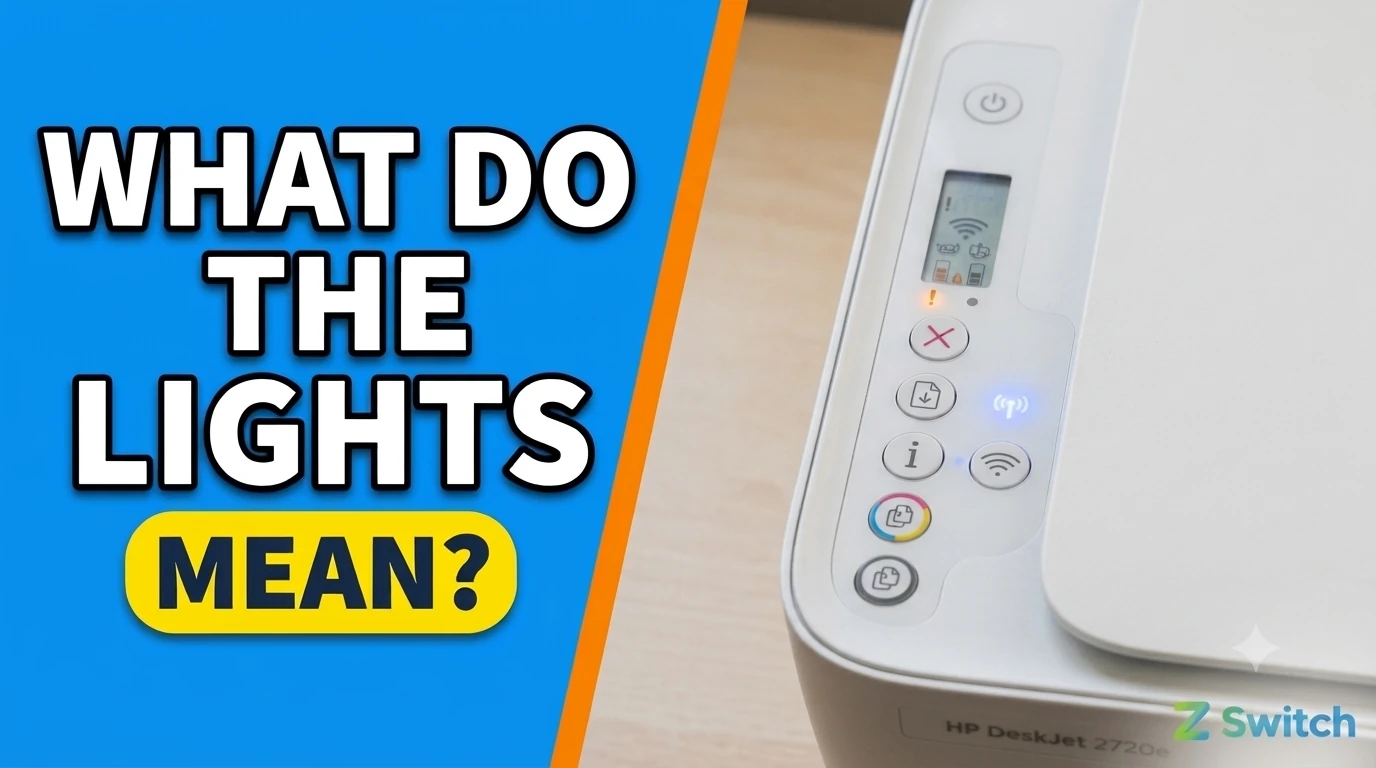
When the HP DeskJet 2720e lgihts are flashing, it can be difficult to tell what's wrong. The printer has no proper screen, instead it has a handful of lights and tiny icons, and when something goes wrong they blink, flash and light up in combinations that aren’t explained anywhere on the printer.
Each pattern has a specific meaning, and HP’s 2700 series user guide spells most of them out. This guide translates them into plain English, with the button to press for each.
Find the light that matches yours in the table, and jump to that section.
Which light is on?
|
What you see |
Meaning |
Go to |
|---|---|---|
|
Wi-Fi light blinking, bars cycling |
Setup mode |
The Wi-Fi light |
|
Wi-Fi light off |
Wireless is off |
The Wi-Fi light |
|
Ink Alert on, ink icon empty, Resume flashing |
Low or unrecognised cartridge |
The ink lights |
|
Paper icon and Resume flashing |
Tray empty |
Paper and E codes |
|
E1 or E2 by the copies digit |
Paper size mismatch |
Paper and E codes |
|
E3 or E4 |
Carriage jam or paper jam |
Paper and E codes |
|
Power light blinking fast |
Printer error |
Still flashing? |
Quick Answer
On the HP DeskJet 2720e lights are flashing, the steady blue Wi-Fi light means connected; blinking means it’s in setup mode, waiting for the HP app; off means wireless is off (press Wireless). Ink Alert on with an empty ink icon and Resume flashing means a cartridge is very low, or HP thinks it’s used or not genuine. Paper and Resume flashing means load paper and press Resume. E1/E2 is a paper-size mismatch (usually A4 versus Letter), E3 a carriage jam and E4 a paper jam.
Important Note: The HP app is free from the Microsoft Store, Mac App Store or your phone’s app store. Pop-ups saying “your HP printer is offline, call support” are scams.
Need more help? Tell us which lights are on and blinking. Contact the Zoneswitch team: zoneswitch.co.uk/contact-us
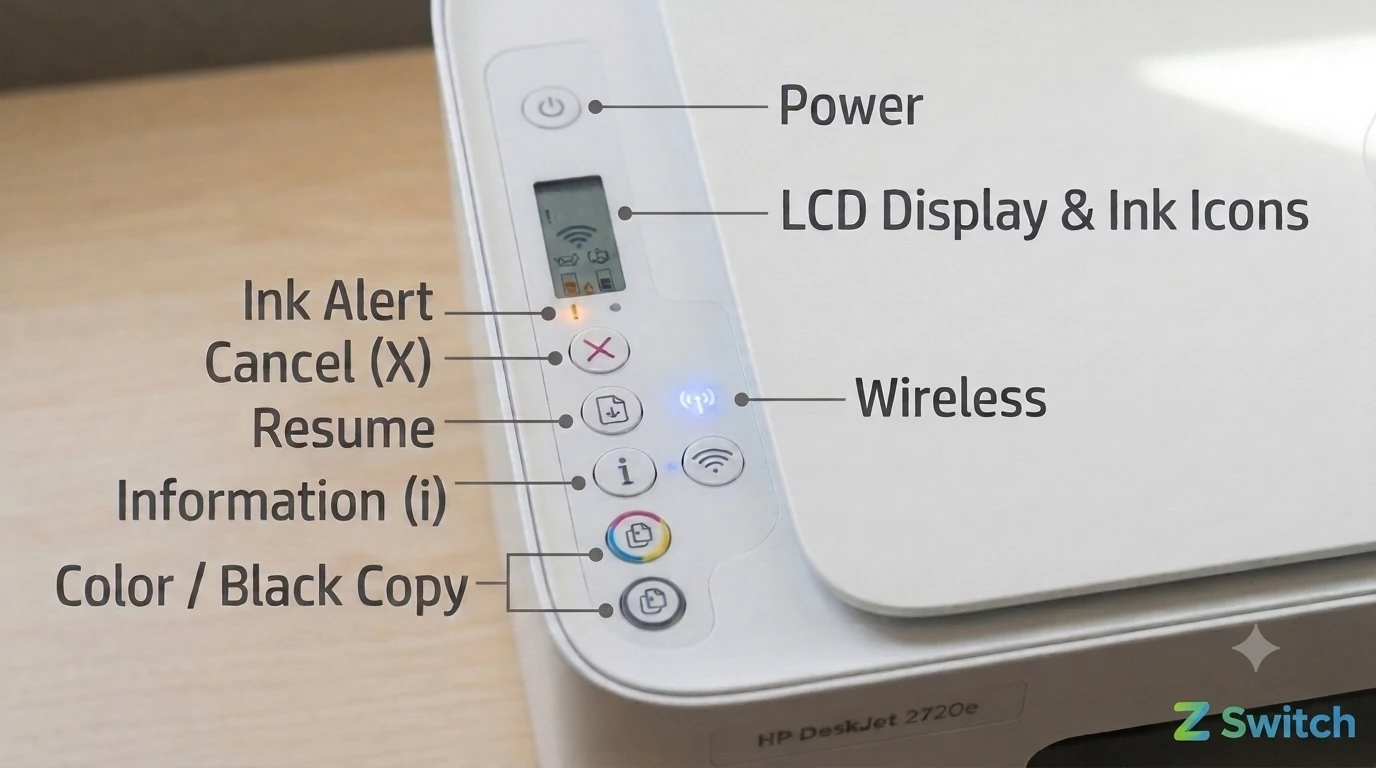
The control panel at a glance
-
Power button and light: solid means on; dimmed means Sleep (after five minutes); blinking means it’s working on a job; blinking fast means an error.
-
Wireless button and light: shows the Wi-Fi status.
-
Information button: prints information pages.
-
Resume button and light: continues after you fix something; the light flashes when there’s a warning or error.
-
Cancel button: stops the current job.
-
Ink Alert light: low ink or a cartridge problem.
-
Display icons: signal bars, Wi-Fi Direct, ink levels, an Error icon, a Paper icon and the copies digit (where E codes appear).
The Wi-Fi light
|
Wi-Fi light |
Meaning |
What to do |
|---|---|---|
|
Steady blue, signal bars showing |
Connected |
Nothing; more bars, stronger signal |
|
Blinking blue, bars cycling |
Setup mode (Auto Wireless Connect) |
Add the printer in the HP app |
|
Off |
Wireless is off |
Press the Wireless button |
|
One or two bars only |
Weak signal |
Move it closer to the hub |
HP says that for most networks the printer should be within about 30 metres of the hub.
To see what’s going on, press Wireless and Information together. The printer prints a Wireless Network Test Report showing the signal and the networks it can see.
Experience Tip: When the Wi-Fi light keeps blinking, I print the wireless test report before anything else. If my network isn’t on it at all, I know it’s a range or 2.4 GHz problem, not the password.
The ink lights
One ink icon empty, Error icon and Resume flashing, Ink Alert on: HP’s guide says that cartridge is either very low, or it’s a counterfeit or previously used cartridge.
-
Cartridge not new: press Resume to keep printing, and replace the cartridge when the print quality drops.
-
Cartridge just fitted: check the message in the HP app on your computer or phone for details.
Both ink icons empty, same lights: the same, for both cartridges.
The 2720e uses HP 305 cartridges in the UK (black and tri-colour). The 2720e is an HP+ printer, so HP’s terms for HP+ printers apply to which cartridges it accepts; the HP app explains this for your printer.
Tip: HP’s ink levels are estimates. You don’t need to replace a cartridge until the print quality is no longer acceptable.
Paper and E codes
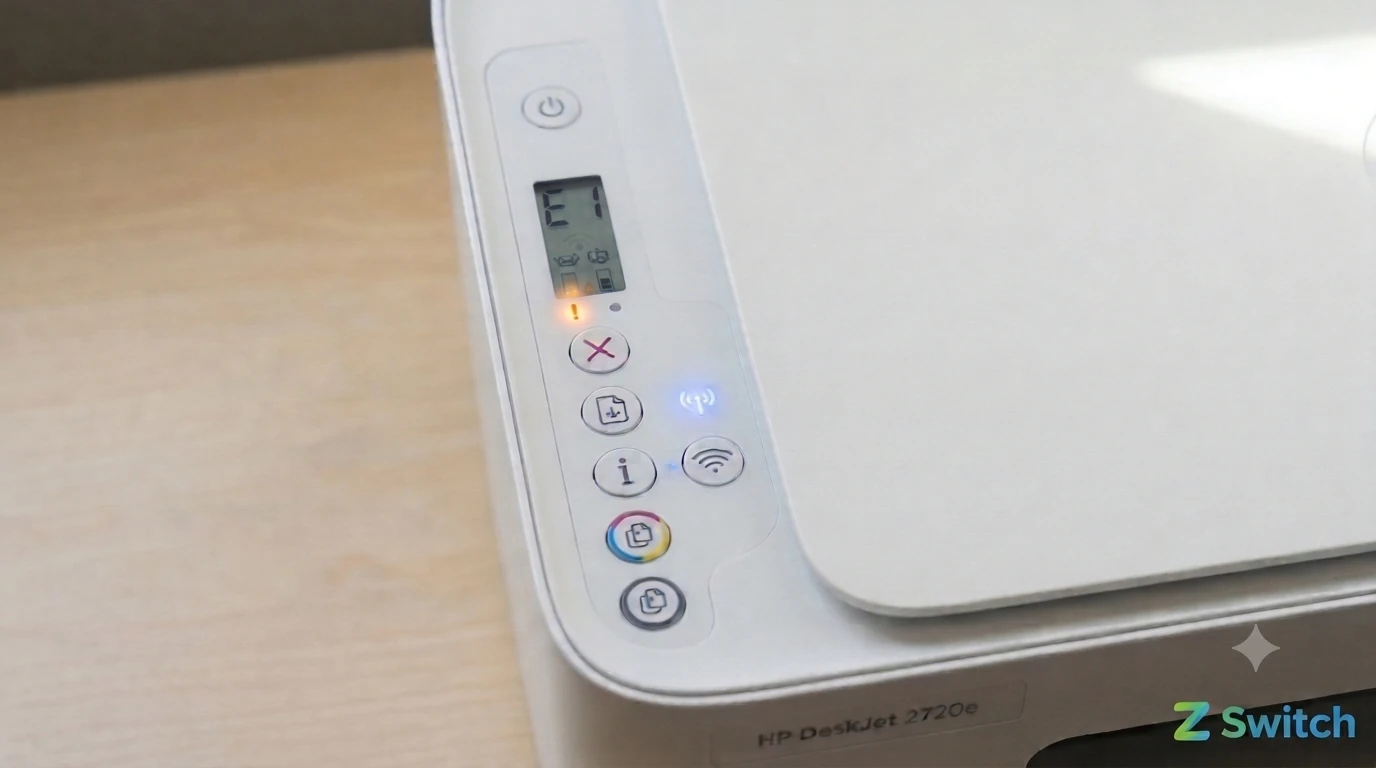
Error, Paper and Resume flashing: the printer received a job but the tray is empty. Load paper and press Resume.
E codes appear next to the copies digit on the display. HP’s community knowledge base gives these meanings for printers with this kind of display:
|
Code |
Meaning |
What to do |
|---|---|---|
|
E1 or E2 |
Paper size in the job doesn’t match the paper loaded |
Press Cancel, set A4 in the print settings (or load the paper size you chose) |
|
E3 |
Carriage jam: something is blocking the cartridge carriage |
Turn off, open the cartridge door, remove any paper or object, turn on |
|
E4 |
Paper jam |
Turn off, gently pull out the jammed paper, turn on |
|
E5 |
Scanner error |
Unplug the power for a minute, plug it back in |
|
E6 |
General printer error |
Turn off and on; if it returns, restore defaults and re-add it in the HP app |
Writer’s Tip: E1 is the most common code I see in the UK, because laptops set up in the US default to Letter paper. Setting A4 in Windows’ printing preferences once usually stops it for good.
Still flashing?
-
Power reset: with the printer on, unplug the power cable from the back for 60 seconds, then plug it back in.
-
Restore network settings: hold Wireless and Cancel together for three seconds. Then set it up again in the HP app.
-
Printer status report: hold Cancel for three seconds to print it. It lists cartridge status and recent events.
-
Power light blinking fast: HP says follow the message on your computer or phone; if none appears, print a document to trigger one.
Security Best Practices
Keep your printer secure and your documents private with these steps:
Network Security:
-
Keep your hub on WPA2 or WPA3 with a strong password.
Printer-Level Security:
-
Turn off Wi-Fi Direct if you don’t use it (it’s controlled with the Wireless and Resume buttons).
Maintenance:
-
Let the HP app install printer firmware updates.
Access Control:
-
Review which accounts are linked to the printer in the HP app, and remove old ones.
-
Before selling the printer, restore its network settings.
Conclusion
You’ve now read the Wi-Fi light and printed the wireless test report, worked out the ink lights, loaded paper, decoded E1 to E6, and used the network and power resets when nothing else worked. You’ve also kept Wi-Fi Direct off and the HP app accounts tidy. That’s everything the 2720e’s lights can tell you at home or in a small office.
What to read next: HP DeskJet 2720e setup and Wi-Fi, HP DeskJet 2710 not printing. Need more help? Contact the Zoneswitch team: https://zoneswitch.co.uk/contact-us
Written and tested by the Zoneswitch team. Steps checked against HP’s DeskJet 2700 series user guide. Last updated: November 2026.
Frequently Asked Questions
Matt turns confusing printer and computer-peripheral problems into clear, step-by-step fixes that anyone can follow. He holds a master's degree in Applied Computer Science and is currently pursuing a PhD at the University of Manchester, and for the past seven years he has written practical solutions, drawn from his own hands-on experience, for readers who don't speak the jargon professionals use. Matt has worked with Zoneswitch for ten years, and he still measures every guide by one simple test: whether a reader can fix the problem on their own, first time.
Z Switch Editorial Team