
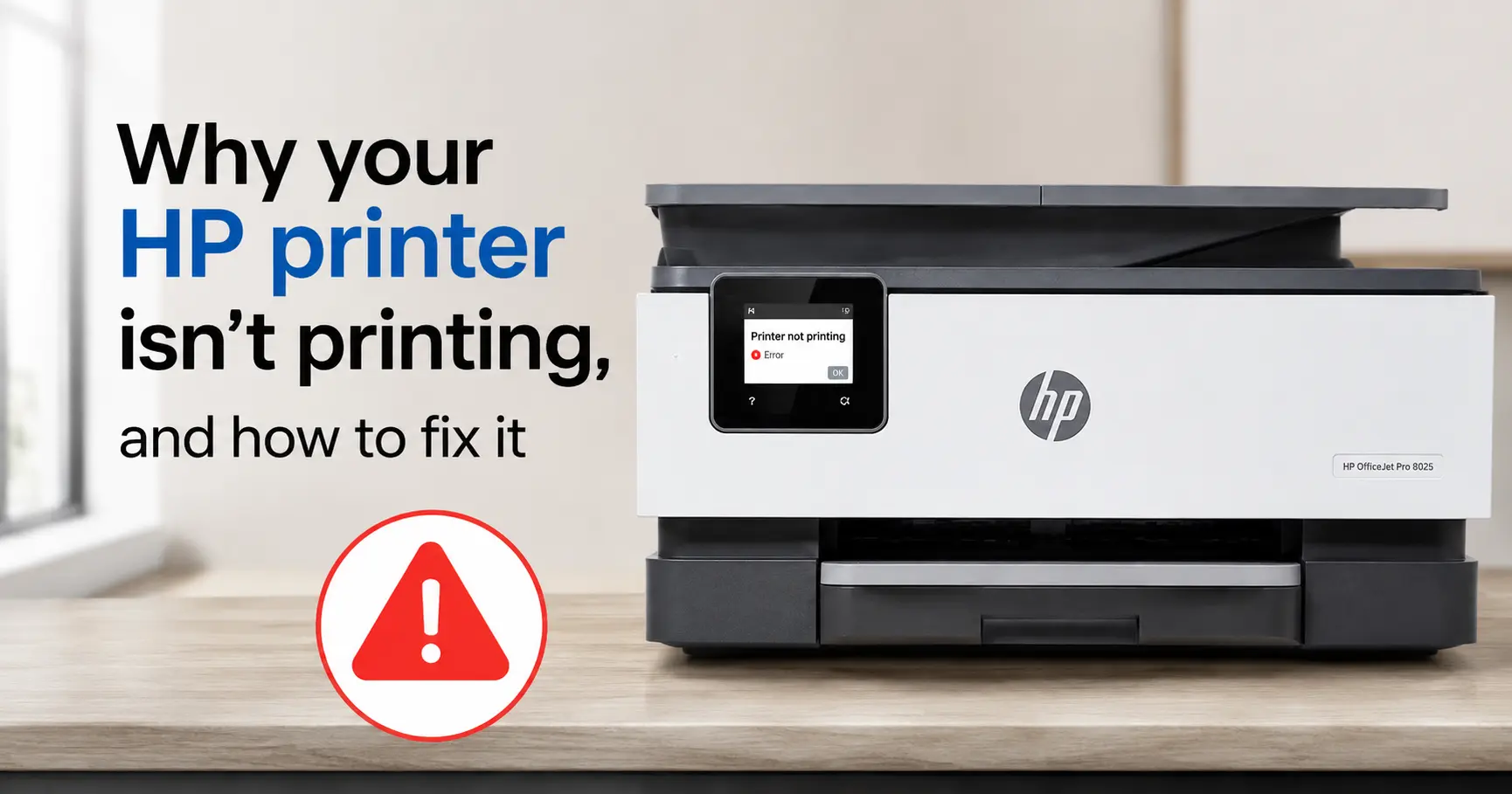
Audience: home and small-office users whose HP inkjet or laser has suddenly stopped printing, on Windows or macOS. Not aimed at print-fleet administrators, though the driver section flags where managed Windows 11 setups differ.
Direct answer: an HP printer that has stopped printing almost always has one of five things wrong: the print queue is jammed or Windows has quietly flipped the printer to "offline", the network or USB connection has dropped, the printhead is clogged or a cartridge is failing, the driver or HP software layer is broken, or the printer is locked by software (a cancelled Instant Ink plan, Dynamic Security rejecting non-HP ink, or a firmware update that went wrong). The first two account for most cases and take about two minutes to clear.
Work in that order. Do the queue and power checks first, because they fix the majority of "it just stopped" reports and cost you nothing. Only move on to printheads, drivers and locks if the page still doesn't come out.
One thing worth knowing before you start: if your printer worked yesterday and nothing physical has changed, suspect software. HP printers update their own firmware in the background, the HP Smart app changes its behaviour with updates, and subscription and cartridge checks happen on HP's servers. A printer can go from working to dead overnight without anyone touching it.
Start here: the two-minute checks
Confirm Windows is actually sending the job to your printer. Open Settings, then Bluetooth & devices, then Printers & scanners. If HP Smart installed itself, you may see two entries for the same printer, or one labelled "Copy 1". Jobs sent to the dead one vanish without an error. Set the real printer as default, turn off "Let Windows manage my default printer", and send a test page.
Clear the queue and untick "offline". Open the print queue and cancel everything sitting in it. One stalled job, often a large PDF or a document from an app that has since closed, blocks every job behind it. While you are there, open the "Printer" menu and make sure "Use Printer Offline" and "Pause Printing" are both unticked. Windows sets "Use Printer Offline" automatically when it can't reach the printer a few times, and then leaves it set even after the printer comes back.
Power-cycle properly. Not just the power button. With the printer on, pull the power lead from the back of the printer and from the wall socket, wait 60 seconds, then reconnect. On an inkjet this drains residual charge, lets the printhead re-park, and forces the printer to re-register on your network with a fresh address. A surprising number of "won't print" and "offline" faults clear right here.
Restart the print spooler. If jobs won't even leave your computer: press the Windows key and R together, type services.msc, find "Print Spooler", right-click it and choose Restart. For a stubborn queue, stop the spooler first, delete everything inside C:\Windows\System32\spool\PRINTERS, then start it again. On a Mac, open System Settings, then Printers & Scanners, right-click in the printer list and choose "Reset printing system" (this removes all printers, so you re-add yours afterwards).
Still nothing? Then the fault is physical, in the driver, or a software lock. Match your symptom below.
The job leaves the queue but no page comes out
This is nearly always the printhead on an inkjet (DeskJet, ENVY, OfficeJet, Smart Tank). Ink dries in the nozzles when the printer sits unused, and HP inkjets are particularly prone to it because the nozzles are fine. Leave an OfficeJet switched off at the wall over a two-week holiday and there is a good chance the first test page comes out striped or blank, because the printer couldn't run its scheduled overnight maintenance while it was unplugged.
Run the cleaning routine from the printer: on touchscreen models, Setup, then Tools, then Clean Printhead (sometimes under Printer Maintenance); on models without a screen, use the HP Smart app or the printer's built-in web page (type its IP address into a browser). Run one cycle, print the test pattern, and if it is still broken run one more. Do not run it more than about three times in a row. Each deep clean pushes ink through every nozzle and dumps it into the waste pad, so a run of cleaning cycles can burn through a real slice of a cartridge for nothing if the clog is stubborn. HP's own guidance is to stop after roughly three attempts.
If three cycles haven't fixed it, and the printhead is a removable unit, take it out and rest the nozzle plate on a folded paper towel soaked in warm distilled water for ten minutes, then dry it with a lint-free cloth before refitting. Use distilled water only. Tap water leaves mineral deposits and vinegar is acidic enough to damage the head over time, despite what a lot of forum posts claim. On the many HP models where the printhead is built into the cartridge, a new cartridge is a new printhead, so replacing the offending colour does the same job.
How do you stop it clogging again? Print something in colour, even a single page, every week or two, and leave the printer plugged in and switched on at the wall so it can run its own maintenance cycles. A printer that lives on standby uses a pound or two of electricity a year and far less ink than one that is constantly recovering from dried nozzles.
It says "offline", or your computer can't find it
For a wireless printer, "offline" usually means the printer and the computer are no longer on the same network path, even if both show a connection. The common causes, roughly in order:
- The printer's IP address changed. Your router hands out addresses on a lease. When the lease expires or the router reboots, the printer can get a new address while the driver on your PC still points at the old one. Print a network configuration page from the printer (Settings, then Reports, or the Wireless menu) to see its current IP, then either update the port in the printer's Windows properties or, better, set a DHCP reservation in your router so the printer keeps the same address permanently.
- Dual-band router confusion. Many HP printers only join the 2.4 GHz band. If your router broadcasts one name for both bands and your laptop is on 5 GHz, they can struggle to discover each other. It normally still prints once configured, but AirPrint and HP Smart discovery may fail.
- The printer went to sleep and didn't wake on the network. Deep sleep on some models drops the Wi-Fi radio. In the printer's embedded web page, raise the sleep timer or disable it.
For USB: try a different port directly on the computer, not through a hub or a monitor, and swap the cable if you have a spare. USB print faults are often a tired cable or an underpowered hub.
HP's own tools are worth running at this point. HP Print and Scan Doctor (a free Windows download) and the "Diagnose & Fix" option inside the HP Smart app both check the driver, the queue, the spooler and the network connection, and repair the common problems automatically. They are more useful here than for a genuine hardware fault.
Why does it keep going offline? Almost always IP churn or sleep. Set the router reservation, adjust the sleep timer, and make sure "bidirectional support" is ticked in the printer's Windows properties, on the Ports tab, so status reporting works both ways.
It prints its own status page, but not from your computer
If the printer will print a self-test or configuration page from its own menu but ignores your PC, the fault is in the driver or the software layer between them.
HP has been moving away from the traditional "Full Feature Software" download towards the HP Smart app, and during 2026 it began replacing the Smart app itself with a product simply called the HP App. Updates during this transition have, for some users, removed a working full driver and left a cut-down one that can't hold a connection. If your printer stopped working right after an HP software update, that is a strong lead.
The reliable fix is to remove the printer and its software completely, then reinstall from HP's current package for your exact model rather than letting Windows fit a generic driver. Remove the printer in Settings, clear the old software through "Apps, then Installed apps" or HP's uninstaller, reboot, and install fresh.
One case trips up small offices specifically: on Windows 11 version 24H2 with Windows Protected Print Mode enabled, the HP Universal Print Driver and HP Smart Universal Print Driver can end up disconnected or unconfigured, and HP has a support notice for it. If you are on a managed or domain-joined machine and the queue shows as unconfigured, that is the thing to look up, not the printhead.
Should you just use the basic Windows driver? It will print, but you lose duplex control, tray selection, ink levels and scanning. Fine as a stopgap, not as a permanent setup.
The printer shows an error or won't respond at all
A hard stop on the printer itself, a frozen screen, a flashing pattern of lights, or a carriage that won't move, points to hardware or firmware.
Carriage jam. If the printhead won't move across, or the printer reports a jam with the tray empty, open it up and look with a torch. The usual culprit is a torn scrap of a label sheet or photo paper wedged under the carriage rail where you can't see it without light. With the printer on, move the carriage gently by hand and clear anything in the track.
Low-ink hard stop. Some HP models refuse to print at all, including in plain black, when one colour cartridge reads empty, unless you explicitly override the low-ink warning. Check every cartridge, not just the one you expect.
A firmware update that failed. In May 2023, a firmware update pushed to the HP OfficeJet Pro 902x range (the 9020e, 9022e and 9025e among them) bricked a batch of them outright: a blue screen showing error code 83C0000B, with no way to interact with the printer at all. HP's only remedy for affected units was to send them in for service or replacement. Most firmware updates are routine and some close real security holes, so this is not a reason to never update. It is a reason not to apply a firmware update the moment it appears if your printer is working fine, and to check HP's support forum first when you have the choice.
The locks people don't see coming
If the printer is online, has ink, and passes its self-test but still won't print your documents, and especially if it shows a cartridge message, you may be looking at a deliberate software lock rather than a fault.
| Lock | What triggers it | How you can tell | What actually clears it |
|---|---|---|---|
| Instant Ink cancelled | You end the subscription; the printer contacts HP and disables the subscription cartridges, which remain HP's property | Prints fine until the final billing cycle ends, then stops, often mid-document. Cartridge shows as depleted or unauthorised | Fit standard retail HP cartridges for your model, not the Instant Ink ones. Power-cycle with the cartridges out, then refit |
| Instant Ink payment failed | Card declined, so the plan pauses rather than cancels | Sudden stop with an account or billing message in HP Smart | Fix the payment in your HP account, or switch to retail cartridges as above |
| Dynamic Security | A firmware update (the November 2020 one started it) enables HP's chip check, and a non-HP or refilled cartridge is fitted | "Cartridge problem", "non-HP chip detected" or "supply problem", often on a third-party cartridge that worked for months until the printer updated itself | Refit a genuine HP cartridge to confirm the printer is otherwise fine. For third-party ink, you need a cartridge with an updated replacement chip, or a printer whose firmware predates the check |
| Firmware auto-update | Printer set to update itself | Behaviour changes overnight with no other cause | In printer settings or HP Smart, set firmware updates to "notify" rather than "automatic" so you control the timing |
The Dynamic Security story is worth understanding if you buy third-party ink. HP first switched it on through a firmware update in November 2020. A class action followed, arguing the update behaved like malware by disabling hardware customers already owned. It settled in early 2025:
| Settlement, approved March 2025 | Outcome |
|---|---|
| Three named plaintiffs | 5,000 USD each |
| HP contribution to legal fees | roughly 725,000 USD |
| All other affected owners | nothing |
| HP admission of wrongdoing | none |
| Models allowed to decline Dynamic Security updates | 21 |
That leaves most of HP's range still subject to the check. If you rely on compatible cartridges, turn off automatic firmware updates and keep a note of your current firmware version.
Can you roll firmware back? On most consumer HP models, no. Downgrade options are rare and usually blocked. The practical approach is to stop automatic updates before one lands, not to undo it afterwards.
Quick diagnosis by symptom
| Symptom | Most likely cause | First fix | If that fails |
|---|---|---|---|
| Job appears then vanishes, no page | Clogged printhead (inkjet) | Run 1 to 2 cleaning cycles | Manual soak in distilled water, or replace cartridge or printhead |
| "Printer offline" in Windows | Changed IP address, or "Use Printer Offline" stuck | Untick offline, power-cycle, check IP | DHCP reservation in router; restart spooler |
| Nothing leaves the computer | Stalled queue or spooler | Clear queue, restart Print Spooler | Delete spool\PRINTERS files; reinstall driver |
| Self-test prints, PC jobs don't | Driver or HP software | Remove and reinstall HP's model driver | Check Windows 11 Protected Print on managed PCs |
| Cartridge error on known-good ink | Dynamic Security or Instant Ink lock | Refit genuine HP cartridge | Retail cartridges; disable auto firmware updates |
| Blue screen, error 83C0000B | Failed firmware update (OfficeJet Pro 902x) | Contact HP support | Service or replacement |
| Carriage won't move | Paper scrap under the carriage | Clear the track by hand, with a torch | Full power reset |
When to stop
If the printer won't power on at all, shows 83C0000B, or throws a hardware error that survives a full power reset and a cleared paper path, it needs HP support or a repair centre. For a printer more than three or four years old and out of warranty, price the repair against a replacement before you commit: an out-of-warranty printhead assembly or logic board often costs more than a new mid-range printer, and HP's home inkjets are not built to be economically repaired once the printhead fails.
For everything else, the order in this article is the fast route: queue and power first, then printhead, then connection, then driver, then the software locks that a spec sheet will never warn you about.
Related guides
HP Printer Offline? Here's How to Get It Back Online
How to Connect an HP Printer to Wi-Fi
Why Your Computer Suddenly Can't Find the Printer
How to Change Your Default Printer on Windows, Mac and Chromebook
Why Is My Printer Printing Blank Pages?
Is Your Printer Lying About Being Low on Ink?
HP DeskJet 2710 Not Printing? Fixes for Offline, Wi-Fi and Paper Problems