
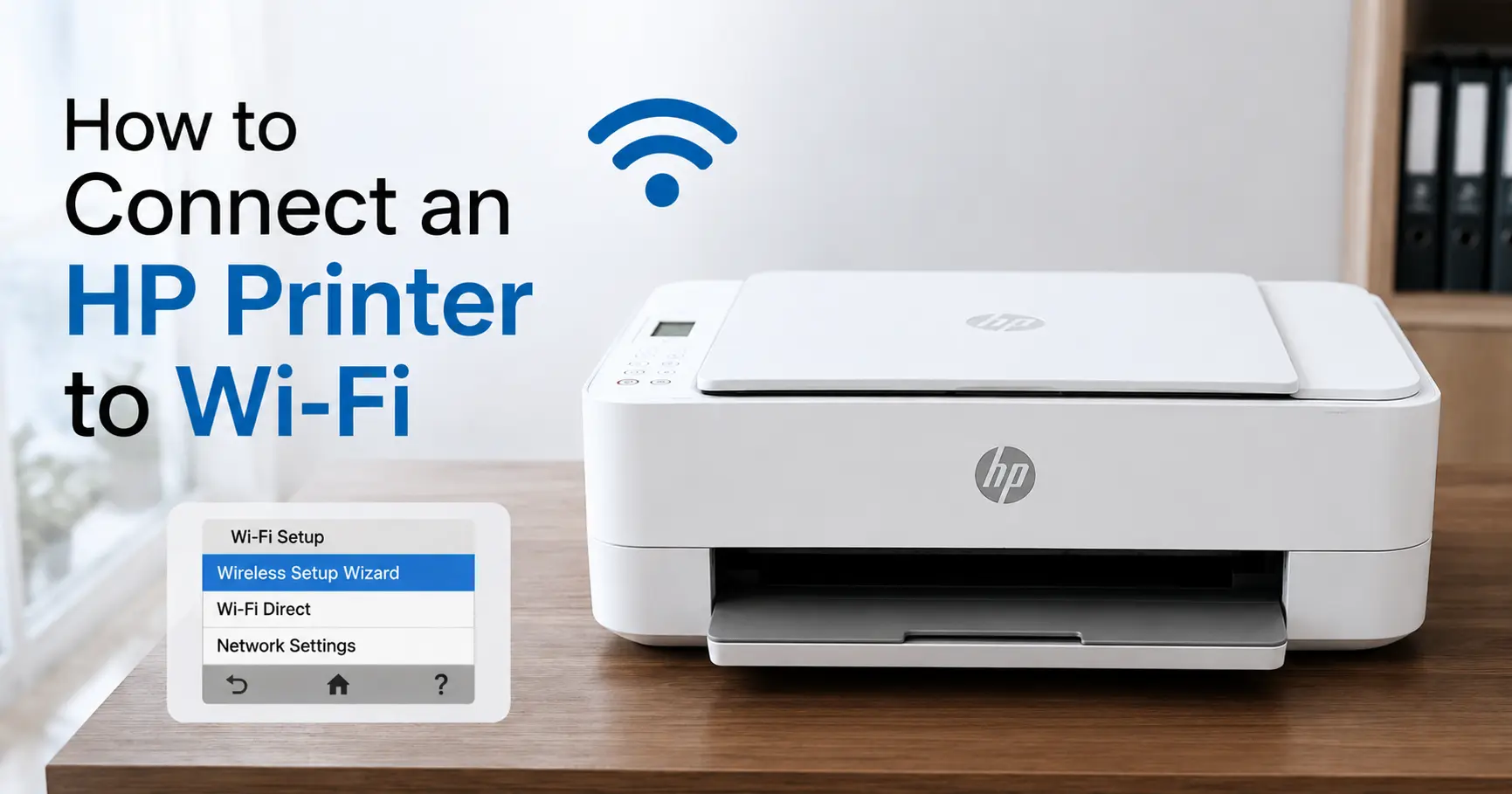
Every route from a five-minute app pairing to the reason your printer can see the network but still won't join it.
Hold the printer's Wireless button for about five seconds until the light starts flashing blue, then open the HP Smart app on a phone or laptop that's already on your Wi-Fi and let it find the printer and hand over your network password. On most inkjet and laser models from the last decade, that's a three-minute job with no cables involved at any point.
Everything below covers what to do if the printer has no Wireless button, has a full touchscreen instead, refuses to show up in the app, or was working fine until a new router arrived.
What you need before you start
Two things matter more than anything in the printer's own menus: your Wi-Fi network name (SSID) and password, typed exactly, not guessed from memory, and a printer sitting within reasonable range of the router for the initial pairing, even if it lives elsewhere afterwards. HP's own setup guidance recommends keeping printer and router in the same room to begin with; a weak signal during setup is where most first attempts fail, before the password is even the problem. Wi-Fi doesn't need line of sight once paired, so the printer can move back to its usual spot straight after.
If the printer has been used on a different network before, a previous flat, a friend's house, a demo unit from a shop, it will keep trying to rejoin whatever it last remembers rather than looking for anything new. Worth ruling out before spending ten minutes wondering why the app can't see a printer that's sitting right there, powered on, just talking to a network that no longer exists.
Connect using the HP Smart app
This has replaced HP's older, separate installers, HP Easy Start on Mac, model-specific driver downloads on Windows, as the single setup path across current inkjet and laser ranges.
- On the device you'll print from, go to 123.hp.com or search "HP Smart" in the App Store, Google Play, or Microsoft Store, and install it.
- On the printer, press and hold the Wireless button until its light starts blinking blue, this puts it into setup mode. Printers with a colour touchscreen usually skip this step; the app finds them directly once they're powered on.
- Open HP Smart, sign in or create a free HP account, and tap Set Up a New Printer.
- The app scans for nearby printers in setup mode, typically finding one within 10 to 15 seconds. Select yours from the list.
- Enter your Wi-Fi network name and password when prompted. The printer connects on its own from there, and the app installs the driver and any scanning software at the same time.
Before you sign in: several current printers, sold under the HP+ label, need an internet connection and a linked HP account to finish setup at all; there's no offline fallback for those models. HP's support documentation also notes that switching on HP+ permanently limits the printer to genuine HP cartridges. Worth checking the box the printer came in before you start, rather than after you've already committed during setup.
Connect using the printer's own touchscreen
Anything from HP's OfficeJet Pro range upwards, and most current LaserJet Pro models, has a colour screen with its own wireless setup wizard, and doesn't strictly need the app for this route.
- On the printer's home screen, look for a Wireless or Network icon, or go into Setup > Network Setup.
- Choose Wireless Setup Wizard. The printer scans and lists nearby networks, ranked roughly by signal strength.
- Select your network and type the password on the on-screen keyboard.
This is the step where most touchscreen setups actually fall over, not the network itself. Printer keyboards default to uppercase, rarely offer a "show password" toggle, and a single mistyped character near the end of a long WPA password produces the same result either way: the printer sits for a couple of minutes, then reports it couldn't connect, with no clue which character was wrong. Typing slowly and double-checking capitals and symbols before confirming saves more repeat attempts than anything else in this guide.
Connect using the WPS button
Basic DeskJet and entry-level Smart Tank models often have no screen at all, just a Wireless button and a light. WPS, short for Wi-Fi Protected Setup, lets the printer and router swap the password directly with no typing involved, and it's usually the fastest option for these.
- Check your router has a WPS button; most do, though some ISP-supplied routers hide the option in the web interface instead of on the case.
- On the printer, press and hold the Wireless button for about five seconds, until the light starts flashing.
- Within two minutes, press and hold the router's WPS button for three to five seconds, or until it starts flashing back.
The two-minute window is the part people run out of most: if you need to fetch the router from another room, start the printer's side last, not first. Once both lights settle to solid, the connection is live.
Printing without a router: Wireless Direct
Every current HP wireless printer can also broadcast its own hotspot, called Wireless Direct or Wi-Fi Direct, letting a phone or laptop print straight to it with no router in the mix. Worth knowing even if you never plan to use it day to day, because it's the fastest way to confirm the printer's Wi-Fi hardware works at all before troubleshooting the home network. Turn it on from Setup > Network Setup > Wireless Direct on a touchscreen model, or via the HP Smart app's printer settings on models without a screen, then join the printer's own network name the same way you'd join any other hotspot.
Why the printer can't see your network at all
If the app or the printer's own wizard scans and simply doesn't list your home network, band mismatch is the most common cause, and it catches out far more UK households than router distance or wall thickness. Most HP printers, current models included, only carry a 2.4GHz wireless radio; they're physically unable to join a 5GHz signal, and can't even see a network broadcasting on 5GHz only.
This turns into a real problem on routers that use band steering, merging both frequencies under one network name and quietly pushing devices onto whichever performs better. The BT Smart Hub 2 is a common case: unlike the original Smart Hub, it has no option to split 2.4GHz and 5GHz into separate names, because BT's Complete Wi-Fi mesh discs need one shared name across both bands to hand devices between them as you move around the house. Sky's Max Hub has the same limitation, with no band-split toggle anywhere in its settings. On both, the fix is the same: switch the 5GHz band off temporarily in the router's settings, complete the printer's wireless setup while only 2.4GHz is broadcasting, then turn 5GHz back on. Once connected, the printer stays on 2.4GHz permanently and won't need this repeated unless the network name or password changes later.
| Router | Split 2.4GHz / 5GHz? | Fix for printer setup |
|---|---|---|
| BT Smart Hub (original) | Yes, via a Separate Bands toggle | Not usually needed |
| BT Smart Hub 2 | No | Turn off 5GHz during setup, then back on |
| Sky Max Hub | No | Turn off 5GHz during setup, then back on |
| Virgin Media Hub | Usually, in advanced settings | Give 2.4GHz its own name if steering is on |
| TalkTalk / Plusnet routers | Varies by model | Check advanced wireless settings, or use WPS instead of typing a password |
Other reasons the connection fails
A handful of other causes come up often enough to be worth ruling out in order, roughly fastest to slowest to check.
- The printer remembers an old network. If it's been used elsewhere, run a network reset from Setup > Network Setup > Restore Network Settings (wording varies slightly by model) before trying again. This clears the old Wi-Fi details without touching print head alignment, ink levels, or anything else saved on the printer.
- Out-of-date firmware. Older printers occasionally can't complete a modern WPA3 handshake until updated. Checking for a firmware update from the printer's menu, or via HP Smart, before setup avoids a class of failures that otherwise looks like a Wi-Fi fault.
- Distance and interference. A printer several metres from the router, or behind a couple of internal walls, can often see the network well enough to list it but not hold a stable connection during setup. Moving it closer just for the initial pairing usually resolves this without touching any settings.
- A guest network or MAC filtering. If the router restricts which devices can join, or the setup wizard connects to a guest network by mistake, the printer joins successfully but can't be found by other devices on the main network.
Moving the printer to a new Wi-Fi network
A new router, or a changed Wi-Fi password, breaks the connection even though nothing about the printer has changed. If the new router keeps the exact same network name and password as the old one, most HP printers reconnect on their own within a minute of the new router finishing its boot cycle, no action needed. If either has changed, run through the HP Smart app or the touchscreen wizard again exactly as during first setup: pick the new network, enter the new password. There's no need to uninstall and reinstall anything on the computer; only the printer's own wireless connection needs redoing.
Confirming it's actually connected
The wireless light is the fastest check, though the exact colour varies by model generation.
| Light behaviour | What it means |
|---|---|
| Solid, not flashing | Connected to a network |
| Slow blinking | Searching for a network, or mid-setup |
| Fast blinking | Connection attempt failed |
| Off entirely | Wireless radio switched off |
For a definite answer, print a Network Configuration page, available from Setup > Reports > Network Configuration Report on a touchscreen model, or by holding the Wireless and Information buttons together for a few seconds on simpler ones. It lists the printer's IP address, the network name it's joined, and signal strength, everything needed to confirm it's not just on a network, but the right one.
Related guides
HP Printer Offline? Here's How to Get It Back Online - for when the printer joins Wi-Fi fine but Windows or macOS still won't send it a job.
Why Is My Printer Offline When It's Connected? (And How to Fix It) - the wider version of that same mismatch, not specific to HP.
Why Your Computer Suddenly Can't Find the Printer - useful once the printer's Network Configuration page shows it's online but it still isn't listed on your PC.
HP DeskJet 2710 Not Printing? Fixes for Offline, Wi-Fi, and Paper Problems - model-specific fixes if you're on a DeskJet 2710 and this guide didn't fully solve it.
Printer Offline in Windows 11? How to Fix It - the Windows 11 side of things, for after the wireless connection itself is confirmed working.
Laptop Won't Connect to Wi-Fi? Fixes That Actually Work - worth a look if it's not just the printer struggling to join your network.