
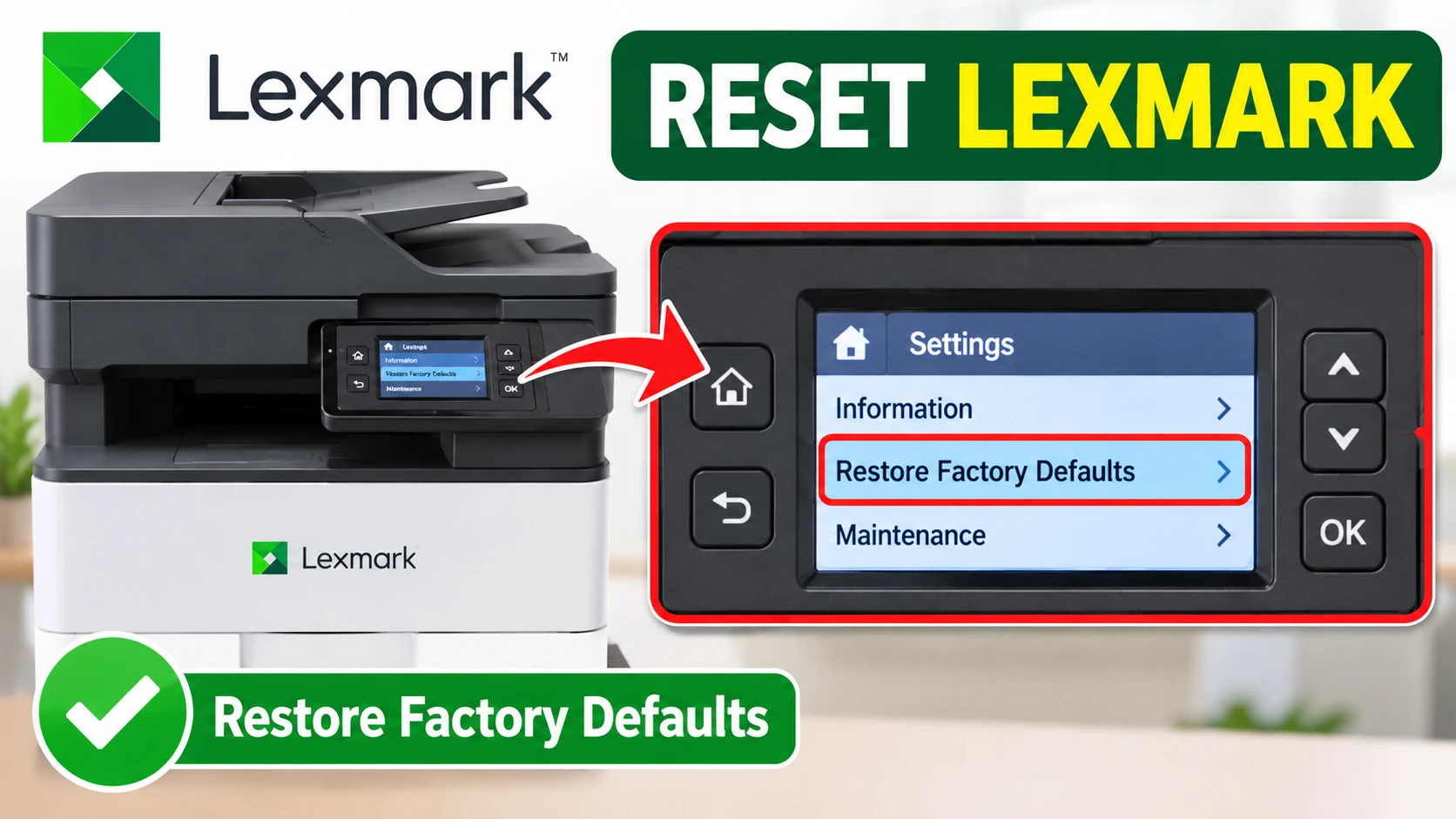
The office Lexmark has been acting strangely since someone “tweaked a few settings”. Or you’ve replaced the broadband hub and it won’t join the new network. Or it’s going to a new home and you want your details off it. A factory reset of Lexmark Printer can sort all three. But Lexmark printers don’t all reset the same way, and newer models let you reset just one part (the network, say) instead of everything. Picking the right option saves you an afternoon of setting the printer up again.
Which situation are you in?
|
What you see |
Most likely cause |
Go to |
|---|---|---|
|
Won’t join a new hub or Wi-Fi password |
Old network settings saved |
Method 1: restore network settings only |
|
Settings changed and you can’t undo them |
Printer settings need resetting |
Method 1: restore printer settings |
|
Selling or passing the printer on |
Your data and settings need to go |
Method 1: restore everything |
|
Can’t reach the printer’s screen easily |
Use a computer instead |
Method 2: Embedded Web Server |
|
Older model with a “General Settings” menu |
Different menu layout |
Method 3: older models |
Quick Answer
To facotry reset a Lexmark printer, go to Settings, then Device, then Restore Factory Defaults. Choose what to restore (printer, network, fax or app settings), then select Restore and follow the display. Older models use Settings, then General Settings, then Factory Defaults, then Restore Now, and keep the network and language settings.
Important Note: Restoring network settings disconnects the printer from your Wi-Fi or network. Everyone who prints to it will need it set up again, so warn the office before you reset a shared printer.
Before You Reset
-
Restart first. Turn the printer off, wait a minute, and turn it back on. It changes nothing and fixes more than you’d expect.
-
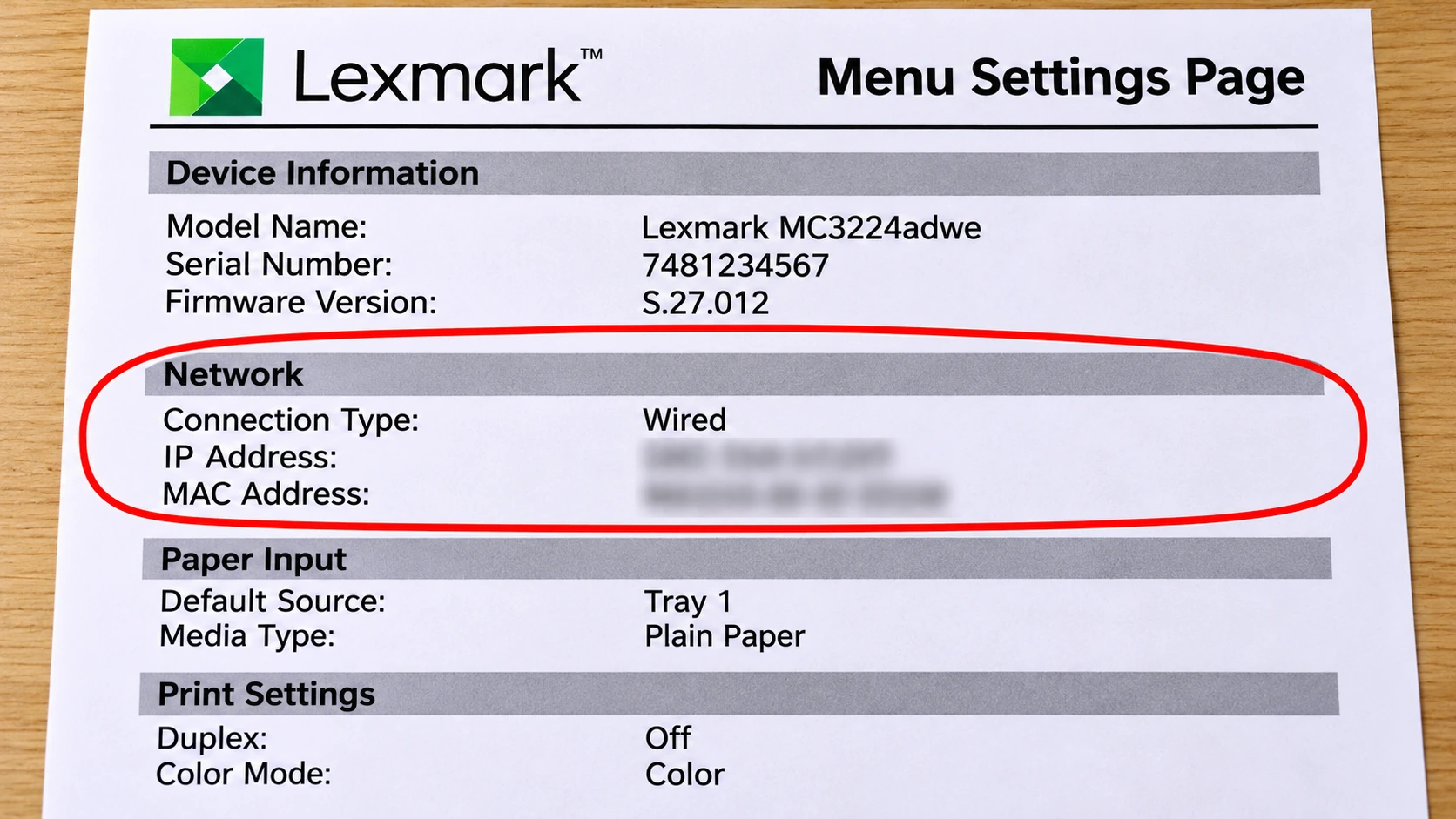
Print a menu settings page. Lexmark suggests this before restoring defaults, so you have a record of your current settings, including the network details.
-
Find the admin password, if there is one. Some Lexmark printers lock the settings menus behind an administrator password.
-
Write down any custom settings you’ll need again, such as paper sizes or tray settings in a busy office.
Note Worthy: I always print the menu settings page and pin it to the noticeboard next to the printer before I reset it. Real-life example: on a Monday morning, three people ask “what was the printer’s IP address?”, and the answer is on the wall.
Method 1: Reset From the Control Panel (Newer Models)
-
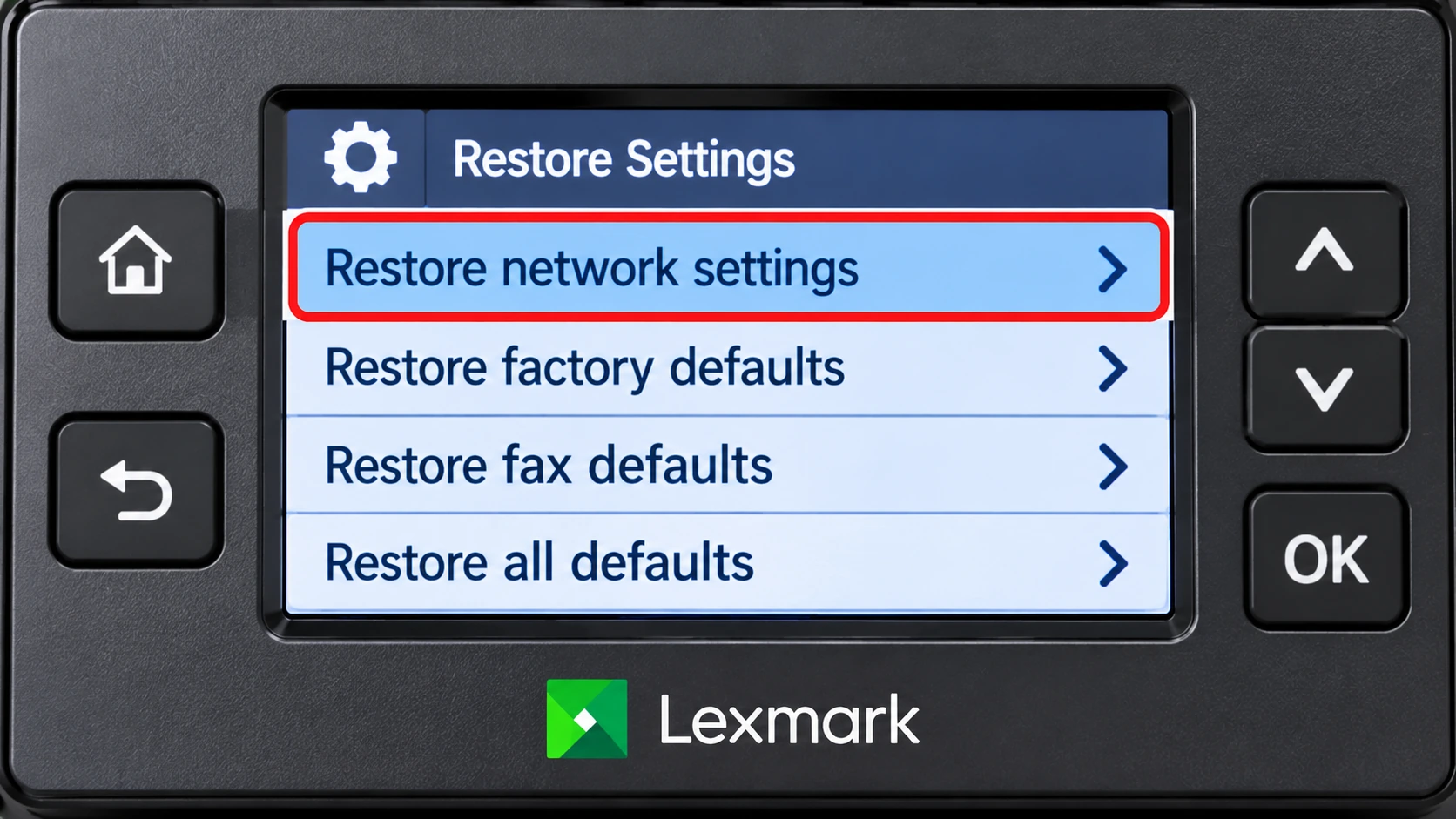
On the printer, go to Settings, then Device, then Restore Factory Defaults. On models without a touchscreen, use the arrow buttons to move through the menus.
-
In Restore Settings, choose what to reset. Lexmark’s guides list:
-
Restore printer settings
-
Restore network settings
-
Restore fax settings
-
Restore app settings
-
Select Restore.
-
Follow the instructions on the display. The printer may restart.
Tip: Only restoring the network? Choose just Restore network settings. Your paper and tray settings stay exactly as they are.
Method 2: Reset From the Embedded Web Server
The Embedded Web Server is the printer’s own settings page, opened in a web browser. It’s handy for a printer in another room, or one whose screen is hard to use.
-
Find the printer’s IP address (it’s on the menu settings page, or on the printer’s home screen on many models).
-
On a computer on the same network, open a web browser and type the IP address into the address bar.
-
Click Settings, then Device, then Restore Factory Defaults.
-
Select the settings you want to restore.
-
Click Start.
If the browser asks for a password, it’s the printer’s administrator password, not your Wi-Fi password.
Note Worthy: If I reset the network settings from the Embedded Web Server, I know the browser page will stop responding afterwards. That’s expected: the printer has just left the network the page was using.
Method 3: Older Lexmark Models
Older models, such as the MS410 series, use a different menu:
-
Press the Menu button and go to Settings.
-
Select General Settings.
-
Select Factory Defaults.
-
Select Restore Now, then press the select button.
Lexmark’s guide for these models says this resets most settings, with some exceptions: the display language, custom sizes and messages, and the Network/Port menu settings keep their current values. Anything downloaded to the printer’s memory (RAM) is deleted.
So on an older model, a factory reset alone won’t fix a network problem. Change the network settings in the Network/Port menu instead.
After the Reset
-
Network reset? Reconnect the printer to your Wi-Fi from the control panel or with the Lexmark Mobile Assistant app. Our printer Wi-Fi guide covers the basics.
-
Computers can’t find it? Remove the printer from each computer and add it again. See why your computer suddenly can’t find the printer.
-
Print a test page from each computer that uses the printer.
Summary
Newer Lexmark printers reset from Settings, then Device, then Restore Factory Defaults, and let you restore printer, network, fax or app settings separately. You can do the same from a computer through the Embedded Web Server. Older models reset from General Settings, then Factory Defaults, and keep the language and network settings. Print a menu settings page first, and warn anyone who shares the printer before resetting its network.
Written by the Zoneswitch team. Steps checked against Lexmark’s user guides. Last updated: November 2026.
Zoneswitch is independent and not affiliated with Lexmark or any printer manufacturer.
Sources
-
Lexmark User’s Guide: Restoring factory default settings (control panel)
-
Lexmark User’s Guide: Restoring factory default settings (restore options and Embedded Web Server)
-
Lexmark MS410 series User’s Guide: Restoring factory default settings
Related Articles
Frequently Asked Questions
Matt turns confusing printer and computer-peripheral problems into clear, step-by-step fixes that anyone can follow. He holds a master's degree in Applied Computer Science and is currently pursuing a PhD at the University of Manchester, and for the past seven years he has written practical solutions, drawn from his own hands-on experience, for readers who don't speak the jargon professionals use. Matt has worked with Zoneswitch for ten years, and he still measures every guide by one simple test: whether a reader can fix the problem on their own, first time.
Z Switch Editorial Team