
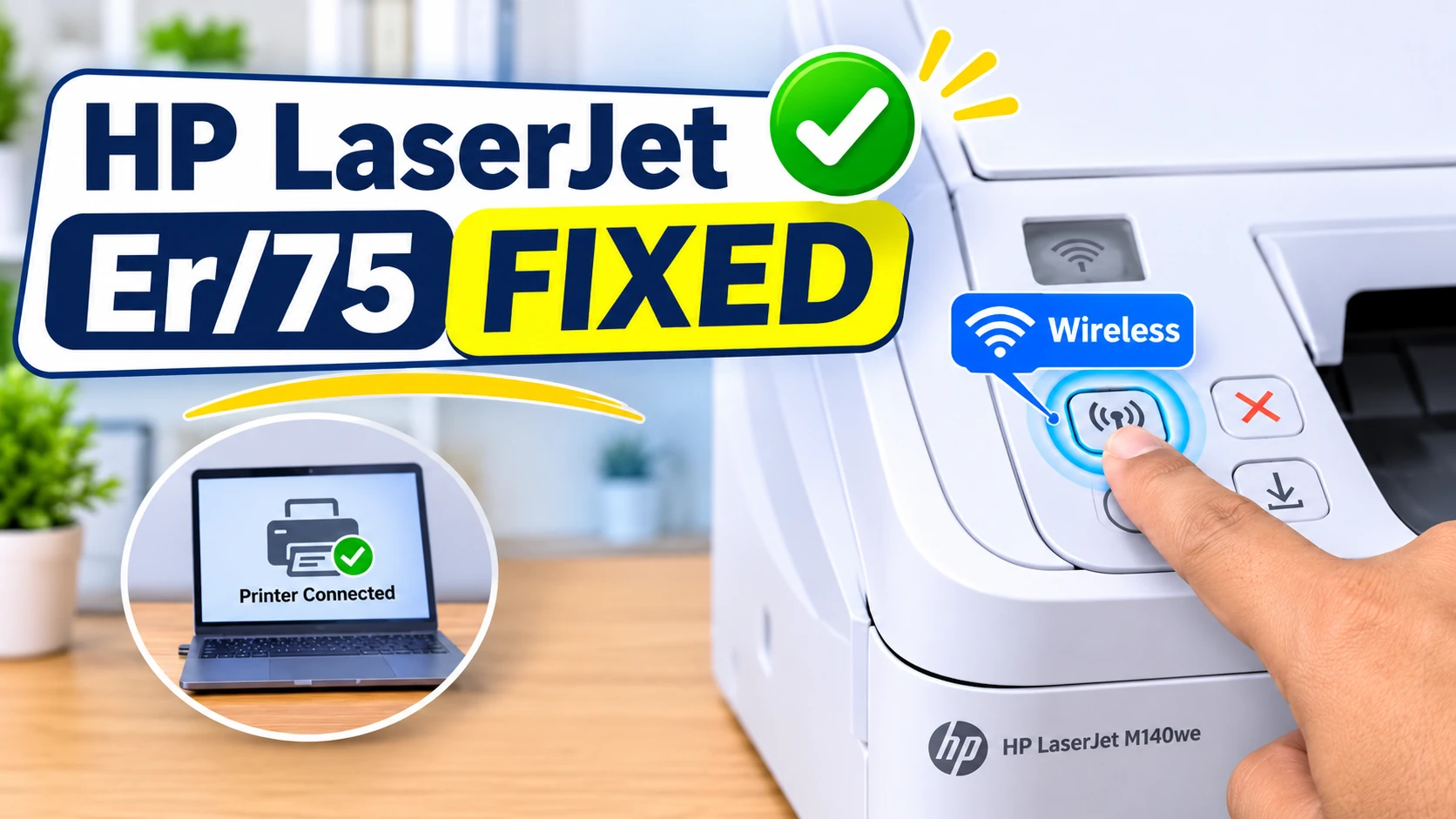
You switch on your HP LaserJet to print a letter, and instead of the usual ready light, the little display on HP LaserJet Shows Er/75 error code. The Attention and Ready lights are both on. Nothing prints.
On HP’s small LaserJet MFPs, this code is almost never a fault inside the printer. HP’s support moderators describe it as the printer being unable to reach the internet to check the toner cartridge. Get it back online and the error usually clears. This guide shows how, in order from quickest to most involved.
Which situation are you in?
|
What you see |
Most likely cause |
Go to |
|---|---|---|
|
Er/75 after a power cut or a new broadband hub |
Printer lost its internet connection |
Fix 1 |
|
Er/75 and the Wireless light is blinking |
Printer is off your Wi-Fi |
Fix 3 |
|
Er/75 straight after fitting a new toner |
Printer can’t verify the new cartridge online |
Fixes 1 to 4 |
|
Er/75 after cancelling HP Instant Ink |
Old subscription settings still on the printer |
Fix 5 |
|
Er/75 keeps coming back |
Firmware or connection problem |
Fix 4 |
Quick Answer
Error code Er/75 on an HP LaserJet MFP M139–M142 series printer (such as the M140we) means the printer can’t connect to the internet to verify the toner supply, according to HP’s support community moderators. Check your broadband is working, reconnect the printer to Wi-Fi if its Wireless light is blinking, and power-drain it: unplug it for 2 to 3 minutes, then plug it straight into a wall socket.
Important Note: Printers with an “e” on the end of the model number, like the M140we, are HP+ printers. They need to stay connected to the internet and use Original HP toner to keep printing normally. A non-HP or refilled cartridge can cause errors that no reset will clear.
Fix 1: Check the Internet, Not Just the Wi-Fi
The printer can be on your Wi-Fi and still have no internet, for example when the broadband itself is down.
-
Open a website on your phone using Wi-Fi (turn mobile data off for the test).
-
If pages won’t load, restart your hub: switch it off at the wall, wait 30 seconds, switch it back on and wait for its lights to settle.
-
Once the internet is back, turn the printer off and on again.
Note Worthy: I always check the broadband on my phone before I touch the printer. Real-life example: Er/75 appears the morning after a storm knocked the power out, and the real problem is the hub still rebooting.
Fix 2: Power-Drain the Printer
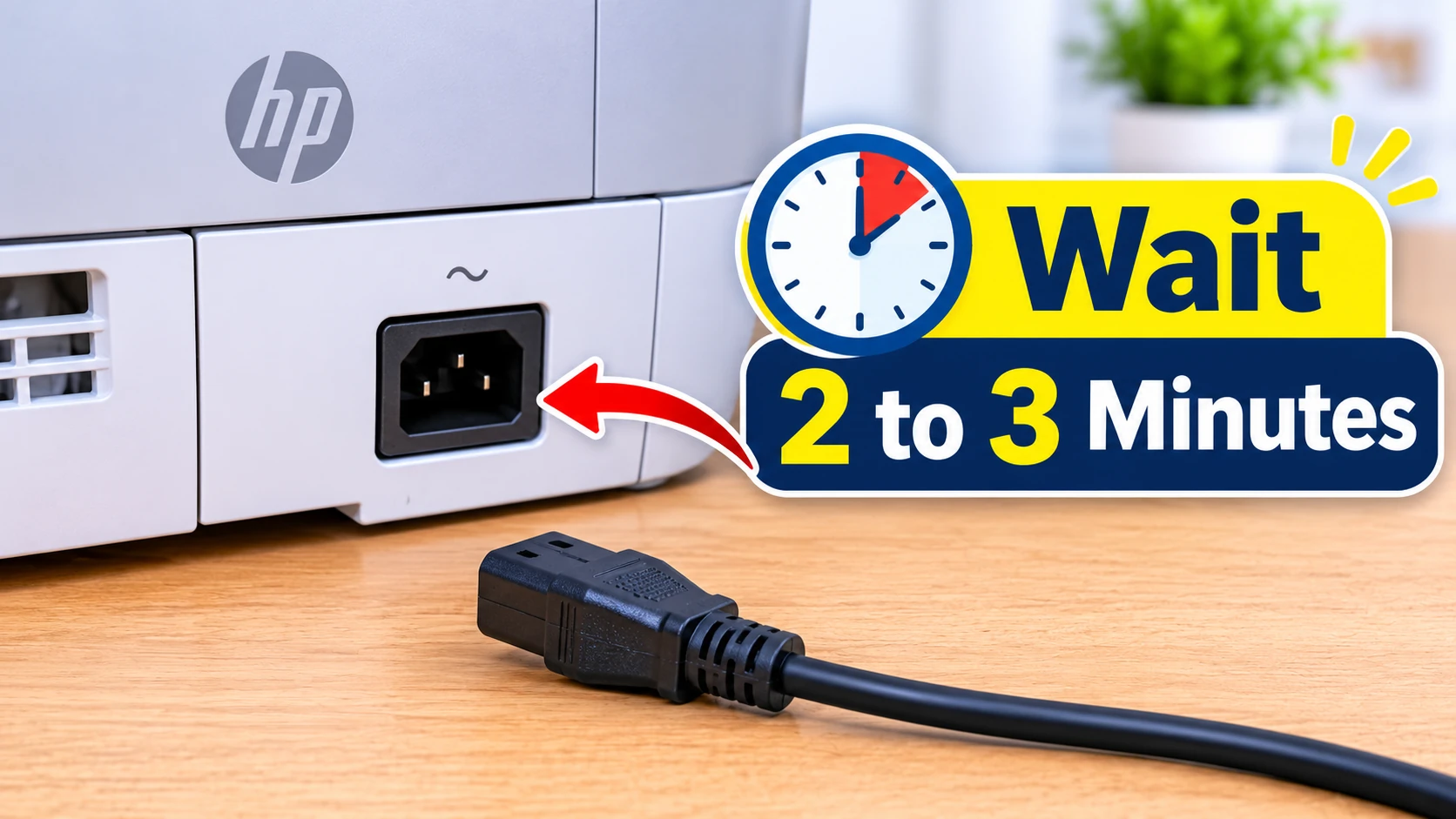
HP’s moderators recommend this for Er/75. It clears the printer’s memory more thoroughly than switching it off.
-
With the printer on, unplug the power cable from the wall and from the back of the printer.
-
Unplug any USB cable too.
-
Wait 2 to 3 minutes.
-
Press and hold the printer’s power button for about 30 seconds.
-
Plug the printer straight into a wall socket, not an extension lead or surge protector.
-
Turn it on and wait until it’s idle.
Tip: if the printer lives on a four-way extension behind the desk, move it to a wall socket for this test. It’s a common cause of odd start-up behaviour.
Fix 3: Reconnect the Printer to Wi-Fi
If the Wireless light is blinking, the printer has dropped off your network and can’t reach the internet to check the toner.
-
Put the printer back into Wi-Fi setup mode. The button combination is in your printer’s user guide; on many HP models it’s a long press of the Wireless button.
-
Open the HP app (the app that replaced HP Smart) and add the printer again.
-
Sign in to your HP account when asked. HP+ printers must stay linked to it.
-
Wait for the Wireless light to stay on, then turn the printer off and on.
Our guide to connecting an HP printer to Wi-Fi has the full steps, including the WPS button on BT, Virgin Media and Sky hubs.
Fix 4: Update the Printer’s Firmware
Out-of-date firmware is another fix HP’s moderators suggest for Er/75.
-
Open the HP app and select your printer.
-
Look for Printer Settings, Advanced Settings or Printer Updates, depending on your app version.
-
Check for updates and install any that are available.
-
Leave the printer on until the update has completely finished.
If the printer can’t get online to update itself, download the firmware from HP’s UK support page for your exact model and install it from a computer.
Note Worthy: I never start a firmware update when I’m in a hurry to print. Real-life example: starting one at 7.50am before the school run, then switching the printer off halfway, is how a fixable error turns into a much bigger problem.
Fix 5: Er/75 After Cancelling HP Instant Ink
Owners on HP’s community forum report Er/75 after cancelling an HP toner subscription and fitting a shop-bought cartridge. In one solved case, the owner says HP support had to reset the printer remotely to release the cancelled subscription’s cartridge settings.
If that sounds like you:
-
Make sure the new cartridge is an Original HP cartridge for your model (in the UK, check the number on HP’s UK site).
-
Work through Fixes 1 to 4.
-
If Er/75 still won’t clear, contact HP support through support.hp.com/gb-en. This needs HP’s help; there’s nothing more to do from the printer.
When to Stop and Contact HP
-
Er/75 comes back every time, even with working broadband and a steady Wireless light.
-
You’ve power-drained the printer and updated the firmware.
-
The cartridge is genuine, and the printer is registered to your HP account.
At that point, contact HP through its UK support site. Don’t use “HP support” phone numbers from adverts or pop-ups. HP’s real support is reached from hp.com.
Note Worthy: I keep the printer’s serial number and model number on a note in my phone. When I do need HP support, it saves hunting round the back of the printer with a torch.
Summary
Er/75 on an HP LaserJet M139–M142 series printer usually means it can’t get online to check the toner. Check your broadband first, then power-drain the printer and plug it into a wall socket. If the Wireless light blinks, reconnect it with the HP app, and update the firmware. If Er/75 follows a cancelled HP subscription and still won’t clear, contact HP support through its UK website.
Written by the Zoneswitch team. Steps checked against HP’s support community guidance for the LaserJet MFP M139–M142 series. Last updated: [November 2026].
Zoneswitch is independent and not affiliated with HP or any printer manufacturer.
Sources
-
HP Support Community: Error 75 on M139we (HP moderator’s explanation and fixes)
-
HP Support Community: M140we starts with ER 75 after installing a shop-bought HP 141A (solved)
Related Articles
Frequently Asked Questions
Matt turns confusing printer and computer-peripheral problems into clear, step-by-step fixes that anyone can follow. He holds a master's degree in Applied Computer Science and is currently pursuing a PhD at the University of Manchester, and for the past seven years he has written practical solutions, drawn from his own hands-on experience, for readers who don't speak the jargon professionals use. Matt has worked with Zoneswitch for ten years, and he still measures every guide by one simple test: whether a reader can fix the problem on their own, first time.
Z Switch Editorial Team