
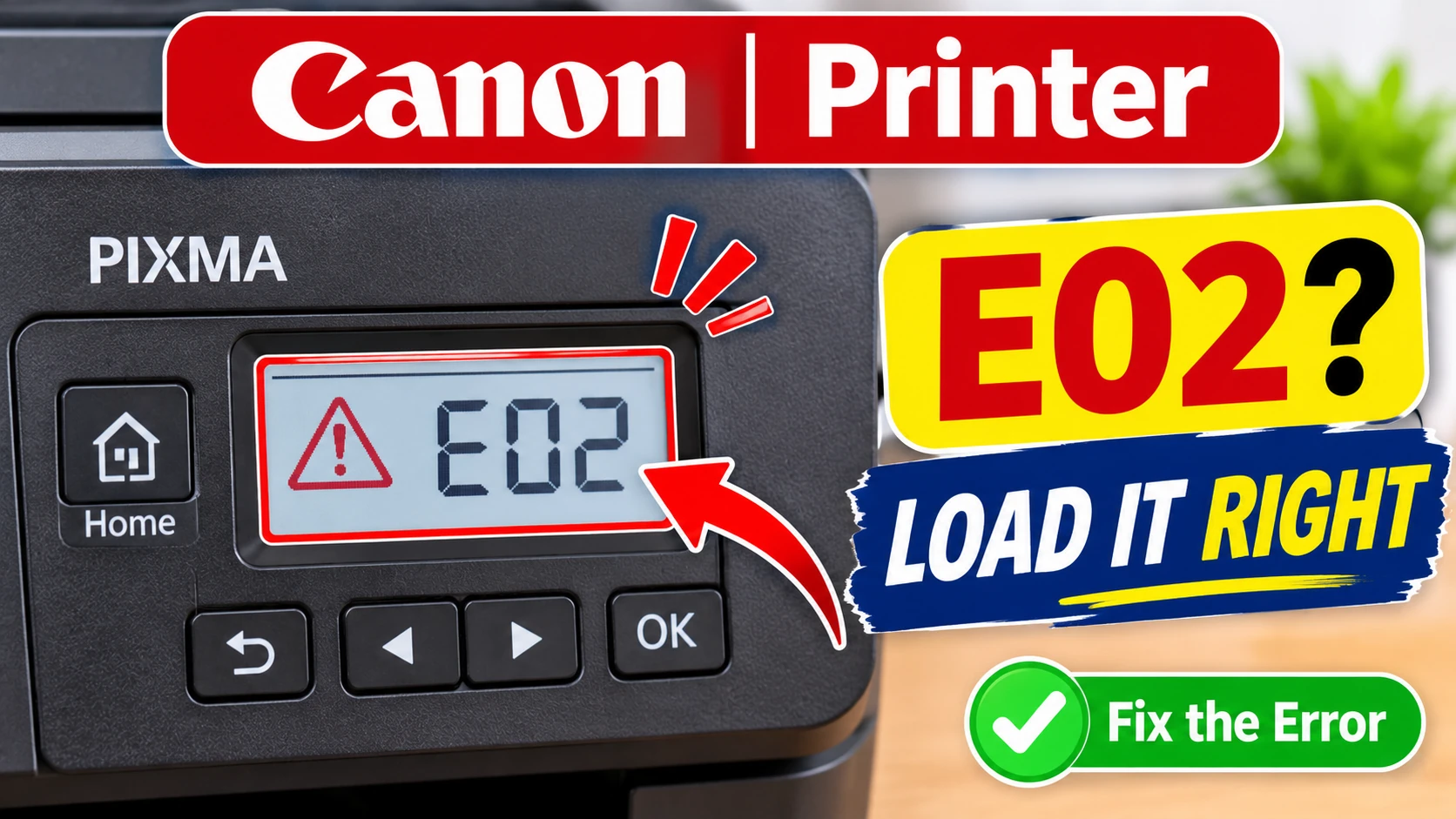
You press Print, the Canon makes a whirring noise, and then it stops. The tiny display of Canon printer shows error E02.
On compact Canon PIXMA printers with a small segment display, E02 is the printer’s way of saying “I can’t find any paper”. Sometimes the tray really is empty. Often it isn’t: the paper is there, but it’s loaded in a way the rollers can’t pick up. Either way, it’s a quick fix.
Which situation are you in?
|
What you see |
Most likely cause |
Go to |
|---|---|---|
|
E02 and the rear tray is empty |
Out of paper |
Fix 1 |
|
E02 with paper loaded |
Paper guide too loose, paper curled, or wrong position |
Fix 2 |
|
E02 halfway through a double-sided job |
Manual 2-sided printing: time to turn the pages over |
Fix 3 |
|
E02 keeps coming back with good paper |
Dirty feed rollers |
Fix 4 |
|
A different code, like E03 or E04 |
A jam or cartridge problem, not paper |
Other codes |
Quick Answer
E02 means the printer is out of paper. Canon’s manual links it to support code 1000. Load plain A4 paper in the rear tray, printable side up, slide the paper guide against the stack, then press the printer’s Black or Colour button to carry on. If it shows E02 during manual 2-sided printing, it’s asking you to turn the printed pages over.
Important Note: Don’t push paper further in by hand while the printer is trying to feed, and don’t pull it out while it’s moving. If a sheet is half-way in, press Stop, then remove it gently.
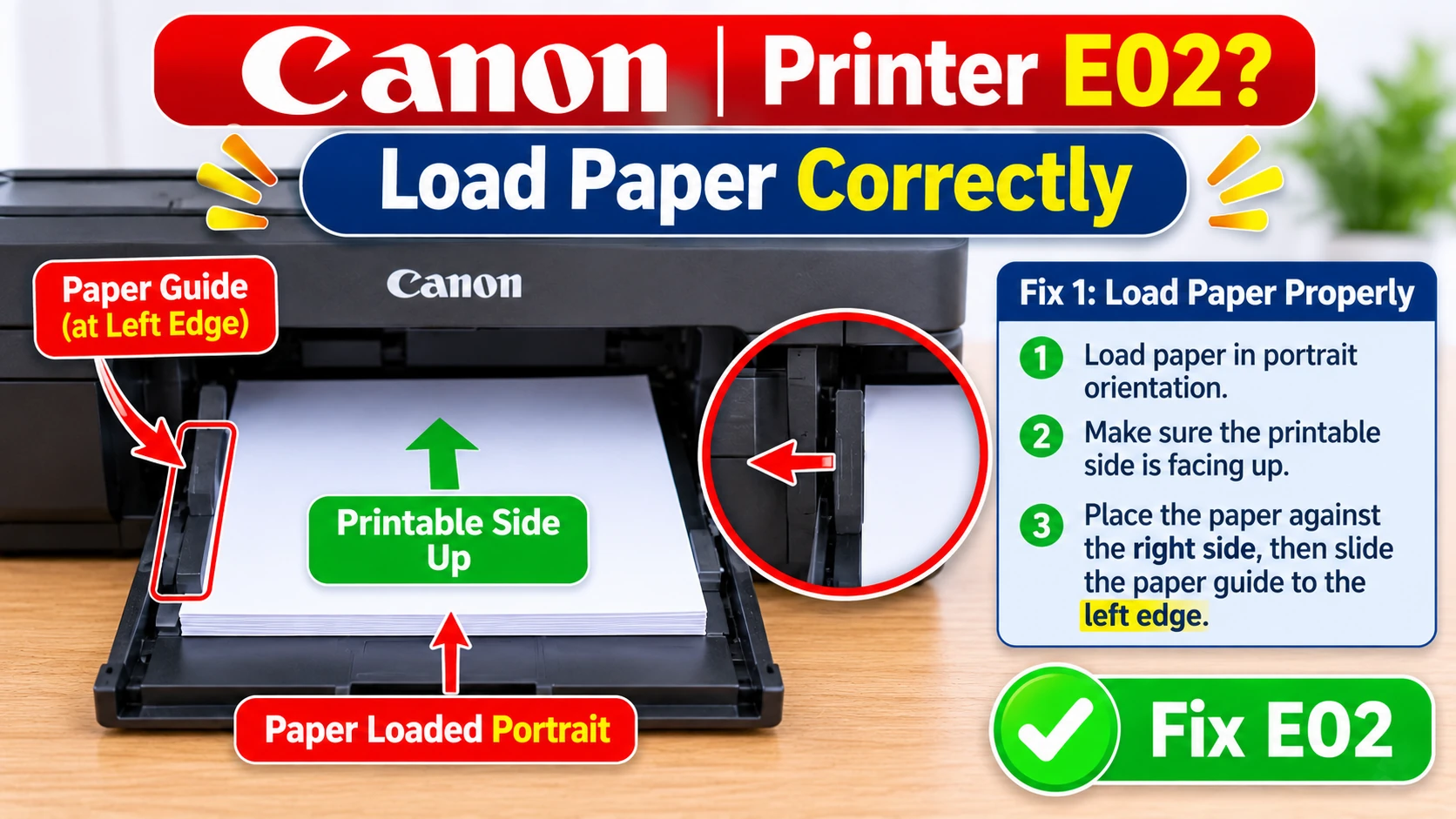
Fix 1: Load the Paper the Way the Printer Expects
-
Open the rear tray cover and pull up the paper support.
-
Take out any paper that’s already there.
-
Fan a small stack of plain A4 paper, then tap it on the table so the edges line up.
-
Load it in portrait, printable side up, against the right-hand side of the tray.
-
Slide the paper guide in until it just touches the left edge of the stack.
-
Press the Black or Colour button (or OK, if your model has one) to clear E02.
Tip: Don’t overfill. A stack above the tray’s limit mark is a common reason the rollers can’t grip the top sheet.
Note Worthy: I load about 20 sheets rather than a full ream. Real-life example: a half-used pack left open in a cold spare room over winter curls slightly, and a smaller, freshly tapped stack feeds far more reliably.
Fix 2: Paper Is Loaded, but It Still Says E02
Paper in the tray doesn’t always mean paper the printer can pick up. Check these:
-
The paper guide is too loose, so the stack sits at an angle. Slide it in until it touches.
-
The paper is curled, damp or creased. Use fresh, flat sheets.
-
The paper is too thick or too glossy for plain-paper settings. Try ordinary 80 gsm copy paper to test.
-
Only one or two sheets are loaded. A very thin stack can slip. Add a few more.
-
The paper is in the wrong place. Some PIXMA models have a front cassette as well as a rear tray. Check which one the job is set to use.
Then press Black or Colour to try again.
Fix 3: E02 During Double-Sided Printing
On models that print the second side manually, Canon’s manual says E02 can also mean the first side has finished printing. It’s not an error at all.
-
Take the printed pages out.
-
Turn them over as shown on your computer screen.
-
Load them back in the rear tray.
-
Press Black or Colour to print the other side.
Note Worthy: Before a long double-sided job, I print a single test sheet first and mark the top edge with a pencil. When E02 asks me to turn the pages over, I know exactly which way round they go.
Fix 4: Clean the Paper Feed Rollers
If E02 keeps appearing with fresh, well-loaded paper, the rollers may be too dusty to grip.
-
Load plain A4 paper.
-
Run paper feed roller cleaning from the printer’s maintenance options. On printers without a menu, it’s a button combination listed in your model’s online manual.
-
Let it finish, then print a test page.
Other Codes You Might See
E02 is one of several short codes on these printers. Canon’s manual lists, for example:
-
E03: a cover opened during printing, or a paper jam.
-
E04: the FINE cartridge isn’t installed properly.
-
E13 and E16: the ink may have run out, or has run out.
Paper stuck inside? See our guide to clearing a paper jam in a Canon printer.
When It’s More Than Paper
If E02 won’t clear with fresh paper, a clean guide and clean rollers, turn the printer off, unplug it for a minute, then plug it back in and try again. Still there? Contact Canon UK support through canon.co.uk.
Summary
Canon printer E02 error on a PIXMA means it can’t find paper. Load fresh A4 paper portrait and printable side up in the rear tray, slide the paper guide against it, and press Black or Colour. If it appears mid-way through a double-sided job, turn the pages over and reload them. If it keeps coming back with good paper, clean the paper feed rollers.
Written by the Zoneswitch team. Steps checked against Canon’s PIXMA online manual. Last updated: November 2026 .
Zoneswitch is independent and not affiliated with Canon or any printer manufacturer.
Sources
Related Articles
Frequently Asked Questions
Matt turns confusing printer and computer-peripheral problems into clear, step-by-step fixes that anyone can follow. He holds a master's degree in Applied Computer Science and is currently pursuing a PhD at the University of Manchester, and for the past seven years he has written practical solutions, drawn from his own hands-on experience, for readers who don't speak the jargon professionals use. Matt has worked with Zoneswitch for ten years, and he still measures every guide by one simple test: whether a reader can fix the problem on their own, first time.
Z Switch Editorial Team